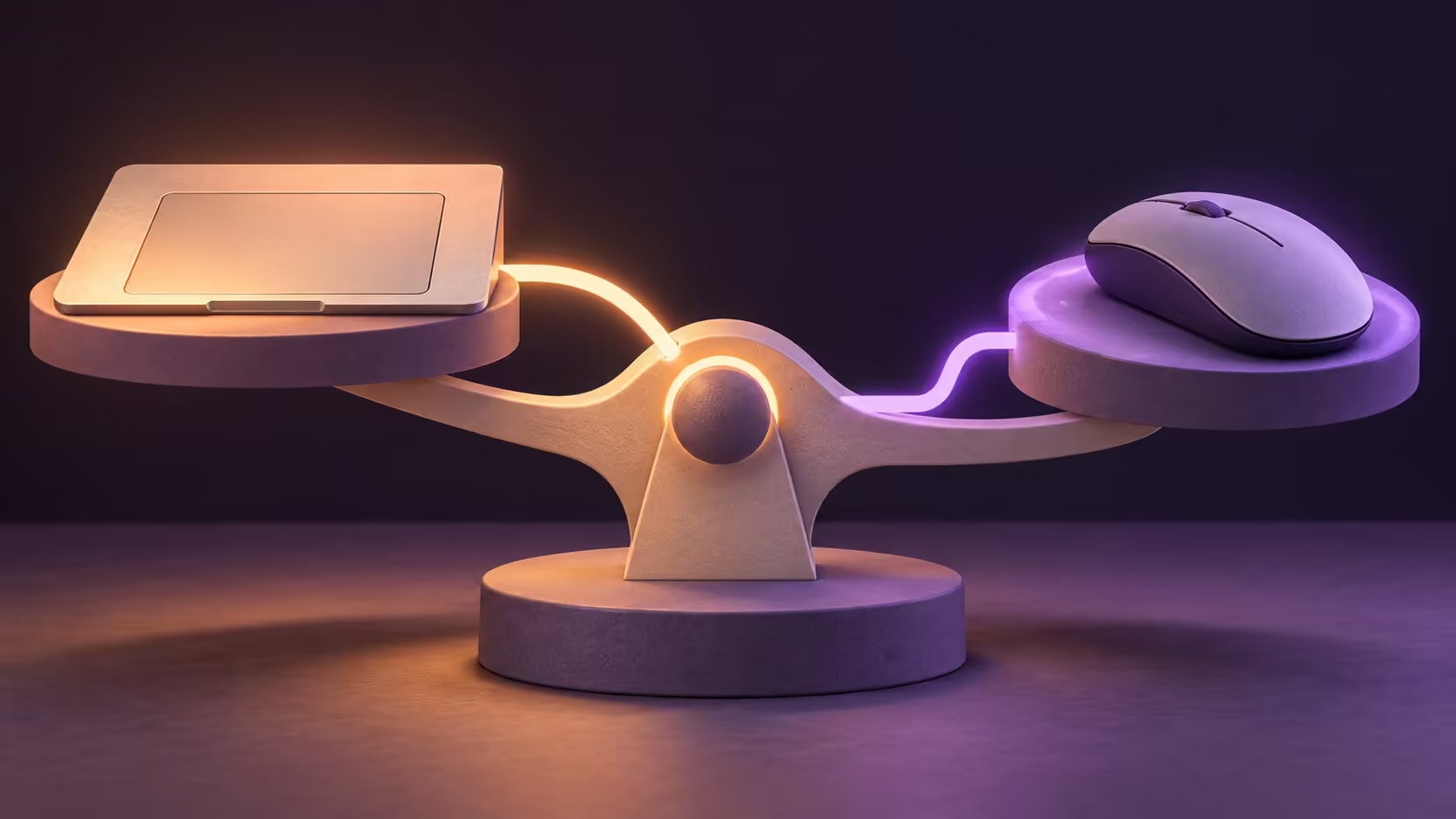
A laptop pad that stops responding only at your desk may be following a preference rather than failing. Windows touchpad with mouse connected behaviour can decide whether both pointing devices remain usable. The first check is whether you want the pad available beside the mouse or deliberately disabled to avoid accidental palm input.
Quick Answer
In Settings > Bluetooth & devices > Touchpad, look for Leave touchpad on when a mouse is connected. Enable it to keep both devices available, or clear it where supported to suppress the pad during mouse use. Test the result at R0 additional hardware cost, including whether normal pad control returns after the mouse is disconnected.
🔌 Map the actual connection
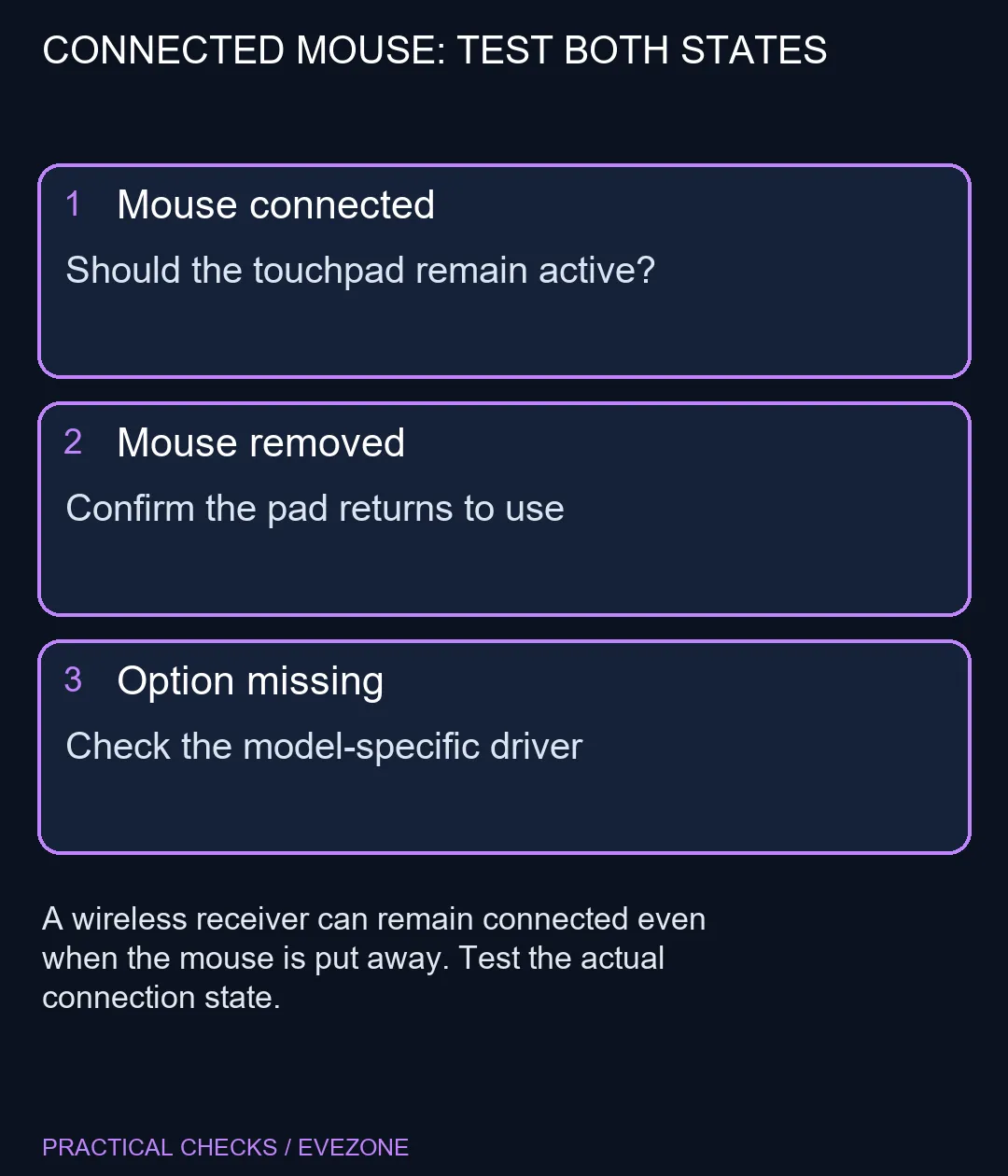
Save any work before testing, then identify how the external mouse reaches the laptop. It may be wired, paired wirelessly or using a receiver in a port. Moving the mouse into a drawer does not necessarily change the connection. In particular, a receiver can remain present after the mouse itself is switched off.
Try the touchpad with the mouse connected, then remove or disconnect the external input and try again. Keep those observations separate. If the pad is unavailable in both states, the connected-mouse preference may not explain the problem. If it returns only after disconnection, that is a useful clue to check before pursuing driver or hardware repairs.
⚙️ Choose the intended desk behaviour
Expand the touchpad controls near the main switch if the connected-mouse option is not immediately visible. With the option enabled, test a pointer movement and a basic click on both devices. With it cleared, confirm the intended suppression and then repeat the disconnection test. Leave the setting in the state that suits your own workflow.
Do not combine this test with changes to tap sensitivity, gesture assignments or pointer speed. Those settings answer different questions. If a control is missing, use the laptop manufacturer's support page for the exact model and installed touchpad. A screenshot from another machine is not proof that your driver exposes an identical menu.
🧳 Verify travel use before packing up
After testing, unplug the external receiver or disconnect the mouse and check that the laptop is comfortable to use on its own. This matters if the computer is moving between home, campus and a desk. Discovering the pad is unavailable after the mouse has been left behind makes a simple preference much more inconvenient.
If desk use genuinely benefits from another pointing device, explore gaming mice by grip and connection. For a new machine, review asus laptops and confirm the actual touchpad features rather than assuming a brand-wide control. A reproducible fault in both connected and disconnected states deserves model-specific support, but a predictable setting should be corrected before buying replacement hardware.
Frequently Asked Questions
Where should I start?
Open Windows11 Settings > Bluetooth & devices > Touchpad and inspect the controls near the main touchpad switch.
Which option keeps both devices usable?
Where available, enable Leave touchpad on when a mouse is connected.
Can I stop accidental palm input at a desk?
You can clear the connected-mouse option where supported, then test that the pad becomes usable again when the mouse is disconnected.
Does switching off a wireless mouse disconnect everything?
Not necessarily. A receiver can remain attached. Test after removing the receiver as well.
Should I uninstall the touchpad driver?
Start with the reversible setting and model documentation. Do not remove a working driver just to change this preference.
Do I need a new mouse to test this?
No. Use the mouse you already have. The settings check has R0 additional hardware cost.
Set the desk behaviour deliberately.
Keep both inputs available or disable the pad during mouse use, then confirm the laptop still works comfortably when used alone.