You click inside a sentence to add a word, and the letters ahead begin disappearing instead. Word typing overwrites text often points to an editing mode rather than damaged keys. Protect the document first, then check the two controls that govern overtype behaviour.
Quick Answer
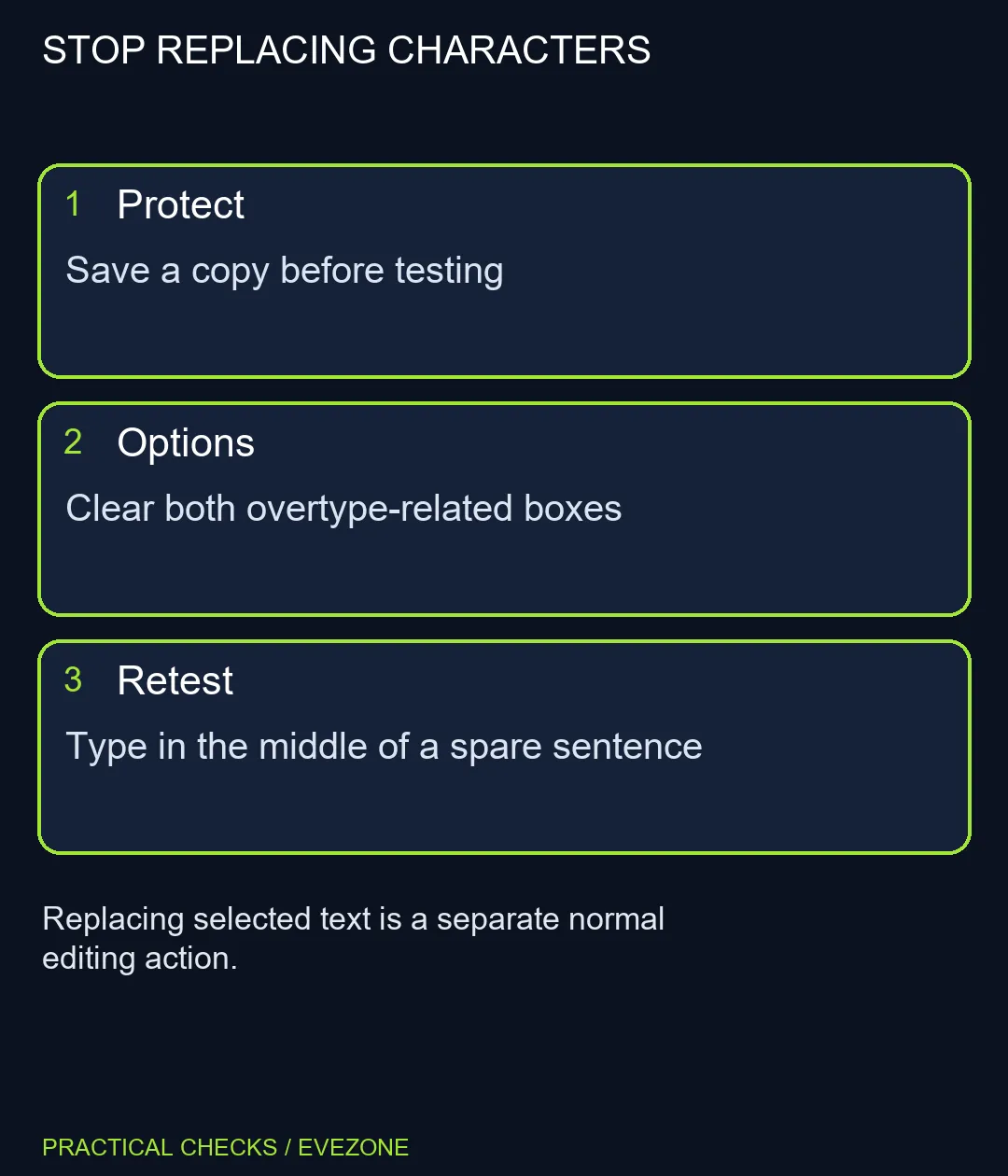
In desktop Word for Windows, open File, Options, Advanced and find Editing options. Clear Use overtype mode and Use the Insert key to control overtype mode, then test inside a spare sentence. The settings check costs R0 in extra equipment and does not itself restore text already replaced.
📝 Protect the wording before experimenting
Save a separate copy if you are unsure how much has changed. If a recent edit can be undone, review that action carefully instead of repeatedly pressing keys in the important passage. Changing a setting prevents further confusion but is not a recovery mechanism.
Create a harmless test sentence, place the insertion point in its middle and type a short word. Make sure no text is highlighted. Replacing highlighted text is an ordinary editing action and can look similar to overtype even when the mode is off.
⚙ Clear both related options
The overtype-mode check box and the Insert-key control have different roles. Turning off only the keyboard toggle does not necessarily turn off the active mode. Follow the labels in Word's Advanced editing options and confirm both settings before returning to the document.
These instructions concern desktop Word for Windows. A browser editor or another writing application can handle Insert and selection differently. Do not look for identical menus in every app, and do not change a Windows-wide accessibility control simply because its name also mentions typing.
⌨ Keep software behaviour separate from key failure
After the change, repeat the spare-sentence test and then return to the original document. If characters insert normally in one application but replace text in another, concentrate on that application's editing behaviour. If physical keys produce missing or repeated input everywhere, record that separate symptom.
The gaming keyboards category is useful when a demonstrated key, layout or comfort problem calls for another board. It is not the first answer to an enabled Word mode. Similarly, all laptops on special represent a wider purchase decision; an editing preference alone does not establish a reason to replace the computer.
For a shared PC, explain the changed preference to the next person using Word. Avoid silently restoring it if they deliberately use overtype for a particular task. The goal is predictable editing, with a safe document copy and a repeatable test.
Frequently Asked Questions
Why does the next letter disappear?
Word may be in overtype mode, which replaces characters at the insertion point. Check that mode before blaming a keyboard switch.
Where are the switches?
In desktop Word for Windows, open File, Options, Advanced. Under Editing options, clear the two overtype-related check boxes.
Which two boxes should I inspect?
Use overtype mode controls the mode itself; Use the Insert key to control overtype mode controls the keyboard toggle. Check both.
Is replacing selected text a fault?
No. Typing while a passage is selected normally replaces that selection. Click to leave a plain insertion point before testing overtype.
Will the setting restore lost wording?
No. It changes future typing behaviour. Use an available Undo action or an appropriate saved copy to recover earlier edits.
Should I replace the keyboard?
Not from this symptom alone. The Word option check costs R0 in new equipment and can explain replacement typing without a hardware fault.
Need predictable typing again?
Check the document mode on a spare sentence before considering a new keyboard or laptop.