Several finger sweeps to cross a screen can make a laptop feel awkward even when every tap registers. Windows touchpad cursor speed controls that travel. Adjust it directly rather than changing two-finger scrolling or assuming a sluggish pointer means the whole computer needs upgrading.
Quick Answer
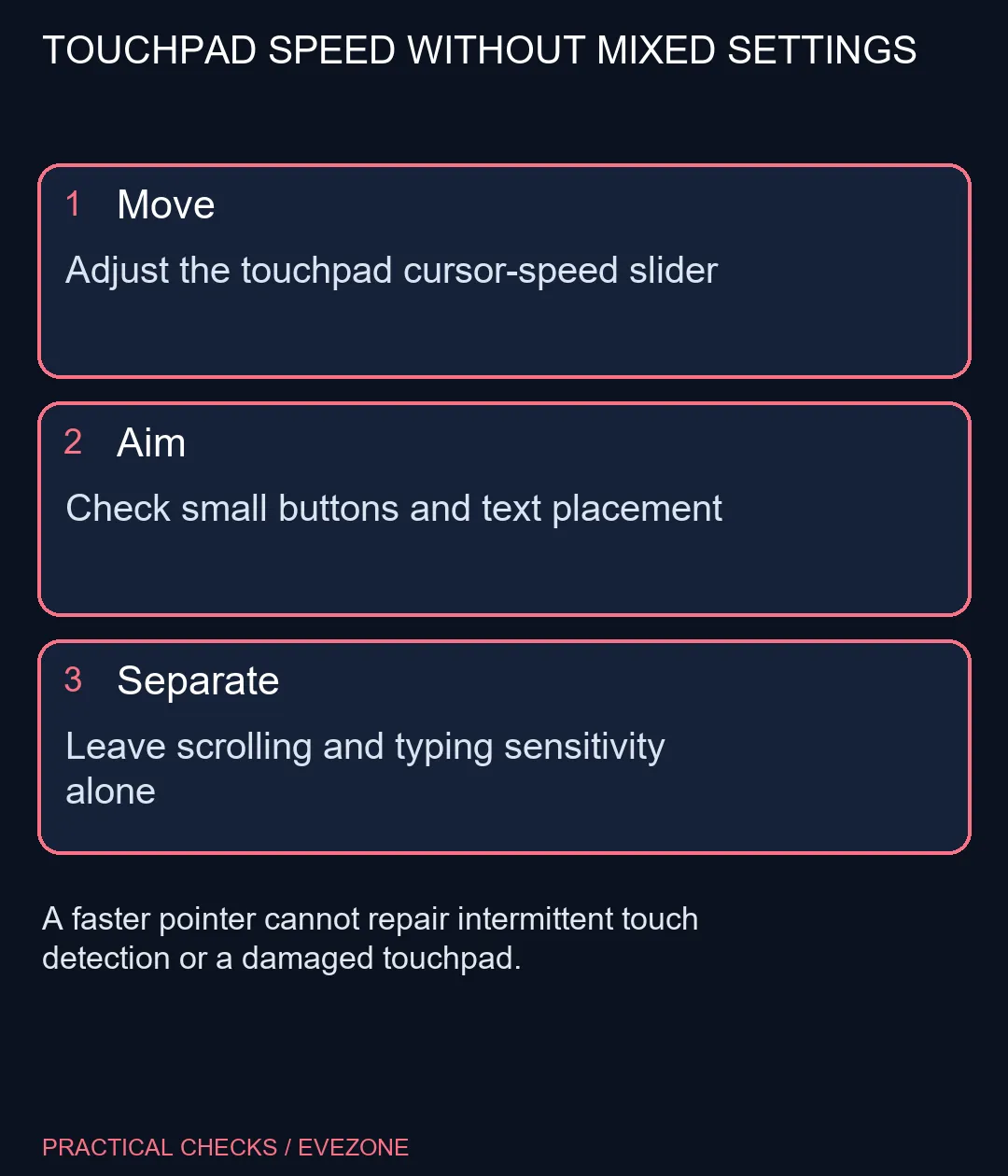
Search for Touchpad settings in Windows and adjust the Cursor speed slider in small steps. Test movement across the screen and accurate clicks on small controls before keeping the change. This R0 additional-hardware check is separate from scroll speed, tap recognition and the delay you may notice while typing.
🖱 Compare movement on a repeatable task
Open an ordinary window and move the pointer between two corners with a comfortable finger glide. Note whether you need several sweeps or repeatedly overshoot the destination. Adjust the touchpad slider, then repeat the same movement instead of judging from an unfamiliar animation or game.
Check the smaller task as well: choose a toolbar button and place the insertion point between two letters. A speed that makes screen travel convenient but fine selection difficult is not yet a good setting. Make another modest adjustment and try again.
🎛 Leave neighbouring controls alone
Touchpad settings can place speed, taps, scrolling and gestures close together. Their proximity does not make them interchangeable. Pointer travel describes movement; a two-finger slide scrolls content; sensitivity can affect when input is accepted around typing.
ASUS documents touchpad and mouse speed as separate adjustments. Follow the control for the device you are testing rather than changing an external mouse and assuming the pad will follow. Manufacturer-managed drivers may present a different interface, so use the model instructions when the expected slider is absent.
💻 Decide whether the remaining symptom is really speed
If the pointer skips, loses contact or pauses only after keyboard input, note that behaviour separately. A faster travel setting is unlikely to explain an intermittent connection or an input-rejection condition. Keep the last usable setting while collecting the exact laptop model and the circumstances of the failure.
A mouse from gaming mice can suit a desk-based workflow, but it is a preference or a response to a proven limitation, not proof that the laptop pad is broken. Compare all laptops on special only if the wider machine no longer meets your requirements. First make sure the existing pad has been tested with a sensible movement setting.
Frequently Asked Questions
Where can I change touchpad speed?
Search Windows for Touchpad settings and inspect Cursor speed. The exact labels can vary with the driver and Windows version.
Is this the mouse speed slider?
Treat the touchpad control separately. Changing an external mouse setting may not produce the change you want on the laptop pad.
Does speed change two-finger scrolling?
It controls pointer motion. Scrolling direction and gesture behaviour are different settings and should be tested separately.
Is sensitivity the same thing?
No. Sensitivity concerns how the touchpad responds to input, including typing-related behaviour. Do not change it automatically to fix slow travel.
Should I use maximum speed?
Choose a setting that reaches the screen comfortably while still allowing accurate small selections. The maximum is not a universal recommendation.
Do I need a larger touchpad?
Try the built-in control first for R0 in extra hardware. A new input device should solve a need that remains after a sensible test.
Tuning laptop control?
Choose comfortable travel and accurate small selections before changing gestures or buying another input device.