A temperature note can become awkward when the tiny ring after the number is missing from your keyboard. How to type degrees on keyboard has two straightforward answers in desktop Word: the symbol picker, or the documented numeric-pad shortcut. Choose the one your hardware actually supports.
Quick Answer
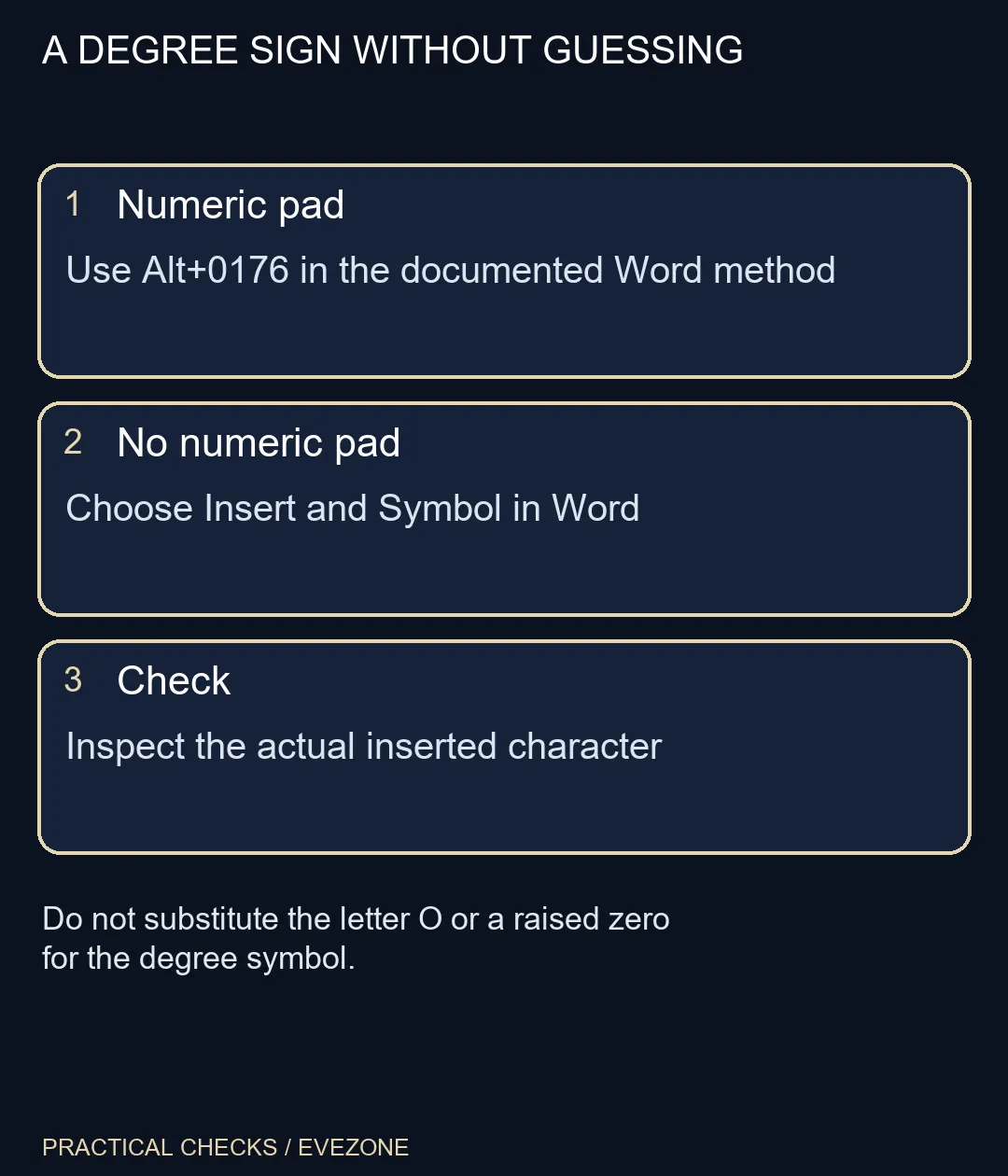
In Word for Windows, use Insert, Symbol, More Symbols and choose the degree sign. Alternatively, Microsoft documents Alt+0176 when the keyboard includes a ten-key numeric pad. The menu method needs R0 in additional equipment, so a laptop without that pad does not need a replacement keyboard just for this character.
⌨ Use the numeric method only with the right keys
Place the insertion point in a spare sentence before trying the shortcut. Hold Alt and enter 0176 on the numeric pad, then check the result. Microsoft's instructions specifically require that pad; pressing the same digits on the top row is not the documented equivalent.
Do not assume a compact laptop has an embedded pad or a particular Fn combination. If the keyboard manual does not establish one, use the menu route. A reliable software method is preferable to repeatedly trying undocumented key combinations inside an important document.
🔤 Find the character in Word
Open Insert, Symbol and More Symbols, choose an appropriate font, then inspect the Latin-1 Supplement subset for the degree sign. Insert the character at the current position and close the dialog. The recently used list can make subsequent insertions easier once you have selected it successfully.
The font matters. Microsoft's symbol guidance explains that different fonts provide different characters. If the dialog does not show what you expect, inspect the chosen font instead of assuming the document or keyboard is broken. Check the inserted character at a readable zoom before continuing.
📄 Keep the meaning when sharing a document
A capital O, lower-case o and raised zero can look close at small sizes, but they are different characters. Use the real symbol for temperatures or angles when that is what the text requires. This is especially helpful when someone copies the measurement into another application rather than merely viewing a screenshot.
If you routinely enter numbers and shortcuts, gaming keyboards can help compare layouts with a dedicated numeric pad. That is a workflow choice, not a prerequisite for the menu method. Similarly, all laptops on special should be compared for the tasks you do all day, not for a single character that the editor already provides.
These instructions describe desktop Word, rather than claiming a universal shortcut for every operating system. In another editor, inspect its own special-character control and test the output before using a remembered shortcut from a different app.
Frequently Asked Questions
How do I insert a degree symbol in Word?
Place the insertion point, choose Insert, Symbol, More Symbols and select the degree sign. Use a font and subset that contain it.
What is the Alt shortcut?
Microsoft documents Alt+0176 for Word on keyboards with a ten-key numeric pad. The top number row is not the same input method.
What if my laptop has no numeric keypad?
Use the Symbol menu in desktop Word instead. You do not need to buy a full-size keyboard solely to insert one character.
Can I type the letter O instead?
That creates a different character. Use the actual degree sign when the document requires it rather than relying on a similar-looking substitute.
Why can I not find the symbol?
Check the font and available subset in the symbol dialog. Different fonts do not contain identical character selections.
Does this method work in every app?
These are documented Word methods. Other applications and operating systems have their own symbol pickers and shortcuts; check the editor you are using.
Choosing a keyboard layout?
Base the choice on your daily number entry and editing work; a symbol menu can handle occasional special characters.