Losing a small white arrow in a pale spreadsheet can interrupt work even when the mouse is accurate. Windows mouse pointer colour gives you a direct way to improve that visibility. It is a different decision from making the pointer faster or changing the colours of the entire screen.
Quick Answer
Open Settings, Accessibility, Mouse pointer and touch, then compare the available pointer styles and size. White, black, inverted or a custom colour can make the arrow easier to distinguish on different backgrounds. This is an R0 hardware-cost adjustment; it does not improve the sensor or change tracking speed.
🎨 Pick the style against real backgrounds
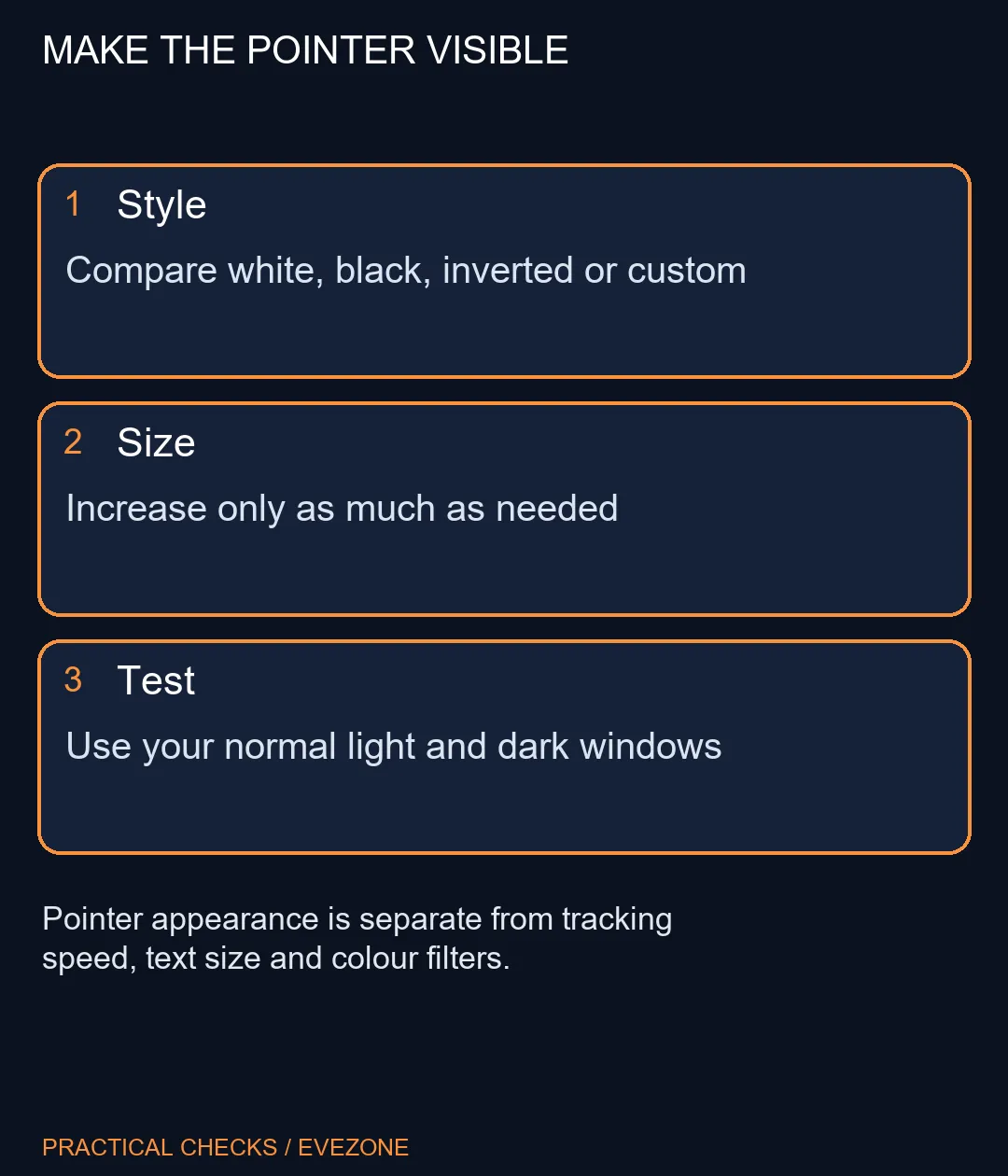
Keep a normal light document and a dark application open. Move the pointer over both while trying a different style. The choice should work across the windows you actually use, not just against the preview in Settings.
An inverted style changes its appearance in relation to the background. A bright custom colour gives you a consistent visual cue. Neither is automatically best for everyone, so compare them with your own wallpaper, browser pages and work applications before deciding.
🔎 Change size separately
Increase the size gradually if colour alone is not enough. An excessively large arrow may obscure small controls, while a modest increase can make it easier to locate across multiple screens. Try selecting a file, placing the pointer over a small button and moving between monitors.
Do not confuse the arrow with the thin insertion marker that appears when you type. Windows gives that text cursor its own controls. Changing the wrong setting can produce a new coloured marker without helping you find the mouse pointer at all.
🖥 Keep the rest of the system stable
Leave movement speed, acceleration and screen scaling alone during this test. With one variable changed, it is easier to judge whether visibility improved. A system-wide colour filter changes much more of the image and is unnecessary when only the arrow is hard to see.
Browse gaming mice when you have a separate grip, button or tracking requirement. Likewise, gaming monitors should be compared for display needs rather than purchased to solve an arrow style that Windows can already change. If the pointer disappears only in a particular application, record that distinction and investigate the application instead of assuming every screen needs replacing.
Frequently Asked Questions
Where is the pointer colour control?
Open Settings, Accessibility, Mouse pointer and touch. Choose an available pointer style and use the custom-colour option if helpful.
Does colour change mouse sensitivity?
No. Pointer appearance and movement speed are separate controls. Leave speed unchanged while testing visibility.
What does inverted do?
The inverted style changes appearance against the background. Test it in your actual applications rather than assuming one style suits every screen.
Is this the typing cursor setting?
No. The mouse arrow and the text insertion cursor have separate settings. Change the control for the item you actually lose track of.
Will this recolour the whole screen?
No. Pointer style is not a system-wide colour filter. Use the relevant display control only if the whole image needs changing.
Does a more visible arrow cost anything?
The built-in setting requires R0 in additional hardware. A new mouse is unnecessary when visibility is the only problem.
Making the desktop easier to follow?
Try a pointer appearance that works on your everyday backgrounds before changing hardware or tracking settings.