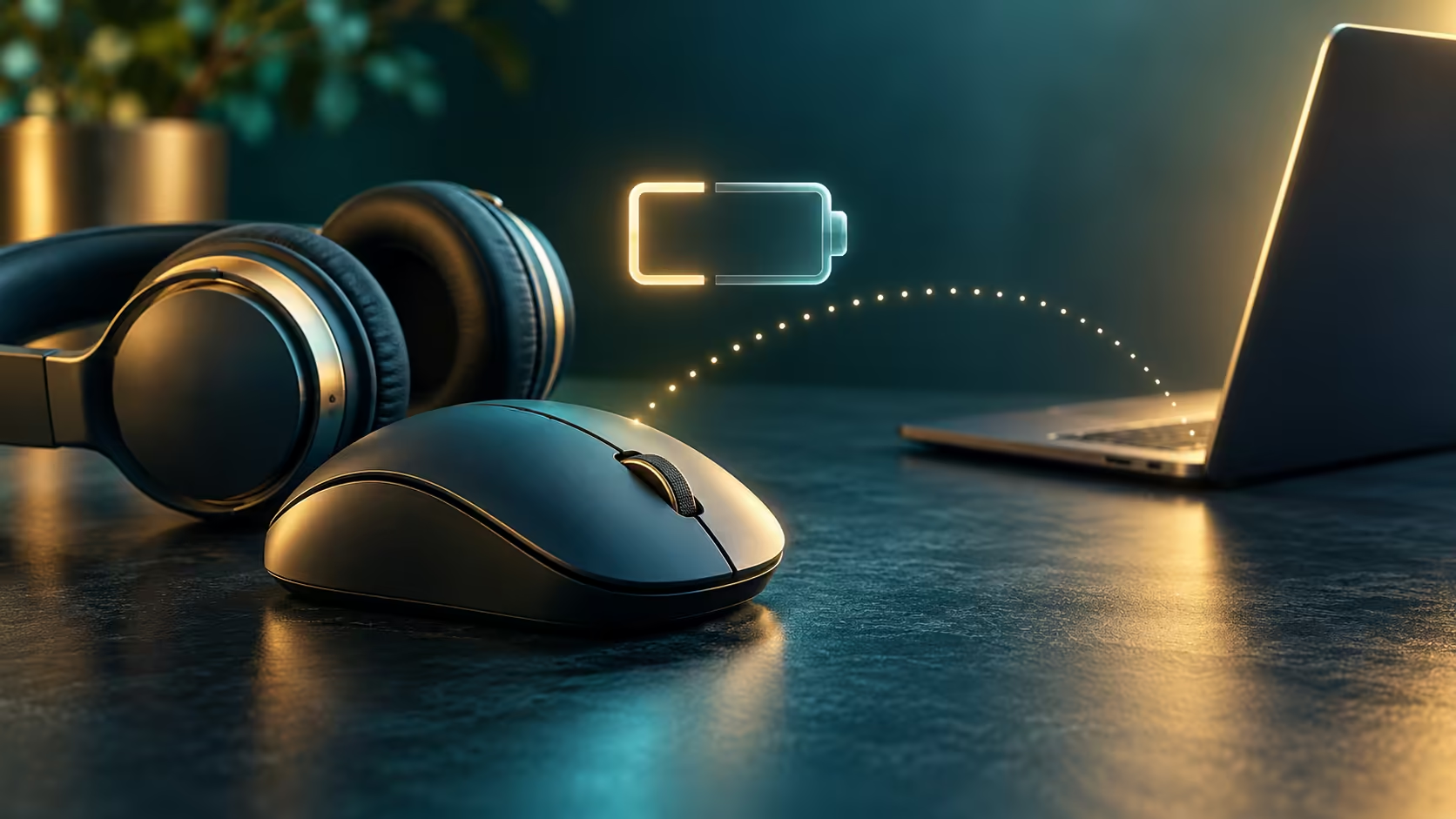
A wireless mouse can work normally while its charge number is absent from Settings. Bluetooth battery percentage missing is therefore a reporting question before it is a battery diagnosis. The first job is to establish which connection is active and what the accessory itself says about charge.
Quick Answer
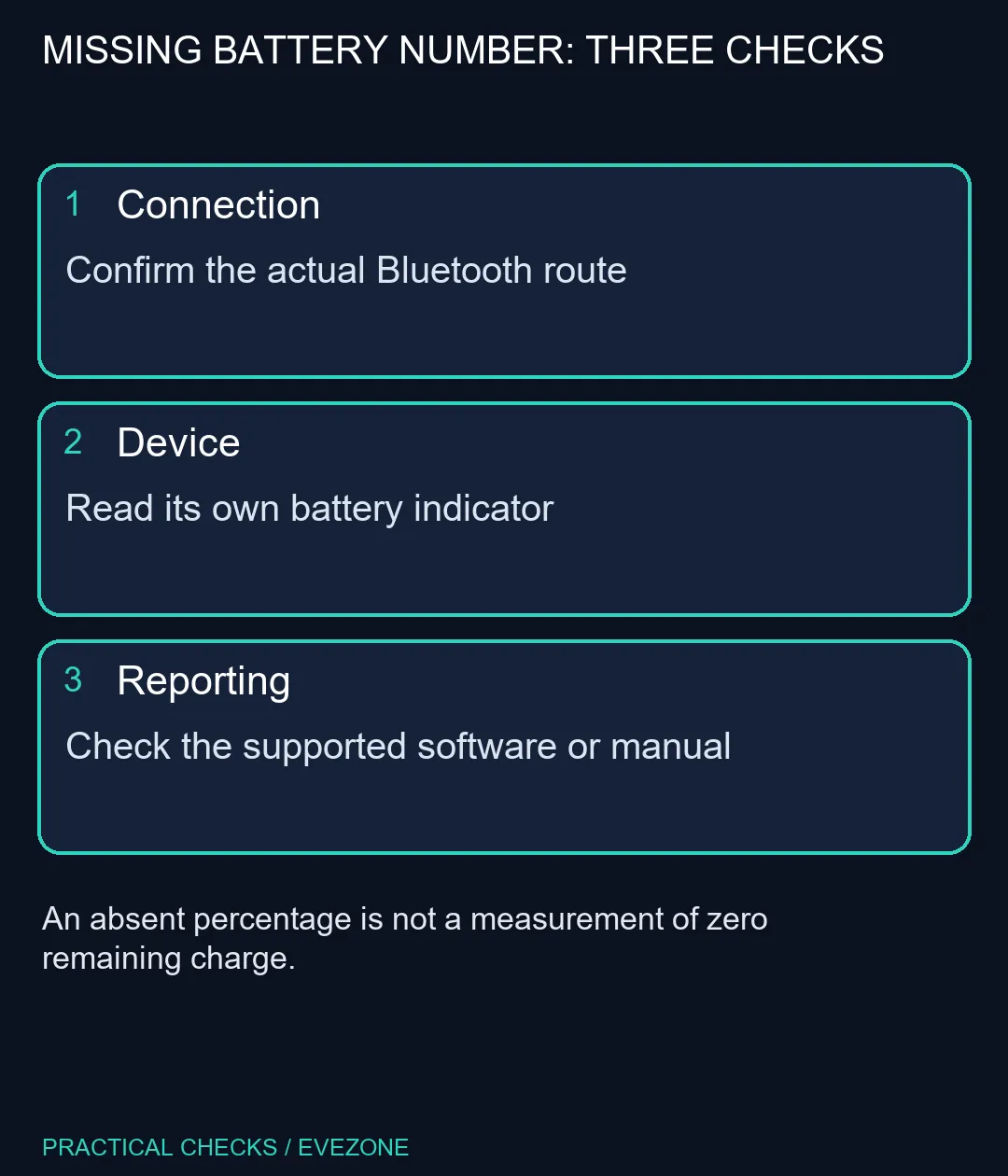
Find the connected accessory under Settings, Bluetooth and devices, then check its own indicator or supported software. Windows cannot display a battery value that the device does not provide in a supported form. Start with these R0 extra-equipment checks rather than interpreting a missing number as an empty battery.
🔗 Identify the connection you are using
Some accessories offer Bluetooth, a dedicated USB receiver and a cable. Those modes can expose different controls and status information. Confirm the selected mode on the accessory and the connection shown on the PC before comparing it with a screenshot from someone else's setup.
If a mouse is using its proprietary receiver, looking only in the Bluetooth device list may not answer the question. Read the model instructions for status reporting in that mode. Avoid installing an unrelated battery utility merely because it promises to discover every wireless device.
🔋 Distinguish charge from the reported number
Microsoft's support guidance says that some accessories do not report their battery status to Windows. Its hardware guidance describes specific reporting mechanisms. That explains why a supported connection and working audio can coexist with no visible percentage; basic operation does not prove every optional status feature is present.
Use the accessory's own indicator, charging behaviour and documented software as the next reference. Do not infer an exact remaining runtime from a vague low-battery light. If the device shuts off unexpectedly, note whether that follows charging, idle time or a connection change so the investigation concerns a repeatable symptom.
🧰 Keep troubleshooting proportionate
A stale or changing value can involve device firmware, connection state or how the PC reads the information. Check manufacturer guidance before resets, and retain a working input route if you need to remove a mouse from the device list. Re-pairing is a diagnostic step in some situations, not a guarantee that an unsupported feature appears.
When comparing gaming mice or a bluetooth headset, ask explicitly how battery status is reported in the connection mode you plan to use. A reliable device with a simple charge indicator may be more suitable than one chosen solely for an attractive percentage display. Replace hardware for an established need, not an absent optional readout.
Frequently Asked Questions
Does no percentage mean zero battery?
No. It can mean the accessory does not report a level that Windows displays. Check the device indicator and normal operation separately.
Where can I look in Windows?
Open Settings, Bluetooth and devices, and find the connected accessory. A battery value may appear when the device supports reporting.
Will a 2.4GHz dongle show the same data?
Not necessarily. A USB receiver and Bluetooth are different connection routes. Use the software and instructions for the active mode.
Is a percentage perfectly precise?
No. It is a value reported by the accessory. Treat sudden jumps or an implausible reading as a reporting symptom to investigate.
Should I pair it again immediately?
First confirm the connection and check the manual. Re-pairing is not a universal way to add unsupported battery reporting.
Do I need new headphones?
An absent number alone does not justify replacement. These checks cost R0 in additional equipment when your existing device still operates normally.
Comparing wireless accessories?
Check the connection mode and supported charge indicator alongside comfort and everyday reliability.