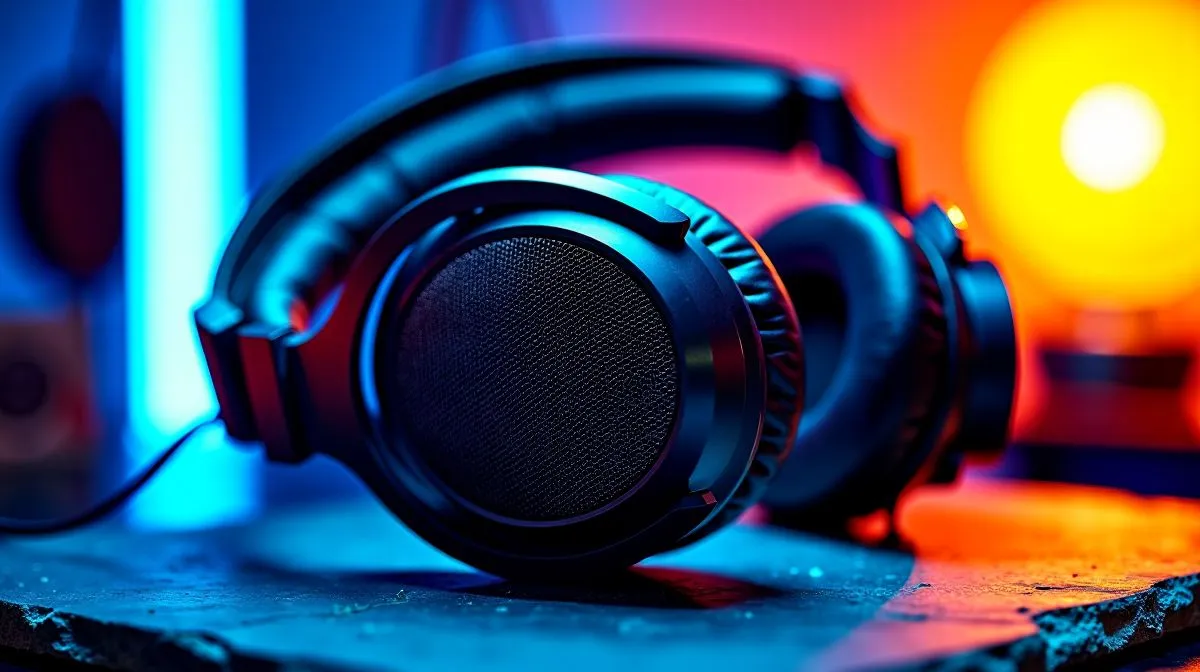
Gaming Headset Sound Flat: Quick Fixes for Driver Tuning (South Africa)
Ever load up Apex or Warzone and realise your headset sounds… “thin”? You’re not imagining it. A gaming headset can go flat when Windows, the headset software, and your in‑game audio settings fight each other. That “tinny” sound is especially common after driver updates or when switching devices. 🔧
In this deep dive, we’ll walk you through a practical tuning routine to fix Gaming Headset Sound Flat: Fix Driver Tuning Settings and get back to clear footsteps, punchy bass, and balanced voices. ⚡
Gaming Headset Sound Flat: Start with the basics (then verify)
Before touching sliders, confirm the obvious. Audio “flatness” often comes from output mismatches, sample rate issues, or a wrong playback device.
- Choose the correct playback device in Windows
- Settings → System → Sound → Output.
- Pick your headset, not your monitor speakers.
- Disable “enhancements”
- Control Panel → Sound → your headset → Properties.
- In the Enhancements tab, turn off anything like “Loudness Equalisation” or “Room Correction” (names vary).
- Set a consistent sample rate
- Sound Properties → Advanced → set to a common option like 24-bit, 48000 Hz if available.
- If it’s already fixed, leave it alone.
- Restart the audio stack
- Unplug/replug the headset.
- Or reboot your PC after driver changes. It sounds basic… but it works.
Productivity Pro Tip 🔧
On Windows, open Sound settings and toggle the headset output device off and back on (or unplug and replug once). This forces Windows to re-enumerate the driver and often clears the “flat EQ state” after updates.
Gaming Headset Sound Flat: Driver tuning steps that actually work
Now for the driver tuning part. Different headsets expose different controls, but the pattern is consistent: default EQ should be off while you diagnose, then you apply a known profile.
Use a “neutral test” before any EQ
- Set any headset EQ to Off / Default / Flat.
- In your game, set audio to default (no custom EQ, no heavy bass boost).
Then test:
- A voice-heavy scene (NPC chatter).
- A sound with low bass (explosions or music).
- Footsteps or doors (mid frequencies).
If footsteps are muffled, you likely have either an EQ dip in the mids or an overly aggressive noise reduction preset.
Rebuild your EQ in small moves
Instead of big changes:
- Reduce bass if it’s muddy.
- Boost presence slightly if voices are buried.
- Keep changes within 2 to 4 steps, then re-test.
If you use surround modes, sanity-check them
Surround can help, but it can also smear imaging if the wrong mode is applied for the game. Use stereo or the headset’s recommended surround mode for competitive titles.
Gaming Headset Sound Flat: Where to shop in Evetech’s range
If your current headset’s tuning controls are limited, upgrading the hardware can be the fastest path back to clarity. Here are Evetech options to consider based on real gamer use.
Looking for a wireless option with strong tuning potential? Check out the Razer Barracuda X Chroma here:
Explore the Razer Barracuda X Chroma Wireless Headset
Want more choices across brands and models? Browse Evetech’s selection:
View all Razer headphones and headsets
If you simply want to compare different builds quickly, start with this category overview:
Shop Evetech headphone headsets
Playing with surround? Filter by 7.1 to see models tuned for that use-case:
Compare 7.1 headphone headsets
Or, if competitive accuracy matters most, consider a straight stereo setup:
Browse stereo headphone headsets
Gaming Headset Sound Flat: Final checklist (before you blame the headset)
Before you conclude the headset is “broken,” do this quick loop:
- Correct Windows output selected ✅
- Enhancements disabled ✅
- Sample rate consistent ✅
- EQ set to neutral for testing ✅
- Game audio matched to your headset mode ✅
- Small EQ changes, then re-test ✅ 🔍
If it still sounds flat after all that, then yes… it might be a driver conflict. In that case, replacing the headset or trying another model with better tuning controls can save you hours of frustration.
Ready to Find Your Perfect Match?
The Mac vs Windows debate is complex, but for maximum power, choice, and value in South Africa, Windows is hard to beat. Explore our massive range of laptop specials and find the perfect machine to conquer your world.