

AIO Liquid 240mm Setup and Configuration: Complete Tutorial
AIO Liquid 240mm Setup and Configuration. Clear setup instructions with SA-specific considerations, troubleshooting tips & recommended components.
Read moreIs your new GPU stuttering during games? 💥 Fix CPU bottlenecks with expert tips! 💻⚡️ Discover quick solutions to boost performance.
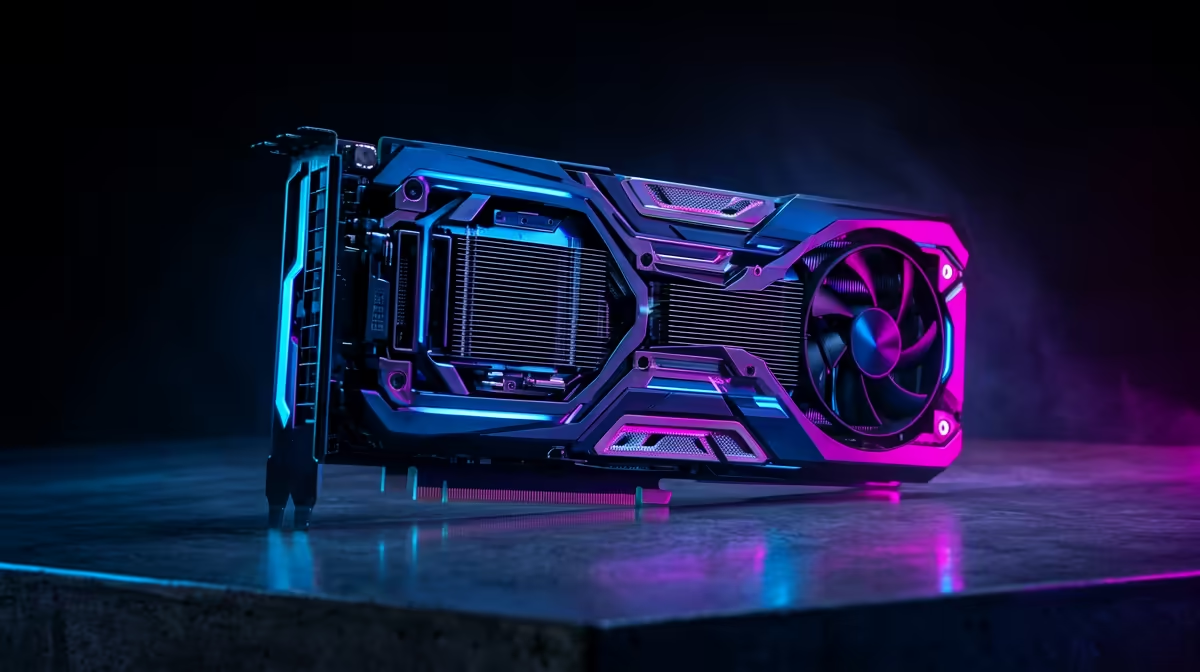
You’ve just unboxed that beastly new graphics card, ready to crank everything to ultra. But your game still feels... choppy. That frustrating micro-stutter, especially in the heat of a firefight, might not be your GPU's fault. Chances are, you're facing a classic PC builder's headache: a GPU stuttering CPU bottleneck. It’s when your powerful new graphics card is being held back by an older, slower processor.
Let's get that sorted. 🚀
So, what exactly is a CPU bottleneck causing your GPU to stutter? Think of it like a high-speed production line. Your CPU (Central Processing Unit) is the manager preparing tasks—calculating AI, physics, and game logic—and sending them down the line. Your GPU (Graphics Processing Unit) is the specialised worker at the end, taking those instructions and rendering the beautiful frames you see on screen.
If the manager (CPU) can't prepare tasks fast enough, the worker (GPU) is left waiting around with nothing to do. This pause is the stutter or frame drop you feel. Your R15,000 GPU is essentially twiddling its thumbs, waiting for the CPU to catch up. This is the core of the GPU stuttering CPU bottleneck issue.
Before you start shopping, you need to be sure the CPU is the culprit. Guesswork is expensive. Here are two reliable ways to diagnose a bottleneck:
The most direct method is to watch your component usage while gaming.
If you see your CPU usage consistently hitting 95-100% while your GPU usage sits much lower (e.g., 60-80%), you've found your bottleneck. The CPU is running flat-out and can't feed the GPU fast enough. If this is your situation, it might be time to browse the latest CPU processors available online to see what a modern upgrade looks like.
Another quick test involves changing your game's resolution.
Once you've confirmed a CPU bottleneck, you have a few options, ranging from free software tweaks to hardware upgrades.
Always start with the free stuff. Sometimes a few clicks are all you need.
Navigate to your Windows Power Options and select the "High Performance" or "Ultimate Performance" plan. This prevents the OS from throttling your CPU's clock speed to save power, ensuring it's always ready to deliver maximum performance during intense gaming sessions.
While software tweaks can help, they can't fix a fundamental hardware mismatch. If your CPU is several generations old, the only real long-term solution is an upgrade. This is the most effective way to eliminate a GPU stuttering CPU bottleneck for good.
When choosing a new processor, you'll need to decide on a platform. You could consider whether the powerful single-core performance of an Intel CPU is right for your gaming needs, as many games still rely heavily on the speed of a single core. Alternatively, you might find that the excellent multi-threaded value of an AMD CPU better suits your blend of gaming, streaming, and content creation.
An upgrade doesn't just boost your peak FPS; it raises your minimums and smooths out the frame-time graph, delivering the consistent, fluid experience your high-end GPU was built for.
Ready to Unshackle Your GPU? Don't let an old processor ruin your gaming experience. Explore Evetech's massive range of PC components to find the perfect CPU to match your graphics card. Shop our PC Components now for performance that leaves lag in the dust.
Outdated drivers or a weak CPU may cause GPU stuttering. Upgrade your CPU and components for smoother performance.
Optimize game settings, update drivers, or upgrade your CPU to resolve GPU stuttering. Check component compatibility.
Yes! Balance CPU and GPU power to prevent stuttering. Upgrade underpowered CPUs for better gaming performance.
Outdated CPUs or insufficient RAM often limit GPU performance. Identify bottlenecks to fix stuttering.
Use monitoring tools to spot high CPU usage. Upgrade underpowered processors to eliminate stuttering.
Try software fixes first! Update drivers and game settings before upgrading CPUs for stuttering solutions.
Yes. Overheating CPUs throttle performance, creating GPU stuttering. Improve cooling for smoother gameplay.
AIO Liquid 240mm Setup and Configuration. Clear setup instructions with SA-specific considerations, troubleshooting tips & recommended components.
Read more
Setting Up DDR5 64GB Kit. Tested & verified settings for best FPS and visual quality on SA hardware budgets.
Read more
Overwatch 2 Setup Guide Gamers. Clear setup instructions with SA-specific considerations, troubleshooting tips & recommended components.
Read more
R and RStudio on Mac: Data Science Setup Guide. Clear setup instructions with SA-specific considerations, troubleshooting tips & recommended components.
Read more
NVIDIA Broadcast Setup with GPU: Streamer Guide. Clear setup instructions with SA-specific considerations, troubleshooting tips & recommended components.
Read more
Core Ultra 7 265K Temperature Guide: Normal Range. Complete product range with SA pricing, key specs & recommendations for different budgets.
Read more
AMD RX 9050 XT: Rumoured Specs, Price & Release. SA-focused analysis with local pricing data, real-world insights & actionable buying advice.

Can RTX 4080 Super Run AI Workloads for SA Developers Detailed answer with SA data, expert analysis & practical recommendations for local buyers.

Can RTX 4090 Run AI Workloads for SA Developers Detailed answer with SA data, expert analysis & practical recommendations for local buyers.

Top Settings for Intel Arc B580 at Ultrawide 1440p picks evaluated on performance, value & SA availability with current Rand pricing from Evetech.

RTX 4060 CS2 Low Settings at 1080p: FPS Results. Real-world benchmark data, FPS numbers & performance analysis. What SA gamers can actually expect.

Visual Artifacts: Possible GPU Issue Issue #1. Diagnosis steps, proven fixes & when to seek professional help. SA-specific support info included.

Can the RTX 4090 Handle 1440p 144Hz Gaming. Performance testing verdict with real data & practical recommendations for SA buyers.

Top ASUS GPU Under R15000 picks evaluated on performance, value & SA availability with current Rand pricing from Evetech.

GTA 6 Max Settings on RTX 5070. Tested & verified settings for best FPS and visual quality on SA hardware budgets.

Cyberpunk 2077 Max Settings on RTX 5080. Tested & verified settings for best FPS and visual quality on SA hardware budgets.

Starfield Max Settings on RTX 5070 Ti. Tested & verified settings for best FPS and visual quality on SA hardware budgets.

Top RTX 5090 Under R5000 picks evaluated on performance, value & SA availability with current Rand pricing from Evetech.