

Black Myth: Wukong 2 Ultrawide Support: 21:9 and 32:9 Setup Guide
Black Myth: Wukong 2 Ultrawide Support: 21:9 and. Clear setup instructions with SA-specific considerations, troubleshooting tips & recommended components.
Read moreHeadset compatibility issues can stop your audio across PC, console, and mobile devices. 🎧 Learn why it happens and how to fix it fast for clearer sound everywhere.
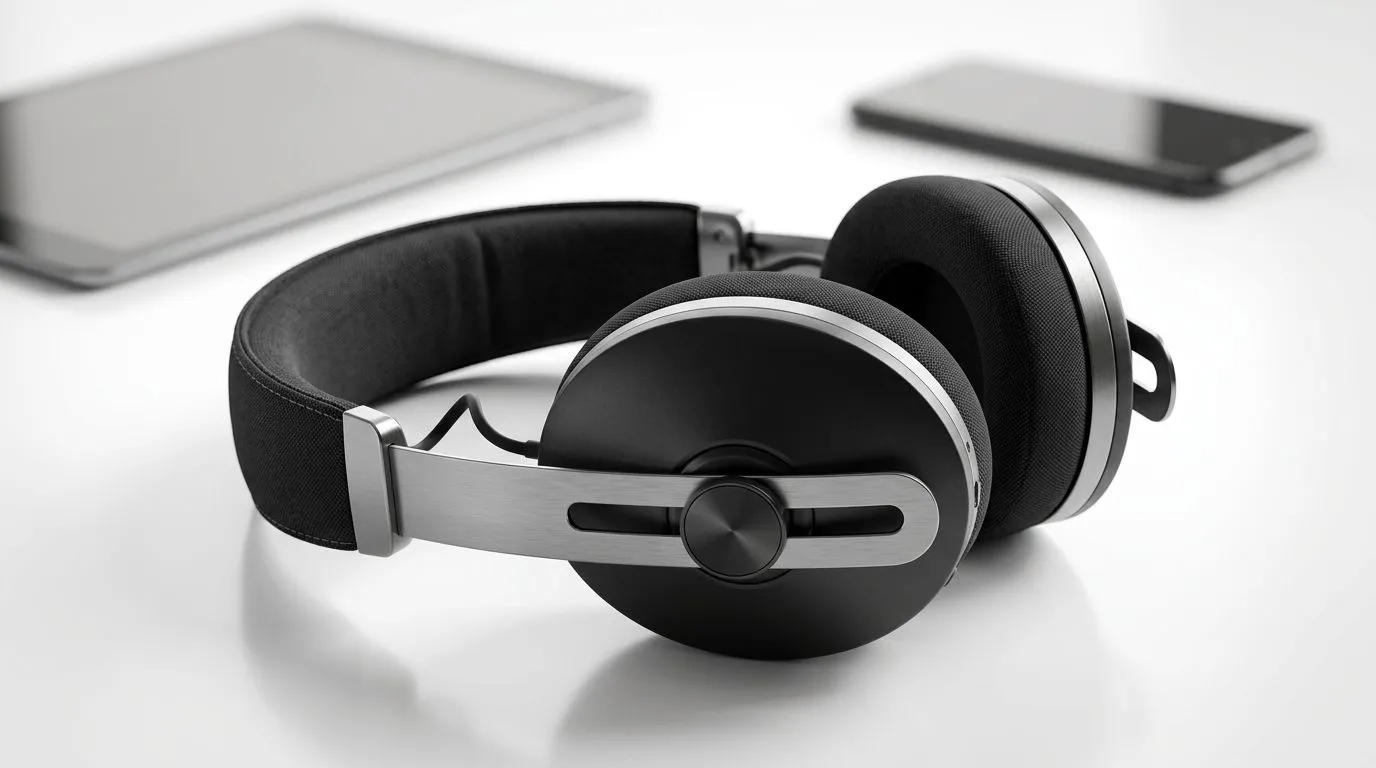
Ever plugged in your headset and got… nothing? Or worse, sound plays, but the mic refuses to work. 🤦♂️ In South Africa, this happens constantly when we bounce between PC, consoles, phones, and even laptops for work. The culprit is usually one thing: compatibility. Whether it’s wireless pairing, audio jack wiring, or Bluetooth profiles… the fix is often simpler than you think. 🔧 Let’s break down headset compatibility issues so your next session starts instantly.
Most “it won’t work” moments fall into a few buckets:
If you’re using a wired headset, check the connection type. Some sets expect a TRRS combo plug for both audio and mic. If your device only supports TRS (audio-only), the mic will go dead.
If you’re using wireless, compatibility can hinge on how the headset connects:
Many gaming setups prefer USB dongles or proprietary adapters. Bluetooth support varies by platform and firmware. So your headset can “pair” and still not behave correctly in-game.
Even when audio works, voice chat may fail due to device input selection. Windows and consoles often keep multiple recording devices. If you switch devices and forget to change the mic input, you’ll sound muted without knowing why.
Try these in order. It’s fast, and it avoids random settings changes.
On Windows, open Settings → System → Sound and set both Output and Input devices to your headset. Then test in a voice chat app before launching a game, so you don’t troubleshoot inside the match.
A lot of gamers buy a headset for their PC, then bring it to their laptop for Discord. Sound comes through… but voice chat fails. Nine times out of ten, the laptop switched to a “hands-free” profile or kept an old mic device selected. Once they updated the input device, the headset worked properly across both.
If you want fewer compatibility problems, choose headsets that clearly support the devices you actually use. For example, the Razer Barracuda X Chroma Wireless is designed for reliable wireless use, and product listings like this help you confirm the intended connection style before buying: Razer Barracuda X Chroma Wireless Headset (Phantom White)
If you want options across wired and wireless categories, browse Evetech’s broader headphone range:
Before you checkout, check two things: connection method (dongle vs Bluetooth vs wired) and whether the headset explicitly supports mic use on your target devices.
Ready to Find Your Perfect Match? Headset compatibility doesn’t have to ruin your sessions. Get the right connection type for your PC, console, or phone, then enjoy clean audio and voice chat every time. Explore our range and dial in your setup with confidence: Shop Evetech headphones and headsets.
It often comes down to headset compatibility issues, like USB vs 3.5mm support, TRRS wiring, or missing drivers.
If your headset has one plug for audio and mic but the device has separate ports, you may need a TRRS adapter.
Check the port, drivers, power, and device support. Some consoles and older laptops limit USB headset compatibility.
Yes, if the headset and connector match the device. A 3.5mm TRRS headset or the right adapter usually helps.
This usually points to a connector mismatch, wrong audio output setting, or partial headset compatibility with the device.
TRS is often audio only, while TRRS supports audio and mic. That difference affects headset compatibility on many devices.
Yes, some devices support different Bluetooth profiles or codecs, which can cause pairing, mic, or audio quality issues.
Black Myth: Wukong 2 Ultrawide Support: 21:9 and. Clear setup instructions with SA-specific considerations, troubleshooting tips & recommended components.
Read more
Setting Up HDMI 2.1 Cable. Tested & verified settings for best FPS and visual quality on SA hardware budgets.
Read more
Every spec on PCIe 5.0 explained in plain English. What matters for gaming and creator work in 2026, what's marketing fluff, and how each number translates to real-world performance.

A head-to-head look at WiFi 7: real-world performance, ZAR pricing and which option delivers better value for SA builders. The clear answer — no fluff.

Everything you need to set up and tune PCIe 5.0 properly: the prep work, the settings that actually matter, and the mistakes to skip. Written for SA builders in 2026.

Everything you need to set up and tune X870E Motherboard properly: the prep work, the settings that actually matter, and the mistakes to skip. Written for SA builders in 2026.

Wondering what a 512GB SSD capacity really holds? This guide breaks down how many games, photos, and documents fit on 512GB, with real-world ranges 📦💾

Every spec on vrm explained in plain English. What matters for gaming and creator work in 2026, what's marketing fluff, and how each number translates to real-world performance.

Every spec on motherboard explained in plain English. What matters for gaming and creator work in 2026, what's marketing fluff, and how each number translates to real-world performance.

Premium vs Midrange Motherboards in South Africa: real-world performance, SA pricing, power draw and which one delivers better value for your build for SA buyers. The clear answer — without the fluff.
Wondering what a 512GB SSD capacity really holds? This guide breaks down how many games, photos, and documents fit on 512GB, with real-world ranges 📦💾
Every spec on PCIe 5.0 explained in plain English. What matters for gaming and creator work in 2026, what's marketing fluff, and how each number translates to real-world performance.
A head-to-head look at WiFi 7: real-world performance, ZAR pricing and which option delivers better value for SA builders. The clear answer — no fluff.

Every spec on USB4 explained in plain English. What matters for gaming and creator work in 2026, what's marketing fluff, and how each number translates to real-world performance.