Quick Answer
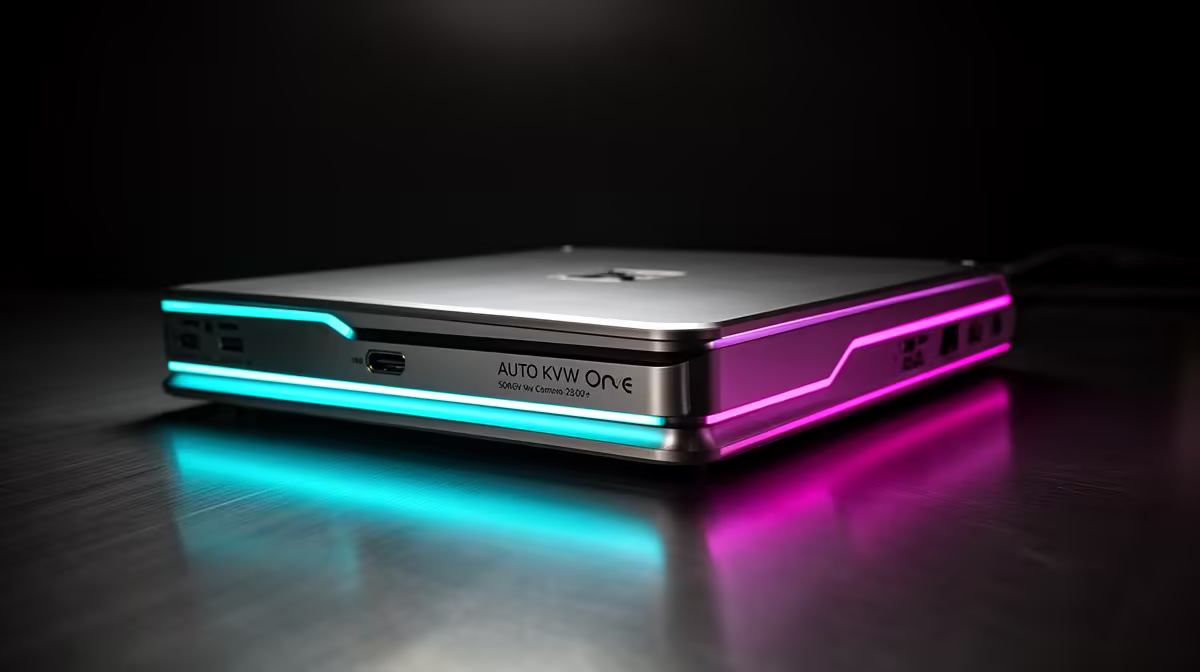
Auto KVM in a gaming monitor detects which input source is active and automatically routes the USB keyboard and mouse signal to match that source, so switching from your gaming PC to a work laptop happens by pressing one input button rather than swapping USB cables. It turns a single monitor setup into a seamless two-PC workstation without a dedicated external KVM switch.
How Auto KVM Works in a Gaming Monitor 🖥️
A monitor with built-in KVM has two or more USB upstream ports alongside its display inputs. When you connect PC1 via DisplayPort (USB upstream port 1) and PC2 via HDMI (USB upstream port 2), and plug your keyboard and mouse into the monitor's USB downstream hub ports, the monitor's firmware links each display input to its corresponding USB upstream. Switching the active input via the OSD or hotkey simultaneously reroutes the USB keyboard and mouse signal to the newly active PC. You never touch the USB cables. On monitors with PBP (Picture-by-Picture) mode, some auto KVM implementations allow sharing the keyboard and mouse between both displayed sources simultaneously, enabling crossover clipboard and drag-and-drop functions via specialised drivers.
Practical Use Cases in SA Gaming and Work Setups 💼
The most common SA application is a hybrid work-and-gaming desk: a work-issued laptop on the HDMI input and a personal gaming PC on DisplayPort. With auto KVM, transitioning from a Teams call on the laptop to an evening gaming session on the PC takes one OSD button press. The keyboard, mouse, and any USB headset dongle plugged into the monitor all switch simultaneously. This setup is particularly useful in South African home-office environments where desk space is shared between a company laptop and a personal gaming rig and running two sets of peripherals side by side is impractical.
Setting Up Auto KVM Correctly 🔧
Connect each PC's USB upstream cable from the PC's USB-A or USB-C port to the monitor's corresponding upstream port, matching the upstream port to the display input (DP upstream to DP input, HDMI upstream to HDMI input). Plug your keyboard and mouse into the monitor's downstream USB ports. Enable KVM in the OSD, typically under Input or KVM settings. Some monitors call this feature Smart KVM or Input Select, name varies by brand. Test by switching inputs: both the display and peripheral control should follow the input selection within one second. If only the display switches but not the keyboard, check that the correct upstream port is selected in the KVM settings menu.
USB Hub Speed Check ⚡
auto KVM USB upstream connection on most monitors operates at USB 3.0 (5 Gbps) but some budget models use USB 2.0 (480 Mbps). For keyboard and mouse signals this makes no practical difference. For an external drive or high-speed peripheral plugged into the same hub, USB 3.0 matters: check the monitor's specification sheet before assuming the hub supports fast storage transfer.
FAQ
Does auto KVM work with both Macs and Windows PCs?
Yes, provided your Mac has a USB-A or USB-C port to connect the upstream cable. macOS recognises the monitor's USB hub as a standard USB hub and the keyboard and mouse function normally when that upstream is active.
Can I use auto KVM without PBP mode active?
Yes. Auto KVM works independently of PBP. You use one input at a time (full-screen from one PC) and the KVM switches peripherals when you change the active display input. PBP is a separate feature that shows both sources simultaneously.
What if my monitor does not have auto KVM? Is there an alternative?
A standalone USB KVM switch costing R300 to R800 does the same job externally. You connect both PCs' USB connections and display cables through the KVM box, and a button on the box switches both display signal and USB peripherals together. It is less elegant but fully functional.
Need a monitor that handles multiple PCs with auto KVM built in?
Browse Evetech's range of gaming monitors with built-in KVM switching, USB hubs and multi-input support for seamless work-and-gaming desk setups.