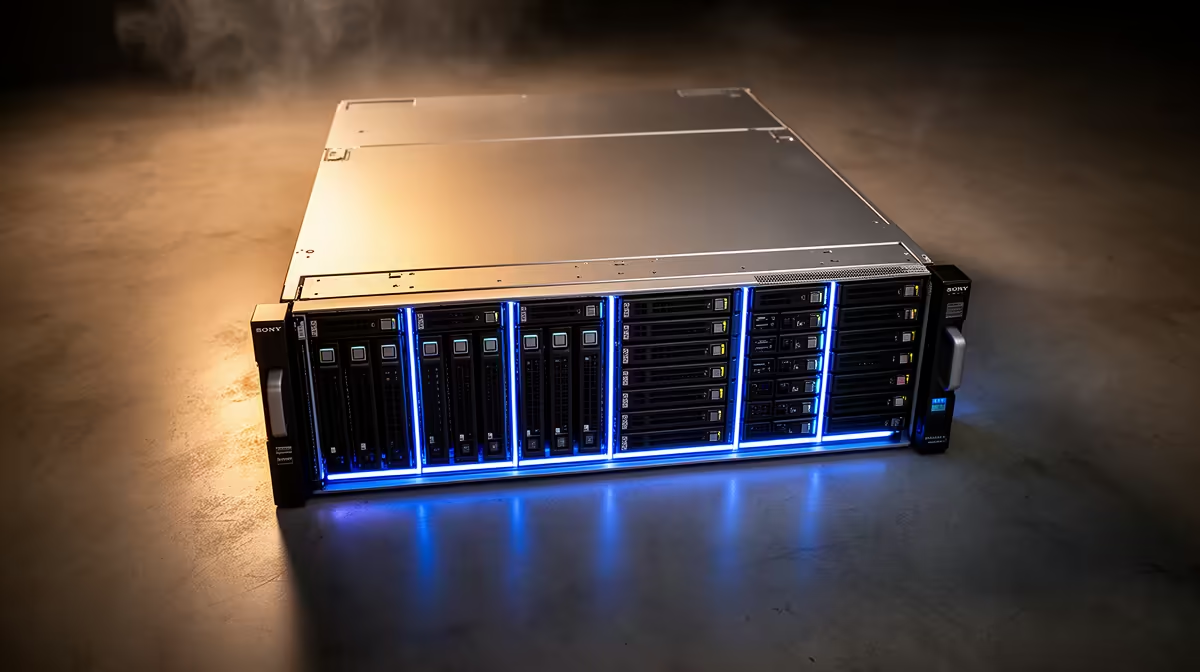
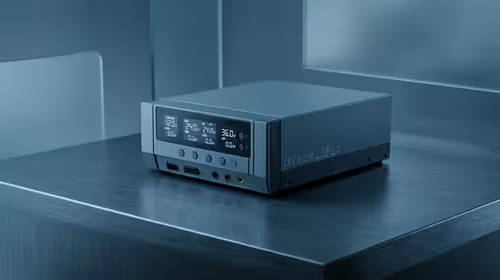
The price tag on a NAS box can feel reassuringly modest until you remember it arrived empty. Almost every NAS ships diskless, which means the number on the shelf is only part of the story, and the drives you slot in often cost more than the appliance itself. How many you actually need is not a free choice; it is dictated by the RAID level you pick, and that decision shapes both your safety net and your final bill.
Quick Answer
A diskless NAS needs at least two drives for RAID 1, three for RAID 5, and four for RAID 6. The right number depends on how much fault tolerance you want versus how much usable space you are paying for. Always add the cost of those drives to the appliance price, because the empty box is only a fraction of the real spend.
Why NAS units ship empty
Selling a NAS without drives is deliberate, and it works in your favour once you understand it. People have wildly different needs: one buyer wants two large drives for a simple mirror, another wants four mid-size drives for parity protection, a third is migrating drives they already own. Bundling a fixed set would suit almost nobody perfectly, so manufacturers leave the bays open.
The catch is budgeting. A two-bay enclosure looks cheap next to a four-bay model until you cost the drives, at which point the gap narrows or even reverses depending on capacity. The honest way to compare two NAS options is to price each one fully loaded with the drives you intend to use, not to compare bare enclosures. To see which appliances are available before you start costing drives, the diskless NAS enclosures at Evetech give you a clear view of which appliances are available before you cost the drives.
RAID levels and the drives each one needs
RAID is the mechanism that turns several drives into one resilient volume. Each level strikes a different balance between usable capacity, redundancy, and the minimum number of drives required.
RAID 1: the two-drive mirror
RAID 1 mirrors your data across two drives, so each holds an identical copy. The minimum is two drives. If one fails, the other carries on with no data loss, giving you a clean and simple safety net. The trade-off is capacity: with two drives you only get the usable space of one, because the second is a copy. It is an excellent choice for a small home NAS where simplicity and protection matter more than squeezing out every gigabyte.
RAID 5: three drives, parity protection
RAID 5 needs a minimum of three drives. It stripes data across them and distributes parity information, which lets the array rebuild if any single drive fails. The appeal is efficiency: you lose the capacity of only one drive to parity, so with three drives you keep roughly two drives' worth of usable space. That makes RAID 5 the popular middle ground for users who want both reasonable redundancy and good capacity, and it scales nicely as you add more bays.
RAID 6: four drives, double protection
RAID 6 requires a minimum of four drives and goes a step further than RAID 5 by storing two sets of parity. The payoff is that it can survive two simultaneous drive failures, not just one. That matters more than it sounds, because a second drive can fail during the stressful rebuild after the first failure, exactly when you are most exposed. The cost is the capacity of two drives given to parity. For larger arrays holding data you cannot afford to lose, RAID 6 is the safer choice.
Matching drive count to your real needs
The decision is genuinely about what you are protecting and how much you want to spend. A small household backing up photos and documents is well served by a two-bay NAS in RAID 1: two drives, simple, protected. A user storing a larger media library or work files who wants more usable space per Rand should look at a three or four-bay unit running RAID 5. Anyone holding irreplaceable data across a bigger array should seriously consider four-plus drives in RAID 6 for that double-failure safety margin.
There is a worthwhile point to challenge here: more drives and a fancier RAID level are not automatically better. RAID protects against drive failure, but it is not a backup. It does nothing if the NAS is stolen, the building floods, or a file is deleted by accident and then mirrored faithfully to every drive. A separate backup, ideally offsite or to the cloud, remains essential regardless of RAID level. Do not let a robust RAID setup lull you into skipping real backups.
Budgeting the all-in cost
The single most useful habit when buying a diskless NAS is to budget the drives from the start. Decide your RAID level, multiply by the per-drive cost for the capacity you want, and add that to the appliance price. That gives you the true figure to compare against another NAS, and it stops the empty-box price from misleading you.
NAS-rated drives are worth the premium over ordinary desktop drives, since they are built for continuous operation and the vibration of a multi-bay enclosure. For the drives that go alongside or inside your setup, the best-selling SSDs at Evetech are useful for cache drives or all-flash builds, while spinning NAS drives remain the value choice for bulk capacity.
Frequently Asked Questions
How many drives does a diskless NAS need at minimum?
It depends on your RAID level. RAID 1 needs two drives, RAID 5 needs three, and RAID 6 needs four. You can technically run a single drive with no redundancy, but for any NAS where the data matters, two is the sensible floor.
Why don't NAS units come with drives?
Manufacturers ship them empty because buyers have very different capacity and redundancy needs, and many want to use drives they already own. Leaving the bays open lets you fit exactly the drives and RAID level that suit you, though it means budgeting the drives separately.
Is RAID 5 or RAID 6 better for a home NAS?
RAID 5 gives more usable space and needs only three drives, making it efficient for most home users. RAID 6 needs four drives and gives up more capacity to parity, but survives two drive failures, which is worth it for larger arrays holding data you cannot replace.
Does RAID replace the need for backups?
No. RAID protects against drive failure, but it does not protect against theft, fire, accidental deletion, or corruption that gets mirrored across drives. Keep a separate backup, ideally offsite or in the cloud, no matter which RAID level you run.
Can I use ordinary desktop drives in a NAS?
You can, but NAS-rated drives are strongly recommended. They are designed for continuous operation and the vibration of a multi-bay enclosure, which improves reliability over desktop drives in a setup that runs around the clock.
Before you fall for the low price on an empty enclosure, work out your RAID level and the drives it needs. Compare diskless NAS options at Evetech and budget the full, drive-loaded cost from the start.