

Storage Specs Explained for Beginners
Storage Specs Explained for Beginners. Plain-English explanation of what it means, why it matters & how it affects your buying decisions in SA.
Read moreEvery spec on south african users can optimise bluetooth explained in plain English. What matters for gaming and creator work in 2026, what's marketing fluff, and how each number translates.
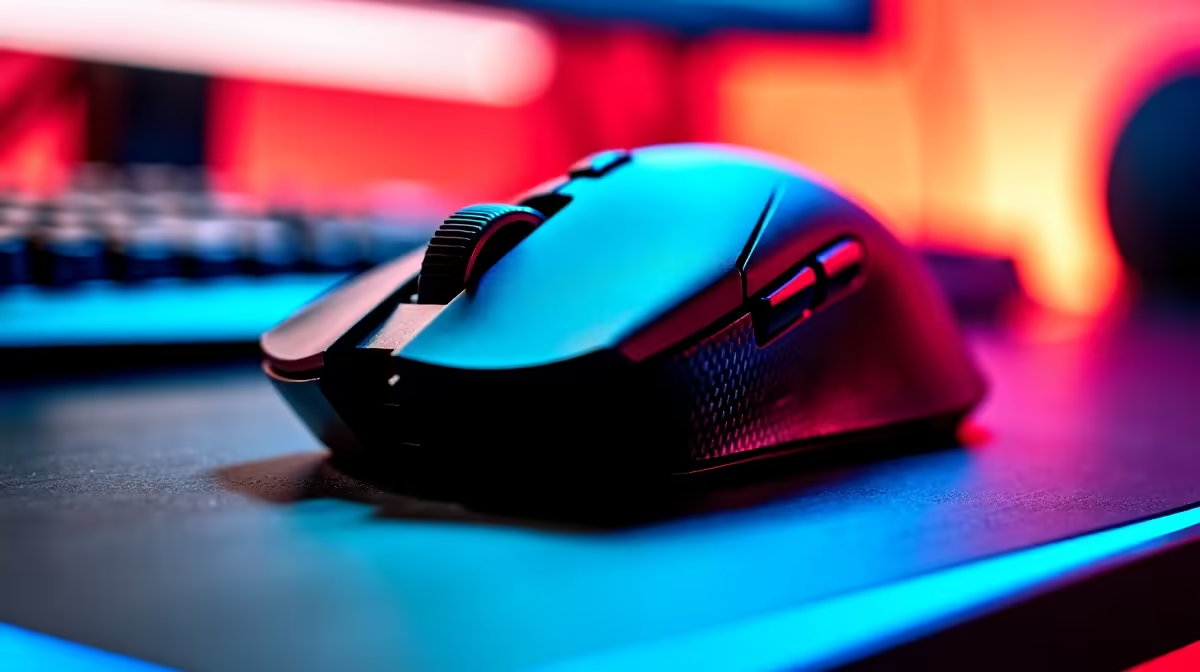
Missing a crucial headshot because your wireless mouse stuttered? Audio cutting out on Discord? Living in a dense South African complex means your airwaves are incredibly crowded. Let's fix that 2.4GHz traffic jam so you can optimise Bluetooth and USB receiver performance in busy WiFi environments... without spending a single extra Rand.
Most wireless devices share the exact same radio frequency. Your WiFi router, Bluetooth headphones, and wireless mouse all fight for the 2.4GHz band. When you boot up one of our premium gaming PCs, you expect flawless performance. But overlapping signals create invisible static.
This causes input lag and dropped connections. In busy estates where every neighbour has a router, this invisible noise pollution spikes heavily. South African homes are also traditionally built with solid brick walls. These dense materials bounce wireless signals around... creating even more localised interference inside your gaming room.
Distance is the ultimate enemy of wireless signals. If your PC sits under a thick wooden desk, your USB dongles have to work much harder to maintain a connection.
Move your USB receiver to a front-panel port. Better yet, use a USB extender cable. Placing the dongle right next to your mouse pad drastically reduces travel distance. This simple trick easily helps optimise Bluetooth and USB receiver performance in busy WiFi environments.
Bluetooth audio devices are especially sensitive to this interference. If your headset audio crackles while downloading a large game update, your WiFi is likely drowning out the Bluetooth signal. Keep your router at least one metre away from your PC.
Plug your wireless mouse receiver into a USB 2.0 port instead of a USB 3.0 port. High-speed USB 3.0 ports can generate broad-spectrum noise that directly interferes with 2.4GHz wireless receivers.
You can manually reduce the traffic on your home network. Most modern routers are dual-band. Force your bandwidth-heavy devices onto the 5GHz band.
Connect your smart TVs, phones, and modern laptops to the 5GHz network. This leaves the 2.4GHz highway wide open for your gaming peripherals. You should also check your router settings. Manually change your 2.4GHz channel to 1, 6, or 11. These channels do not overlap with each other. This stops your router from fighting your neighbour's router for the exact same airspace.
Outdated drivers cause silent headaches. Manufacturers regularly release patches to improve signal hopping. Open your peripheral software and check for firmware updates. Sometimes a simple software update fixes persistent disconnects instantly.
If your gear is older, it might lack modern interference-blocking technology. Newer wireless peripherals use advanced frequency agility to dodge busy channels automatically. If you want to upgrade your setup, browse our latest tech specials to find peripherals built for modern environments. You deserve hardware that keeps up with your reflexes.
Ready to Upgrade Your Wireless Setup? Beating interference is easier with modern gear designed for crowded airwaves. Explore our massive range of gaming specials and find the perfect wireless peripherals to conquer your matches lag-free.
The products, tools and accessories referenced in this article are stocked at Evetech.co.za with local SA warranty, ZAR pricing and nationwide delivery.
The article breaks down the real-world impact on gaming FPS, creator workflows and everyday responsiveness — not just raw spec numbers.
Only a handful of specs meaningfully change your experience. The guide ranks them by real impact so you spend on what counts.
We cover upgrade headroom, platform longevity and the specific features worth paying extra for if you plan to keep this build for several years.
The article includes a clear generational uplift summary so you can judge whether upgrading from your current hardware is worthwhile.
Storage Specs Explained for Beginners. Plain-English explanation of what it means, why it matters & how it affects your buying decisions in SA.
Read more
Will RDNA 5 Use the Same Silicon as the Next. Plain-English explanation of what it means, why it matters & how it affects your buying decisions in SA.
Read more
Google Workspace on Mac: Drive, Docs, Sheets and. Everything you need to know with SA pricing, step-by-step instructions & expert recommendations.
Read more
Back-to-School Parent Guide: Storages. Everything you need to know with SA pricing, step-by-step instructions & expert recommendations.
Read more
to Esports Tournaments. Everything you need to know with SA pricing, step-by-step instructions & expert recommendations.
Read more
Easter Storage Buying Guide. Hand-picked gift ideas at every budget tier. SA pricing & Evetech availability included.
Read more
AMD RX 9050 XT: Rumoured Specs, Price & Release. SA-focused analysis with local pricing data, real-world insights & actionable buying advice.
Can RTX 4080 Super Run AI Workloads for SA Developers Detailed answer with SA data, expert analysis & practical recommendations for local buyers.
Can RTX 4090 Run AI Workloads for SA Developers Detailed answer with SA data, expert analysis & practical recommendations for local buyers.
Top Settings for Intel Arc B580 at Ultrawide 1440p picks evaluated on performance, value & SA availability with current Rand pricing from Evetech.

RTX 4060 CS2 Low Settings at 1080p: FPS Results. Real-world benchmark data, FPS numbers & performance analysis. What SA gamers can actually expect.

Visual Artifacts: Possible GPU Issue Issue #1. Diagnosis steps, proven fixes & when to seek professional help. SA-specific support info included.
Can the RTX 4090 Handle 1440p 144Hz Gaming. Performance testing verdict with real data & practical recommendations for SA buyers.
Top ASUS GPU Under R15000 picks evaluated on performance, value & SA availability with current Rand pricing from Evetech.
GTA 6 Max Settings on RTX 5070. Tested & verified settings for best FPS and visual quality on SA hardware budgets.
Cyberpunk 2077 Max Settings on RTX 5080. Tested & verified settings for best FPS and visual quality on SA hardware budgets.
Starfield Max Settings on RTX 5070 Ti. Tested & verified settings for best FPS and visual quality on SA hardware budgets.
Top RTX 5090 Under R5000 picks evaluated on performance, value & SA availability with current Rand pricing from Evetech.