

Storage Specs Explained for Beginners
Storage Specs Explained for Beginners. Plain-English explanation of what it means, why it matters & how it affects your buying decisions in SA.
Read moreHow to enable Dual BIOS quiet vs performance modes for GPU tuning: real-world performance, SA pricing, power draw and which one delivers better value for your build. The clear answer — without.

Is your gaming rig sounding like a jet engine during a sweaty Pretoria summer? Or maybe it is thermal throttling right when you are about to clutch the match. Learning how to enable Dual BIOS quiet vs performance modes for GPU tuning is your ultimate secret weapon. Most premium cards have this tiny physical switch... and it completely transforms your gaming experience without spending a single extra ZAR.
Let us break down what this hardware toggle actually does. Modern GPUs pack serious thermal power. When you browse our massive range of graphics cards, you will notice many top-tier models feature a physical Dual BIOS switch.
This hardware toggle gives you two distinct factory profiles. Performance Mode (P-Mode) cranks up your fan curve to keep temperatures as low as possible... allowing your silicon to hit higher boost clocks. Quiet Mode (Q-Mode) relaxes the fan speed for a near-silent experience... which is absolutely perfect for late-night gaming sessions when the rest of the house is fast asleep.
Ready to optimise your cooling? The physical process is surprisingly simple. First... you must shut down your PC completely. You should never flip a hardware switch while the system has power.
Open your chassis and locate the tiny toggle on the outside edge of your GPU circuit board. It is usually labelled OC/Silent or P/Q. If you recently secured one of our best graphics card deals, check the included manual for the exact switch location.
Gently slide the switch to your preferred profile. Close your case... boot up your machine... and your graphics card will automatically load the new fan behaviour.
Always use software like MSI Afterburner to monitor your temperatures after switching modes. If you live in a hot province like KwaZulu-Natal, Performance Mode ensures your hardware stays well below the thermal limit during intense summer gaming sessions.
Your final choice depends entirely on your room environment and specific hardware. If you are running one of the latest Nvidia GeForce graphics cards, the massive cooling solutions are incredibly efficient. You might find that Q-Mode keeps things frosty enough without generating excess noise.
However... if you are chasing every single frame in competitive esports titles... P-Mode is definitely the way to go. A cooler graphics card sustains higher boost frequencies for much longer. This is especially true if you are pushing the absolute limits on one of our best gaming PC deals paired with a fast monitor.
Do not be afraid to test both modes. Finding that perfect sweet spot between acoustics and raw power is a huge part of the PC building journey. And if you are looking to upgrade your entire setup to support much better airflow... always keep a close eye on our weekly specials for premium chassis options and extra cooling fans. ✨
Ready to Upgrade Your Graphics Power? Dialling in your GPU settings is satisfying, but sometimes you just need raw, unadulterated power to push those 4K frames. Explore our massive range of graphics card specials and find the perfect upgrade to conquer your favourite titles.
How to enable Dual BIOS quiet vs performance modes for GPU tuning is available at Evetech.co.za with local SA warranty, Rand pricing and nationwide delivery. Stock and pricing is updated in real time on the product page.
It depends on your workload and budget. We break down the key performance differences, SA pricing gap and the scenarios where each one is the smarter buy.
Real-world gaming performance varies by title and settings. The article covers head-to-head FPS benchmarks and the resolutions where the gap actually shows up.
We compare current Rand pricing from trusted SA retailers and show which option delivers more performance per Rand for your build tier.
Each option has clear wins and compromises covered in the article — from power draw and thermals to platform cost, upgrade path and feature set.
Storage Specs Explained for Beginners. Plain-English explanation of what it means, why it matters & how it affects your buying decisions in SA.
Read more
Will RDNA 5 Use the Same Silicon as the Next. Plain-English explanation of what it means, why it matters & how it affects your buying decisions in SA.
Read more
Google Workspace on Mac: Drive, Docs, Sheets and. Everything you need to know with SA pricing, step-by-step instructions & expert recommendations.
Read more
Back-to-School Parent Guide: Storages. Everything you need to know with SA pricing, step-by-step instructions & expert recommendations.
Read more
to Esports Tournaments. Everything you need to know with SA pricing, step-by-step instructions & expert recommendations.
Read more
Easter Storage Buying Guide. Hand-picked gift ideas at every budget tier. SA pricing & Evetech availability included.
Read more
AMD RX 9050 XT: Rumoured Specs, Price & Release. SA-focused analysis with local pricing data, real-world insights & actionable buying advice.
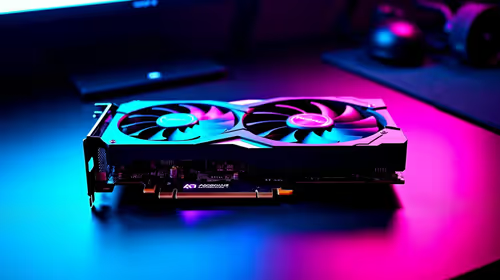
Can RTX 4080 Super Run AI Workloads for SA Developers Detailed answer with SA data, expert analysis & practical recommendations for local buyers.
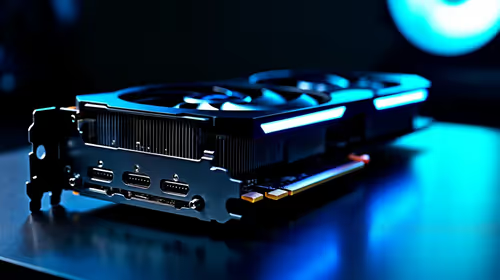
Can RTX 4090 Run AI Workloads for SA Developers Detailed answer with SA data, expert analysis & practical recommendations for local buyers.
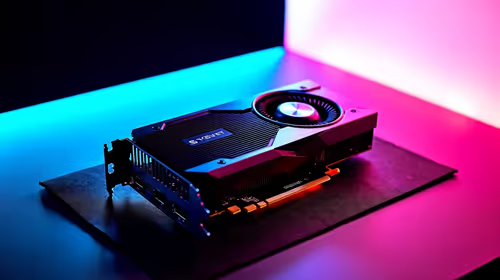
Top Settings for Intel Arc B580 at Ultrawide 1440p picks evaluated on performance, value & SA availability with current Rand pricing from Evetech.

RTX 4060 CS2 Low Settings at 1080p: FPS Results. Real-world benchmark data, FPS numbers & performance analysis. What SA gamers can actually expect.

Visual Artifacts: Possible GPU Issue Issue #1. Diagnosis steps, proven fixes & when to seek professional help. SA-specific support info included.
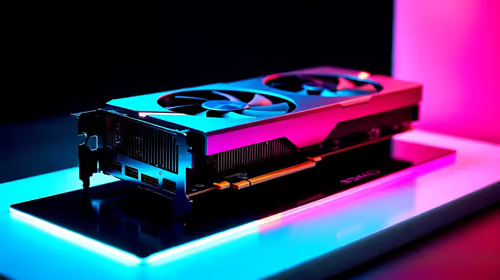
Can the RTX 4090 Handle 1440p 144Hz Gaming. Performance testing verdict with real data & practical recommendations for SA buyers.
Top ASUS GPU Under R15000 picks evaluated on performance, value & SA availability with current Rand pricing from Evetech.
GTA 6 Max Settings on RTX 5070. Tested & verified settings for best FPS and visual quality on SA hardware budgets.
Cyberpunk 2077 Max Settings on RTX 5080. Tested & verified settings for best FPS and visual quality on SA hardware budgets.
Starfield Max Settings on RTX 5070 Ti. Tested & verified settings for best FPS and visual quality on SA hardware budgets.
Top RTX 5090 Under R5000 picks evaluated on performance, value & SA availability with current Rand pricing from Evetech.