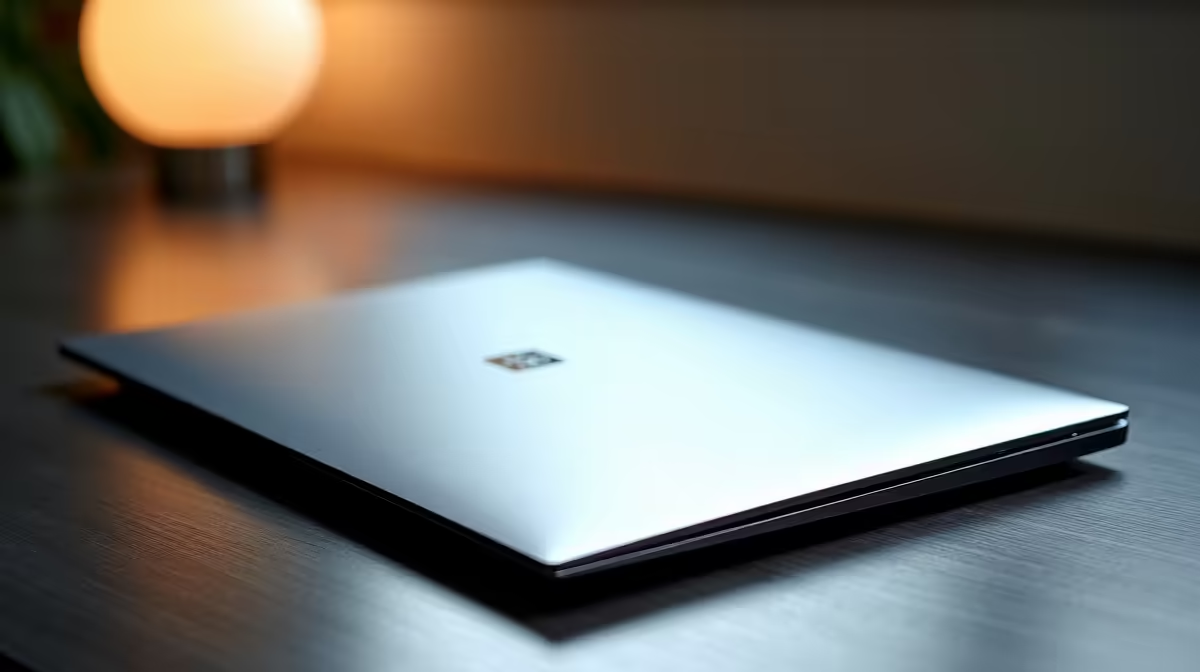
So, you’ve got a brand-new Lenovo Ideapad. Awesome! That fresh-out-the-box feeling is unbeatable. But before you dive into work or that first gaming session, a few key steps can make all the difference. Taking 30 minutes now to properly set up your new Lenovo Ideapad ensures it runs smoothly, securely, and without annoying clutter from day one. This guide will walk you through the essential first steps. Let's get it done right. ✨
The First Boot: Navigating the Windows Welcome
When you power on your Ideapad for the first time, you'll be greeted by the Windows Setup process. Don't just click "Next" on autopilot! This is your first chance to customise your experience.
You'll be asked to:
- Select Your Region & Keyboard Layout: Choose "South Africa" and your preferred keyboard layout.
- Connect to Wi-Fi: Get online immediately to download crucial updates during the setup.
- Sign in with a Microsoft Account: This is the recommended option. It syncs your settings, gives you access to the Microsoft Store, and integrates services like OneDrive. If you prefer, you can opt for an offline (local) account, but you'll miss out on some cloud features.
This initial process is straightforward, but taking your time here sets a solid foundation for your new machine.
Essential First Steps After Reaching the Desktop
Once you see that pristine Windows desktop, the real work begins. Completing this checklist is the most important part of any Lenovo Ideapad setup guide.
1. Run All Windows Updates 🔧
Before you install a single program, your first stop should be Windows Update. Seriously. Your laptop was likely manufactured months ago, and in that time, Microsoft has released critical security patches and performance improvements.
- Go to Start > Settings > Update & Security > Windows Update.
- Click "Check for updates" and let it run.
- You might need to download, install, and restart several times. Be patient… this is non-negotiable for a secure and stable system.
2. Remove Unwanted Bloatware
Manufacturers often pre-install software, known as "bloatware," to cut costs. These are often trial versions of antivirus programs or other utilities you'll never use. They clog up your system and slow it down. Removing them is one of the best things you can do for a new laptop.
Navigate to Settings > Apps > Apps & features. Scroll through the list and uninstall anything you don't recognise or need. A clean start makes even an affordable powerhouse like the Lenovo IdeaPad 3 feel significantly faster.
3. Update Your System Drivers
While Windows Update handles most drivers, it's smart to check for the latest versions directly from the source, especially for graphics. This is crucial for gaming, video editing, or any graphically intensive task.
- Lenovo Vantage: Your Ideapad comes with an app called Lenovo Vantage. It's actually useful! Use it to scan for BIOS updates and specific system drivers.
- Graphics Drivers: If you plan on gaming, go directly to the NVIDIA, AMD, or Intel website to download the latest graphics drivers. This single step can drastically improve performance on versatile machines like the IdeaPad Flex 5.
Pro Tip: Create a Restore Point ⚡
you start installing all your favourite software, create a System Restore Point. Search for "Create a restore point" in the Start Menu, select your C: drive, and click "Create". If an installation goes wrong later, you can easily roll your system back to this clean, perfectly configured state. It's a lifesaver!
Optimising Your Ideapad for Peak Performance 🚀
With the boring (but important) stuff out of the way, you can now fine-tune your Ideapad. Setting up a new Lenovo Ideapad for performance means telling it how you want it to behave.
Start by customising your power plan. Click the battery icon in the taskbar and slide it towards "Best performance" for maximum power when plugged in. For general use, the "Better performance" or "Balanced" settings are perfect.
Now you're ready to install the essentials: your favourite web browser, Steam or the Epic Games Store, and productivity software. The snappy processors in modern Ideapads, including the multi-talented Lenovo IdeaPad Flex series, can handle multitasking with ease once they're properly configured.
By following this guide, you’ve given your new laptop the best possible start in life. This initial investment of time pays off with a faster, more reliable, and more enjoyable experience for years to come. Whether you've just unboxed your device or are browsing the latest Lenovo laptops on special, these setup principles are universal.
Ready to Unleash Your Ideapad's Full Potential?
A proper setup is the first step to an amazing laptop experience. Whether you're customising your new machine or looking for your next upgrade, Evetech has the gear and deals to power your passion. Explore our massive range of laptop specials and find the perfect machine for you.