



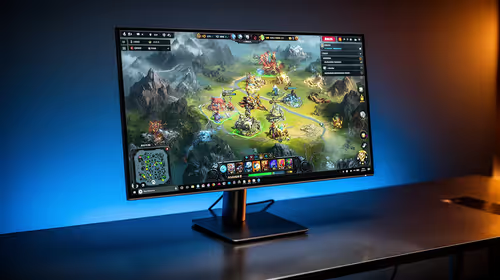
IPS vs VA for Strategy and Sim Games in SA
IPS vs VA for strategy and sim games should be judged by fit, not a single winner. Compare compatibility, latency, capacity, upgrade path, cost planning, and South African setup needs.
Read moreSet up ARGB, reverse blade step by step: header type, fan-curve targets and mount direction tied to gamer airflow needs. Shows how reverse blades flip the visible side without inverting intake flow, plus mount and cable tips.
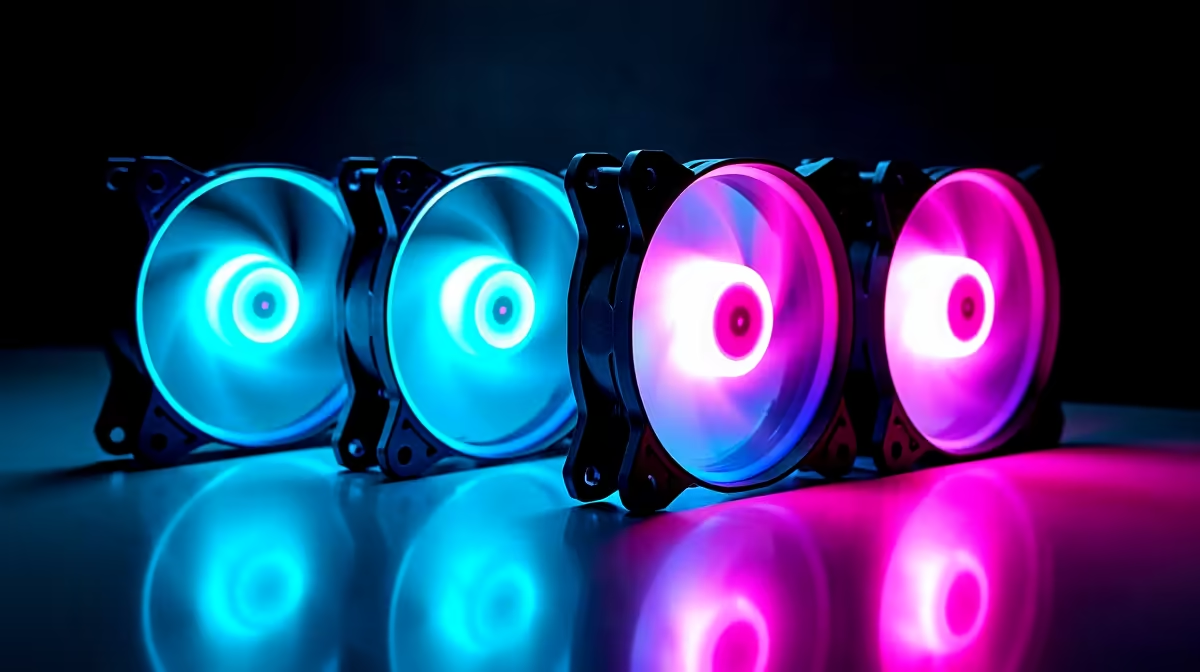
Reverse ARGB fans mount with the motor hub facing outward toward the glass panel, so spinning blades pull air from behind and push it forward through the case. This hides the hub from view and creates a cleaner visual on glass-side builds. Setup involves flipping the fan in the bracket, reconnecting the PWM and ARGB cables, and verifying airflow direction with a tissue test.
A standard fan mounts with the motor hub facing into the case and the blade frame facing the panel. In reverse orientation, the fan rotates 180 degrees on its mounting axis so the hub faces the glass and the blade face is visible through tempered glass. Air still flows in the same intended direction for intake (front) or exhaust (rear/top). Most reverse-ready fans use a symmetrical frame so the mounting holes align in either orientation. Brands like Lian Li, DeepCool, and Phanteks offer fans specifically designed with this dual-orientation use in mind, featuring cable routing channels that work in both positions.
Start by removing the fan from the case without disconnecting cables. Rotate the fan body 180 degrees so the motor hub now faces toward the tempered glass. Re-align the four corner screw holes with the case standoffs and secure with the original screws. Do not overtighten since fan frames can crack under excessive torque. Reconnect the 4-pin PWM connector to the same motherboard header, then reattach the ARGB 3-pin cable. Once mounted, power the system and hold a strip of thin paper near the intake or exhaust area to confirm airflow direction has not changed.
Reverse-mounted fans often expose cables more prominently because the motor side now faces the glass. Route the PWM and ARGB cables through the nearest cable cutout in the case spine and secure them behind the motherboard tray. Many modern SA-market cases from Lian Li and Fractal Design include cable management channels sized for ARGB daisy chains. If the cable cannot reach the nearest cutout cleanly, short ARGB extension cables (15cm to 30cm) available locally for R50 to R100 solve the routing without adding visible slack.
Reversing the physical fan does not affect ARGB signal direction since the LED data line is not polarity-dependent. Connect the ARGB header to your motherboard's 3-pin 5V ARGB header as normal. Open your RGB control software (ASUS Aura Sync, MSI Mystic Light, Gigabyte RGB Fusion, or ASRock Polychrome Sync) and select a lighting mode. If sync still fails in one zone, disconnect all components and add them back one at a time to identify the signal break.
After flipping any fan, run the system for ten minutes and check CPU and GPU temperatures in HWiNFO64 against your baseline. A fan accidentally reversed to fight airflow direction will spike temps by 5 to 12 degrees Celsius and is easy to miss if you skip this step.
No, reversing orientation does not affect CFM or static pressure rating as long as the blade pitch direction is unchanged. You are only rotating the fan body on its mounting plane, not altering the blade geometry.
Most fans with symmetrical square frames can be reversed physically. However, check that the cable length is sufficient from the new motor position and that the frame has mounting holes that align in the reversed position.
Forgetting to re-check airflow direction after reversal. If the fan was an intake and is accidentally spun on the wrong axis, it can become an exhaust and disrupt the entire case airflow plan, raising temperatures significantly.
Building a clean glass-side setup? Evetech stocks reverse-compatible ARGB case fans and cable management accessories to help your build look as good as it performs.
IPS vs VA for strategy and sim games should be judged by fit, not a single winner. Compare compatibility, latency, capacity, upgrade path, cost planning, and South African setup needs.
Read more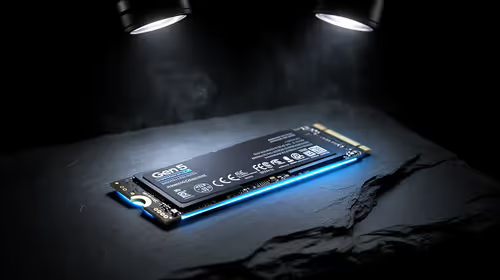
Gen 5 NVMe SSD guide for Bloemfontein gamers should be shortlisted around the job it must do. South African buyers should compare capacity, speed, thermals, and motherboard support, warranty path, and upgrade room before treating any pick as best.
Read more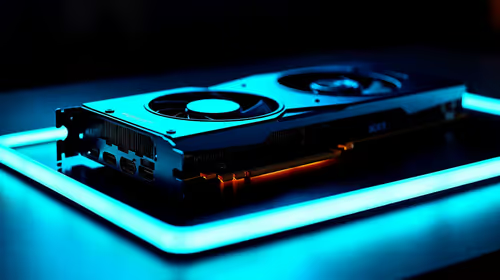
Skip the RTX 5070 if your first-time builder budget needs better balance. Better SA picks can free room for the right CPU, PSU, case, monitor, storage, and cooling while still giving a strong first gaming PC experience this year in South Africa.
Read more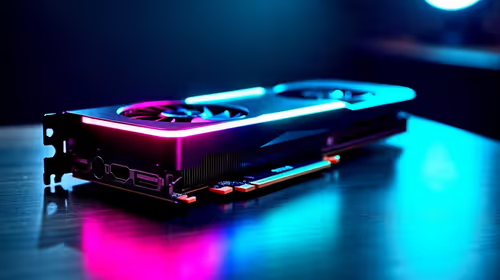
RTX 5080: weighing the pros and cons for SA should be shortlisted around the job it must do. South African buyers should compare GPU tier, VRAM, cooling, and PSU headroom, warranty path, and upgrade room before treating any pick as best.
Read more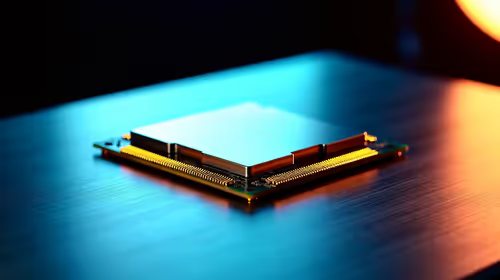
Core i5-13400F gives South African PC builders a capable mid-range CPU choice with clear limits. Check its gaming fit, discrete GPU requirement, LGA1700 platform costs, and upgrade path before locking in your parts list.
Read more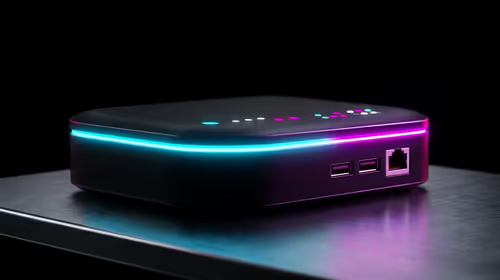
Pros and cons of the Wi-Fi 7 routers for SA should be shortlisted around the job it must do. South African buyers should compare WiFi standard, coverage, latency, and device support, warranty path, and upgrade room before treating any pick as best.
Read more
Steam content servers unreachable needs a download-path check, not an immediate reinstall of every game. Restart the client, inspect download settings and compare another connection when practical. Clearing the download cache is separate from deleting installed games.

Keychron G6 HE has built-in and swappable battery versions with different weights. The product brief lists 42g and 46g respectively, each with a 3g tolerance. Choose by grip and battery preference before treating one headline weight as universal.

Corsair HS80 v2 MAX supports 2.4GHz wireless and Bluetooth. Its maximum battery figures use RGB-off conditions and differ by connection. Check microphone routing, comfort and the exact device support before assuming every wireless mode behaves alike.

Windows taskbar notification badges can be shown or hidden in Taskbar behaviours. This changes the small app indicators, not the underlying messages. Choose a calmer desktop while keeping a deliberate routine for checking important conversations and app updates.

Windows title bar window shake can minimise other open windows when you shake the active window by its title bar. Inspect the Multitasking setting and switch it off if that gesture interrupts your work. The preference costs R0 and does not require new hardware.

Windows Print Screen opens Snipping Tool when its keyboard preference is enabled. Change the option under Accessibility, Keyboard to choose another workflow. Test whether you need a clipboard image or a saved file.

Windows desktop icons missing may be a visibility setting. Right-click the desktop, choose View and inspect Show desktop icons. If only system icons are absent, use Desktop icon settings. Check the Desktop folder before assuming files were deleted.

Windows set time zone automatically greyed out calls for a location and device-policy check. Automatic time-zone selection relies on location services. A manual time-zone choice is separate from synchronising the clock; check both before replacing hardware.
Windows title bar window shake can minimise other open windows when you shake the active window by its title bar. Inspect the Multitasking setting and switch it off if that gesture interrupts your work. The preference costs R0 and does not require new hardware.
Windows Print Screen opens Snipping Tool when its keyboard preference is enabled. Change the option under Accessibility, Keyboard to choose another workflow. Test whether you need a clipboard image or a saved file.
Windows desktop icons missing may be a visibility setting. Right-click the desktop, choose View and inspect Show desktop icons. If only system icons are absent, use Desktop icon settings. Check the Desktop folder before assuming files were deleted.
Windows set time zone automatically greyed out calls for a location and device-policy check. Automatic time-zone selection relies on location services. A manual time-zone choice is separate from synchronising the clock; check both before replacing hardware.