Quick Answer
Use DisplayPort 1.4 for your primary PC connection to unlock full resolution and high refresh rates. Reserve HDMI 2.0 or 2.1 for a console or secondary device. The USB 3.0 hub ports on the monitor act as a convenience dock once the upstream USB-B cable is connected to your PC.
Connecting the Right Cable to the Right Source 🖥️
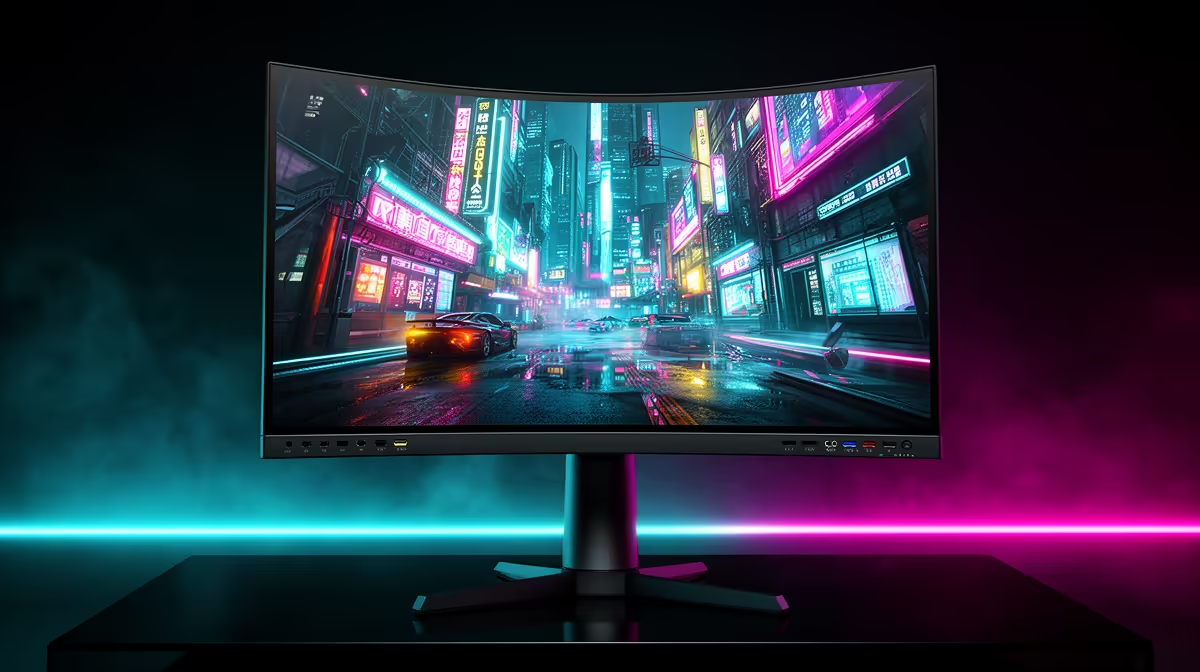
DisplayPort 1.4 carries enough bandwidth for 3840x1080 at 144Hz with no compression, making it the correct primary cable for your gaming PC. HDMI 2.0, found on most 49-inch ultrawide monitors currently stocked at Evetech, supports 3840x1080 but typically caps at 100Hz on that resolution, so it works well for a PS5 or second laptop. Always seat the cable latch firmly: a loose DisplayPort clip is the most common cause of a flickering signal that gets mistaken for a faulty panel.
Activating the USB 3.0 Hub 🔌
The USB 3.0 downstream ports on an ultrawide only work once the upstream port is connected. Run the included USB-B to USB-A cable (or USB-C upstream on newer models) from the monitor's upstream port to a free USB port on your PC. Once Windows detects the hub, plug in your keyboard, headset dongle or external drive into the monitor's side ports. Transfer speeds reach around 5 Gbps, fast enough for an external SSD used for game installs.
Switching Between Sources and Managing Input Priority ⚡
Most ultrawide monitors have an OSD (on-screen display) input selector. Set DisplayPort as the preferred auto-switch source so the monitor wakes your gaming PC automatically when you power on. Assign HDMI to your secondary device. If your monitor supports Picture-by-Picture (PBP), you can display your PC on the left half and a console on the right, each at 1920x1080, which is handy for streaming workflows. In South Africa, many content creators use this split to monitor a Streamlabs dashboard on one source while playing on another.
Upstream USB Tip ⚡
When switching the active DisplayPort source to HDMI, the USB hub drops out briefly because it is tied to the PC's upstream connection. Keep your keyboard plugged into the PC directly if you switch sources often, and use the monitor's USB ports only for peripherals that do not need to stay active during source changes.
FAQ
Can I run 144Hz at 3840x1080 over HDMI on my ultrawide?
Generally no. HDMI 2.0 on most 49-inch monitors peaks at 100Hz at DFHD resolution. You need DisplayPort 1.4 or HDMI 2.1 (available on higher-end models) to reach 144Hz at full ultrawide resolution.
Do the USB 3.0 ports charge my phone?
Yes, though typically at standard USB charging speeds around 5W to 7.5W. They are not fast-charge ports, so use a dedicated wall adapter for rapid phone charging.
What cable do I need for the USB hub on the monitor?
Most monitors include a USB-B cable. Plug the square B-end into the monitor's upstream port and the rectangular A-end into your PC. Some newer monitors use a USB-C upstream cable instead, check your model's manual for the exact type.
Ready to upgrade your ultrawide setup?
Browse the full range of ultrawide gaming monitors at Evetech to find models with DisplayPort 1.4, HDMI 2.1 and built-in USB hubs all in one display.