Quick Answer
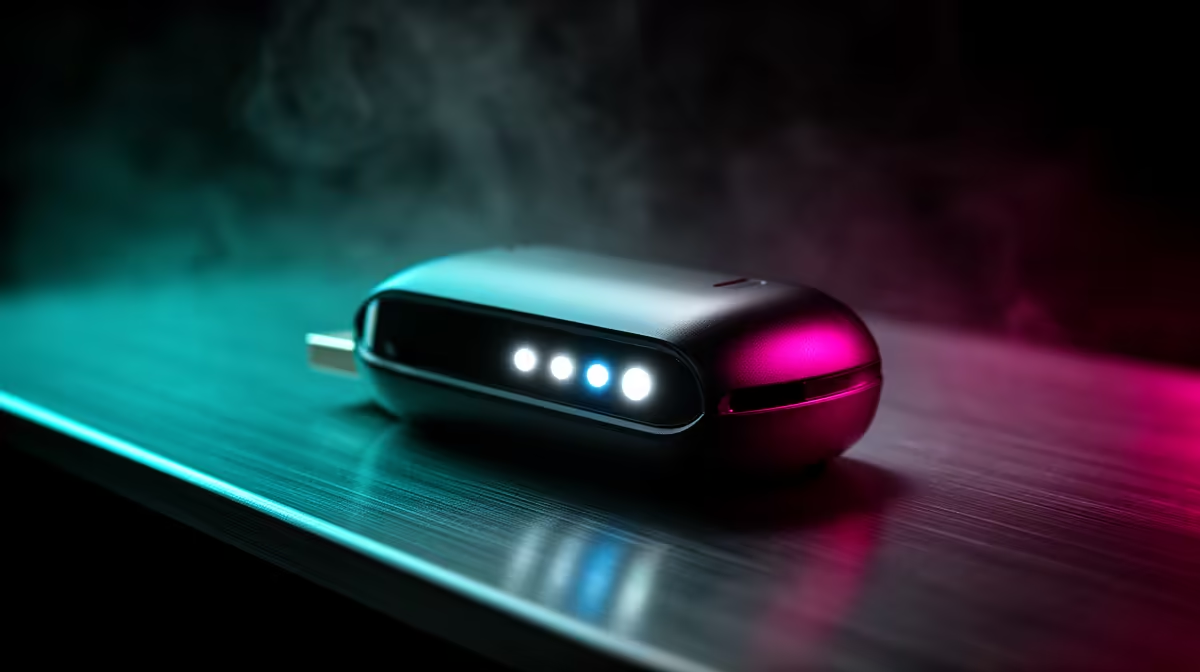
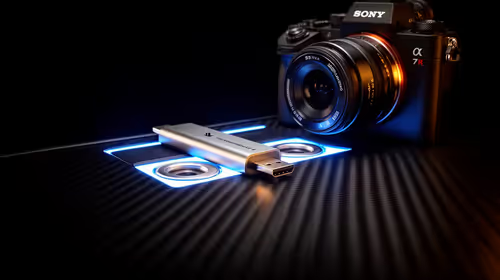
LED status indicator dongles communicate connection state through colour and blink patterns. A solid green LED means a stable connection, a slow amber pulse indicates searching for a paired device, and a rapid red blink typically signals a pairing failure or interference. Reading these patterns lets you diagnose wireless issues in seconds without opening software.
Reading LED Status Patterns on Wireless Dongles 🔧
Most gaming wireless peripherals use a small USB transceiver dongle with one or more status LEDs. The patterns follow a largely consistent convention across brands. Solid green or white means the device is connected and transmitting normally. Slow pulse at one blink per two seconds means the dongle is powered and searching before pairing completes. Rapid blink at four or more per second in amber or red signals pairing failure, interference, or the paired device out of range. No LED at all indicates the dongle is not receiving power, pointing to a faulty USB port, an underpowered hub, or a damaged cable.
Common SA Wireless Troubleshooting Scenarios 💡
In SA gaming setups, the most common wireless dongle issues are caused by USB hub interference, 2.4GHz Wi-Fi congestion, and USB power delivery inconsistencies. Hubs without individual port power regulation can starve the dongle of the stable 5V supply it needs, causing disconnects shown as cycling amber blinks. The fix is plugging the dongle directly into a motherboard USB port. Wi-Fi routers broadcasting on channels 6 or 11 overlap with the 2.4GHz band used by gaming dongles. Moving the dongle closer to the mouse using a 300mm to 500mm USB extension cable reduces interference significantly. This is a documented issue in Joburg apartments where router density is high.
Pairing and Re-Pairing Procedures 🔌
If the LED shows a fault state (rapid red or persistent amber), the first step is re-entering pairing mode. On most wireless gaming mice, hold the power button for 5 seconds until the device LED enters rapid broadcast mode, then plug the dongle into the PC. The dongle LED should change from its searching pattern to solid green within 10 to 15 seconds. If pairing fails repeatedly, delete the device from the companion app's device list and re-pair as new. For Razer mice with HyperSpeed dongles, this is done through the Razer Synapse device management panel.
USB Extension Cable for Dongle Placement ⚡
A 300mm to 500mm USB extension cable placing the dongle at desk level rather than at the rear of a floor-standing tower dramatically improves wireless signal strength. Metal PC cases and physical distance from the rear panel reduce 2.4GHz signal measurably.
FAQ
What does a blinking LED on a wireless dongle mean during gaming?
During active use, a slow periodic blink on some dongles is a normal heartbeat confirming communication. A blink pattern that changes suddenly from slow to rapid mid-game typically indicates interference or the device moving to the edge of its wireless range.
Can I use one dongle with multiple devices in South Africa?
Some dongles support multiple paired devices. Logitech's Unifying receiver supports up to six. Proprietary dongles like Razer HyperSpeed are paired to one specific device and cannot be shared. Check the dongle specification before attempting multi-device pairing.
Why does my wireless mouse dongle LED turn off when my PC goes to sleep?
USB ports on most PCs cut power during sleep or hibernate mode. The dongle powers back up when the PC wakes and the mouse reconnects automatically, shown as the slow pulse LED pattern during the brief searching phase.
Experiencing wireless connectivity issues with your gaming peripherals?
Browse wireless gaming mice and accessories stocked at Evetech to find a reliable setup for your SA gaming station.