

Ryzen 7 9800X3D Common Problems: Complete Solutions
Ryzen 7 9800X3D Common Problems: Complete. Diagnosis steps, proven fixes & when to seek professional help. SA-specific support info included.
Read moreYour new HP Victus 15 Ryzen AI 7 350 setup is crucial for peak performance. This guide walks you through everything from unboxing to advanced tuning. Learn how to optimize settings, update drivers, and configure the Omen Gaming Hub to dominate your games. 🚀 Let's get started!
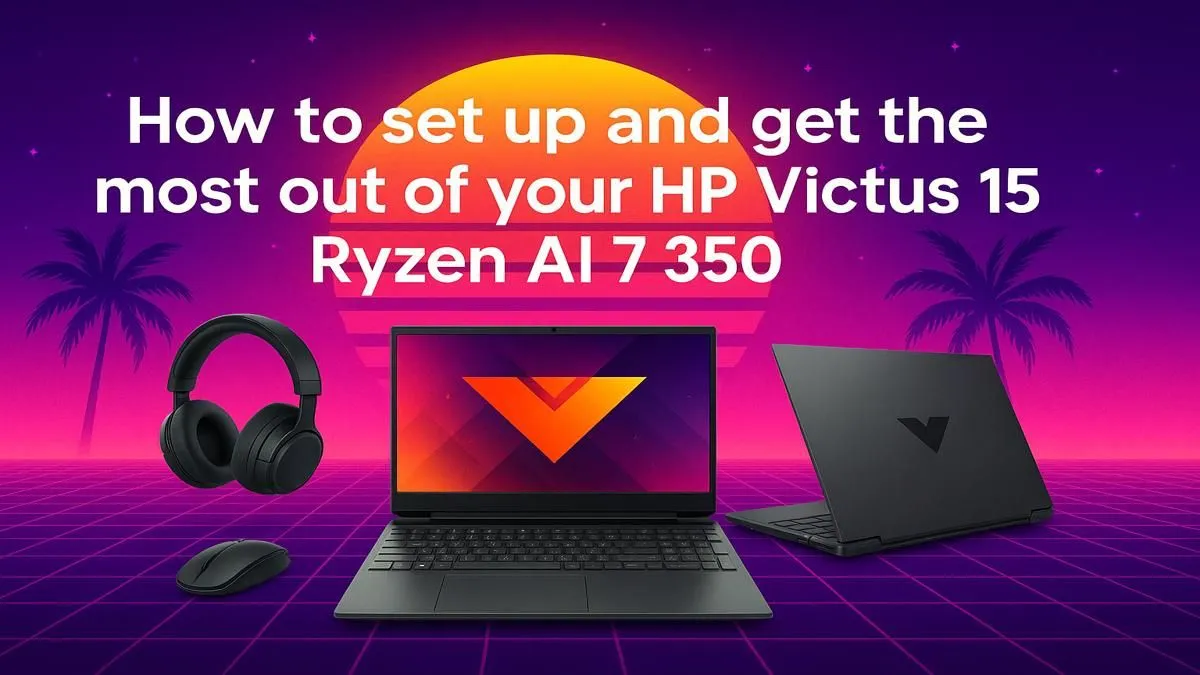
So, you've unboxed your brand-new HP Victus 15 with that powerful Ryzen AI 7 350 CPU... lekker! But what now? Getting from a fresh Windows install to a fully optimised gaming rig can feel like a mission. Don't stress. This ultimate guide will get you sorted, unlocking the full potential of your machine so you can dominate the lobby from day one. Let's get your HP Victus 15 Ryzen AI 7 350 setup dialled in. 🚀
Before you even think about installing Steam, the first hour with your new machine is crucial. A clean start prevents headaches later.
Settings > Windows Update and install everything. Yes, everything. This includes optional driver updates. This single step ensures your system has the latest security patches and foundational drivers.Settings > Apps > Installed apps and uninstall any trial software or utilities you won't use. A leaner system is a faster system.Now for the fun part. The AMD Ryzen 7 CPU in your machine is a beast, especially with its new AI capabilities designed to optimise tasks in the background. To get the most from it, you need to configure the software correctly.
Your complete HP Victus 15 Ryzen AI 7 350 setup relies on AMD's Adrenalin Software. If it's not pre-installed, download it directly from AMD's website. This control panel is your command centre for the integrated Radeon graphics and CPU performance settings. Explore the "Gaming" tab to create custom profiles for your favourite titles. The power of this processor is a key reason many gamers are checking out the latest AMD laptops on special right now.
Next, open the OMEN Gaming Hub. Here, you can switch between performance modes (e.g., Quiet, Balanced, Performance) to control fan speed and power limits. For gaming, always select Performance mode before launching a game.
Make sure Windows Game Mode is enabled by going to Settings > Gaming > Game Mode. This feature prioritises your game, dedicating more CPU and GPU resources to it while limiting background tasks. It’s a simple toggle that makes a real difference in achieving a stable frame rate.
A powerful CPU needs a great graphics card to shine. Your HP Victus 15 Ryzen AI 7 350 setup is no different. You need to ensure Windows is using your dedicated NVIDIA GPU (if your model includes one) for gaming, not the integrated graphics.
Go to the NVIDIA Control Panel (right-click your desktop). Under "Manage 3D settings," set the "Preferred graphics processor" to "High-performance NVIDIA processor." While you're there, set the "Power management mode" to "Prefer maximum performance." This tells your GPU to run at full throttle when gaming. This CPU/GPU partnership is critical, and it's why buyers often compare performance across both powerful Intel laptops on special and AMD options before choosing.
For specific games, don't just crank every setting to Ultra. Start with a preset like "High" and tweak from there. Settings like shadows, anti-aliasing, and textures have the biggest impact on FPS. Finding the right balance is key to a smooth experience, and this machine has the power to deliver it. If you're exploring what's out there, be sure to check out Evetech's best gaming laptop deals for a wide range of configurations.
With your drivers updated, performance modes set, and graphics optimised, your HP Victus 15 is ready for battle. You've successfully completed the core setup and unlocked the hardware's true potential. Now all that's left is to install your games, log in, and show them what your new rig can do. Happy gaming!
Ready to Find Your Perfect Match? A proper setup unlocks the power of any great machine. The HP Victus 15 is a fantastic choice, but the perfect rig is the one that fits your exact needs and budget. Explore our massive range of laptop specials and find the perfect machine to conquer your world.
After the initial Windows setup, connect to the internet and run all Windows Updates. Then, immediately update your graphics drivers for optimal gaming performance.
To increase FPS on your HP Victus 15, update your graphics drivers, set the power plan to 'High Performance,' and use the Omen Gaming Hub to set the fan to max.
Yes, uninstalling pre-installed bloatware can free up system resources and improve performance. Focus on removing trial software and utilities you do not plan to use.
In the Omen Gaming Hub, use Performance Mode for gaming. You can also explore creating custom fan curves and undervolt profiles for a balance of power and thermal performance.
For better battery life, switch to the 'Balanced' or 'Power saver' power plan, lower your screen brightness, and close unnecessary background applications when not gaming.
It is highly recommended to check for BIOS updates using the HP Support Assistant. These updates can improve system stability, compatibility, and sometimes even performance.
Ryzen 7 9800X3D Common Problems: Complete. Diagnosis steps, proven fixes & when to seek professional help. SA-specific support info included.
Read more
Core i5-13400F Temperature Guide: Normal Range. Complete product range with SA pricing, key specs & recommendations for different budgets.
Read more
The Complete Guide to Motherboard. Hand-picked gift ideas at every budget tier. SA pricing & Evetech availability included.
Read more
RAM Speed and Timings: DDR4 32GB Explained. Plain-English explanation of what it means, why it matters & how it affects your buying decisions in SA.
Read more
Setting Up AMD X870. Tested & verified settings for best FPS and visual quality on SA hardware budgets.
Read more
Setting Up DDR4 32GB. Tested & verified settings for best FPS and visual quality on SA hardware budgets.
Read more
AMD RX 9050 XT: Rumoured Specs, Price & Release. SA-focused analysis with local pricing data, real-world insights & actionable buying advice.

Can RTX 4080 Super Run AI Workloads for SA Developers Detailed answer with SA data, expert analysis & practical recommendations for local buyers.

Can RTX 4090 Run AI Workloads for SA Developers Detailed answer with SA data, expert analysis & practical recommendations for local buyers.

Top Settings for Intel Arc B580 at Ultrawide 1440p picks evaluated on performance, value & SA availability with current Rand pricing from Evetech.

RTX 4060 CS2 Low Settings at 1080p: FPS Results. Real-world benchmark data, FPS numbers & performance analysis. What SA gamers can actually expect.

Visual Artifacts: Possible GPU Issue Issue #1. Diagnosis steps, proven fixes & when to seek professional help. SA-specific support info included.

Can the RTX 4090 Handle 1440p 144Hz Gaming. Performance testing verdict with real data & practical recommendations for SA buyers.

Top ASUS GPU Under R15000 picks evaluated on performance, value & SA availability with current Rand pricing from Evetech.

GTA 6 Max Settings on RTX 5070. Tested & verified settings for best FPS and visual quality on SA hardware budgets.

Cyberpunk 2077 Max Settings on RTX 5080. Tested & verified settings for best FPS and visual quality on SA hardware budgets.

Starfield Max Settings on RTX 5070 Ti. Tested & verified settings for best FPS and visual quality on SA hardware budgets.

Top RTX 5090 Under R5000 picks evaluated on performance, value & SA availability with current Rand pricing from Evetech.