Quick Answer
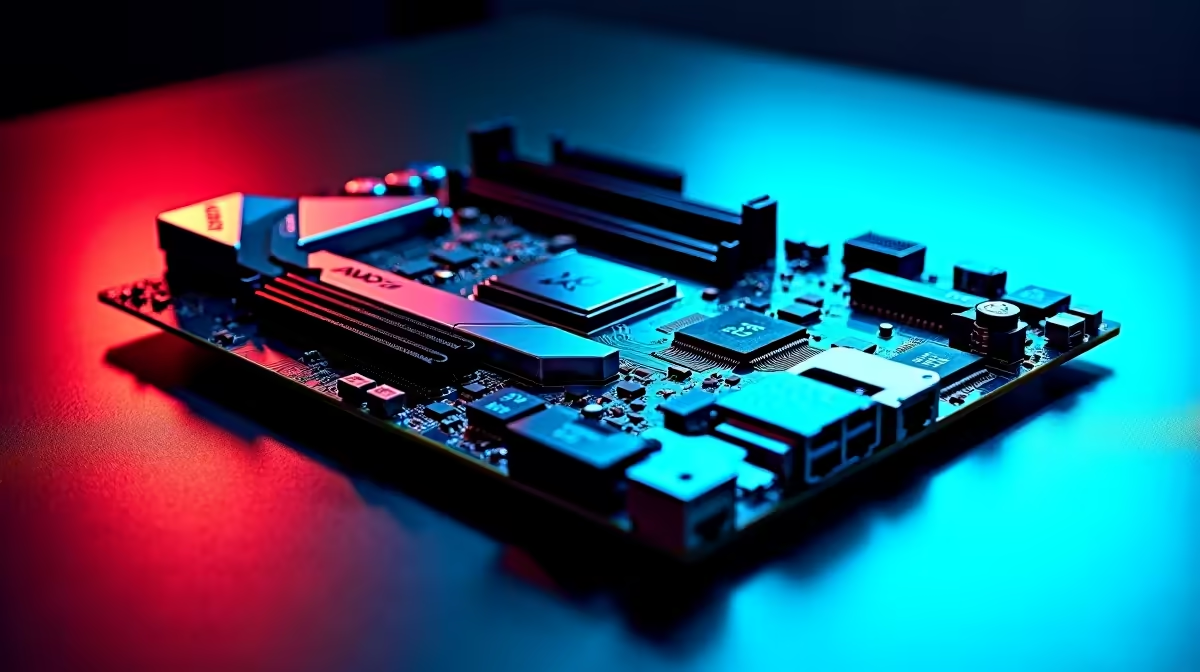
Setting up an AMD X870 motherboard involves installing the CPU and cooler, seating DDR5 RAM in the correct slots (A2/B2 for dual-channel), connecting storage to the M.2 slots with the correct orientation, and configuring EXPO memory profiles in BIOS. The X870 platform supports AMD Ryzen 9000 series CPUs and brings USB4 and PCIe 5.0 M.2 as standard features.
The AMD X870 chipset arrived in late 2024 as the mainstream high-end option for AM5 platform builds, sitting above B850 and below X870E in the lineup. It is a popular choice among South African PC builders who want a Ryzen 9000 series build without paying the premium for X870E's dual-chipset complexity. Getting the initial setup right saves hours of troubleshooting later.
Physical Installation: CPU, RAM, and Storage
Start with the CPU. The AM5 socket uses a land grid array (LGA) on the motherboard side - the pins are on the board, not the chip. Lift the lever, place the Ryzen 9000 series CPU with the triangle marker aligned to the socket corner, then lower the lever. Apply a pea-sized dot of thermal paste before mounting your cooler. AMD Ryzen 9000 CPUs run warm under boost, so a 240mm AIO or high-end tower cooler is recommended for anything above the Ryzen 5 9600X.
For RAM, X870 is DDR5-only. Use slots A2 and B2 (second and fourth from the CPU) for dual-channel - check your board's manual as some boards label differently. X870 officially supports DDR5-6000 and higher via EXPO, and AMD's memory controller is tuned for DDR5-6000 as the performance sweet spot. Do not install RAM in A1/B1 unless you have four sticks.
The X870 chipset provides two M.2 slots connected to the CPU via PCIe 5.0, supporting NVMe drives at up to 14,000 MB/s. Slot the drive at a 30-degree angle, push it flat against the board, and secure the retention screw.
BIOS Configuration and EXPO
On first boot, enter BIOS by pressing Delete or F2 at the manufacturer splash screen. The first thing to do is enable EXPO (AMD's DDR5 memory profile equivalent to XMP). Navigate to the AI Overclocking or Memory section and select your EXPO profile - typically EXPO I for the rated speed. Save and reboot.
Next, check that BIOS is up to date. X870 boards shipped with early BIOS revisions that had some Ryzen 9000 compatibility issues and performance tuning gaps. Most manufacturers have released multiple updates - use the Q-Flash or EZ Flash utility to update directly from a USB drive. After updating, re-enable EXPO as BIOS updates sometimes reset settings to default.
Enable Resizable BAR (SAM) in the BIOS for better GPU performance. On most X870 boards this is in the Advanced PCIe settings menu.
Frequently Asked Questions
Q: Which CPUs are compatible with X870 motherboards?
A: X870 supports AMD Ryzen 9000 series (Zen 5) and Ryzen 7000 series (Zen 4) processors in the AM5 socket. Ryzen 8000G APUs are also compatible.
Q: Do I need to update the BIOS before installing a Ryzen 9000 CPU?
A: Most X870 boards shipped with Ryzen 9000 support already present, but updating to the latest BIOS is strongly recommended before first use for stability and performance patches.
Q: What is the difference between X870 and X870E?
A: X870E uses a dual-chipset design providing more PCIe 5.0 lanes for both the GPU slot and M.2 slots. X870 is single-chipset with fewer PCIe 5.0 lanes overall, which rarely matters for standard gaming or workstation builds.