Ever been in a frantic firefight in Apex, only to see a weird, ghostly trail behind your opponent as you track them? Or maybe a strange, bright halo around moving objects on your screen? You’re not seeing things, and your GPU isn’t dying. You’ve likely encountered pixel overdrive artifacts, a common but annoying issue on many IPS monitors. The good news? You can often fix it in minutes. Let's dive in and clean up your display. ✨
Understanding Pixel Overdrive and Its Artifacts
So, what’s actually happening on your screen? It all comes down to "response time"—how quickly a pixel can change from one colour to another. To get those lightning-fast response times advertised on the box, manufacturers use a trick called "pixel overdrive." They apply a little extra voltage to the pixels to make them change colour faster.
When it works, it’s brilliant. You get a sharper, clearer image in fast-moving scenes. But when the voltage is pushed too high, the pixel "overshoots" its target colour before settling down. This overshoot is what creates the visual glitch you see, known as a pixel overdrive artifact. While it's a common issue, a huge variety of modern PC monitors have much better-tuned overdrive settings out of the box.
How to Spot Pixel Overdrive Artifacts on Your Screen
These artifacts can be subtle, but once you know what to look for, you can’t unsee them. The most common type is "inverse ghosting," which looks like a bright or dark trail following a moving object. Imagine a black cursor moving across a grey background; an aggressive overdrive setting might cause a bright white trail to follow it.
This is especially noticeable in games with high contrast and fast movement. You might see it on a character's dark outline against a bright sky or on the edges of your weapon model as you quickly turn. It's a frequent challenge for manufacturers to find the best settings for all gaming monitors to balance speed with visual purity.
Use the UFO Test! 🚀
The easiest way to see pixel overdrive artifacts in action is with a browser-based tool. Go to the Blur Busters UFO Motion Tests website (testufo.com). The 'Ghosting' test is perfect for this. Watch the UFOs slide across the screen. If you see a dark or brightly coloured trail leading or following the UFO, that's your artifact. You can even keep this test open while you adjust your monitor settings!
Your Step-by-Step Guide to Fixing Overdrive Issues 🔧
Ready to tame that ghosting? The fix is usually just a few button presses away in your monitor’s settings menu.
1. Find Your Monitor's On-Screen Display (OSD)
Use the buttons on your monitor (usually on the bottom, back, or a small joystick) to open its settings menu.
2. Locate the Overdrive Setting
This is the trickiest part, as every brand calls it something different. Look for terms like:
- Overdrive (OD)
- Response Time
- Trace Free (ASUS)
- AMA - Advanced Motion Acceleration (BenQ)
- Over Drive (Gigabyte/AORUS)
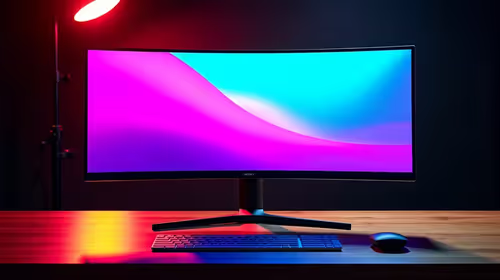
The settings are typically labeled with levels like Off, Low, Medium, High or Normal, Fast, Fastest. This is especially common on high-refresh-rate curved monitors designed for immersive gaming.
3. Adjust and Test
If your setting is on the highest level (e.g., "Fastest"), try turning it down one step (e.g., to "Fast"). The goal is to find the highest setting that doesn't produce visible artifacts. Often, the second-to-highest setting is the sweet spot, offering great responsiveness without the ugly inverse ghosting. Some gamers even use monitor accessories like calibration tools to fine-tune their picture, but this specific fix is all in the OSD.
Is it an Artifact Problem... or Time for a New Monitor?
Sometimes, especially on older or more budget-oriented monitors, even the lowest overdrive setting can still show some artifacts. If you’ve tried adjusting the settings and you’re still not happy with the motion clarity, it might be a limitation of the panel itself.
Modern displays, from compact portable monitors to stunning 5K and 4K monitors, have made huge leaps in pixel response technology. Upgrading to a newer panel can provide a fundamentally cleaner and sharper image, often eliminating noticeable overdrive artifacts entirely. If you're tired of tweaking and just want a flawless picture, it might be time to check out the latest PC monitor deals and see what new tech can do for your setup.
Ready for a Flawless Picture?
Pixel overdrive artifacts can ruin an immersive experience, but the fix is often simple. If your panel is still struggling, it might be time for an upgrade. Explore our incredible PC monitor deals and find a screen that keeps up with your reflexes.