Windows 10 stopped getting security updates on 14 October 2025, which means the question of whether your machine can run Windows 11 is no longer academic. Whether your PC is ready for Windows 11 comes down to a short, strict checklist: TPM 2.0, Secure Boot, UEFI firmware, a CPU on Microsoft's supported list, and the basic 4GB RAM and 64GB storage floor. Pass all of them and you upgrade for free. Fail one and you face a decision.
Quick Answer
Your PC is ready for Windows 11 if it passes five checks: TPM 2.0, Secure Boot, UEFI firmware, a supported 64-bit CPU, plus 4GB RAM and 64GB storage as baseline minimums. All five have been mandatory since Windows 10 reached end of support on 14 October 2025. Many machines from 2018 onward meet them once TPM and Secure Boot are switched on in the BIOS; older PCs often cannot, and need replacing.
The checklist, item by item
Five things decide it, and all of them must pass.
TPM 2.0 is a hardware security chip that handles encryption keys and tamper resistance. Most CPUs from roughly 2018 onward include it, often disabled by default in the BIOS, where it may be labelled by the chipset's own name rather than TPM. More machines fail the Windows 11 check on this point than on any other.
Secure Boot ensures the machine only starts trusted software at boot, blocking certain malware before the operating system loads. It lives in your UEFI firmware settings and frequently just needs enabling.
UEFI firmware is the modern replacement for legacy BIOS boot mode. Windows 11 requires it; a machine still set to legacy boot must be switched, which sometimes also requires converting the drive's partition style.
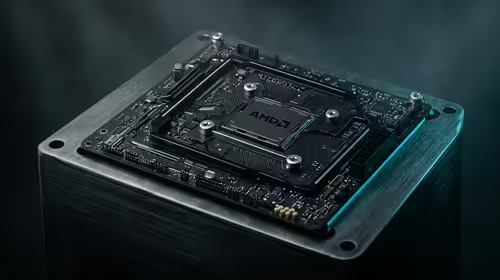
A supported CPU is non-negotiable. Microsoft maintains explicit lists of approved Intel, AMD, and select ARM processors, and an unsupported chip fails the check even if everything else passes. This is the requirement you cannot enable your way around.
RAM and storage round it out: 4GB of memory and 64GB of storage are the minimums, though both are comfortable floors rather than targets for a pleasant experience.
How to actually check your PC
Microsoft's own PC Health Check tool gives a straight pass or fail and names the specific requirement you miss, which is the fastest way to know where you stand. If it flags TPM or Secure Boot, do not assume your hardware lacks them. Reboot into the BIOS and look for the TPM setting (sometimes under a chipset-specific name) and the Secure Boot toggle. Enabling both is often all that stands between a fail and a clean upgrade, and it costs nothing.
If the tool flags your CPU as unsupported, that is the harder verdict. There is no setting that adds your processor to Microsoft's approved list. At that point you are weighing an upgrade-or-replace decision rather than a quick BIOS tweak.
The upgrade-or-replace decision for SA buyers
If your machine passes, the upgrade itself is free. If it fails only on TPM or Secure Boot, the fix is usually free too, a few minutes in the BIOS. The genuine cost decision arrives when the CPU is unsupported or the board lacks TPM and UEFI entirely, which is common on pre-2018 machines.
You can pay for a year of Extended Security Updates to keep an old Windows 10 PC patched a little longer, but that is a stopgap, not a solution, and it ends. For most people on hardware that genuinely cannot meet the requirements, putting that money toward a current machine is the sounder call, because a new PC arrives Windows 11-ready and gives you years of runway rather than buying a single extra year on dated hardware.
What actually changes when you move to Windows 11
For buyers weighing the effort, it helps to know what Windows 11 brings beyond the security updates that ended on Windows 10. The interface is the obvious shift, a centred taskbar and a cleaner Start menu, but the meaningful changes sit underneath. The security requirements you had to meet, TPM 2.0 and Secure Boot, are not red tape for their own sake; they underpin features like hardware-backed encryption and a more tamper-resistant boot process that genuinely raise the baseline against malware. That is the trade behind the strict checklist: tighter hardware requirements in exchange for a more defensible system.
There are practical wins too: better window-snapping for multitasking, improved handling of multiple monitors so your layouts survive unplugging a laptop, and ongoing feature updates that Windows 10 no longer receives. None of this is reason enough on its own to replace working hardware, but it does mean an upgrade is a step forward rather than a sideways move, which matters when you are deciding whether to put money toward a new machine.
Back up before you upgrade
Whatever path you take, do not skip a backup. An in-place upgrade on a passing machine is usually smooth, but any operating-system change carries a small risk, and the cost of a failed upgrade without a backup is your data. Copy your important files to an external drive or a NAS before you begin, confirm the copy actually opened and is complete, and only then run the upgrade. If you are moving to a new PC instead, the same backup is what makes transferring your files painless. It is five minutes of caution against an outcome you cannot undo.
Where a small, ready machine fits
Not everyone needs a full tower. For general use, a browser-and-office workload, or a media and light-productivity box, a compact mini PC ships Windows 11-ready with TPM and Secure Boot already sorted, and takes up almost no space. Compact options in the Evetech mini PC range arrive with every Windows 11 requirement already met, which cuts out the BIOS guesswork entirely.
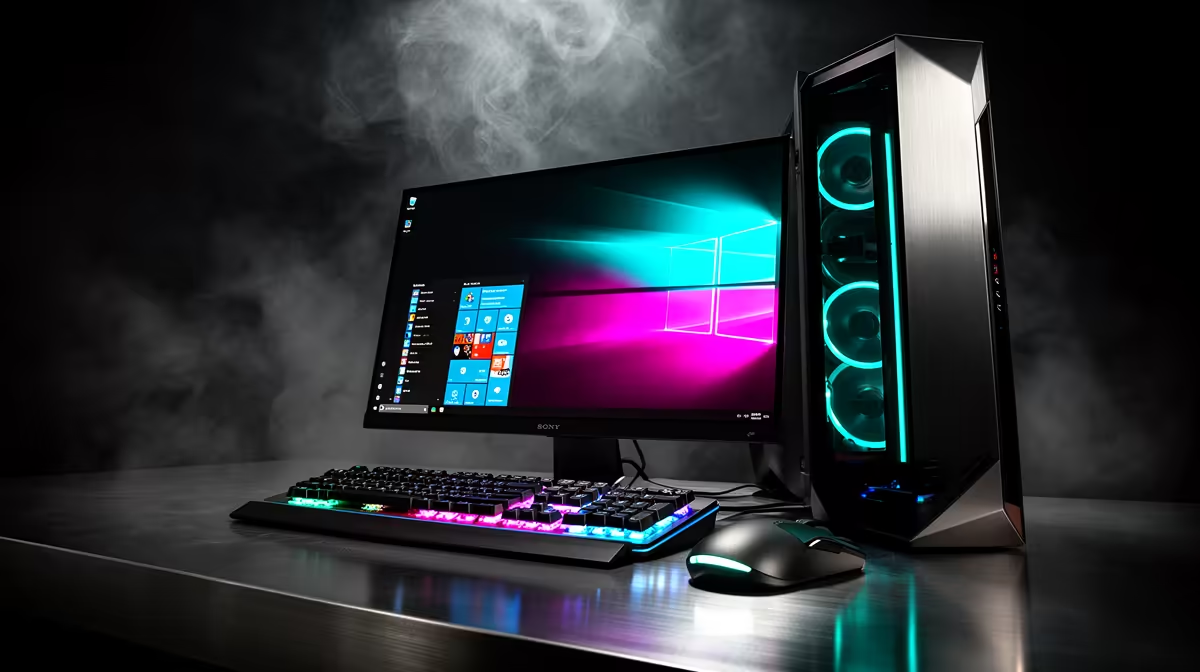
If you want a more capable desktop, the best-selling PCs at Evetech are current builds that all meet the Windows 11 bar, so you are choosing on performance and budget rather than worrying about compatibility.
Frequently Asked Questions
How do I check if my PC can run Windows 11?
Run Microsoft's PC Health Check tool. It gives a clear pass or fail and tells you exactly which requirement you miss. If it flags TPM or Secure Boot, check your BIOS, because those are often just disabled rather than absent.
My PC failed on TPM. Is it hopeless?
Usually not. Most machines from around 2018 onward have TPM 2.0 built in but switched off in the BIOS, sometimes under a chipset-specific name. Enabling it, along with Secure Boot, frequently turns a fail into a pass at no cost.
What if my CPU is unsupported?
That is the hard limit. Microsoft maintains specific supported-CPU lists, and no setting adds an unsupported chip. An unsupported CPU means weighing an upgrade-or-replace decision, as the processor itself is the blocker.
What happened to Windows 10?
Security support ended on 14 October 2025. The system still runs, but it no longer receives security updates unless you pay for the time-limited Extended Security Updates programme, which is a temporary measure rather than a long-term fix.
Is 4GB of RAM really enough?
It is the minimum to install, not a comfortable target. Windows 11 runs better with more, and 8GB or 16GB makes everyday multitasking far smoother. Treat 4GB as the floor for compatibility, not the spec to aim for.
If your current PC cannot meet the Windows 11 requirements, skip the stopgaps and choose a machine that arrives ready from the mini PC range at Evetech.