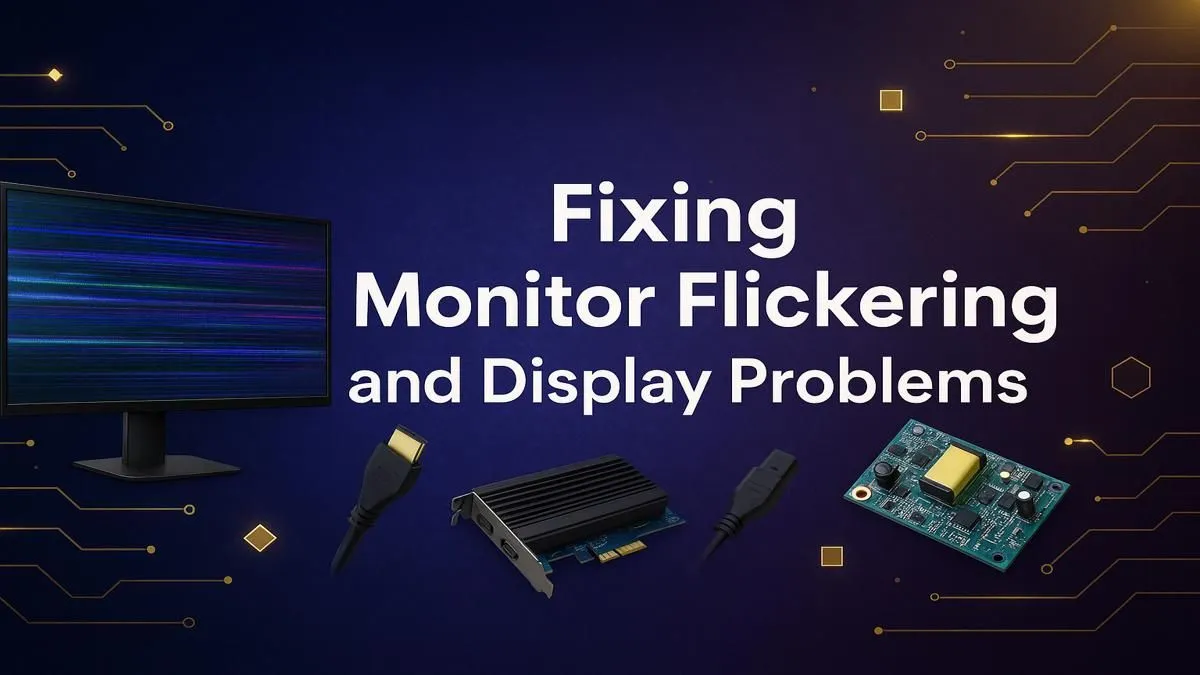
You’re in the final clutch. The enemy peeks. You line up the shot... and your screen starts strobing like a disco ball. Tragic. Monitor flickering can ruin any gaming session, turning victory into a frustrating mess. But don’t rage-quit just yet. This guide provides a complete monitor flickering fix, helping you get back to a smooth, stable display and dominate the lobby. Let’s get this sorted. 🖥️
First Steps: Ruling Out the Simple Stuff
Before you start thinking your GPU is toast, let’s tackle the most common causes of a flickering screen. Often, the solution is surprisingly simple. A quick check of your setup can be the fastest monitor flickering fix you’ll ever perform.
The first and most frequent culprit? A loose cable. Seriously. Give your DisplayPort or HDMI cable a firm wiggle at both ends—the back of your PC and the monitor port. A secure connection is non-negotiable for a stable display, especially when you're aiming for high refresh rates on a rig built for Counter-Strike 2. If it feels loose, unplug it and plug it back in securely. If that doesn't work, try a different cable altogether. Cables can and do fail.
Software Solutions: Your Next Line of Defence
If the cables are snug, the next place to look is your software. Mismatched settings or outdated drivers are notorious for causing display instability, leading to that annoying flicker. Imagine the frustration... you're in a tense final circle on a Call of Duty: Warzone 2.0 gaming PC, and your screen starts strobing. Let's fix that.
Update Your Graphics Drivers
Your graphics card driver is the bridge between your hardware and your games. An outdated or corrupt driver can cause all sorts of visual chaos. Both NVIDIA and AMD release frequent updates that include performance optimisations and crucial bug fixes. A clean driver install is a powerful solution for monitor flickering. Whether you're dropping into the island on a Fortnite gaming PC or pushing payloads with your team on an Overwatch 2-ready machine, up-to-date drivers are essential.
Pro Driver Tip ⚡
For a truly clean slate, use Display Driver Uninstaller (DDU). This free utility completely removes all traces of old graphics drivers from your system, preventing conflicts when you install the new ones. It’s the go-to tool for enthusiasts wanting a guaranteed fresh start.
Check Your Refresh Rate and Adaptive Sync
Modern gaming monitors boast high refresh rates, but Windows can sometimes default to a lower setting (like 60Hz) after an update. Head to Settings > System > Display > Advanced display and make sure the refresh rate is set to the highest value your monitor supports.
Also, check your adaptive sync settings (G-Sync for NVIDIA, FreeSync for AMD). While designed to prevent screen tearing, a misconfiguration can sometimes introduce flicker, especially in menus or during loading screens. Try toggling it off in your GPU's control panel to see if it solves the problem. A stable frame rate is key, whether you're chasing a chicken dinner on a PUBG gaming PC or just browsing.
Hardware Deep Dive: Isolating the Problem
If software tweaks haven't provided a fix for your monitor flickering, it’s time to investigate the hardware itself. This process is about elimination—finding the one component that’s causing the headache.
The Isolation Test
This is the most definitive test. First, try connecting your monitor to a different device, like a work laptop or another console. If the flickering stops, the monitor is likely fine, and the problem is with your PC. Second, connect your PC to a different display, like your TV. If the flickering persists on the TV, you've likely narrowed the problem down to your graphics card. This simple test saves hours of guesswork, getting you back to cruising Los Santos on your GTA V gaming PC faster.
Inspecting Your Graphics Card (GPU)
A flickering screen can be a cry for help from your GPU. Open your PC case (with the power off and unplugged, of course!) and check that your graphics card is seated firmly in its PCIe slot. While you're there, ensure its fans are spinning when the PC is on and under load. Overheating can cause throttling and visual artifacts, including flickering. This is especially true in graphically intense titles played on a top-tier Cyberpunk 2077 gaming PC. Sometimes, just re-seating the card can resolve the issue.
Could It Be Another App?
Less common, but still possible: a specific application could be causing the flicker. Some hardware acceleration features in browsers or overlay apps (like Discord or recording software) can conflict with your drivers. Try closing all background applications. If the flicker stops, open them one by one to find the culprit. It's a simple troubleshooting step that ensures your Minecraft gaming PC is ready for a peaceful building session.
When Your Monitor Is Reaching End-of-Life
You've tried everything. New cables, fresh drivers, and extensive hardware testing... but the flicker remains. Unfortunately, this often means the monitor itself is failing. Components like the internal power supply or the backlight can degrade over time, leading to incurable flickering, dimming, or colour issues.
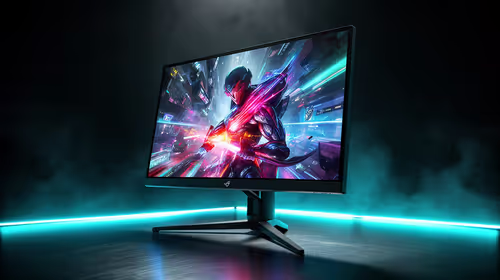
This isn't a failure—it's an opportunity. ✨ An opportunity to upgrade to a display that can truly keep up with your ambitions. Think higher refresh rates, better colour accuracy, and a crisper resolution that makes every detail pop. A flawless display is the final piece of the puzzle for an immersive setup, whether you're soaring the skies on a Microsoft Flight Simulator gaming PC or executing a perfect strategy. A new monitor isn't just a replacement; it's a massive upgrade to your entire experience.
Ready for a Flawless View?
Don't let a flickering screen hold you back. A stable, high-performance monitor is the window to your digital world. Explore our massive range of gaming monitors and find the perfect display to bring your games to life in stunning clarity.