Best Monitor for the RX 7700 XT in South Africa (2026)
Quick Answer
A 27-inch 1440p monitor in the 144Hz to 180Hz range is the natural all-round partner for an RX 7700 XT. The card has enough performance and 12GB of VRAM to make 1440p its comfortable target across a wide spread of games.
Do not treat 165Hz as a number the GPU must hold in every title. Adaptive sync lets the monitor follow changing frame rate, so a demanding game at 85fps and an esports title at 165fps can both look smooth on the same panel.
Pick IPS for broad motion and colour consistency, or a well-tested VA model when deeper native contrast matters more. The panel implementation matters more than the three-letter label.
Why 1440p Is the Value Match
At 2560 x 1440, the card renders about 78 percent more pixels than 1080p. You get a visible step in image and text clarity without taking on the full load of 4K.
That lets the RX 7700 XT stretch in two directions. Competitive games can make use of high refresh, while cinematic titles can run richer settings at a frame rate inside the adaptive-sync range.
Current game performance varies with patches, CPU, quality settings and upscaling. Read recent benchmarks for your titles instead of buying from a single average.
144Hz, 165Hz or 180Hz?
The practical difference between 144Hz and 165Hz is modest. Panel response, overdrive tuning and adaptive-sync behaviour can matter more than those 21 extra refreshes.
A good 180Hz screen can be worth choosing when it costs close to a 165Hz alternative and performs well across the refresh range. Do not pay a large premium merely to move one small step up the label.
For 240Hz, make sure your game library and CPU can produce the frame rates. The RX 7700 XT can do it in lighter competitive titles, but that does not make 240Hz the default choice for mixed gaming.
Adaptive Sync Ties It Together
The RX 7700 XT supports variable-refresh gaming with compatible displays. Check the monitor's FreeSync tier, supported range and connection requirements.
Adaptive sync reduces tearing when GPU output moves. Low frame-rate compensation can keep the experience controlled below the normal sync floor. Panel flicker can still appear on some designs when frame time changes sharply.
Look for independent testing with an AMD card. A logo confirms a programme or feature set, while the review shows how the exact monitor behaves.
IPS and VA Give Different Pictures
IPS panels tend to offer consistent colour from wider angles and clean motion in this class. They can show IPS glow in dark rooms and usually have modest native contrast.
VA panels often produce deeper blacks, which suits dark games and films. Slow dark transitions can leave smearing behind moving objects on weaker models. A fast, measured VA panel can avoid much of that issue.
Do not choose from panel type alone. Compare response-time charts, overshoot, contrast, uniformity and the available sRGB mode.
Put 27 and 32 Inches on the Desk
A 27-inch 1440p panel gives crisp detail at common desk distance. It is easy to scan in fast games and leaves room for speakers or a second screen.
At 32 inches, the same resolution looks larger and more immersive, with lower pixel density. Sit further back if you want to take in the whole screen without moving your head.
Measure stand depth as well as width. Some gaming stands reach far into the mouse area. VESA mounting can fix that when the desk and arm support the weight.
Can You Choose 4K?
The RX 7700 XT can run games at 4K, but it is not the same high-refresh proposition. Expect to tune settings and use supported upscaling in demanding titles.
Choose a 4K monitor when sharp desktop work, media and slower games matter enough to accept that trade. A 4K high-refresh panel can also make sense when a future GPU upgrade is already part of the plan.
Check VRAM use and frame times in the games you play. The card's 12GB helps, though resolution, texture settings and ray-tracing data can still push memory demand.
Ultrawide 1440p Needs More GPU
A 3440 x 1440 screen renders about a third more pixels than standard 2560 x 1440. Expect frame rate to drop at matching settings.
The wider view can be superb for racing, simulation and supported adventure games. Competitive games may limit the field of view, and older titles can show side bars.
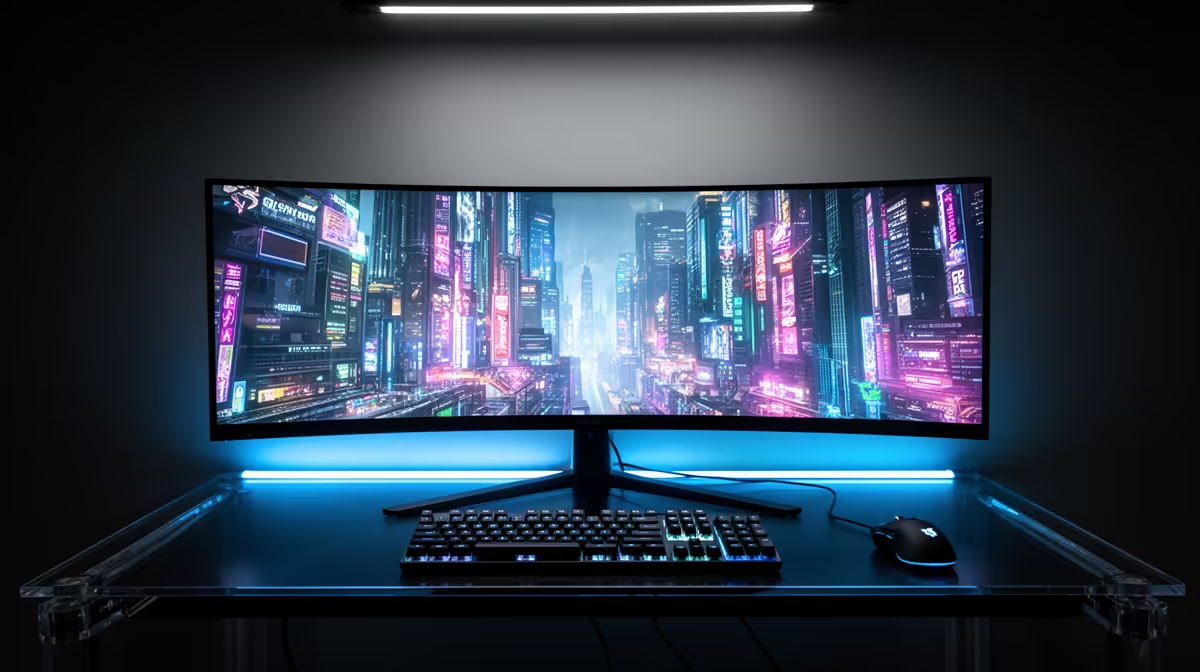
A 144Hz ultrawide with adaptive sync often suits the RX 7700 XT better than chasing an extreme refresh label. Check curvature and desk distance in person when possible.
Use FSR as a Tool
AMD FidelityFX Super Resolution support belongs to each game. It can render from a lower internal resolution and reconstruct the output, giving the GPU more headroom.
Quality mode at 1440p can look good in a suitable implementation. More aggressive modes trade image stability and detail for performance. Compare them in motion, not from one screenshot.
Frame generation, where supported, can increase displayed frame rate but does not replace a strong base frame rate or reduce input latency in the same way as native rendering. Use it for the games where the result feels right.
Check Ports and Colour Modes
Confirm that the monitor input supports 1440p at the chosen refresh with adaptive sync and the colour depth you want. DisplayPort is the common PC route, while HDMI can be useful for a second source.
Port capabilities can differ on the same monitor. Read the manual and use a suitable certified cable. A random old cable can create blanking or limit refresh even when the GPU and screen support the mode.
If you share the screen with a console, check what that console accepts at 1440p, including variable refresh and 120Hz. Do not assume the PC feature list carries across.
Treat HDR Claims With Care
A basic HDR input badge says little about contrast. Convincing HDR needs a panel that can produce bright highlights while keeping dark areas controlled.
Many affordable IPS and VA gaming screens are strongest as SDR monitors. That can still be a great buy. Prioritise motion, adaptive sync, stand quality and a useful colour mode before paying for an HDR label with weak local dimming.
OLED and mini-LED options can deliver a bigger HDR step, with different care, brightness and price trade-offs. Read measured reviews and warranty terms.
Shortlist the Right Way
Browse current PC monitor options with 1440p, size and refresh in mind. Use monitor best sellers as a second view of the popular field, then verify adaptive sync, ports and stand adjustment on each exact page.
Create two finalists, not ten. Compare their measured response, contrast, brightness range and warranty. Pick the one whose weakness bothers you less.
Budget for ergonomics where needed. A height-adjustable stand or suitable arm can improve every hour you spend at the screen.
Set It Up Properly
Connect with the correct cable and select the monitor's native 2560 x 1440 resolution. Windows may default to 60Hz, so choose the highest supported refresh in display settings.
Switch on variable refresh through the display controls and AMD software. Start with the reviewer's balanced overdrive mode, then check motion at both high and middle refresh.
Set brightness for your room and use a suitable colour mode. A frame-rate cap can keep a game inside the adaptive-sync window and reduce noise or power draw.
FAQ
Why is 1440p 165Hz a good match?
It gives the RX 7700 XT enough pixel detail for a clear upgrade and enough refresh headroom for fast games, with adaptive sync covering the middle.
Is 165Hz worth it over 144Hz?
The difference is small. Choose the better panel, tuning and ergonomics when the models are otherwise close.
Can the card handle 4K?
Yes, with game-specific settings and performance expectations. 1440p offers more high-refresh headroom.
Should you pick IPS or VA?
Pick IPS for consistent colour and broad motion performance. Choose a tested VA model for stronger native contrast when dark smearing is controlled.
Does adaptive sync matter?
Yes. It smooths the frame-rate variation that appears across different games and settings.
Compare two 27-inch 1440p adaptive-sync monitors on measured motion, contrast and ergonomics, then choose the one that suits your game mix.