Staring at your screen until your eyes feel like two braaied marshmallows? You're not alone. Whether you're deep in a Valorant ranked match or powering through an unexpected outage-fueled work marathon, digital eye strain is a real issue for us Saffas. The good news? You can fight back without spending a Rand. Let's dive into the essential monitor settings for eye comfort and get your display properly optimised for those long sessions.
Core Monitor Settings for Eye Comfort
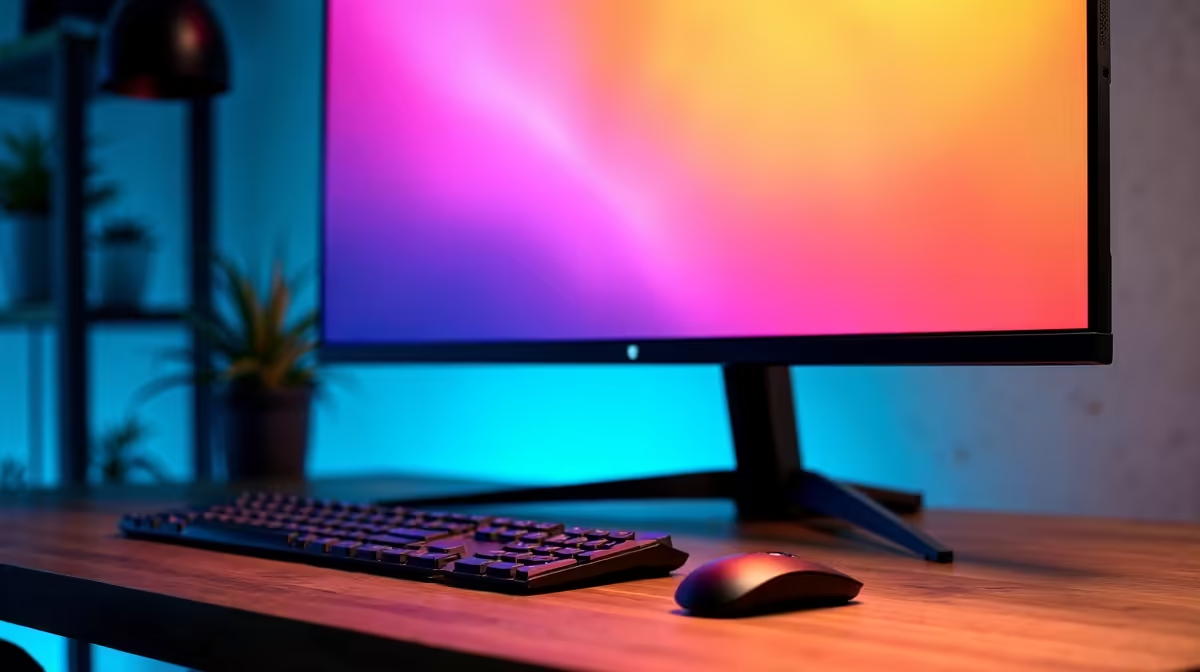
Before you even think about buying a new screen, tweaking your current one can make a massive difference. Your journey to optimise your display starts in your monitor's on-screen menu or your operating system's display settings. These adjustments are your first line of defence against tired, scratchy eyes. 👀
Brightness and Contrast: Finding the Sweet Spot
Most people set their brightness way too high. The ideal level should match the ambient light in your room. A simple test: open a blank white document. If it looks like a light source, it's too bright. If it seems dull and grey, it's too dark. Aim for a comfortable "paper white".
Contrast, on the other hand, defines the difference between the darkest blacks and brightest whites. For text clarity and reduced strain, a higher contrast ratio is generally better. Most modern PC monitors offer excellent native contrast, making text sharp and easy to read.
Taming Blue Light
Blue light isn't inherently evil… it's the high-energy, short-wavelength light that can mess with your sleep cycles and contribute to eye fatigue. Luckily, managing it is easy.
- Night Light / Night Shift: Windows and macOS have built-in features that warm up the screen's colour temperature after sunset. Enable it.
- Monitor Presets: Many of the latest all-gaming monitors come with "Low Blue Light" or "Reading" modes. These are factory-calibrated profiles designed specifically to reduce harmful blue light emissions.
The 20-20-20 Rule 💡
This is a non-negotiable for eye health. Every 20 minutes, look at something 20 feet (about 6 metres) away for at least 20 seconds. It gives your eye muscles a much-needed break from focusing up close. Set a timer if you have to!
Advanced Optimisation and Hardware Considerations
While settings are crucial, the hardware itself plays a huge role in providing a comfortable viewing experience. If your current screen is a bit long in the tooth, an upgrade could be the most effective solution.
Resolution and Text Clarity
Higher resolution isn't just for pretty graphics in Cyberpunk 2077. A higher pixel density makes text incredibly sharp and crisp, which means your eyes don't have to work as hard to focus. Jumping from 1080p to a 1440p or one of the stunning 5K & 4K monitors can be a revelation for both work and play, significantly improving text legibility.
Ergonomics and Physical Positioning 🔧
How your monitor is positioned is just as important as its internal settings. The goal is to maintain a neutral, relaxed posture.
- Height: The top of your screen should be at or slightly below eye level.
- Distance: Position the monitor about an arm's length away.
- Tilt: Angle the screen slightly upwards to meet your gaze.
If your monitor's included stand is too basic, investing in VESA-compatible monitor accessories like an adjustable arm can give you perfect positioning and free up valuable desk space. For those who want a more immersive and naturally comfortable view, curved monitors are designed to match the natural curvature of the human eye, reducing distortion at the edges.
Even when you're on the move, maintaining good screen habits is key. Modern portable monitors are lightweight and often come with their own adjustable stands, making it easier to create an ergonomic setup anywhere.
Optimising your monitor settings for eye comfort is a simple yet powerful way to improve your daily computing life. By balancing brightness, managing blue light, and ensuring proper ergonomics, you can finish that raid or report without feeling like you've gone ten rounds with a sandstorm. ✨
Ready for a Visual Upgrade?
Optimising your settings is a great first step, but the right hardware makes all the difference. Explore our best PC monitor deals and give your eyes the flicker-free, high-resolution comfort they deserve.