



80+ Gold vs 80+ Platinum for Couch co-op gaming in SA
80+ Gold vs 80+ Platinum for couch co-op gaming is about PSU efficiency, heat, fan behaviour, quality, and wattage headroom, not direct FPS. SA buyers should compare the whole build.
Read moreStruggling with an MSI gaming laptop blue screen fix? Don't let the dreaded BSOD ruin your game time. 💻 Our expert guide for South African gamers walks you through easy-to-follow steps to diagnose and resolve common blue screen errors, from driver issues to hardware faults. Get back in the game! 🎮
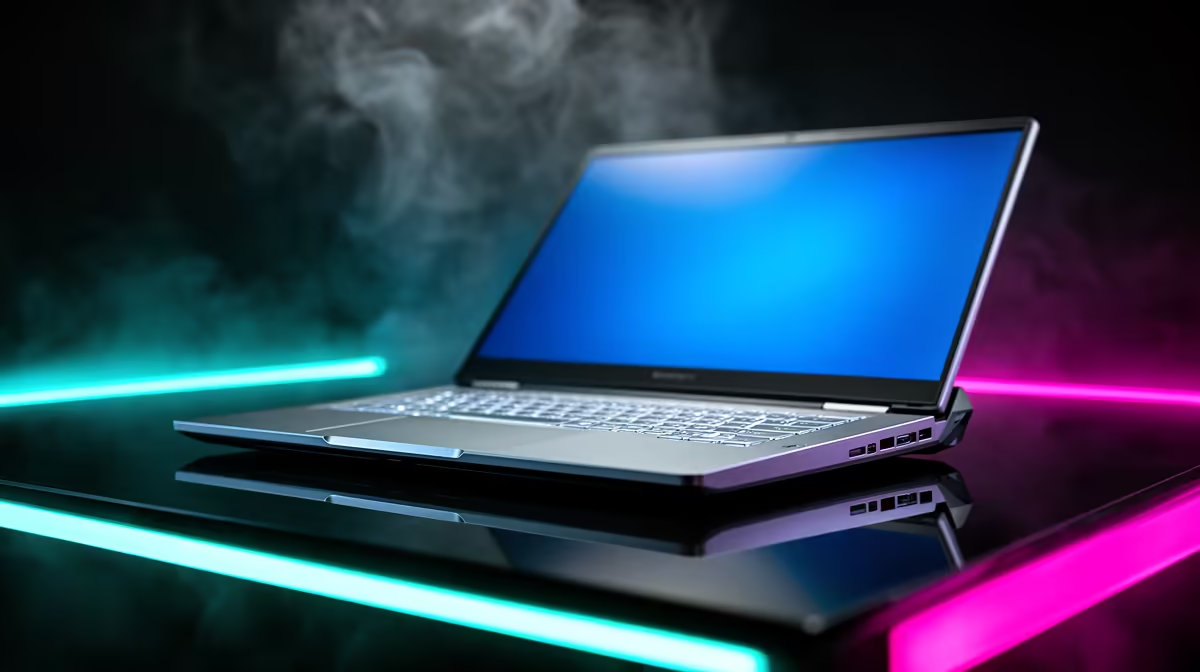
You’re in the final circle in Apex Legends, shields are cracked, and the enemy is one shot away. Then it happens. Your screen freezes, the audio buzzes, and your world turns a chilling shade of blue. The dreaded Blue Screen of Death (BSOD) has struck your MSI gaming laptop again. Ja, we’ve all been there. But don’t rage-quit just yet. This guide is your local, no-nonsense plan to diagnose and deliver an MSI gaming laptop blue screen fix.
Before we dive into the fixes, let’s quickly understand what’s happening. A BSOD is Windows' way of saying it has hit a critical error it can't recover from. On a high-performance machine, this is often triggered by a few common culprits:
Understanding the cause is the first step to finding a lasting MSI gaming laptop blue screen fix.
Work through these steps methodically. Often, the simplest solution is the right one.
That blue screen isn't just for show; it contains a vital clue. Look for a line of text in all caps with underscores, like DRIVER_IRQL_NOT_LESS_OR_EQUAL or SYSTEM_SERVICE_EXCEPTION. A quick Google search of this "stop code" can often point you directly to the faulty driver or software, saving you hours of guesswork.
Outdated drivers are the number one cause of BSODs on gaming laptops. Your priority list should be:
Modern gaming laptops pack immense power, and with that power comes heat. For high-performance models like the MSI Raider series, ensuring optimal airflow is critical.
If the BSOD happens intermittently, use the built-in Windows Event Viewer. After a crash, reboot and search for "Event Viewer" in the Start Menu. Navigate to Windows Logs > System and look for red "Error" or "Critical" events that occurred around the time of the crash. The details here can provide specific clues about the failing driver or service.
If drivers and heat aren't the problem, it's time to check your system's health.
sfc /scannow. This command will scan and repair any corrupted Windows system files.You’ve tried everything, but the blue screens persist. Sometimes, a recurring BSOD can signal a deeper hardware failure, like a dying motherboard or a faulty RAM stick that diagnostic tools can't detect. If your laptop is a few years old and has seen countless hours of action, the constant crashes might be its way of telling you it’s time to retire.
Instead of sinking more time and money into an unreliable machine, consider the peace of mind that comes with new hardware. A modern powerhouse like the MSI Vector not only offers a massive performance leap but also comes with fresh, stable components and a full warranty.
Tired of Troubleshooting? Sometimes the best MSI gaming laptop blue screen fix is a fresh start. If your machine is showing its age, a modern, stable powerhouse might be the answer. Explore our massive range of laptop specials and get back in the game without the crashes.
Blue screens on MSI laptops are often caused by outdated drivers, corrupted system files, overheating, or hardware conflicts. Start by updating your GPU and chipset drivers.
Yes, faulty RAM is a common culprit for 'memory management' blue screen errors. Running the Windows Memory Diagnostic tool can help identify if your RAM is the issue.
To fix an MSI laptop BSOD loop, try booting into Safe Mode. From there, you can uninstall recent software, roll back drivers, or use System Restore to revert to a stable state.
It's highly possible. High temperatures can cause system instability and BSOD crashes. Ensure your laptop's vents are clean and consider using a quality cooling pad for gaming.
Use the MSI Center application or visit the official MSI support website for your specific model to download and install the latest BIOS, chipset, and graphics drivers safely.
If you get a blue screen after an update, try to uninstall the recent Windows update via Advanced Startup. Go to Troubleshoot > Advanced options > Uninstall Updates to remove it.
80+ Gold vs 80+ Platinum for couch co-op gaming is about PSU efficiency, heat, fan behaviour, quality, and wattage headroom, not direct FPS. SA buyers should compare the whole build.
Read more
80+ Platinum or 80+ Titanium for competitive should be shortlisted around the job it must do. South African buyers should compare fit, performance, compatibility, and upgrade room, warranty path, and upgrade room before treating any pick as best.
Read more
The real world difference between IPS and OLED for AAA single-player gaming is immersion versus versatility. OLED lifts contrast and dark scenes, while IPS can suit bright rooms, mixed PC use, and SA buyers watching total setup cost.
Read more
HDMI 2.1 vs HDMI 2.0 for SA MMO needs a workload-first comparison. For SA buyers, judge real performance, platform fit, warranty path, power needs, and upgrade timing before choosing either side.
Read more
USB4 and Thunderbolt 4 differ for competitive esports through dock, display, and capture consistency. Use this real world difference between usb4 and thunderbolt 4 for competitive guide to keep SA tournament desks tidy without assuming better ping.
Read more
Magnetic switches vs Mechanical switches depends on Competitive esports needs, platform limits, and budget fit. Compare compatibility, latency, upgrade path, and real setup constraints before choosing for an SA build.
Read more
B850 motherboard FPS drops needs a methodical troubleshooting pass. Review drivers, thermals, power settings, background apps, cables and game settings before replacing parts in an SA gaming setup.

Gaming PC FPS drops in South Africa often come from drivers, thermals, background apps, power plans, or in-game settings. Check one change at a time and use the same scene before buying upgrades for your local setup.

Difference between PCIe 5.0 and PCIe 4.0 explained for PC builders starts with bandwidth, lanes, and support. SA builders should match the motherboard, GPU, NVMe drive, and budget before choosing a platform.

Windows 11 mechanical keyboard setups rarely cause display banding directly. Fix color banding by checking HDR, colour depth, GPU range, monitor profiles, and any new RGB utility conflicts.

Steam Big Art Mode enlarges library artwork in Big Picture Mode and on Steam Deck, while the same beta adds configurable screensavers. Both features are optional and currently require the Steam beta client.

Diablo 4 HDR settings work best after Windows and the display are calibrated, then the game's black point, brightness and white point are adjusted in that order. Use visible shadow detail and controlled highlights, not copied values from another screen.

The best HOTAS for Elite Dangerous is a separate stick-and-throttle set with enough analogue axes for pitch, roll, yaw and thrust, plus local support. Evetech's captured flight-simulation sample lists the complete Logitech X56 at R4,999.

Nintendo Switch 2 docked VRR arrives with system version 23.0.0 and also requires a dock update. The connected TV or monitor and the running software must support VRR before the output can follow changing frame rates.
750W for RTX 5080 Super needs a full-build check, not a simple yes. Review GPU guidance, CPU draw, transient load, connectors, PSU quality, and upgrade plans before deciding.
80+ Gold vs 80+ Platinum for couch co-op gaming is about PSU efficiency, heat, fan behaviour, quality, and wattage headroom, not direct FPS. SA buyers should compare the whole build.
ultrawide monitor FPS drops needs a methodical troubleshooting pass. Review drivers, thermals, power settings, background apps, cables and game settings before replacing parts in an SA gaming setup.
80+ Platinum or 80+ Titanium for competitive should be shortlisted around the job it must do. South African buyers should compare fit, performance, compatibility, and upgrade room, warranty path, and upgrade room before treating any pick as best.