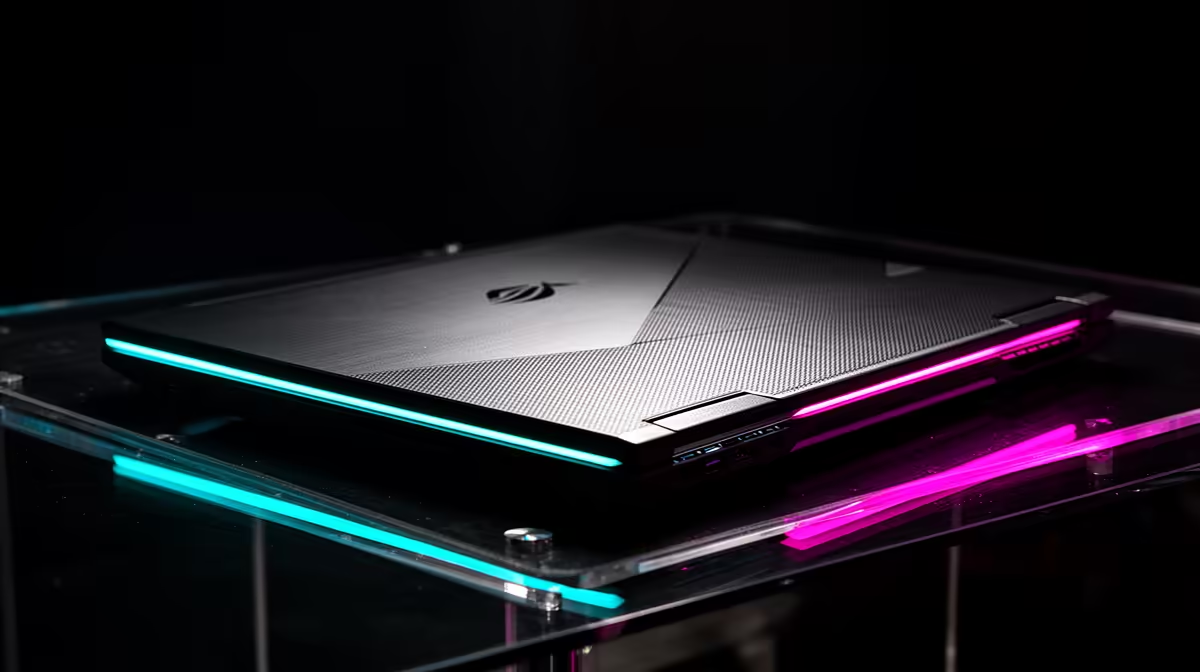
That new MSI laptop feeling is electric, isn't it? Unboxing that beast, booting up your favourite game, and watching the FPS counter soar. But in South Africa, dust, heat, and even an unexpected outage can slowly chip away at that peak performance. Proper MSI gaming laptop maintenance isn't just a chore; it's the secret to keeping your machine running like the day you bought it. This guide shows you exactly how. 🔧
Why Regular MSI Gaming Laptop Maintenance is Crucial
Think of your MSI laptop as a high-performance vehicle. You wouldn't skip an oil change on a sports car, right? The same principle applies here. Over time, dust and debris clog the fans and heatsinks, which are vital for cooling your powerful CPU and GPU.
When components get too hot, they "thermal throttle"—a safety feature that automatically reduces their speed to prevent damage. The result? Stuttering, lower frame rates, and a frustrating gaming experience. Consistent MSI gaming laptop maintenance not only preserves your performance but also extends the lifespan of your investment, saving you from costly repairs down the line.
The Essential Maintenance Toolkit
You don't need a professional workshop to perform basic care. For effective at-home MSI gaming laptop maintenance, you just need a few simple items:
- Can of Compressed Air: Your number one weapon against dust.
- Microfibre Cloths: Two should be enough—one for the screen and one for the chassis.
- Isopropyl Alcohol (70% or higher): For safely cleaning surfaces without leaving residue.
- Soft-bristled Brush: An old, clean toothbrush or a small paintbrush works perfectly for dislodging stubborn grime.
A Step-by-Step Guide to Physical Cleaning ✨
Before you start, always power down your laptop completely and unplug it from the charger. Safety first!
Exterior and Screen Care
This is the easy part. Lightly dampen a microfibre cloth with water or a screen-safe cleaner and gently wipe the screen from top to bottom. Never spray liquid directly onto the screen. Use a separate cloth, slightly dampened with isopropyl alcohol, to wipe down the chassis, lid, and palm rest to remove fingerprints and oils.
Keyboard and Vents Deep Clean
This is where the real performance gains are found. Your laptop's air intake and exhaust vents are critical for cooling. Over time, they become magnets for dust, lint, and pet hair.
Start by using your soft brush to gently loosen any visible debris from between the keys and on the vent grilles. Then, grab your compressed air to blow it all out. This is especially important for powerful cooling systems, like those found in high-performance machines like the MSI Raider series, which need maximum airflow to function optimally.
Compressed Air Pro Tip ⚡
Always use compressed air in short, controlled bursts. Never tilt the can upside down, as this can spray liquid propellant onto your components. Hold the can upright and keep the nozzle about 10-15 cm away from the surface to prevent damage.
Optimising Your Software and Drivers
Physical cleaning is only half the battle. Keeping your software lean and updated is just as important for maintaining your MSI gaming laptop.
Keep Windows and Drivers Updated
Outdated drivers are a common cause of poor performance and game crashes. Always ensure you have the latest updates for Windows, your graphics card (via NVIDIA GeForce Experience or AMD Software), and other essential components. The MSI Center app is also a great tool for finding specific driver and firmware updates for your model. Keeping software current is non-negotiable, especially for the latest MSI Vector gaming laptops which rely on cutting-edge driver optimisations to push every frame.
Tame Your Startup Programs
Does your laptop take ages to boot? Too many programs launching at startup could be the culprit.
- Press
Ctrl + Shift + Esc to open the Task Manager. - Click on the "Startup" tab.
- Right-click and "Disable" any non-essential applications (like updaters for Spotify or Discord) from launching automatically. Your PC will thank you with a much faster boot time. 🚀
When to Call in the Pros
While this guide covers essential DIY MSI gaming laptop maintenance, some tasks are best left to professionals. If your laptop is still running hot after a thorough cleaning, it might need its thermal paste reapplied—a delicate process that involves disassembling the cooling system. Attempting this yourself can void your warranty.
If your machine is a few years old and simple care isn't cutting it anymore, it might be time to consider an upgrade. You can explore Evetech's full range of MSI gaming laptops to see what the latest technology has to offer.
Ready for Peak Performance?
Whether you're tuning up your current rig or eyeing a new beast, keeping it in top shape is key. Proper care ensures you get every drop of performance you paid for. Explore our massive range of laptop specials and find the perfect machine to conquer your next game.