



80+ Gold vs 80+ Platinum for Couch co-op gaming in SA
80+ Gold vs 80+ Platinum for couch co-op gaming is about PSU efficiency, heat, fan behaviour, quality, and wattage headroom, not direct FPS. SA buyers should compare the whole build.
Read moreFine-tune gamma settings 🛠️ to reduce eye strain in office setups 💻💡. Discover how precise adjustments improve workspace ergonomics.
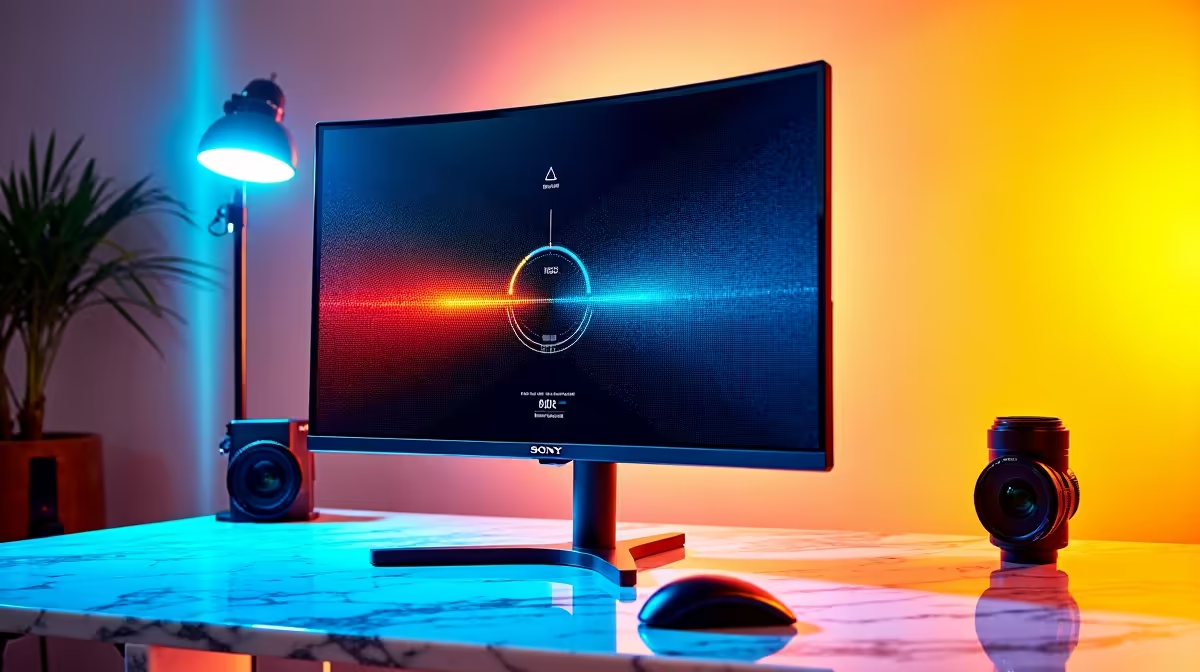
Staring at a screen under harsh office lights all day, only to feel your eyes burn when you finally sit down for a gaming session? You’re not alone. That midday screen glare and washed-out text don't just kill your productivity; they cause serious eye fatigue. The culprit is often incorrect gamma settings, a simple tweak that most people overlook. Learning to optimize gamma settings for office lighting is the key to all-day comfort and sharper, more immersive gameplay tonight.
So, what is gamma? Think of it as the controller for your monitor's mid-tones. It doesn't just make the whole screen brighter or darker; it adjusts the luminance curve, affecting the greys and colours that sit between pure black and stark white.
In a typical South African office with bright overhead fluorescent lights or a sun-drenched window, a monitor with standard gamma settings can look washed out. The bright ambient light overpowers the screen's output, making blacks look like murky grey and crushing details in darker areas. Properly adjusting the gamma for office lighting ensures that text is crisp, colours are distinct, and your eyes don't have to strain to decipher what's on the screen. ✨
Most PC monitors are shipped with a default gamma setting of 2.2. This is the standard for sRGB colour space and works great in a dimly lit room... the kind of environment you'd want for watching a movie or playing an atmospheric game.
However, an office is the complete opposite. The high ambient light fights against your screen. This mismatch forces you to squint, leads to headaches, and reduces your focus. If you've ever felt that gritty-eyed sensation after a long day at your desk, poor gamma calibration is likely a contributing factor. Optimizing your monitor's gamma isn't just a preference; it's an ergonomic necessity.
For brightly lit offices, a gamma setting of 2.4 is often the sweet spot. It darkens the mid-tones, which increases perceived contrast and makes text significantly easier to read without cranking up the brightness to eye-searing levels.
Ready to reclaim your visual comfort? Fine-tuning your display is easier than you think. Here’s a straightforward guide to help you optimize your gamma settings for office lighting.
Both Windows and macOS have built-in screen calibration utilities.
This is a great starting point, especially for older monitors.
Most modern displays, especially high-resolution 4K or 5K monitors where text clarity is paramount, have built-in gamma presets. Use the buttons on your monitor to open its menu and look for a "Gamma" or "Picture" setting. You'll likely see options like 1.8, 2.0, 2.2, 2.4, and sometimes 2.6. For a bright office, start by selecting 2.4.
Once you've set your gamma, open a document with black text on a white background and look at a few detailed images. The text should appear sharp and easy to read, and the image should have depth without looking overly dark. The goal is comfort, not just a technically perfect number.
While gamma is a huge piece of the puzzle, a few other tweaks can create the ultimate comfortable workspace.
The best part? A monitor calibrated for your office will leave your eyes feeling fresh and ready for an evening gaming session. While a gamma of 2.4 is excellent for work, the universal standard for games is 2.2.
Many dedicated gaming monitors allow you to save multiple user profiles. You can create an "Office" profile with a gamma of 2.4 and a "Gaming" profile with a gamma of 2.2, switching between them with a few clicks. This gives you the best of both worlds: crisp, comfortable text for your 9-to-5 and deep, accurate colours for your after-hours escape.
Ready for a Visual Upgrade? A perfectly calibrated screen makes all the difference, but a great panel takes it to the next level. Explore our incredible monitor specials and find a display that works and plays as hard as you do. Check out the best PC monitor deals at Evetech for an experience that’s always easy on the eyes.
Gamma adjustments control monitor color balance to match ambient light.
A gamma value between 2.0-2.5 offers optimal screen visibility.
Proper gamma settings reduce eye strain by balancing brightness.
Use built-in calibration tools to tune gamma for office environments.
Yes—refine gamma to match lighting and improve office visibility.
Yes, correcting gamma ensures colors remain accurate under office light.
Custom gamma settings boost productivity by enhancing visual clarity.
80+ Gold vs 80+ Platinum for couch co-op gaming is about PSU efficiency, heat, fan behaviour, quality, and wattage headroom, not direct FPS. SA buyers should compare the whole build.
Read more
80+ Platinum or 80+ Titanium for competitive should be shortlisted around the job it must do. South African buyers should compare fit, performance, compatibility, and upgrade room, warranty path, and upgrade room before treating any pick as best.
Read more
The real world difference between IPS and OLED for AAA single-player gaming is immersion versus versatility. OLED lifts contrast and dark scenes, while IPS can suit bright rooms, mixed PC use, and SA buyers watching total setup cost.
Read more
HDMI 2.1 vs HDMI 2.0 for SA MMO needs a workload-first comparison. For SA buyers, judge real performance, platform fit, warranty path, power needs, and upgrade timing before choosing either side.
Read more
USB4 and Thunderbolt 4 differ for competitive esports through dock, display, and capture consistency. Use this real world difference between usb4 and thunderbolt 4 for competitive guide to keep SA tournament desks tidy without assuming better ping.
Read more
Magnetic switches vs Mechanical switches depends on Competitive esports needs, platform limits, and budget fit. Compare compatibility, latency, upgrade path, and real setup constraints before choosing for an SA build.
Read more
B850 motherboard FPS drops needs a methodical troubleshooting pass. Review drivers, thermals, power settings, background apps, cables and game settings before replacing parts in an SA gaming setup.

Gaming PC FPS drops in South Africa often come from drivers, thermals, background apps, power plans, or in-game settings. Check one change at a time and use the same scene before buying upgrades for your local setup.

Difference between PCIe 5.0 and PCIe 4.0 explained for PC builders starts with bandwidth, lanes, and support. SA builders should match the motherboard, GPU, NVMe drive, and budget before choosing a platform.

Windows 11 mechanical keyboard setups rarely cause display banding directly. Fix color banding by checking HDR, colour depth, GPU range, monitor profiles, and any new RGB utility conflicts.

Steam Big Art Mode enlarges library artwork in Big Picture Mode and on Steam Deck, while the same beta adds configurable screensavers. Both features are optional and currently require the Steam beta client.

Diablo 4 HDR settings work best after Windows and the display are calibrated, then the game's black point, brightness and white point are adjusted in that order. Use visible shadow detail and controlled highlights, not copied values from another screen.

The best HOTAS for Elite Dangerous is a separate stick-and-throttle set with enough analogue axes for pitch, roll, yaw and thrust, plus local support. Evetech's captured flight-simulation sample lists the complete Logitech X56 at R4,999.

Nintendo Switch 2 docked VRR arrives with system version 23.0.0 and also requires a dock update. The connected TV or monitor and the running software must support VRR before the output can follow changing frame rates.

NVIDIA lists 550W required system power for the RTX 5060 reference specification, based on a high-end test system. A quality 550W unit can be enough, but CPU draw, transient load, connectors and ageing decide real headroom.

The VAIO T combines a 13.3-inch display with a multi-flip mechanism for laptop, tablet and outward-facing viewing modes. Orders begin in Japan on 18 September; South African availability is unconfirmed.

OpenRGB's master branch now carries changes labelled for 1.0 final, including translation and platform work, but the official tags page still lists 1.0rc3.1 as the newest packaged release. Stable users should wait for the signed release channel.
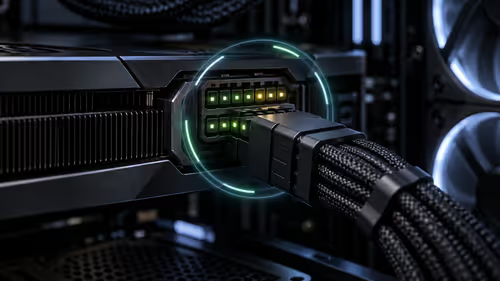
The Cooler Master GPU Shield Adapter monitors current on individual 12+4-pin contacts, adds visual and audible warnings, and can reduce system power during a severe abnormality. Local availability is unconfirmed.