

Complete Guide: Setting Up AIO Liquid 420mm
Setting Up AIO Liquid 420mm. Tested & verified settings for best FPS and visual quality on SA hardware budgets.
Read moreFine-tune gamma settings 🛠️ to reduce eye strain in office setups 💻💡. Discover how precise adjustments improve workspace ergonomics.
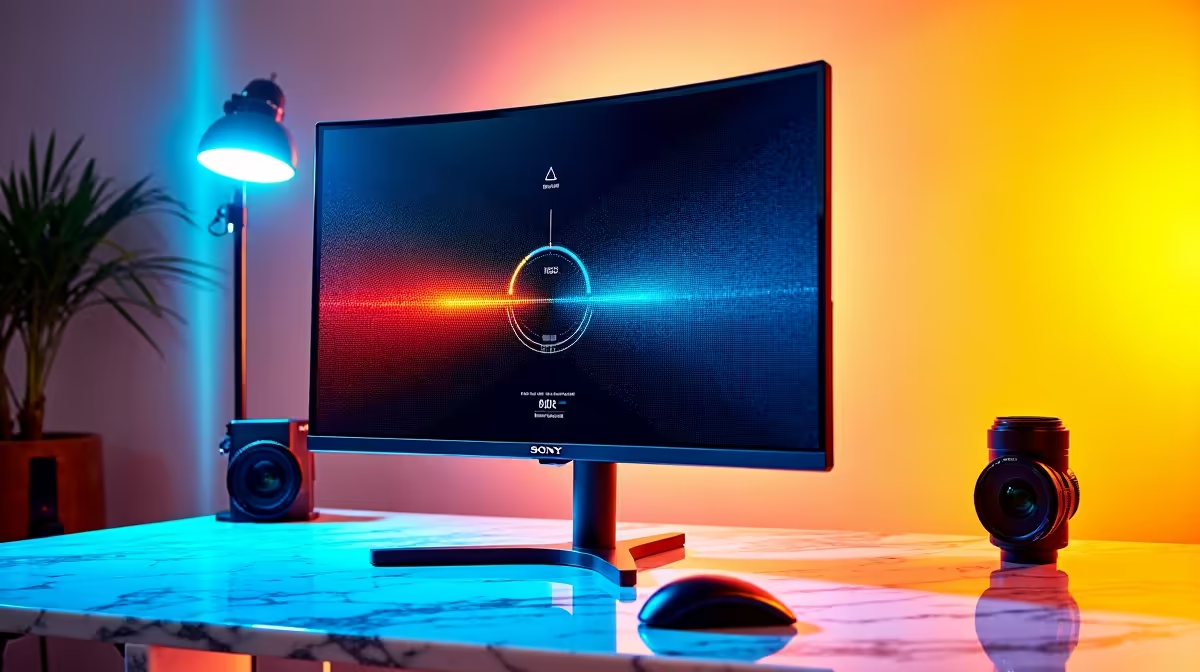
Staring at a screen under harsh office lights all day, only to feel your eyes burn when you finally sit down for a gaming session? You’re not alone. That midday screen glare and washed-out text don't just kill your productivity; they cause serious eye fatigue. The culprit is often incorrect gamma settings, a simple tweak that most people overlook. Learning to optimize gamma settings for office lighting is the key to all-day comfort and sharper, more immersive gameplay tonight.
So, what is gamma? Think of it as the controller for your monitor's mid-tones. It doesn't just make the whole screen brighter or darker; it adjusts the luminance curve, affecting the greys and colours that sit between pure black and stark white.
In a typical South African office with bright overhead fluorescent lights or a sun-drenched window, a monitor with standard gamma settings can look washed out. The bright ambient light overpowers the screen's output, making blacks look like murky grey and crushing details in darker areas. Properly adjusting the gamma for office lighting ensures that text is crisp, colours are distinct, and your eyes don't have to strain to decipher what's on the screen. ✨
Most PC monitors are shipped with a default gamma setting of 2.2. This is the standard for sRGB colour space and works great in a dimly lit room... the kind of environment you'd want for watching a movie or playing an atmospheric game.
However, an office is the complete opposite. The high ambient light fights against your screen. This mismatch forces you to squint, leads to headaches, and reduces your focus. If you've ever felt that gritty-eyed sensation after a long day at your desk, poor gamma calibration is likely a contributing factor. Optimizing your monitor's gamma isn't just a preference; it's an ergonomic necessity.
For brightly lit offices, a gamma setting of 2.4 is often the sweet spot. It darkens the mid-tones, which increases perceived contrast and makes text significantly easier to read without cranking up the brightness to eye-searing levels.
Ready to reclaim your visual comfort? Fine-tuning your display is easier than you think. Here’s a straightforward guide to help you optimize your gamma settings for office lighting.
Both Windows and macOS have built-in screen calibration utilities.
This is a great starting point, especially for older monitors.
Most modern displays, especially high-resolution 4K or 5K monitors where text clarity is paramount, have built-in gamma presets. Use the buttons on your monitor to open its menu and look for a "Gamma" or "Picture" setting. You'll likely see options like 1.8, 2.0, 2.2, 2.4, and sometimes 2.6. For a bright office, start by selecting 2.4.
Once you've set your gamma, open a document with black text on a white background and look at a few detailed images. The text should appear sharp and easy to read, and the image should have depth without looking overly dark. The goal is comfort, not just a technically perfect number.
While gamma is a huge piece of the puzzle, a few other tweaks can create the ultimate comfortable workspace.
The best part? A monitor calibrated for your office will leave your eyes feeling fresh and ready for an evening gaming session. While a gamma of 2.4 is excellent for work, the universal standard for games is 2.2.
Many dedicated gaming monitors allow you to save multiple user profiles. You can create an "Office" profile with a gamma of 2.4 and a "Gaming" profile with a gamma of 2.2, switching between them with a few clicks. This gives you the best of both worlds: crisp, comfortable text for your 9-to-5 and deep, accurate colours for your after-hours escape.
Ready for a Visual Upgrade? A perfectly calibrated screen makes all the difference, but a great panel takes it to the next level. Explore our incredible monitor specials and find a display that works and plays as hard as you do. Check out the best PC monitor deals at Evetech for an experience that’s always easy on the eyes.
Gamma adjustments control monitor color balance to match ambient light.
A gamma value between 2.0-2.5 offers optimal screen visibility.
Proper gamma settings reduce eye strain by balancing brightness.
Use built-in calibration tools to tune gamma for office environments.
Yes—refine gamma to match lighting and improve office visibility.
Yes, correcting gamma ensures colors remain accurate under office light.
Custom gamma settings boost productivity by enhancing visual clarity.
Setting Up AIO Liquid 420mm. Tested & verified settings for best FPS and visual quality on SA hardware budgets.
Read more
Intel XTU Download & Setup Guide: Intel CPU. Clear setup instructions with SA-specific considerations, troubleshooting tips & recommended components.
Read more
Cyberpunk 2077 Max Settings on RTX 4090. Tested & verified settings for best FPS and visual quality on SA hardware budgets.
Read more
The Complete Guide to GPU. Everything you need to know with SA pricing, step-by-step instructions & expert recommendations.
Read more
NVCleanstall Download & Setup Guide: NVIDIA. Clear setup instructions with SA-specific considerations, troubleshooting tips & recommended components.
Read more
to Driver Installation for Beginners. Everything you need to know with SA pricing, step-by-step instructions & expert recommendations.
Read more
AMD RX 9050 XT: Rumoured Specs, Price & Release. SA-focused analysis with local pricing data, real-world insights & actionable buying advice.

Can RTX 4080 Super Run AI Workloads for SA Developers Detailed answer with SA data, expert analysis & practical recommendations for local buyers.

Can RTX 4090 Run AI Workloads for SA Developers Detailed answer with SA data, expert analysis & practical recommendations for local buyers.

Top Settings for Intel Arc B580 at Ultrawide 1440p picks evaluated on performance, value & SA availability with current Rand pricing from Evetech.

RTX 4060 CS2 Low Settings at 1080p: FPS Results. Real-world benchmark data, FPS numbers & performance analysis. What SA gamers can actually expect.

Visual Artifacts: Possible GPU Issue Issue #1. Diagnosis steps, proven fixes & when to seek professional help. SA-specific support info included.

Can the RTX 4090 Handle 1440p 144Hz Gaming. Performance testing verdict with real data & practical recommendations for SA buyers.

Top ASUS GPU Under R15000 picks evaluated on performance, value & SA availability with current Rand pricing from Evetech.

GTA 6 Max Settings on RTX 5070. Tested & verified settings for best FPS and visual quality on SA hardware budgets.

Cyberpunk 2077 Max Settings on RTX 5080. Tested & verified settings for best FPS and visual quality on SA hardware budgets.

Starfield Max Settings on RTX 5070 Ti. Tested & verified settings for best FPS and visual quality on SA hardware budgets.

Top RTX 5090 Under R5000 picks evaluated on performance, value & SA availability with current Rand pricing from Evetech.