

Storage Specs Explained for Beginners
Storage Specs Explained for Beginners. Plain-English explanation of what it means, why it matters & how it affects your buying decisions in SA.
Read morePC still running hot even with multiple case fans? Learn the real fixes: airflow setup, cooler mounting, dust, and fan curves. Reduce temps fast ✅🔥
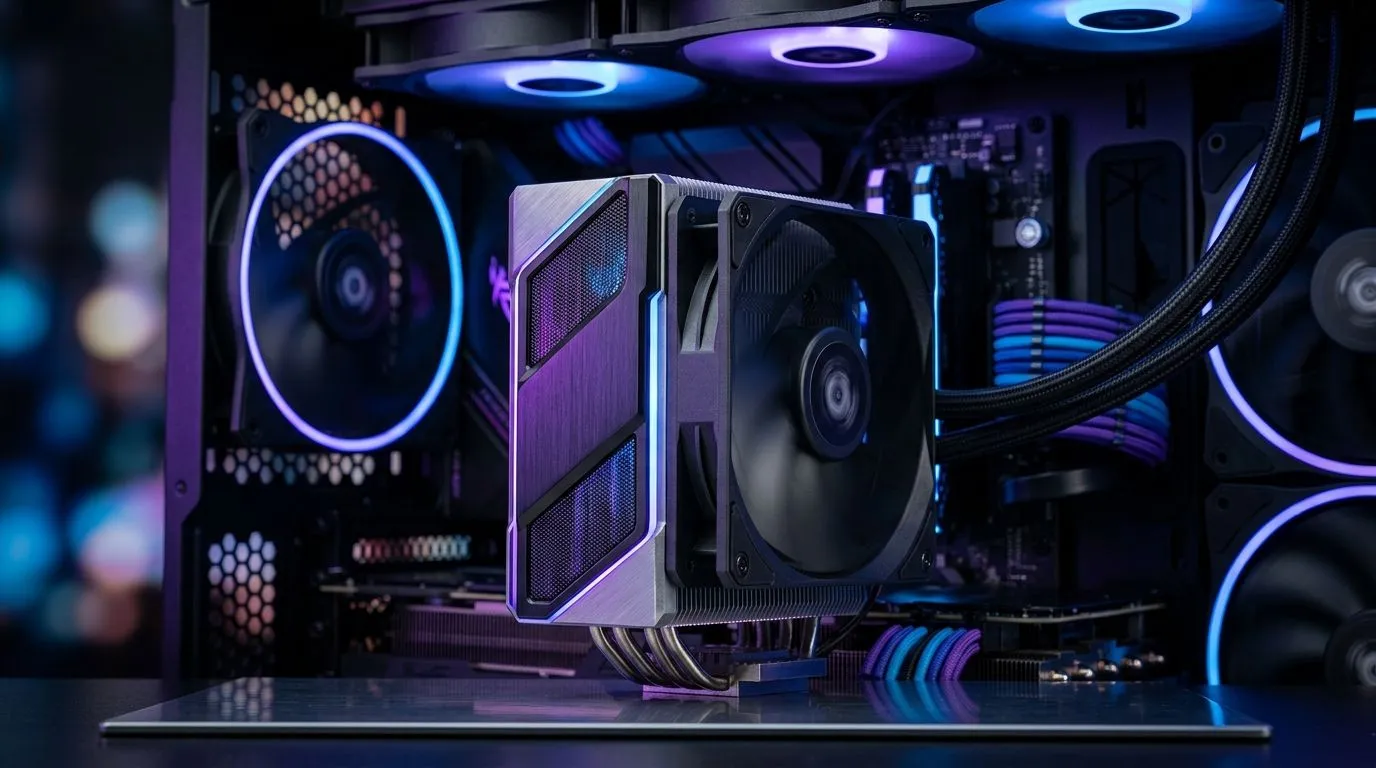
If your rig feels like it’s “living in a sauna”, you’re not alone. South African summers, dust, and clogged filters can turn great hardware into throttling hardware… fast. And when temperatures spike, games stutter, frames dip, and performance drops right when you want to grind ranked.
The good news? “PC Still Running Hot With Case Fans: Fix Faster” is usually fixable without replacing everything. 🔧 Let’s troubleshoot the common causes in the right order, so you stop wasting time.
Many people add case fans, but forget the basics: direction, airflow path, and pressure balance. Case fans move air one way only. If you mount them backwards, you’ll heat-soak your components instead of removing hot air.
A quick check:
If your case supports it, think “front intake + rear/top exhaust”. It’s the simplest layout that works for most builds.
On a typical desktop case, open the side panel and use your phone to check fan orientation. Look for the airflow arrow on the fan frame, then verify intake vs exhaust visually. If you swap two fans in the wrong places, temps can jump by noticeable margins within minutes of gaming.
Dust is the #1 reason fans “seem like they’re working” but temperatures keep climbing. Dust reduces airflow through filters, heats sinks, and radiator fins. Over time, your fan curves ramp up, but cool air never really reaches the components.
Fast fix:
If you want to replace fans, choose ones that match your case size and mounting.
Not all fan sizes move air the same way at the same RPM. Many 140mm fans can deliver strong airflow with lower noise because they have more blade area. That said, your case has clearance limits, and fan fit matters as much as performance.
Browse a range of options here:
Even with perfect fans, poor fan curves can cause “it runs hot then suddenly kicks in.” If your fans are controlled by motherboard headers, you can often improve things by:
Hotspots often tell you where the problem is. If the CPU rises quickly, focus on cooler mounting and dust around the radiator/heatsink. If the GPU spikes, check GPU airflow and whether front intake air actually reaches it.
Before spending on new fans, do this:
Do that, then decide if upgrading to better case fans is worth it. 🚀
Ready to Find Your Perfect Match? The Mac vs Windows debate is complex, but for maximum power, choice, and value in South Africa, Windows is hard to beat. Explore our massive range of laptop specials and find the perfect machine to conquer your world.
Extra fans help only if airflow is balanced. Check CPU cooler mounting, thermal paste, dust, and whether the fans create a clear intake-to-exhaust path.
Use a front/bottom intake and rear/top exhaust layout, ensure clear paths to the cooler, and avoid blocking GPU intake. Verify fan speeds and direction.
If temps spike quickly under load, the cooler may be mis-seated. Reseat it, confirm backplate pressure, and replace thermal paste if needed.
Yes. Dust clogs heatsinks and reduces fan effectiveness. Clean filters, fans, and radiator cores, then retest temperatures under the same workload.
If paste is old, dried, or poorly applied, it can drive CPU temps up. Replace thermal paste and follow correct tightening pattern and pressure.
Absolutely. If your curves stay too low during load, the system overheats. Adjust intake and CPU fan curves to ramp sooner and faster.
GPU temps depend on direct intake air and case exhaust. Check for blocked intakes, poor radiator placement, incorrect fan directions, and high fan dust.
Use reliable monitoring like HWInfo or similar tools. Compare CPU package, GPU hotspot, and motherboard temps during the same game or benchmark.
Storage Specs Explained for Beginners. Plain-English explanation of what it means, why it matters & how it affects your buying decisions in SA.
Read more
Will RDNA 5 Use the Same Silicon as the Next. Plain-English explanation of what it means, why it matters & how it affects your buying decisions in SA.
Read more
Google Workspace on Mac: Drive, Docs, Sheets and. Everything you need to know with SA pricing, step-by-step instructions & expert recommendations.
Read more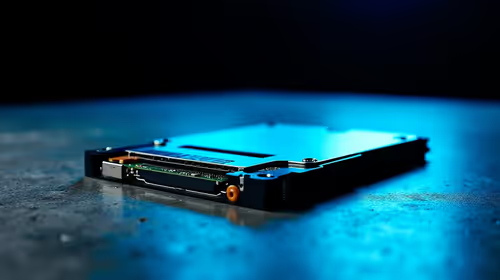
Back-to-School Parent Guide: Storages. Everything you need to know with SA pricing, step-by-step instructions & expert recommendations.
Read more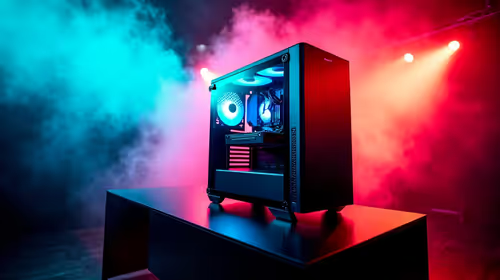
to Esports Tournaments. Everything you need to know with SA pricing, step-by-step instructions & expert recommendations.
Read more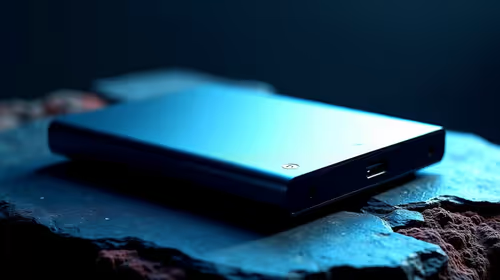
Easter Storage Buying Guide. Hand-picked gift ideas at every budget tier. SA pricing & Evetech availability included.
Read more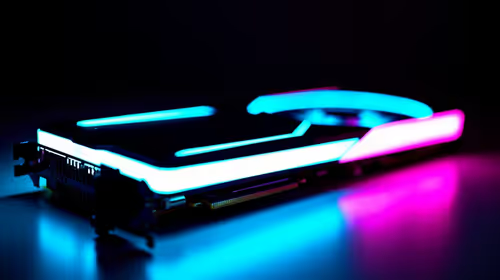
AMD RX 9050 XT: Rumoured Specs, Price & Release. SA-focused analysis with local pricing data, real-world insights & actionable buying advice.
Can RTX 4080 Super Run AI Workloads for SA Developers Detailed answer with SA data, expert analysis & practical recommendations for local buyers.
Can RTX 4090 Run AI Workloads for SA Developers Detailed answer with SA data, expert analysis & practical recommendations for local buyers.
Top Settings for Intel Arc B580 at Ultrawide 1440p picks evaluated on performance, value & SA availability with current Rand pricing from Evetech.
RTX 4060 CS2 Low Settings at 1080p: FPS Results. Real-world benchmark data, FPS numbers & performance analysis. What SA gamers can actually expect.
Visual Artifacts: Possible GPU Issue Issue #1. Diagnosis steps, proven fixes & when to seek professional help. SA-specific support info included.
Can the RTX 4090 Handle 1440p 144Hz Gaming. Performance testing verdict with real data & practical recommendations for SA buyers.
Top ASUS GPU Under R15000 picks evaluated on performance, value & SA availability with current Rand pricing from Evetech.
GTA 6 Max Settings on RTX 5070. Tested & verified settings for best FPS and visual quality on SA hardware budgets.
Cyberpunk 2077 Max Settings on RTX 5080. Tested & verified settings for best FPS and visual quality on SA hardware budgets.
Starfield Max Settings on RTX 5070 Ti. Tested & verified settings for best FPS and visual quality on SA hardware budgets.
Top RTX 5090 Under R5000 picks evaluated on performance, value & SA availability with current Rand pricing from Evetech.