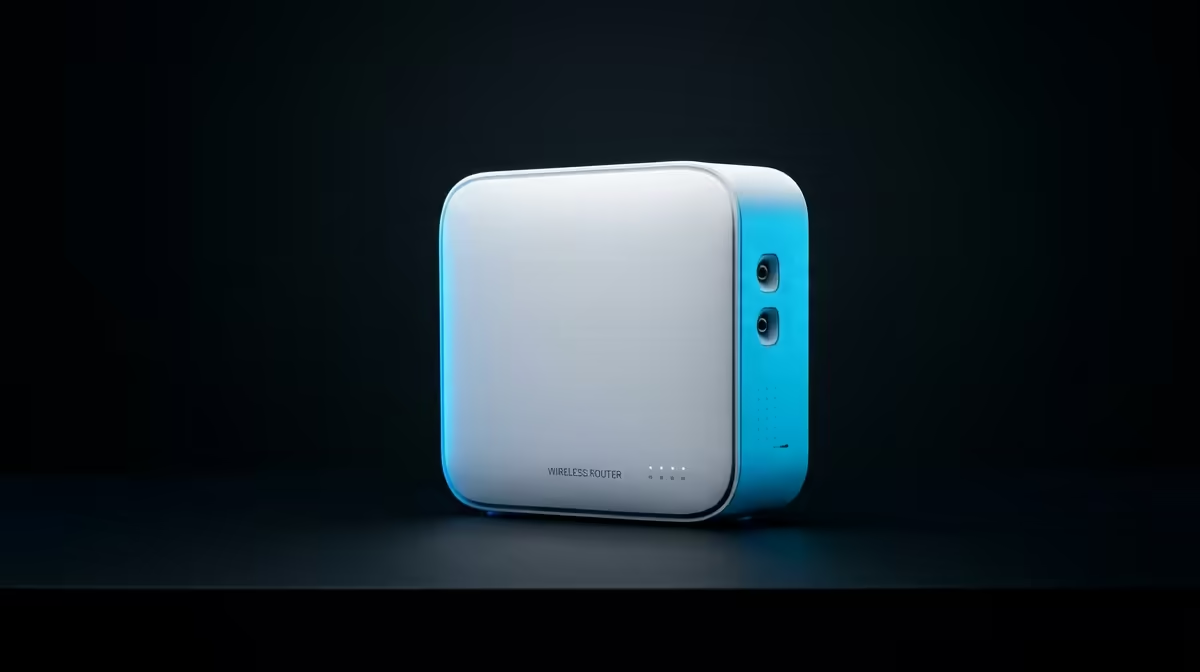
Having mates over for a braai or a weekend LAN? The first question is always the same: "Dude, what's the Wi-Fi password?" But just handing it over is like giving them a key to your digital front door. A secure guest Wi-Fi setup isn't just for fancy offices; it's essential for any South African home with more than one device. It protects your main network, keeps your gaming latency low, and gives you complete peace of mind.
Why Sharing Your Main Wi-Fi is a Bad Idea
Think about it. Your main Wi-Fi network connects everything... your gaming PC, your smart TV, your work laptop, maybe even security cameras. Giving someone your primary password connects their device—and any potential malware on it—to that same trusted space. A proper secure guest Wi-Fi setup isolates visitors into their own digital sandbox. 🛡️
This separation prevents three major headaches:
- Security Risks: A friend's unknowingly infected phone can't sniff around your network for sensitive files or spread malware to your other devices.
- Performance Drains: Is your cousin streaming 4K rugby highlights while you're trying to clutch a 1v3 in Valorant? A guest network can often have its bandwidth limited, so their streaming won't make your ping skyrocket.
- Privacy Breaches: It keeps nosy guests (or their apps) from accessing things like shared media folders or trying to cast to your smart TV without permission.
Your Step-by-Step Guide to a Secure Guest Network
Ready to lock things down? Most modern routers make this process surprisingly simple. Here’s how to create a secure guest network in just a few minutes.
1. Log In to Your Router
First, you need to access your router's settings. Open a web browser and type your router's IP address into the address bar. It's usually 192.168.0.1 or 192.168.1.1. You can typically find the correct address and login details printed on a sticker on the router itself.
2. Find and Enable the Guest Network Feature
Once you're logged in, look for a section called "Guest Network," "Guest Wi-Fi," or "Guest Zone." This is a standard feature on most modern hardware. For example, modern TP-Link routers make this incredibly easy to find in their interface.
3. Configure Your Guest Wi-Fi Settings ✨
This is the most important step for ensuring proper security. You'll see a few options:
- Network Name (SSID): Name it something obvious, like "Jones Family Guest" or "The LAN Party Zone."
- Security/Password: Always choose WPA2 or WPA3 security and set a strong, but reasonably simple, password for your guests.
- Enable Guest Network Isolation: This is the magic button. It may be called "AP Isolation," "Client Isolation," or "Allow guests to see each other and access my local network." You want to disable access to your local network. This is the core of a secure guest Wi-Fi setup.
Pro Tip: Use a QR Code
Tired of spelling out a complex password? Use a free online QR code generator to create a scannable code for your guest Wi-Fi. Print it out and stick it on the fridge. Guests can just scan it with their phone to connect instantly!
What if My Router is Too Old?
If you've dug through your router's settings and can't find a guest network option, it might be time for an upgrade. Older routers, especially those provided by ISPs years ago, often lack this crucial security feature.
Investing in a new router doesn't have to break the bank. Even affordable Cudy models come packed with modern features like guest networks, better range, and faster speeds. For more complex homes with multiple floors or even home offices that need rock-solid connections, exploring some advanced wired networking setups in conjunction with new access points can eliminate dead zones for good.
Ultimately, protecting your digital home is just as important as locking your front door. With the right hardware, it's a simple fix.
Fortify Your Home Network Today
Stop sharing your main password and start protecting your digital life. Browse Evetech's full range of latest wireless networking gear and get the peace of mind you deserve.