

Complete Guide: Setting Up AIO Liquid 420mm
Setting Up AIO Liquid 420mm. Tested & verified settings for best FPS and visual quality on SA hardware budgets.
Read moreLearn how to set up custom macros and RGB profiles in HyperX NGenuity for faster gameplay and better style. Follow this guide step-by-step and get reliable saves 🎮✨
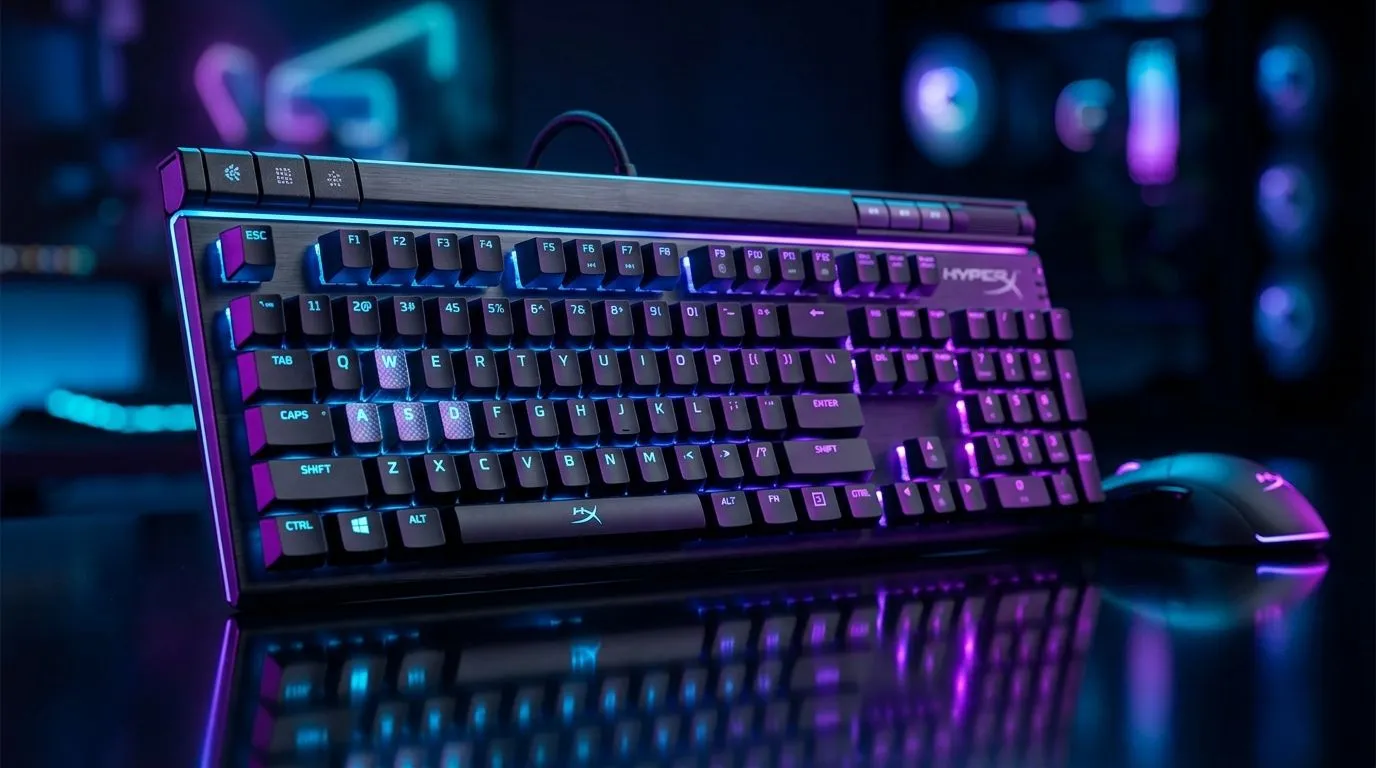
If your mouse or keyboard still feels “default”, you’re leaving performance on the table. HyperX NGenuity lets you build custom macros, tune RGB colour, and save profiles for different games or work setups. That means quicker skill rotations in your favourite shooter, cleaner MMO keybinds, and a desk setup that actually looks like yours 🔧
For South African gamers, that matters. A smart profile can save time, reduce misclicks, and make a budget rig feel far more personalised. And if you’re still shopping around for the right peripheral, these mouse accessories, a wired gaming mouse, or a wireless gaming mouse can all make a real difference depending on your play style.
Start simple. Install NGenuity from HyperX’s official software page, then connect your HyperX device directly to the PC. If the app does not detect it immediately, unplug and reconnect the device. Wired models usually show up faster than wireless ones, especially during first-time setup.
Once detected, open the device panel. You’ll usually see options for lighting, key assignments, and macros. Keep your first setup focused on one use case. For example, create a profile for FPS gaming, then build from there. That keeps things tidy and avoids confusing overlaps later.
If you’re pairing software setup with a new mouse, it is worth browsing the best gaming mouse deals to find something that supports the kind of control you want. Evetech also keeps a broader gaming mouse range for shoppers who prefer comparing shapes, sensors, and button layouts before buying.
Macros are just recorded button sequences. They can help with repeated actions, but they should stay practical. Think ability combos, inventory management, or repetitive desktop shortcuts. Avoid anything too complex at first.
A good rule? Test the macro in a safe environment first. In competitive games, one extra delay can ruin the timing. In productivity tasks, that same delay can make the sequence more reliable.
Before assigning a macro to your main mouse button, test it on a secondary profile. That keeps your daily setup safe while you fine-tune timing, repeats, and key order.
RGB is not just about flashing lights. It can help you identify profiles at a glance. A red profile for gaming, a blue one for work, and a softer white one for late-night use can make your setup easier to manage.
In NGenuity, lighting is usually handled per device. Some HyperX gear supports effect syncing, while other models allow independent control. Use this to your advantage. If your keyboard and mouse are both visible on screen, matching their colour palettes creates a cleaner look without going overboard ✨
If your room lighting is already bright, don’t push RGB too hard. Subtle colours often look better on camera and reduce visual clutter during long sessions.
This is where NGenuity becomes genuinely useful. You can make separate profiles for different games, apps, or routines. A shooter profile might prioritise DPI changes and quick access commands. A productivity profile might focus on copy, paste, and browser shortcuts.
Name profiles clearly. “CS2”, “Work”, and “Daily” beat vague names every time. If your device supports profile switching, map that function to an easy-access button. That way, you can swap modes without digging through menus.
A small habit helps here. Review your profiles once a month. New games, new work tasks, and new hardware can make older settings feel clumsy fast.
If NGenuity refuses to behave, check the basics first. Update the software. Use a direct USB port. Restart the app. Then reconnect the device. If you use a wireless mouse, confirm the dongle is firmly plugged in and the battery is charged.
Also, remember that not every feature is available on every HyperX product. That is normal. Device support depends on the model. If a setting is missing, the hardware may simply not support it.
For South African buyers, that is another reason to compare carefully before checkout. Shape, button count, and connection type matter as much as lighting. A well-matched mouse feels better on day one and lasts longer in your setup.
Once your macros and RGB profiles are working, the difference is immediate. Your mouse feels faster. Your desk looks cleaner. Your setup starts working for you, not against you. And that is usually the point of custom software in the first place.
If you are ready to upgrade the hardware around your profile setup, Evetech’s range makes it easy to compare options without guesswork. The right mouse, the right accessories, and the right software together can turn a standard rig into a setup that feels properly dialled in.
Ready to Find Your Perfect Match? The Mac vs Windows debate is complex, but for maximum power, choice, and value in South Africa, Windows is hard to beat. Explore our massive range of laptop specials and find the perfect machine to conquer your world.
Open NGenuity, select your device, create a new macro, record or assign key actions, then save your macro to the desired profile.
Yes. In NGenuity, assign the macro to a key or button, then verify the keybinding works in your target game or application.
Choose an RGB mode, adjust colors and zones, set brightness or effects, then save the lighting profile for quick switching.
Use the profile switch feature in NGenuity or assign a hardware/profile toggle key, then confirm the active profile updates immediately.
Check whether the correct profile is active, confirm keybinding is assigned, and ensure NGenuity has focus or required permissions.
Restart the app, reconnect via USB, try a different port, and reinstall NGenuity if detection still fails.
It depends on the device model and firmware. Review your NGenuity options to see whether profiles can be stored onboard.
Setting Up AIO Liquid 420mm. Tested & verified settings for best FPS and visual quality on SA hardware budgets.
Read more
Intel XTU Download & Setup Guide: Intel CPU. Clear setup instructions with SA-specific considerations, troubleshooting tips & recommended components.
Read more
Cyberpunk 2077 Max Settings on RTX 4090. Tested & verified settings for best FPS and visual quality on SA hardware budgets.
Read more
The Complete Guide to GPU. Everything you need to know with SA pricing, step-by-step instructions & expert recommendations.
Read more
NVCleanstall Download & Setup Guide: NVIDIA. Clear setup instructions with SA-specific considerations, troubleshooting tips & recommended components.
Read more
to Driver Installation for Beginners. Everything you need to know with SA pricing, step-by-step instructions & expert recommendations.
Read more
AMD RX 9050 XT: Rumoured Specs, Price & Release. SA-focused analysis with local pricing data, real-world insights & actionable buying advice.

Can RTX 4080 Super Run AI Workloads for SA Developers Detailed answer with SA data, expert analysis & practical recommendations for local buyers.

Can RTX 4090 Run AI Workloads for SA Developers Detailed answer with SA data, expert analysis & practical recommendations for local buyers.

Top Settings for Intel Arc B580 at Ultrawide 1440p picks evaluated on performance, value & SA availability with current Rand pricing from Evetech.

RTX 4060 CS2 Low Settings at 1080p: FPS Results. Real-world benchmark data, FPS numbers & performance analysis. What SA gamers can actually expect.

Visual Artifacts: Possible GPU Issue Issue #1. Diagnosis steps, proven fixes & when to seek professional help. SA-specific support info included.

Can the RTX 4090 Handle 1440p 144Hz Gaming. Performance testing verdict with real data & practical recommendations for SA buyers.

Top ASUS GPU Under R15000 picks evaluated on performance, value & SA availability with current Rand pricing from Evetech.

GTA 6 Max Settings on RTX 5070. Tested & verified settings for best FPS and visual quality on SA hardware budgets.

Cyberpunk 2077 Max Settings on RTX 5080. Tested & verified settings for best FPS and visual quality on SA hardware budgets.

Starfield Max Settings on RTX 5070 Ti. Tested & verified settings for best FPS and visual quality on SA hardware budgets.

Top RTX 5090 Under R5000 picks evaluated on performance, value & SA availability with current Rand pricing from Evetech.