Quick Answer
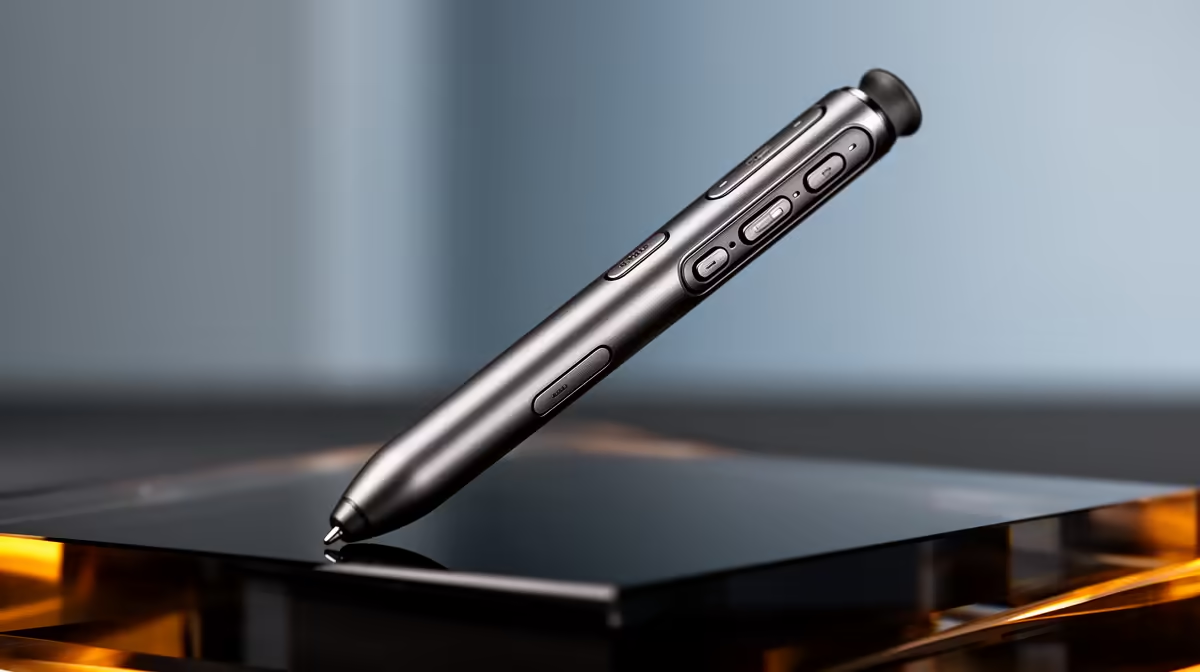
Yes, customisable side buttons on an active stylus meaningfully speed up productivity workflows. For note-takers, annotators, and creative professionals who switch tools or trigger shortcuts constantly, having one or two programmable buttons on the pen reduces the need to reach for the keyboard or trackpad dozens of times per session.
What Side Buttons Actually Let You Do 🖊️
Most active styli with side buttons ship with two physical controls, typically mapped by default to right-click and eraser mode. The real value appears when you remap them using Windows Ink settings or the manufacturer's companion app. Common productivity mappings include: undo (Ctrl+Z) on one button for quick mistake recovery during annotation; switching between highlighter and pen modes for marking up PDF documents; triggering a screenshot or screen snip; and opening a quick-note window. For someone annotating lecture slides or marking up client briefs on a Surface Pro or Lenovo Yoga, this eliminates constant context switching.
Which Workflows Benefit Most 💼
PDF annotation is the clearest winner: toggle between a highlighter and a freehand pen without touching the toolbar. Digital whiteboarding during remote work sessions benefits similarly, particularly for SA professionals working from home through fibre connections via Vumatel or Openserve, where screen-sharing calls make keyboard grabs awkward on camera. Architects and engineers sketching in AutoCAD's tablet mode use button shortcuts to switch between draw and erase without breaking their hand position. Students at tertiary level taking handwritten maths or engineering notes can map one button to switch between pen and eraser, making corrections in real time far less disruptive than tapping an onscreen button with a finger.
Choosing the Right Stylus for SA Budgets 💰
Styli with programmable buttons typically sit in the R1,200 to R2,500 range locally. Entry styli below R900 often include a fixed right-click button that cannot be remapped. If your workflow is simple (basic note-taking, occasional annotation), the fixed button is fine. If you work with complex documents, multiple software tools, or produce digital illustrations regularly, stepping up to a remappable model saves enough daily friction to justify the additional cost. Confirm that the companion software for the pen is available for Windows 11, since several older pen apps have not been updated for current builds.
Test Both Buttons Before Settling on Mappings ⚡
Spend a full working day with each button mapped to a different shortcut, then decide what feels natural. Most users discover that Ctrl+Z on the rear button and tool-switch on the front button suits annotation, but the reverse suits drawing. Your dominant hand position and grip style determine what is fastest for you.
FAQ
Can I remap stylus buttons in any Windows app?
Button remapping is handled at the driver or companion-app level, not per application. Once mapped, the button triggers the shortcut system-wide. Some apps like Clip Studio Paint offer additional in-app pen button settings on top of the system mapping.
How many buttons is enough on a productivity stylus?
Two buttons covers the overwhelming majority of workflows. A few premium pens offer a third touch-sensitive zone near the tip, but most professionals find two remappable buttons plus eraser mode sufficient for daily use.
Do side buttons affect how the stylus feels in hand?
Higher-quality styli position buttons so they are not accidentally triggered during a normal grip. Lower-cost models sometimes place buttons too close to the natural finger rest, causing accidental right-clicks. Check user reviews for grip feedback before purchasing.
Want a stylus that accelerates your real workflow?
Evetech carries active stylus pens with programmable side buttons suited to both students and working professionals. Find one that fits your device and daily routine.