Staring at fuzzy text on your expensive new monitor? It’s a uniquely South African frustration… you’ve got the Mzansi fibre, the beastly rig, but the words on your screen look soft. Before you blame your eyes or the monitor, know this: you can often fix it for free. The secret isn't a magic download, but a series of tweaks to your settings and drivers. Let's dive in and show you how to enhance your monitor's display quality. ✨
What Are "Text Sharpness Drivers," Really?
Let's clear something up. There isn't a single piece of software called a "text sharpness driver" you can just install. Instead, achieving crisp text and visuals is about a partnership between three key things:
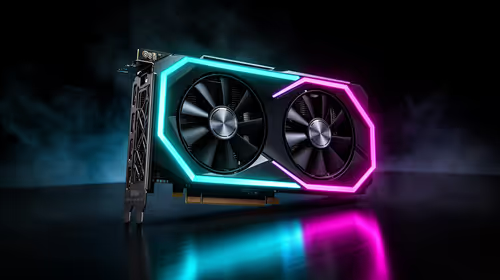
- Your Graphics Card (GPU) Drivers: NVIDIA, AMD, or Intel drivers are the master translators. They take data from your PC and tell your monitor how to display it. Keeping them updated is step one for optimal performance.
- Your Operating System (OS) Settings: Windows has powerful, often-overlooked tools specifically designed to improve text rendering.
- Your Monitor's Hardware Settings: The buttons on your monitor control its internal brain, allowing you to fine-tune the final picture.
Getting these three to work together is the key to improving text sharpness and overall display quality.
Optimise Windows to Enhance Monitor Display Quality
Before you even touch your monitor's buttons, your first port of call should be Windows itself. It’s amazing what a few clicks can do.
Run the ClearType Text Tuner
This is Windows' built-in secret weapon for blurry fonts. It walks you through a series of text samples, letting you choose the one that looks clearest to you. Your PC then optimises font rendering across your entire system based on your preferences.
- Simply press the Windows key.
- Type "ClearType" and select "Adjust ClearType text".
- Follow the on-screen wizard. It’s that easy.
Always Use Native Resolution!
the sharpest possible image, always ensure your display is running at its native resolution (e.g., 1920x1080 for a Full HD screen, 3840x2160 for a 4K screen). Running at a lower resolution forces the monitor to scale the image, which almost always results in a softer, less-defined picture. This is especially noticeable on the [stunning 4K and 5K displays](https: www.evetech.co.za buy-5k-4k-monitors x 1591.aspx) available today.
Check Your Scaling Settings
If you have a high-resolution monitor, Windows might automatically increase the size of text and apps ("scaling") to make them readable. Sometimes, this can introduce blurriness. Right-click your desktop, go to "Display settings," and experiment with the "Scale" percentage. While 100% is the sharpest, you might find 125% or 150% is the best balance of size and clarity for your eyes.
Fine-Tuning Your Monitor's On-Screen Display (OSD)
Now it’s time to use those little buttons on your monitor. Every monitor's menu (the On-Screen Display or OSD) is slightly different, but they all have similar core settings that affect clarity. 🖥️
Look for a setting called "Sharpness" or "Clarity." You might think cranking this to 100% is the answer, but it usually isn't. Over-sharpening adds an artificial white border, or "halo," around text and objects, which can look just as bad as blurriness. A good starting point is usually the default setting (often 50 out of 100) or slightly above. Adjust it slowly until the text looks defined without being harsh. While you're in there, browse Evetech's wide range of PC monitors to see what modern OSD features are available.
When Hardware is the Real Bottleneck
Sometimes, no amount of software tweaking can overcome the physical limits of your hardware. If you’ve tried everything and your display still isn't popping, it might be time to consider an upgrade.
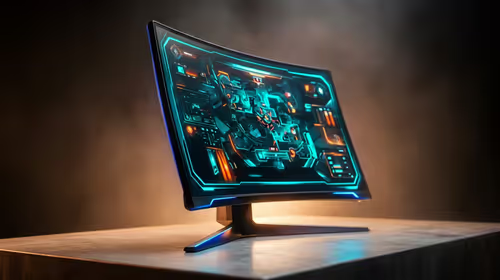
Pixel density (Pixels Per Inch or PPI) is a massive factor. A 27-inch 1080p monitor will never look as sharp as a 27-inch 1440p or 4K monitor. The more pixels packed into the same space, the crisper the image. This is why many gamers and professionals are upgrading. Immersive curved monitors can also enhance the feeling of clarity by matching the natural curve of your eye.
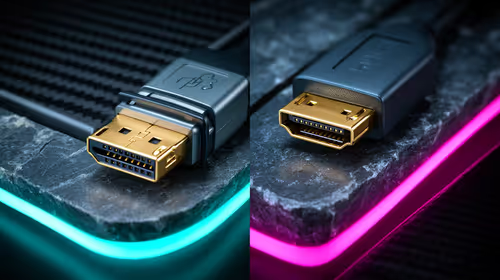
Even your cables matter! A high-quality DisplayPort cable can make a difference, so don't skimp on quality monitor accessories. Whether you're looking at all our gaming monitors for your main rig or need sharp portable monitors for work on the go, the right hardware foundation is crucial for perfect display quality.
Ready for a Crystal-Clear Upgrade?
If software tweaks aren't enough, it might be time for a display that truly does your rig justice. Check out the best PC monitor deals in South Africa and see every detail in perfect clarity.