

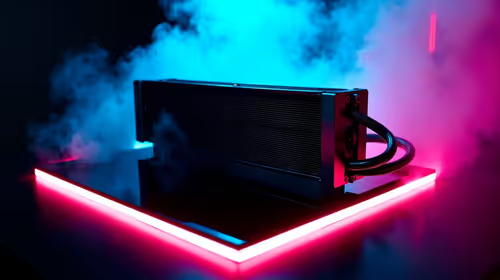
Complete Guide: Setting Up AIO Liquid 420mm
Setting Up AIO Liquid 420mm. Tested & verified settings for best FPS and visual quality on SA hardware budgets.
Read moreNeed more storage on your mini PC? Discover actionable steps to upgrade SSD/HDD storage and boost performance. 💻🚀

So, you've got a Mini PC. It's a fantastic, space-saving powerhouse that sips electricity… but that little box is starting to feel a bit cramped, isn't it? Games are getting bigger, project files are piling up, and Windows is sending you those dreaded "low disk space" warnings. Don't stress. Learning how to upgrade storage on your Mini PC is one of the easiest and most satisfying DIY projects you can tackle. Let's get it done. 🚀
Beyond the obvious benefit of having more space, a storage upgrade can genuinely revitalise your machine. If your Mini PC came with a slower, older solid-state drive (SSD) or, even worse, a mechanical hard drive, swapping it out is a massive performance win.
Modern NVMe SSDs offer read and write speeds that leave older drives in the dust. This means:
The performance boost is tangible, making it one of the most cost-effective upgrades for today's powerful Mini PCs. For a few hundred ZAR, you can make your little rig feel brand new.
Before you start unscrewing things, let's get your toolkit ready. The good news is you don't need much.
Check your Mini PC's specifications before you buy. Many compact systems actually have slots for both an M.2 drive and a 2.5-inch drive, allowing you to keep your old drive for extra storage.
Cloning your drive copies everything—Windows, your settings, and all your files—from the old drive to the new one. Use free software like Macrium Reflect or Clonezilla with an external SSD enclosure to save hours of setup time.
Ready? Let's get that new drive installed. This process is generally the same for most models, but always consult your device's manual if you're unsure. Brands like Minisforum often design their chassis for incredibly straightforward access.
Completely shut down your Mini PC and unplug it from the wall. Turn it upside down. You'll likely see four screws, often under rubber feet. Unscrew them and gently lift the bottom panel off.
You should now see the motherboard.
Carefully replace the bottom panel and screw it back on. Plug your Mini PC back in, connect your peripherals, and power it on. Your PC should boot up as normal, but now with a lot more speed and space. ✨
If you cloned your old drive, you're done! Your PC will boot from the new drive automatically.
If you added a second drive, you just need to initialise it.
And that's it! You've successfully learned how to upgrade the storage on your Mini PC. Enjoy the extra room and blistering speed.
Ready for a Performance Boost? Give your compact rig the speed and space it deserves. Explore our wide range of Mini PCs and SSDs at Evetech for performance that leaves lag in the dust.
Check your mini PC model’s storage options. Choose a compatible SSD/HDD. Back up data, install, and migrate storage.
A screwdriver, thermal paste (if needed), and compatible storage drive are essential for upgrading your mini PC's storage.
Yes! Most mini PCs support SSD upgrades. Ensure compatibility with your device’s interface (SATA, M.2, etc.).
Definitely! Upgrading boosts performance and extends the device's lifespan.
Most upgrades take under an hour with basic tools and steps.
Format the new drive and transfer your data to start using the increased capacity.
Yes! Replacing an HDD with an SSD is a popular upgrade for faster speeds.
Setting Up AIO Liquid 420mm. Tested & verified settings for best FPS and visual quality on SA hardware budgets.
Read more
Intel XTU Download & Setup Guide: Intel CPU. Clear setup instructions with SA-specific considerations, troubleshooting tips & recommended components.
Read more
Cyberpunk 2077 Max Settings on RTX 4090. Tested & verified settings for best FPS and visual quality on SA hardware budgets.
Read more
The Complete Guide to GPU. Everything you need to know with SA pricing, step-by-step instructions & expert recommendations.
Read more
NVCleanstall Download & Setup Guide: NVIDIA. Clear setup instructions with SA-specific considerations, troubleshooting tips & recommended components.
Read more
to Driver Installation for Beginners. Everything you need to know with SA pricing, step-by-step instructions & expert recommendations.
Read more
AMD RX 9050 XT: Rumoured Specs, Price & Release. SA-focused analysis with local pricing data, real-world insights & actionable buying advice.

Can RTX 4080 Super Run AI Workloads for SA Developers Detailed answer with SA data, expert analysis & practical recommendations for local buyers.

Can RTX 4090 Run AI Workloads for SA Developers Detailed answer with SA data, expert analysis & practical recommendations for local buyers.

Top Settings for Intel Arc B580 at Ultrawide 1440p picks evaluated on performance, value & SA availability with current Rand pricing from Evetech.

RTX 4060 CS2 Low Settings at 1080p: FPS Results. Real-world benchmark data, FPS numbers & performance analysis. What SA gamers can actually expect.

Visual Artifacts: Possible GPU Issue Issue #1. Diagnosis steps, proven fixes & when to seek professional help. SA-specific support info included.

Can the RTX 4090 Handle 1440p 144Hz Gaming. Performance testing verdict with real data & practical recommendations for SA buyers.

Top ASUS GPU Under R15000 picks evaluated on performance, value & SA availability with current Rand pricing from Evetech.

GTA 6 Max Settings on RTX 5070. Tested & verified settings for best FPS and visual quality on SA hardware budgets.

Cyberpunk 2077 Max Settings on RTX 5080. Tested & verified settings for best FPS and visual quality on SA hardware budgets.

Starfield Max Settings on RTX 5070 Ti. Tested & verified settings for best FPS and visual quality on SA hardware budgets.

Top RTX 5090 Under R5000 picks evaluated on performance, value & SA availability with current Rand pricing from Evetech.