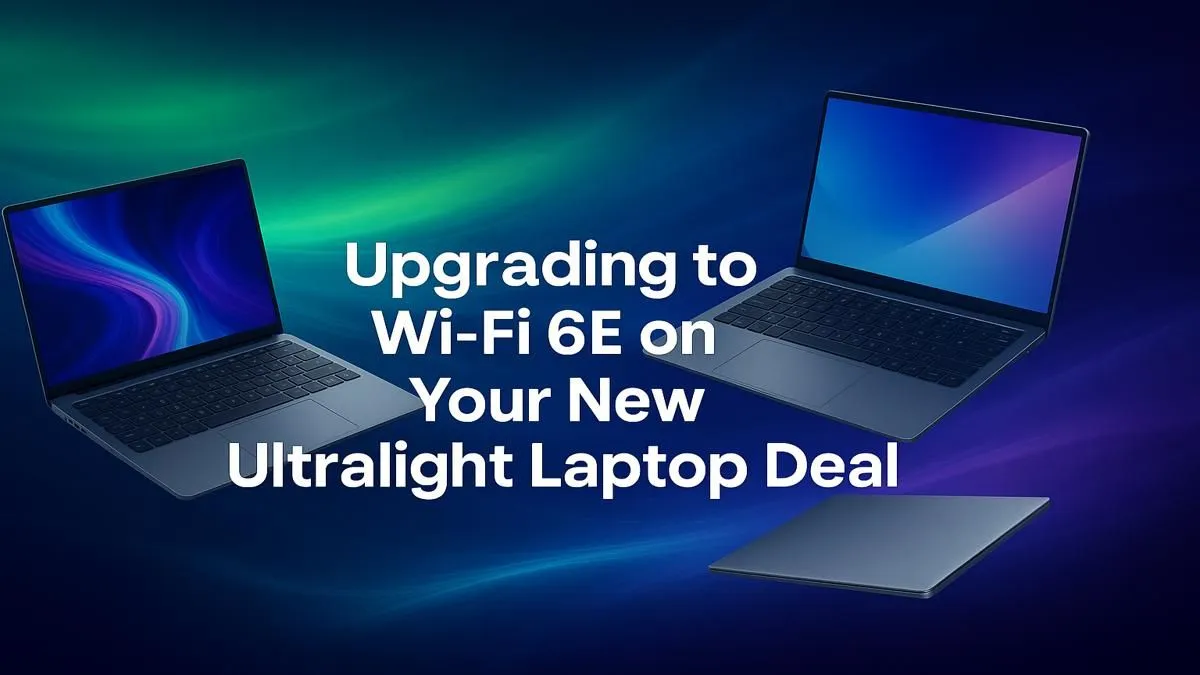
Stuck on a slow, congested Wi-Fi network during a critical moment? We've all been there. In South Africa, where every megabit counts, a laggy connection can ruin a gaming session or a work deadline. But what if you could access a private, super-fast lane for your internet traffic? That's the promise of Wi-Fi 6E. This guide will show you exactly how to upgrade to Wi-Fi 6E on your ultralight laptop. 🚀
What is Wi-Fi 6E and Why Should You Care?
You’ve probably heard of Wi-Fi 6, but the "E" in Wi-Fi 6E stands for "Extended." It unlocks access to a brand-new 6GHz frequency band. Think of it like this: the standard 2.4GHz and 5GHz bands are like the N1 highway during peak traffic... congested and slow. The 6GHz band is a freshly built, exclusive highway with way more lanes and almost no other cars.
For you, this means:
- Dramatically Lower Latency: Essential for competitive online gaming where every millisecond matters.
- Less Interference: Your connection won't drop because your neighbour’s microwave is running or because of twenty other networks in your apartment block.
- Faster Speeds: Get the most out of your fibre connection without a cable.
Simply put, a Wi-Fi 6E laptop upgrade is one of the best ways to ensure a stable, lightning-fast connection.
Can You Actually Upgrade Your Current Laptop?
This is the big question. While it sounds simple, the ability to upgrade to Wi-Fi 6E on your ultralight laptop depends entirely on its design. Many modern, super-slim notebooks, like some popular HP notebook deals, have their Wi-Fi chips soldered directly onto the motherboard to save space. If this is your situation, a physical upgrade is unfortunately off the table.
However, if your laptop has a replaceable M.2 Wi-Fi card, you're in luck! You'll need to open up your machine to check.
Check Before You Buy 🔧
Before buying a new Wi-Fi card, search for your laptop model’s “teardown” or “service manual” online. This will show you if the Wi-Fi card is a separate, replaceable module (usually with an M.2 A or E key) or soldered on. This five-minute search can save you a lot of hassle and money.
The DIY Route: A Quick Guide for the Brave
If your laptop is upgrade-friendly, the process is straightforward but requires care. Performing a DIY upgrade on premium devices like those in the Lenovo Yoga laptop deals can be nerve-wracking, so proceed with caution.
Here’s the high-level process:
- Power Down: Turn off the laptop completely and unplug it.
- Open Up: Carefully remove the bottom panel.
- Disconnect Battery: This is a crucial safety step! Disconnect the main battery from the motherboard.
- Swap the Card: Locate the old Wi-Fi card. Gently detach the small antenna cables, unscrew the retaining screw, and slide the old card out. Slot the new Wi-Fi 6E card (like an Intel AX210) in, secure it, and re-attach the antennas.
- Reassemble & Install: Put everything back together, boot up, and install the necessary drivers for your new card.
Remember, this process can void your warranty. It’s a rewarding project, but not one to be taken lightly. ✨
The Simpler Path: Laptops with Wi-Fi 6E Built-In
Let's be honest... opening up your sleek, expensive ultralight is a risk. The easiest, most reliable way to get Wi-Fi 6E is to choose a new laptop that already has it built-in. This guarantees compatibility, preserves your warranty, and pairs the latest connectivity with modern processors and displays.
Next-generation machines, including many of the impressive new Dell Snapdragon laptops, are designed from the ground up to take advantage of these new wireless standards. You get optimised performance out of the box, without ever needing a screwdriver. ⚡
Ready for the Fast Lane?
Stop fighting for bandwidth and step into the future of wireless. Explore our massive range of laptop specials for sale in South Africa and find the perfect Wi-Fi 6E-ready machine for lag-free gaming and seamless streaming.