

Complete Guide: Setting Up AIO Liquid 420mm
Setting Up AIO Liquid 420mm. Tested & verified settings for best FPS and visual quality on SA hardware budgets.
Read moreSet up USB-C DisplayPort on a compact laptop with confidence—plus Bluetooth 6 and external accessories that just work. This practical guide helps you avoid common connection issues and maximize desk setup. 💻🔌
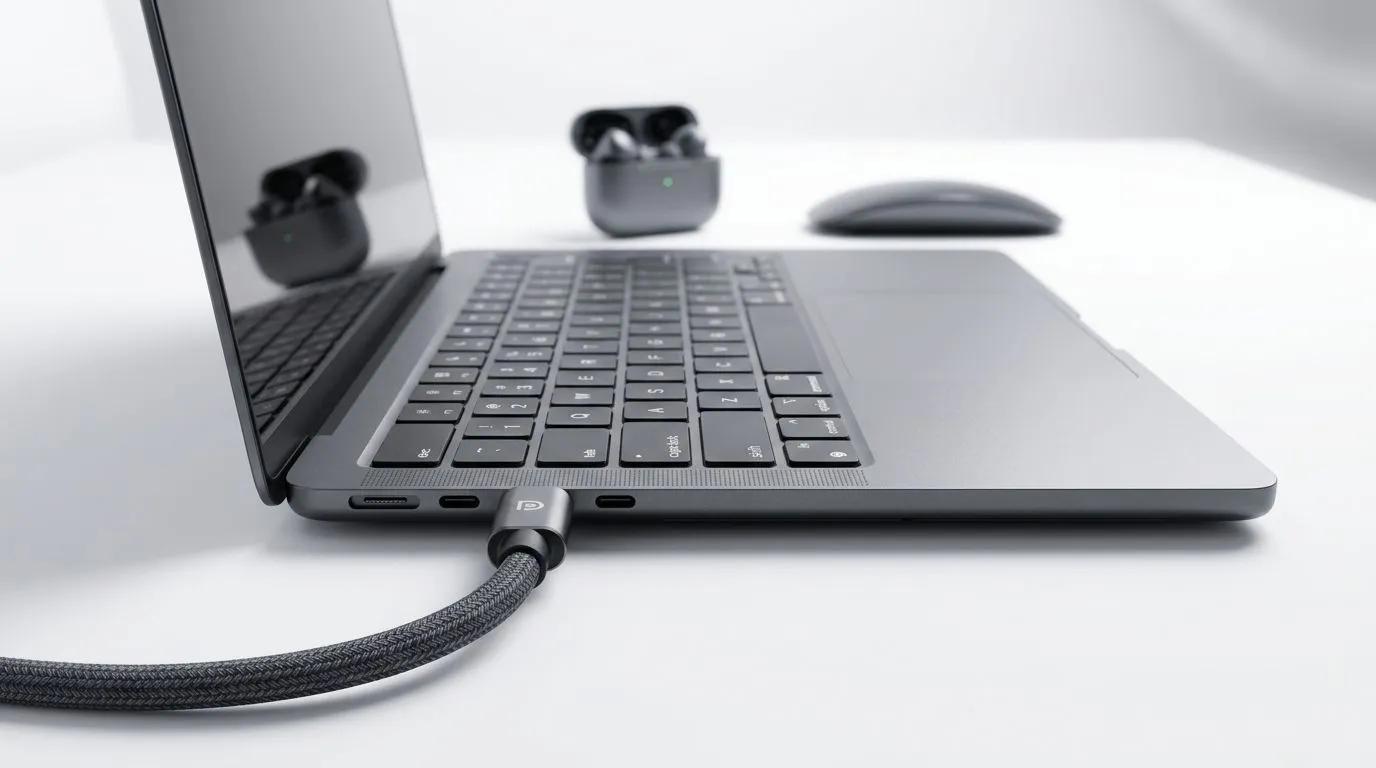
South African gamers love compact laptops… until the “where’s my external display signal?” moment hits. If you’ve got a small notebook and you want a smooth monitor experience, you’re in the right place. 🔧 This guide walks you through getting USB‑C DisplayPort working reliably on a compact laptop, with the settings that matter and the mistakes to avoid. No guesswork. Just practical steps you can do today.
Before you buy cables or fiddle with menus, confirm two things: your laptop supports DisplayPort Alt Mode over USB‑C, and your cable supports video over USB‑C.
Look for a USB‑C port with a small display icon or the words “DP” / “DisplayPort” near it. If your port doesn’t support video, it might only charge and transfer files… not video.
Not all USB‑C cables are equal. For video, you want a cable rated for DisplayPort Alt Mode. If you’re connecting to a DisplayPort monitor, aim for USB‑C → DisplayPort. If your monitor only has HDMI, use USB‑C → HDMI (again, video-capable).
On a compact desk setup, label your cables with a small tag (USB‑C→DP vs USB‑C→HDMI). It sounds basic, but when you’re swapping between home and LAN days, you’ll avoid the 5-minute “wrong cable” spiral every single time.
Once you’ve confirmed support and have the right cable, the setup is usually quick.
Plug the USB‑C cable into the laptop first, then connect to the monitor. Turn the monitor on after the cable is seated. This helps avoid handshaking issues where the laptop doesn’t detect the display.
Most monitors default to HDMI1, HDMI2, or DP. Use the monitor’s input button and choose the port you connected.
Your monitor may default to a safe setting. If you care about motion clarity, set a matching refresh rate and use native resolution.
Here are the problems South Africans run into most often… and what to do.
Many setups route audio through the display connection. In Windows, check Sound settings and select the monitor output device.
If you’re building a compact gaming or productivity setup, the laptop you choose matters as much as the cable. For instance, some Apple MacBook configurations are designed to support external displays via USB‑C with the right connection. If you’re shopping in South Africa, compare models and configs here:
Ready to Find Your Perfect Match? The Mac vs Windows debate is complex, but for maximum power, choice, and value in South Africa, Windows is hard to beat. Explore our massive range of laptop specials and find the perfect machine to conquer your world.
Look for a USB-C port that supports DisplayPort Alt Mode or a “DP”/video icon. If you see only charging, you likely need a different port or adapter.
Use a USB-C to DisplayPort cable or a USB-C DisplayPort adapter rated for video. Avoid charge-only USB-C cables when the monitor does not receive video.
Yes. Bluetooth 6 typically works alongside video use, but keep USB-C bandwidth in mind. If audio stutters, adjust Bluetooth distance and disable competing devices.
Common causes include using a charge-only cable, selecting the wrong input on the monitor, or needing driver updates. Re-seat the cable and confirm DP Alt Mode.
Often yes, but choose a dock that supports DisplayPort over USB-C and adequate power delivery. Verify resolution and refresh-rate support before purchase.
For best results, keep the Bluetooth receiver close, reduce Wi‑Fi interference, and use the laptop’s latest Bluetooth drivers to improve buffering and timing.
Some setups support power delivery plus video in one cable. Confirm the dock or adapter supports USB-C PD with sufficient wattage for stable performance.
Setting Up AIO Liquid 420mm. Tested & verified settings for best FPS and visual quality on SA hardware budgets.
Read more
Intel XTU Download & Setup Guide: Intel CPU. Clear setup instructions with SA-specific considerations, troubleshooting tips & recommended components.
Read more
Cyberpunk 2077 Max Settings on RTX 4090. Tested & verified settings for best FPS and visual quality on SA hardware budgets.
Read more
The Complete Guide to GPU. Everything you need to know with SA pricing, step-by-step instructions & expert recommendations.
Read more
NVCleanstall Download & Setup Guide: NVIDIA. Clear setup instructions with SA-specific considerations, troubleshooting tips & recommended components.
Read more
to Driver Installation for Beginners. Everything you need to know with SA pricing, step-by-step instructions & expert recommendations.
Read more
AMD RX 9050 XT: Rumoured Specs, Price & Release. SA-focused analysis with local pricing data, real-world insights & actionable buying advice.

Can RTX 4080 Super Run AI Workloads for SA Developers Detailed answer with SA data, expert analysis & practical recommendations for local buyers.

Can RTX 4090 Run AI Workloads for SA Developers Detailed answer with SA data, expert analysis & practical recommendations for local buyers.

Top Settings for Intel Arc B580 at Ultrawide 1440p picks evaluated on performance, value & SA availability with current Rand pricing from Evetech.

RTX 4060 CS2 Low Settings at 1080p: FPS Results. Real-world benchmark data, FPS numbers & performance analysis. What SA gamers can actually expect.

Visual Artifacts: Possible GPU Issue Issue #1. Diagnosis steps, proven fixes & when to seek professional help. SA-specific support info included.

Can the RTX 4090 Handle 1440p 144Hz Gaming. Performance testing verdict with real data & practical recommendations for SA buyers.

Top ASUS GPU Under R15000 picks evaluated on performance, value & SA availability with current Rand pricing from Evetech.

GTA 6 Max Settings on RTX 5070. Tested & verified settings for best FPS and visual quality on SA hardware budgets.

Cyberpunk 2077 Max Settings on RTX 5080. Tested & verified settings for best FPS and visual quality on SA hardware budgets.

Starfield Max Settings on RTX 5070 Ti. Tested & verified settings for best FPS and visual quality on SA hardware budgets.

Top RTX 5090 Under R5000 picks evaluated on performance, value & SA availability with current Rand pricing from Evetech.