Two laptops, identical 40 Gbps ports, the same external graphics enclosure and the same GPU inside it, yet one games noticeably better than the other. That gap is the heart of the USB4 vs Thunderbolt eGPU question. On the spec sheet the two look interchangeable, but what each standard guarantees behind that 40 Gbps headline is where real eGPU performance is won or lost.
Quick Answer
USB4 and Thunderbolt share the same 40 Gbps ceiling, so on paper an eGPU runs the same on both. The difference is the guarantee: Thunderbolt certification requires full PCIe tunnelling, while many USB4 hosts expose less PCIe bandwidth to the external graphics card. The same GPU in the same dock can deliver different throughput depending on which host it is plugged into.
The 40 Gbps Number Hides the Real Story
Both USB4 and Thunderbolt 4 advertise up to 40 Gbps of total bandwidth, and that shared figure is why people assume they are the same for an eGPU. They are not, because total bandwidth is not the same as the bandwidth reserved for the graphics card.
That 40 Gbps pipe carries several things at once: video, USB data, and the PCIe traffic that actually matters for an external GPU. An external graphics card talks to the host over PCIe, tunnelled through the cable, and the speed of that PCIe link is what feeds the GPU frames. How much of the 40 Gbps gets allocated to PCIe tunnelling is the variable that decides eGPU performance, and that allocation is exactly what the two standards treat differently.
So the meaningful question is never "is it 40 Gbps". It is "how much guaranteed PCIe tunnelling does this host give the eGPU". Two ports with the same headline number can hand the graphics card very different amounts of usable PCIe bandwidth.
Where the Guarantee Diverges
The split comes down to what each standard mandates versus what it merely allows.
Thunderbolt's mandatory PCIe tunnelling
Thunderbolt certification requires full PCIe tunnelling as part of the spec. A device that carries the Thunderbolt badge has been tested to deliver that PCIe link, so an eGPU plugged into a certified Thunderbolt host gets the bandwidth allocation the standard promises. This is the consistency that made Thunderbolt the default for external graphics in the first place; the guarantee is baked into the certification.
USB4's optional allocation
USB4 is more flexible by design, and that flexibility is exactly the catch. The USB4 spec makes full PCIe tunnelling optional rather than mandatory. A USB4 host can support the full PCIe allocation, or it can expose a reduced amount, or in some implementations support it weakly. All of them are still legitimately "USB4". So two USB4 laptops can behave very differently with the same eGPU, and the port logo alone does not tell you which one you have.
The practical upshot is that USB4 is a range, not a single guaranteed level. Some USB4 hosts match Thunderbolt closely; others starve the eGPU of PCIe bandwidth and the same graphics card produces lower frame rates as a direct result.
What This Means for Frame Rates
For gaming, the PCIe link to an eGPU is already a bottleneck compared with a graphics card sitting in a desktop slot, because tunnelling over a cable is narrower than a direct internal connection. An eGPU loses some performance to that link no matter what. The USB4-versus-Thunderbolt distinction decides how much more it loses.
On a host with full PCIe tunnelling, the eGPU performs close to its eGPU potential, limited mainly by the inherent overhead of going external. On a USB4 host that exposes reduced PCIe bandwidth, the same GPU is choked further, and you see it most in demanding, high-resolution scenes where the card needs to move a lot of data quickly. The gap is not subtle in those cases.
This is why a strong GPU does not rescue a weak host. The graphics card can only deliver what the link feeds it, so pairing a powerful eGPU with a bandwidth-limited USB4 port wastes the card. To match a serious external card to your machine, it is worth browsing the current graphics card best sellers with your host's real PCIe allocation in mind rather than just its 40 Gbps label.
How to Buy the Right Combination
Start with the host, not the GPU. Before anything else, find out what your specific laptop's port actually delivers. A Thunderbolt-certified port gives you the guarantee; a USB4 port needs you to check the manufacturer's documentation for whether it supports full PCIe tunnelling. Do not assume from the logo.
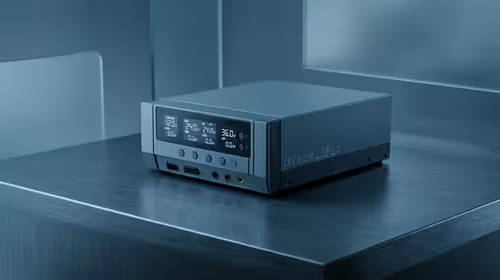
Then choose the dock to match. A quality eGPU enclosure or dock built for the standard your host supports keeps the connection clean and lets the card reach the bandwidth your host allows. The docking station range at Evetech covers the enclosures and docks that pair with these ports, and matching the dock to a Thunderbolt-certified or full-PCIe USB4 host is what lets the whole chain perform.
Finally, set expectations sensibly. Even at its best, an eGPU trades a little performance for the convenience of adding desktop-class graphics to a laptop. If your host guarantees full PCIe tunnelling, that trade is small and the setup is excellent. If it does not, the trade grows, and you should weigh whether the host is the right base for an eGPU at all.
The internal-display penalty
One extra detail catches people out. When an eGPU drives the laptop's own built-in screen rather than an external monitor, the rendered frames have to travel back across the same cable to reach the display, which eats into the available bandwidth a second time. Plugging a monitor directly into the eGPU enclosure avoids that return trip and recovers a chunk of performance.
So if you are chasing the best frame rates from an external card, run a separate monitor off the dock rather than mirroring to the laptop panel. It is a free improvement that costs nothing but a cable, and it matters most on hosts that already allocate limited PCIe bandwidth, where every bit of the link counts.
Frequently Asked Questions
Are USB4 and Thunderbolt the same for an eGPU?
Not in practice. They share a 40 Gbps ceiling, but Thunderbolt certification guarantees full PCIe tunnelling while USB4 makes it optional. The same eGPU can perform differently depending on how much PCIe bandwidth the host actually allocates.
Why does the same GPU game faster on one laptop than another?
Because the two hosts allocate different amounts of PCIe bandwidth to the eGPU. A host with full PCIe tunnelling feeds the card properly, while one that exposes reduced bandwidth chokes it, lowering frame rates in demanding scenes.
Does the 40 Gbps figure tell me eGPU performance?
No. The 40 Gbps is total bandwidth shared across video, USB and PCIe. What matters for an eGPU is how much guaranteed PCIe tunnelling the host provides, which the headline number does not reveal.
Can a USB4 port match Thunderbolt for gaming?
Some can, if that specific USB4 host supports full PCIe tunnelling. Others expose less and fall short. Check the manufacturer's documentation for your exact machine rather than relying on the USB4 logo.
Will a more powerful GPU fix a slow eGPU connection?
No. The PCIe link sets the ceiling, so a stronger card on a bandwidth-limited host is wasted. Match the GPU to a host that guarantees full PCIe tunnelling to get the card's full value.
Get the host, the dock and the card working together. Explore the docking stations and graphics cards at Evetech, match them to a port that guarantees full PCIe tunnelling, and give your eGPU the bandwidth it needs to perform.