Clean Mechanical Keyboard Without Damaging Switches
Clean mechanical keyboard safely with step-by-step maintenance, switch-friendly cleaning methods, and pro tips to prevent damage. 🧼🔧 Learn keycap removal, switch cleaning, and routine care for longevity.
|
Loading tags...

That satisfying thock of your mechanical keyboard is music to a gamer's ears. But what about the crunch of chip crumbs or the sticky shift key from last night’s cooldrink? Keeping your gear pristine isn’t just about looks; it's about performance. We’ll show you exactly how to clean your mechanical keyboard safely, ensuring every keystroke is as crisp as the day you unboxed it, without any risk to those precious switches.

Razer BlackWidow V4 X - Mechanical Gaming Keyboard: Yellow Switches Linear & Silent - 6 Dedicated Macro Keys - Chroma RGB - Doubleshot ABS Keycaps - Media Controls - Sound Dampening & Stabilizers / RZ03-04701800-R3M1
R3299.00In Stock

Glorious GMMK Compact RGB Modular Mechanical Gaming Keyboard - Barebone Edition - 61 Key / US Layout / Mechanical Switch - Required, Not Included / Switches - Required, Not Included / Keycaps - Required, Not Included / / GMMK-COMPACT-RGB
R1349.00In Stock

Glorious Aura V2 145-Key PBT Mechanical Keyboard Keycaps - Black / Full-size standard 145 Key / PBT Keys / LED Light Compatible / US Layout / Fits most mechanical keyboards / Compatible with GMMK 2 & GMMK PRO / <span style="color:red; font-size: 16px;">*Keyboard not Included*</span> / GLO-KC-AURA2-B
R599.00In Stock

Gamdias Hermes E2 Mechanical Gaming Keyboard - Brown Switches / Brilliant Illumination / Durable, Stylish Design / Neon Backlight Colors / Long Lasting Durability / HERMES-E2
R129.00In Stock
Logitech G413 SE Mechanical Gaming Keyboard - Black / Tactile Mechanical Switches / Key Rollover / Anti-Ghosting / PBT Keycaps / LED Lighting / Built To Last / 920-010437
R1559.00In Stock

Glorious GMMK Pro Brass Switch Plate / Ideal for Linear Switches / 83 Keys / US Layout / GLO-ACC-P75-SP-B
R799.00In Stock
Why You Need to Clean Your Mechanical Keyboard
Let's be honest, your keyboard is a magnet for dust, skin cells, and snack debris. Over time, this buildup can cause keys to stick, feel mushy, or even stop responding altogether. A regular clean doesn't just keep it looking great; it preserves the precise feel of the switches and extends the life of your investment. A well-maintained board can last for years, making it a core part of any serious setup, just like a quality gaming keyboard should be. 🔧
The Quick Refresh: A 5-Minute Weekly Wipe-Down
For routine maintenance, you don't need to pull everything apart. This quick process will keep the worst of the grime at bay.
- Unplug It: First rule of keyboard cleaning... always disconnect it from your PC. No exceptions.
- Turn & Tap: Flip the keyboard upside down over a bin and gently tap the back to dislodge any loose crumbs and dust.
- Blast It: Use a can of compressed air to blow out any remaining debris from between the keys. Use short bursts and hold the can upright to prevent propellant from spraying out.
- Wipe Down: Lightly dampen a microfibre cloth with water or a 50/50 mix of isopropyl alcohol and water. Wipe down the keycaps and frame to remove oils and smudges.
This simple routine is enough to maintain most boards, including even the most reliable wired keyboards that see heavy daily use.
The Deep Clean: Restoring That Factory Fresh Feeling 🧼
Did you have a major spill, or has it just been a year since your last proper clean? It's time for a deep dive. This is more involved but incredibly satisfying.
Step 1: Preparation is Key
Before you start, take a clear photo of your keyboard layout. Trust us, you’ll thank yourself later when it's time to put all those keycaps back on. Unplug the keyboard and lay it on a clean, flat surface.
Razer Huntsman V3 Pro Esports Gaming Keyboard - Black / Analog Optical Switches w/Rapid Trigger & Adjustable Actuation / Media Keys & Dial / Doubleshot PBT Keycaps / Aluminum Top Plate / Wrist Rest / RZ03-04970100-R3M1
R5499.00In Stock

Razer Huntsman Mini Gaming Keyboard - Clicky Optical Purple Switches - Classic Black / Aluminum Construction / Standard Bottom Row Layout / 100 Million Keystroke Lifespan / Razer Synapse 3 Enabled / Fully programmable Keys / 1000 Hz Ultrapolling / RZ03-03390100-R3M1
R1799.00In Stock

HP 230 WL Mouse and KB Combo - Black / Up to 16-month keyboard battery life / Smooth tracking with 1600 DPI / One-click access to all function keys / 18H24AA
R599.00In Stock

SteelSeries Apex 9 Mini – HotSwap Optical Mini Keyboard – 60% Compact Design – Optical Switches – RGB Customization – Aluminum Alloy Frame – Double Shot PBT Keycap / 64837
R1599.00In Stock

Glorious Gaming Wrist Pad/Rest - Compact - Mechanical Keyboards, Stitched Edges, Ergonomic | 12x4 inches/ (0.7in/17mm) Thickness (GSW-75)
R349.00In Stock
SteelSeries Prismcaps Double Shot PBT Keycaps - Black / Extreme Durability / Compatible With Most Mechanical Keyboards / Thermoplastic PBT Keycaps / 60200
R949.00In Stock
Step 2: Keycap Removal & Bath
Using a wire keycap puller (it’s less likely to scratch your caps than the plastic kind), gently pull each keycap straight up. Place them all in a bowl of warm water with a few drops of dish soap. Let them soak for about an hour, then give them a gentle scrub with a soft brush, rinse thoroughly, and lay them out on a towel to air dry completely. And we mean completely—any moisture can damage the switches.
TIP FOR YOU
Drying Pro Tip ✨
To speed up keycap drying, place them on a towel and aim a fan at them on a low setting. Avoid using a hairdryer, as high heat can warp the plastic. Patience is your best friend here!
Step 3: Cleaning the Keyboard Body
With the keycaps off, you have full access.
- First, turn the keyboard upside down and give it a good shake to remove any large debris.
- Next, use your compressed air to blast out anything lodged between the switches.
- For any grime stuck to the base plate, use a cotton swab or small brush dipped in isopropyl alcohol to gently scrub it away. Be careful not to let any liquid drip down into the switch mechanisms. This is especially important for wireless keyboards, where internal components are tightly packed.
MARVO K638B Soldat S50B Membrane Gaming Keyboard / Rainbow Backlit / ABS Keycaps / Detachable USB Type-C Cable / K638B
R499.00In Stock

Razer BlackWidow V4 X Wired Mechanical Gaming Keyboard - Green Switches Tactile & Clicky / 6 Dedicated Macro Keys / Chroma RGB / Doubleshot ABS Keycaps / Media Controls / Sound Dampening & Stabilizers / RZ03-04700100-R3M1
R3099.00In Stock

Gamdias Hermes E3 Gaming Keyboard Brown Switch--Black / GAMDIAS Certified Mechanical Switches / 61Key Mechanical Keyboard / Ergonomic design / HERMES-E3-BRN
R129.00In Stock

Logitech G PRO X TKL LIGHTSPEED Gaming Keyboard - BLACK - US INT'L TACTILE / 920-012136
R4319.00In Stock

Logitech MK295 Wireless Keyboard And Mouse Combo / Long Battery Life / Durable And Reliable / Full-Size, Spill-Resistant Design / 920-009800
R569.00In Stock

SteelSeries Apex 3 TKL RGB Gaming Keyboard – Tenkeyless Compact Form Factor - 8-Zone RGB Illumination – IP32 Water & Dust Resistant – Whisper Quiet Gaming Switch – Gaming Grade Anti-Ghosting / 64831
R1299.00In Stock
The Big Don'ts: How to Avoid Damaging Your Switches ⚠️
Knowing how to clean your mechanical keyboard also means knowing what not to do. Avoid these common mistakes to keep your gear safe.
- Never submerge the main keyboard body in water. It will kill the electronics instantly.
- Don't use harsh cleaning chemicals like bleach or ammonia. They can damage the plastic and fade the keycap legends.
- Avoid spraying any liquid directly onto the keyboard. Always apply it to your cloth or cotton swab first. This helps protect the delicate electronics that power those vibrant RGB effects.
- Don't try to open the switches themselves unless you are experienced with keyboard modding. You can easily damage the delicate internal contacts.
By following these steps, you'll keep your mechanical keyboard feeling responsive and looking fantastic for every raid, match, and late-night coding session.
Ready for a Fresh Start? A clean keyboard feels amazing, but sometimes it's just time for an upgrade. If your old board has seen better days, explore our massive range of gaming keyboards and find the perfect new weapon for your setup.
Related Products
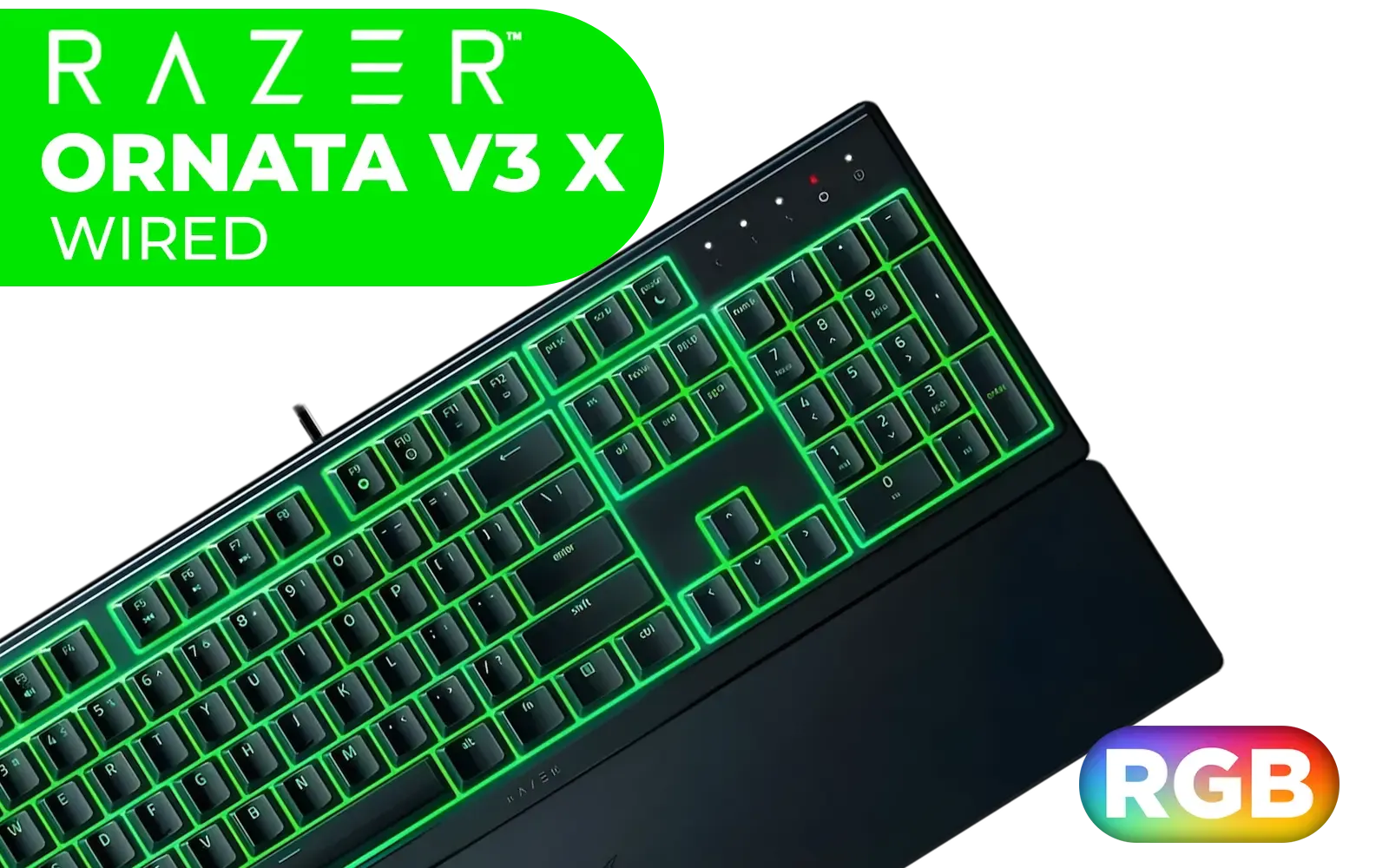
Razer Ornata V3 X Gaming Keyboard: Low-Profile Keys - Silent Membrane Switches - UV-Coated Keycaps - Spill Resistant - Chroma RGB Lighting - Ergonomic Wrist Rest - Classic Black / RZ03-04470100-R3M1
R1199.00In Stock

Corsair K70 PRO TKL RGB Tenkeyless Mechanical Wired Gaming Keyboard – Pre-Lubed Hall Effect MGX Hyperdrive Adjustable Switches, Simultaneous SOCD and Rapid Trigger, ABS Double-Shot, QWERTY NA – Black / CH-911911G-NA
R3499.00In Stock

Glorious 104 Keys ABS Double Shot Mechanical Keyboard Keycaps - White / Double Shot Injection Legends / Backlight LED Compatible / Unique Dual-layer Casing / Standard Bottom Row / ABS Plastic / Keyboard not Included / G-104-White
R299.00In Stock
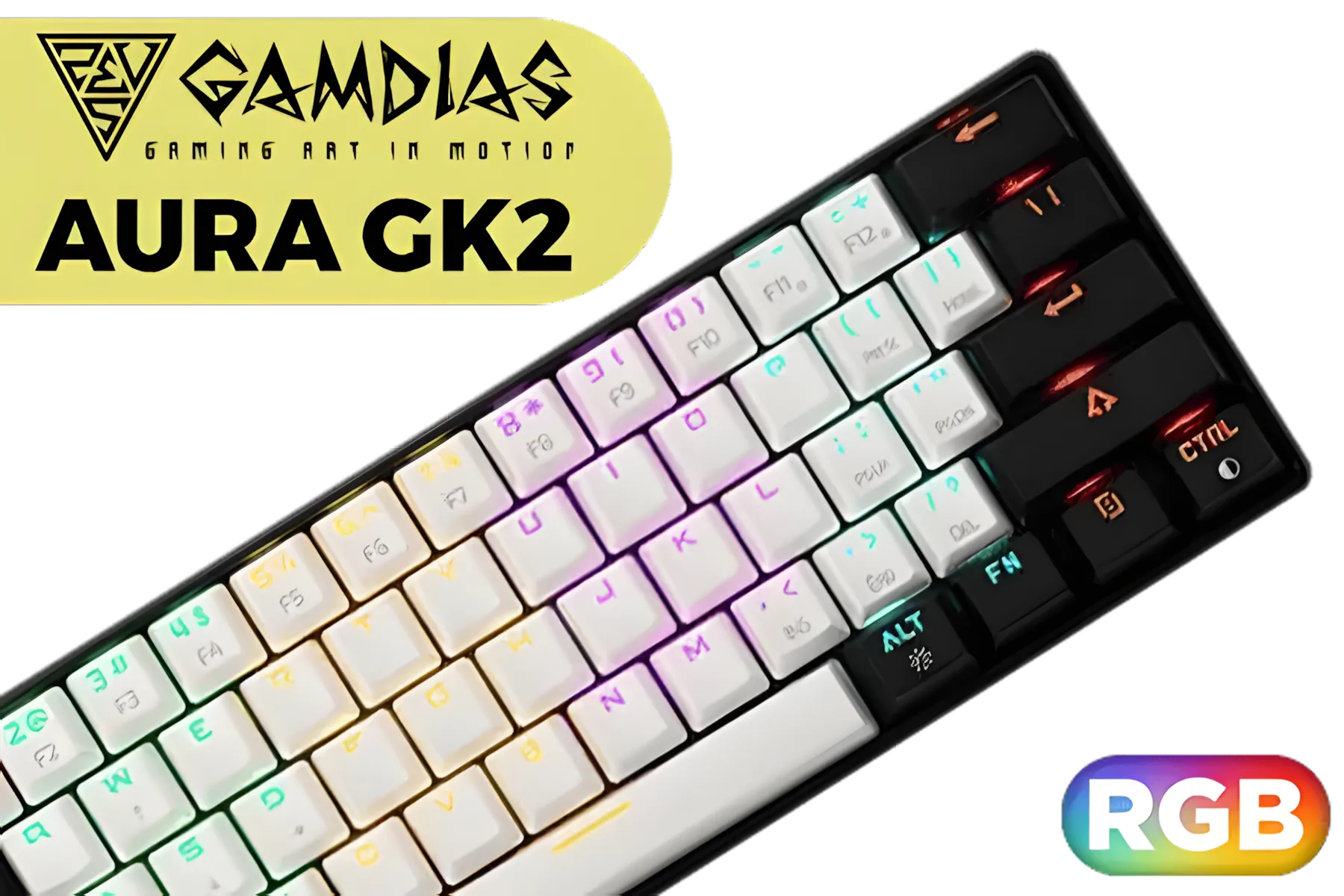
Gamdias AURA GK2 60% Multicolor Gaming Keyboard - White & Black / Dual Colorway Keycaps / 61Key Mechanical Keyboard / Tactile Mechanical Switches / 9 Built-In Lighting Effects / AURA GK2 WB
R699.00In Stock
Logitech G413 SE Mechanical Gaming Keyboard - Black / Tactile Mechanical Switches / Key Rollover / Anti-Ghosting / PBT Keycaps / LED Lighting / Built To Last / 920-010437
R1559.00In Stock
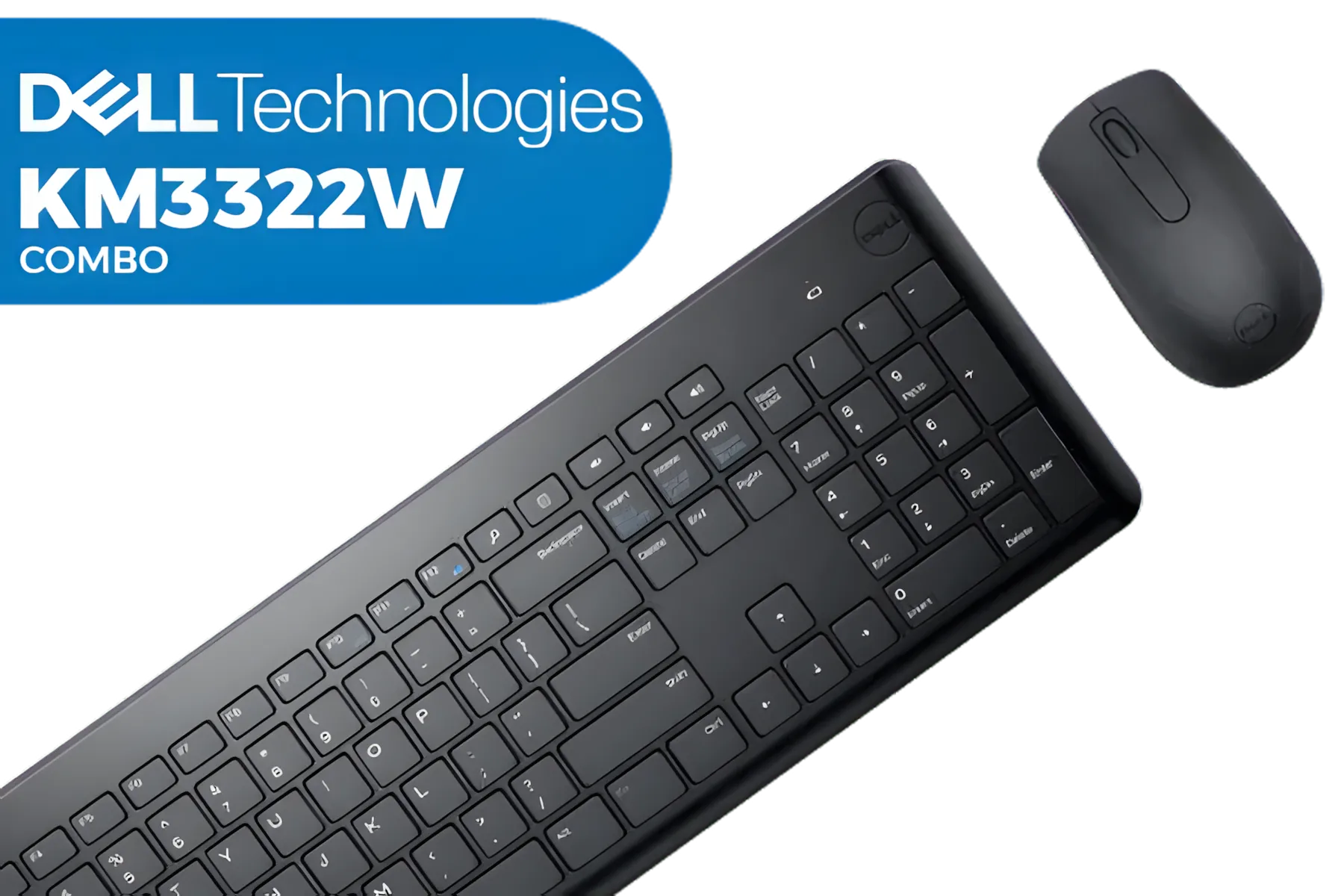
Dell KM3322W Premier Multi-Device Wireless Keyboard and Mouse - Black / 580-AKFZ
R499.00In Stock
Wipe surfaces weekly and deep clean (keycap removal and switch inspection) every 3–6 months to keep switches responsive and hygiene high.
Yes — use short bursts of compressed air to dislodge dust from around switches; combine with careful keycap removal for deeper cleaning.
Most mechanical keyboards allow safe keycap removal, but check your model first; use a keycap puller and avoid yanking to protect stems.
Spot-clean with isopropyl alcohol on a swab for surface grime, or consider switch opening only if you know your switch type and method.
Always unplug or power off before cleaning to prevent shorts, accidental key presses, and to safely remove keycaps for deep-cleaning.
Yes — soak plastic keycaps in warm, soapy water, rinse, and fully dry before reattaching to avoid moisture near switches.
Lubricate switches only after full cleaning and drying, and use a thin, switch-safe lubricant to improve feel without harming components.