HP ZBook Firefly G11 keyboard tips for faster workflow
HP ZBook Firefly G11 keyboard tips: Quick, practical tweaks for keyboard and touchscreen to speed typing, master shortcuts, and boost workflow on your ZBook. ⚡️🖱️
|
Loading tags...

So, you’ve unboxed your shiny new HP ZBook Firefly G11. It’s a powerhouse, built for serious creative and professional work. But raw power is only half the story. To truly unlock its potential, you need to make its keyboard an extension of your thoughts. These HP ZBook Firefly G11 keyboard tips will help you shave off precious seconds and keep you in that productive flow state. Let's get your workflow optimised! 🚀
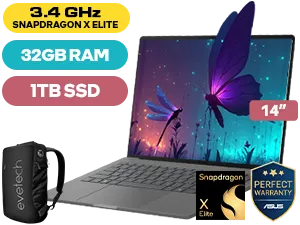
ASUS ZenBook A14 32GB/1TB Snapdragon X Elite
R24,999In Stock
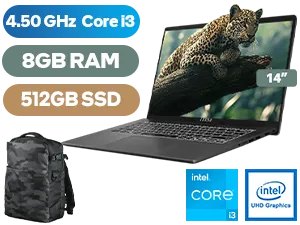
MSI Modern 14 8GB/512GB Core i3
R8,299In Stock
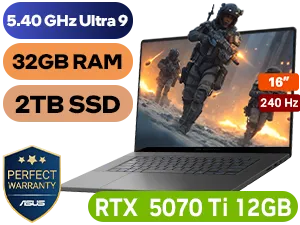
ASUS ROG Zephyrus G16 32GB/2TB
R65,999In Stock
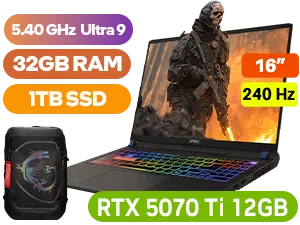
MSI Vector 16 HX 32GB/1TB RTX 5070 Ti
R43,999In Stock
Lenovo IdeaPad 5 16GB/512GB Core 5
R19,999In Stock
MSI Cyborg 15 AI 16GB/512GB RTX 4050
R20,999In Stock
Nail the Basics: Function Row & Navigation
Before diving into complex macros, let's master what's already there. The top row of your ZBook keyboard is packed with useful shortcuts.
A crucial first step is understanding the Fn Lock. Usually toggled by pressing Fn + Esc, this switches the top row between multimedia controls (brightness, volume) and traditional function keys (F1-F12). For coders and developers, locking it to F-keys is essential. For general users, the media keys are often more useful. This simple toggle is a feature you'll find across many of the best laptop specials for sale in South Africa, but it's amazing how many people never use it.

Next-Level Windows Shortcuts for Your ZBook
Your ZBook Firefly G11 runs on Windows, an OS packed with powerful shortcuts that many users overlook. Mastering these is one of the most effective HP ZBook Firefly G11 keyboard tips for boosting productivity.
Here are a few essentials for a faster workflow:
Win+V: Opens your clipboard history. No more losing that link you copied five minutes ago!Win+Tab: Opens Task View, where you can manage virtual desktops. Keep your work projects, personal stuff, and research completely separate. ✨Win+Shift+S: The ultimate screenshot tool. Instantly capture a specific region, window, or your full screen directly to your clipboard.
These commands are just as vital for productivity as quick-key bindings are for competitive play, a standard feature across all the best gaming laptop deals.
TIP FOR YOU
Productivity Pro Tip ⚡
On Windows, install Microsoft PowerToys. Its FancyZones utility is a lifesaver for ultrawide or high-resolution displays. You can create custom screen layouts and snap windows into place with a simple key press, making it perfect for organising your code editor, browser, and terminal all on one screen.
Customising Your Keys for Peak Efficiency
Why stop at default settings? True optimisation comes from tailoring the machine to your specific needs. Whether your ZBook is rocking a powerful processor found in top-tier AMD laptops on special, you can use third-party software to remap keys.
Tools like AutoHotkey allow you to create complex scripts and assign them to a single key combination. Imagine launching your most-used application, resizing its window, and opening a specific project file… all with one keystroke. This level of customisation transforms your ZBook from a great tool into a perfect one. It's a workflow trick that benefits any high-performance machine, including the latest Intel laptops on special, by making repetitive tasks disappear.
By implementing these keyboard tips for your HP ZBook Firefly G11, you're not just working faster; you're working smarter. 🔧
Ready to Optimise Your Workflow? Mastering your machine's keyboard is the first step. The next is ensuring you have the right power for the job. From mobile workstations to creative powerhouses, the right laptop makes all the difference. Explore our massive range of laptop specials and find the perfect machine to conquer your projects.
Related Products
HP 15-fc0003ni 8GB/512GB Ryzen 5
R7,999In Stock
HP OmniBook Ultra Flip 16GB/1TB
R36,999In Stock
Lenovo IdeaPad 5 8GB/512GB Core 5-120U
R16,499In Stock
Lenovo IdeaPad Slim 3 8GB/512GB Core i5
R10,999In Stock
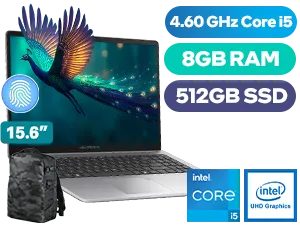
Asus ExpertBook P1 P1503CVA 8GB/512GB Core i5
R12,999In Stock
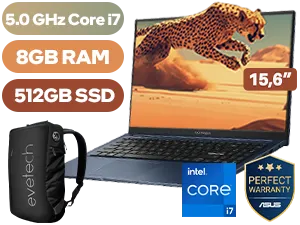
ASUS Vivobook 15 8GB/512GB i7-1355U
R12,999In Stock
Use Windows shortcuts, Fn combos, and ZBook Firefly G11 keyboard shortcuts. Customize via HP Quick Tools or Windows Keyboard settings.
Enable precision touch gestures in Windows Settings > Devices > Touchpad, update drivers, and use HP Support Assistant for ZBook Firefly G11 touchscreen gestures.
Yes. Change Fn behavior in BIOS or HP Quick Tools and map actions with Windows or third-party remappers for custom function key tips.
Adjust repeat delay, enable keyboard backlight, remap keys, and practice shortcut workflows to boost typing speed on HP ZBook Firefly G11.
Use an active pen, calibrate in Windows Pen settings, enable palm rejection, and assign pen button shortcuts for faster pen and touchscreen tips.
Yes. Updating HP drivers and Windows fixes responsiveness and gesture bugs. Use HP Support Assistant to keep ZBook Firefly G11 drivers current.
Enable Snap Assist, set hotkeys, choose performance power mode, and customize touchpad gestures to streamline tasks on ZBook G11.