LG 27GS75Q G-Sync vs FreeSync: Best Mode for Gaming
LG 27GS75Q G-Sync vs FreeSync: Decide which sync tech gives lower input lag and smoother 165Hz gaming on the LG 27GS75Q. Quick compatibility checks and optimal settings. 🎮⚙️
|
Loading tags...
So, you’ve just unboxed your shiny new LG 27GS75Q monitor. Lekker! You’ve plugged it in, marvelled at the crisp 1440p display, and you’re ready to dominate in your favourite game. But wait… you dive into the settings and face a classic question: G-Sync vs FreeSync? Which is the best mode for gaming on this specific screen? Don’t stress, we’ve got you covered. Let's demystify this choice and get you playing without screen tearing.

AOC 22B2HN, 21.5 Inch (54.6 cm) LED 1920 x 1080 Pixels Ultra Slim Monitor with 3 Sided Frameless Design, Va Panel, Hdmi/Vga Port, Full Hd, 7 Ms Response Time, 75 Hz Refresh Rate, Flicker Free, Black / AOC-22B2HN
R2099.00In Stock

HP 527SW G5 FHD Gaming Monitor - White/Silver / 27" FHD (1920 x 1080) / IPS Panel / 1x HDMI 1.4, 1x VGA / Eye Ease with Eyesafe Certification / 94F46AS
R4499.00In Stock
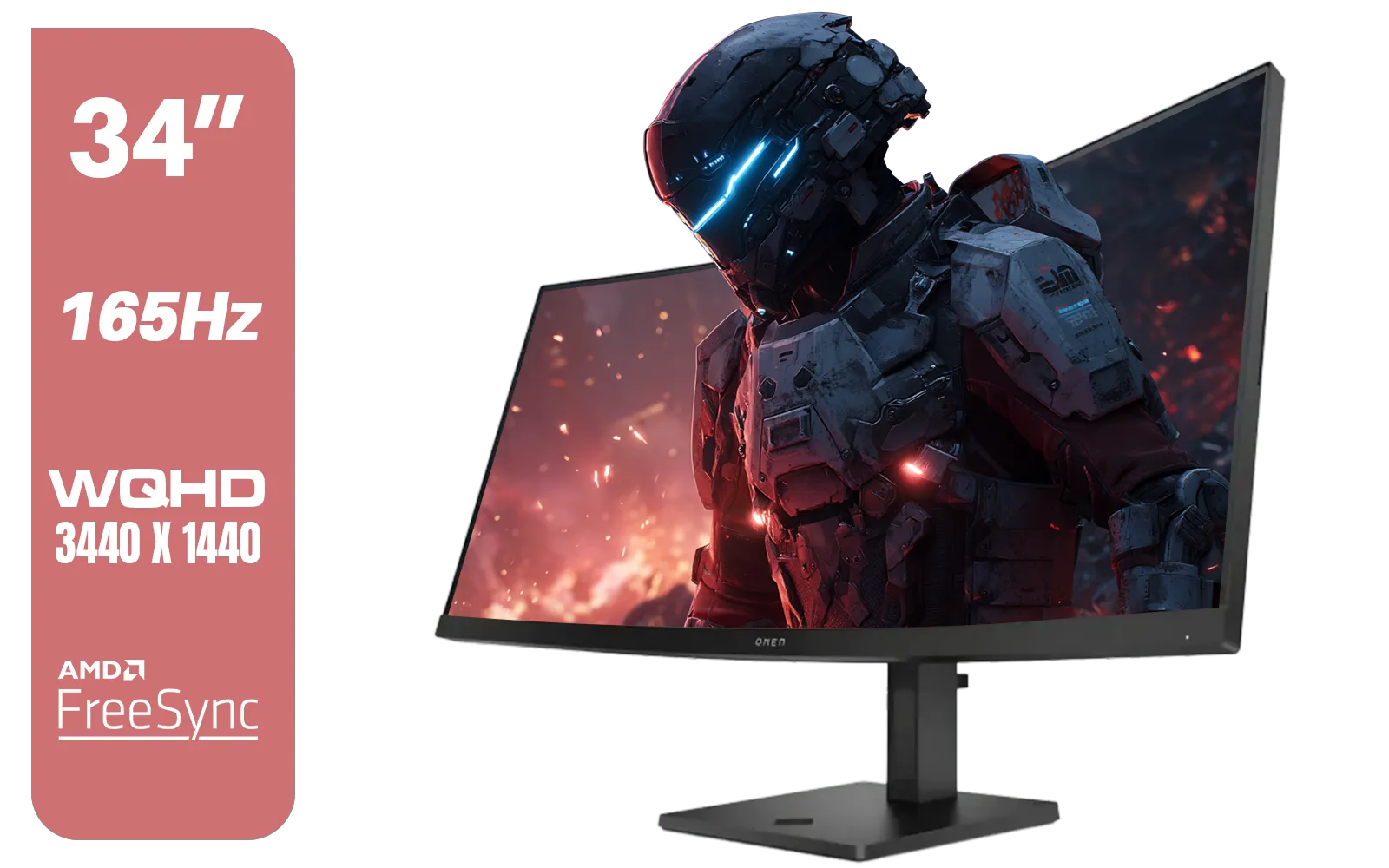
HP OMEN 34c Curved Monitor — 34' WQHD VA 165hz — Gaming Console Compatible — 2x HDMI 2.0 — 1x DisplayPort 1.4 — AMD FreeSync Premium — Dual Speakers — Tilt & height adjustments — VESA Mountable - Black / 780K8AS
R12999.00In Stock
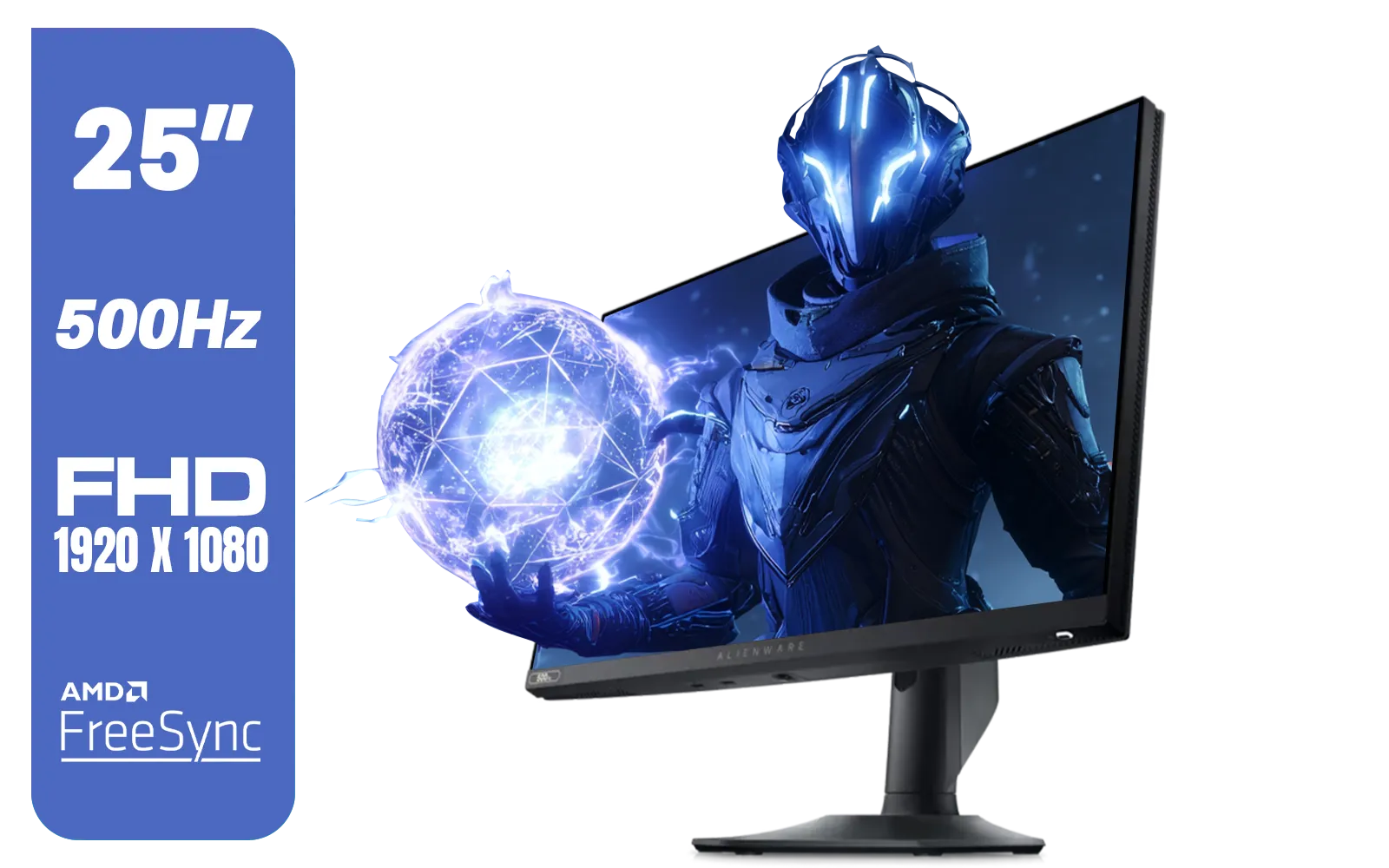
Alienware AW2524HF Gaming Monitor/ 25-inch / IPS Panel / Full HD (1920 x 1080)/ 500Hz refresh rate / 1 ms Response Time / VESA Adaptive-Sync, AMD FreeSync Premium / AW2524HF
R12999.00In Stock

LG UltraGear Gaming Monitor 27GS75Q, 27 inch, 1440p, 200Hz, 1ms GtG, IPS Display, HDR 10, NVIDIA G-Sync & AMD FreeSync compatible / 27GS75Q
R5999.00In Stock

Samsung M70D 32″ Smart Monitor / UHD (3840 x 2160) Resolution / 60Hz refresh rate / 4ms response time / LS32DM702UAXXA
R7799.00In Stock
Understanding G-Sync and FreeSync on Your LG 27GS75Q
First, a quick refresher. Both G-Sync (from NVIDIA) and FreeSync (from AMD) are types of "adaptive sync" technology. Their job is to synchronise your monitor's refresh rate with the frames-per-second (FPS) your graphics card is pushing out. The result? Buttery-smooth gameplay, free from that horrible screen tearing and stutter that can ruin a critical moment.
The LG 27GS75Q is what's known as "G-Sync Compatible." This means it doesn't have NVIDIA's dedicated hardware chip inside, but it has been tested and certified by NVIDIA to deliver a solid G-Sync experience. It also fully supports AMD's open-standard FreeSync Premium. This dual-compatibility is a massive win, making it one of the most versatile LG monitors in South Africa.
So, which one do you pick? The answer is beautifully simple: it depends entirely on your graphics card.
Choosing the Best Mode for Your Gaming Rig 🚀
The best mode for gaming on the LG 27GS75Q isn't about which technology is superior in a vacuum; it's about matching the monitor's features to your PC's hardware. Let's break it down.
For Team Green: NVIDIA GeForce Graphics Cards
If your rig is powered by an NVIDIA GeForce card (like an RTX 3060, RTX 4070, etc.), your choice is clear: G-Sync is the way to go.
- Connect via DisplayPort: This is crucial. G-Sync Compatibility on this monitor works over a DisplayPort connection, not HDMI.
- Enable in Monitor OSD: First, open your monitor's on-screen display (OSD) using the joystick underneath. Navigate to the Game Adjust settings and ensure Adaptive-Sync is turned ON.
- Activate in NVIDIA Control Panel: Right-click your desktop, open the NVIDIA Control Panel, and go to "Set up G-SYNC." Tick the "Enable G-SYNC, G-SYNC Compatible" box. Select your LG 27GS75Q, and be sure to tick the box for "Enable settings for the selected display model."
That's it! Your monitor and GPU will now be in perfect harmony.

Dell SE2425HM Monitor 210-BQZT / FHD (1920 x 1080) Resolution / 5ms Response Time / IPS level Display / 178° Horizontal and Vertical Viewing Angles / SE2425HM
R1899.00In Stock
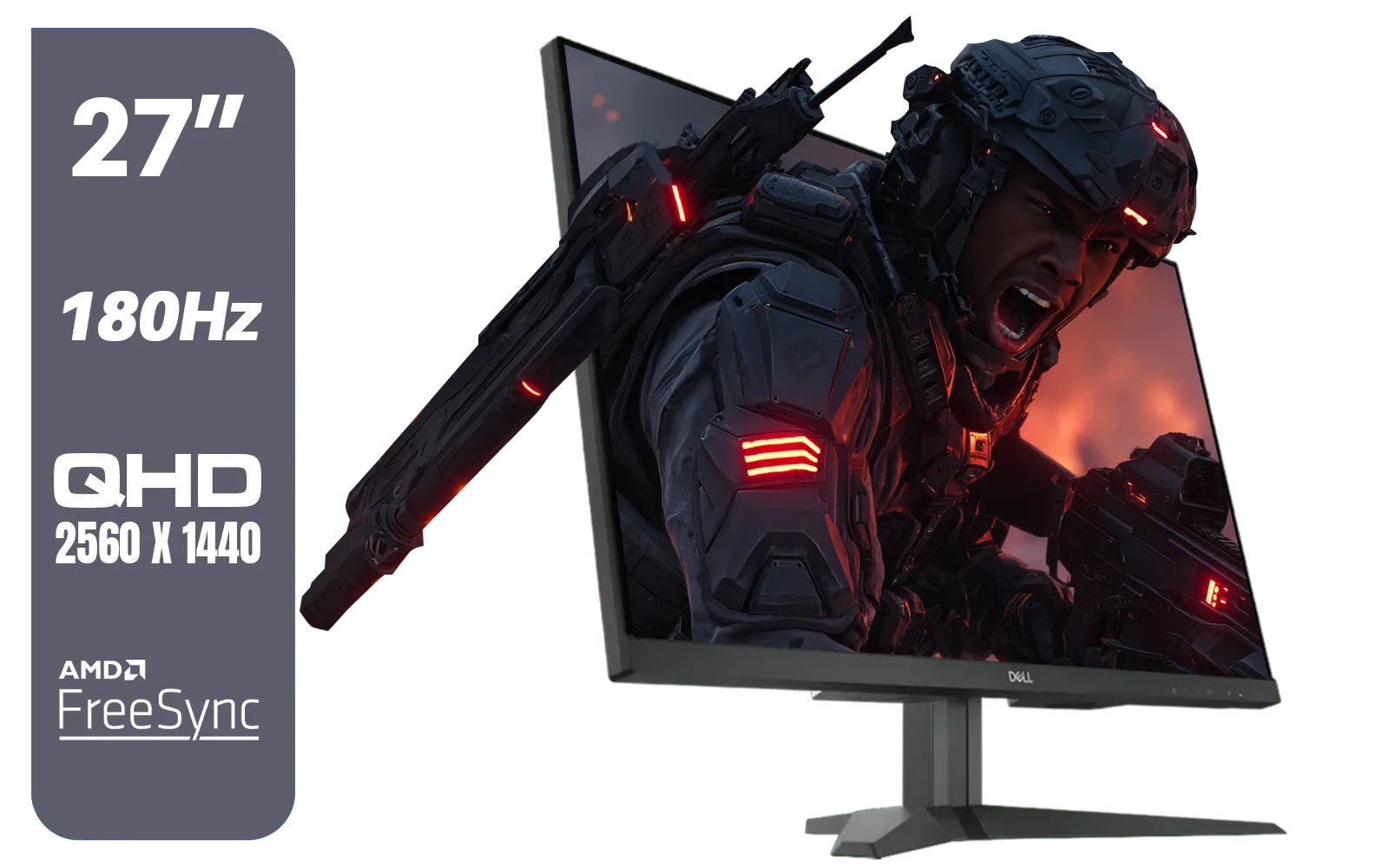
Dell G2725D 27" Gaming Monitor / QHD 2560 x 1440 / 180Hz Refresh Rate / AMD Freesync / 1ms Response Time / G2725D
R4299.00In Stock
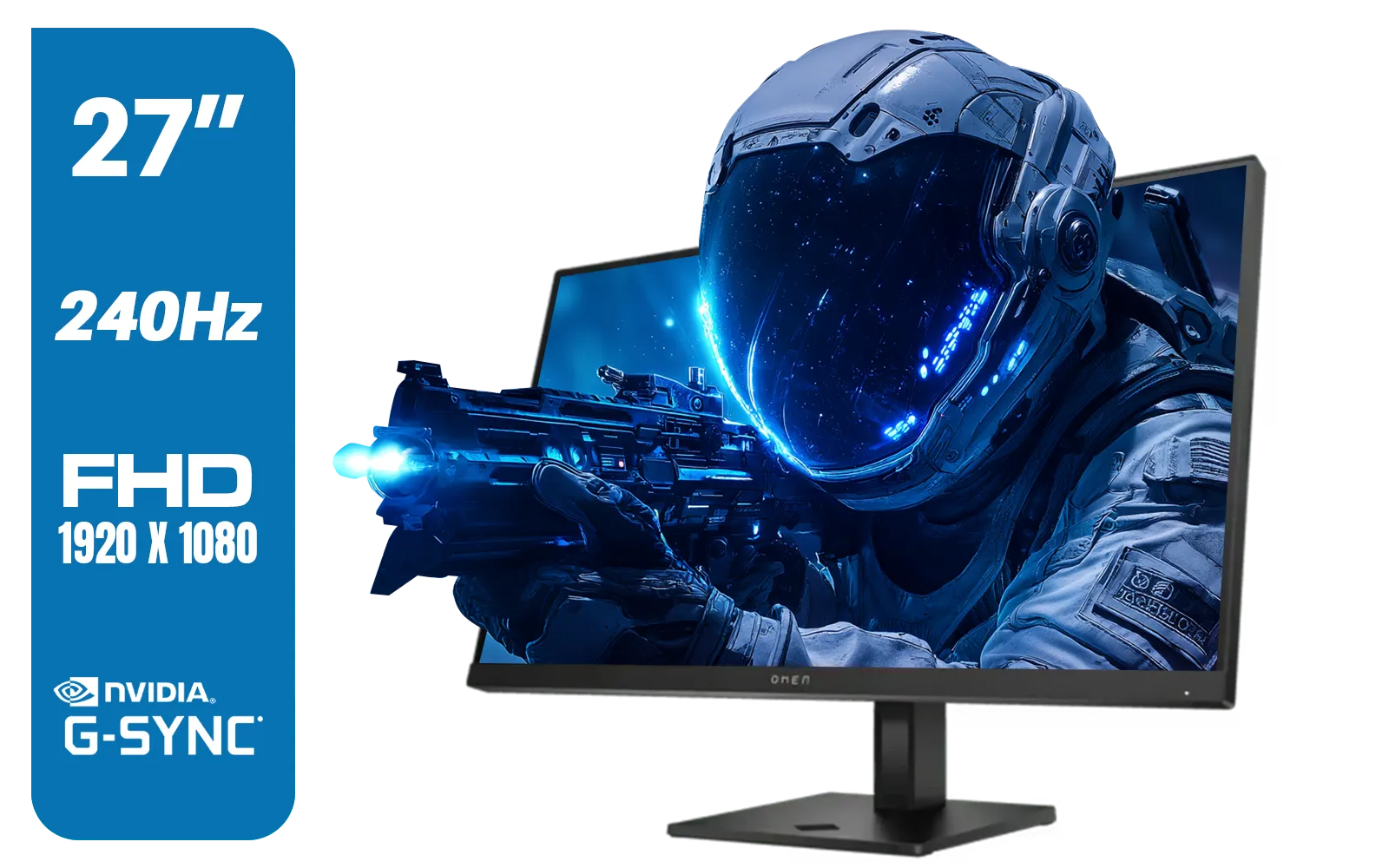
HP OMEN 27s FHD 240Hz Gaming Monitor - Black / VESA DisplayHDR 400 / NVIDIA® G-SYNC® Compatible / Integrated Dual 3W speakers / Customize aRGB lighting through OMEN Light Studio / 780G5AS
R8999.00In Stock

MSI PRO MP275 E2 27-inch IPS 1920 x 1080 (FHD) Gaming Office Monitor, 120Hz, Free-Synch, HDMI, DisplayPort, VGA Port, VESA Mountable, Tilt, Speaker, 4-Side Slim Bezel 1ms, Black / 9S6-3PD3CM-029
R2599.00In Stock
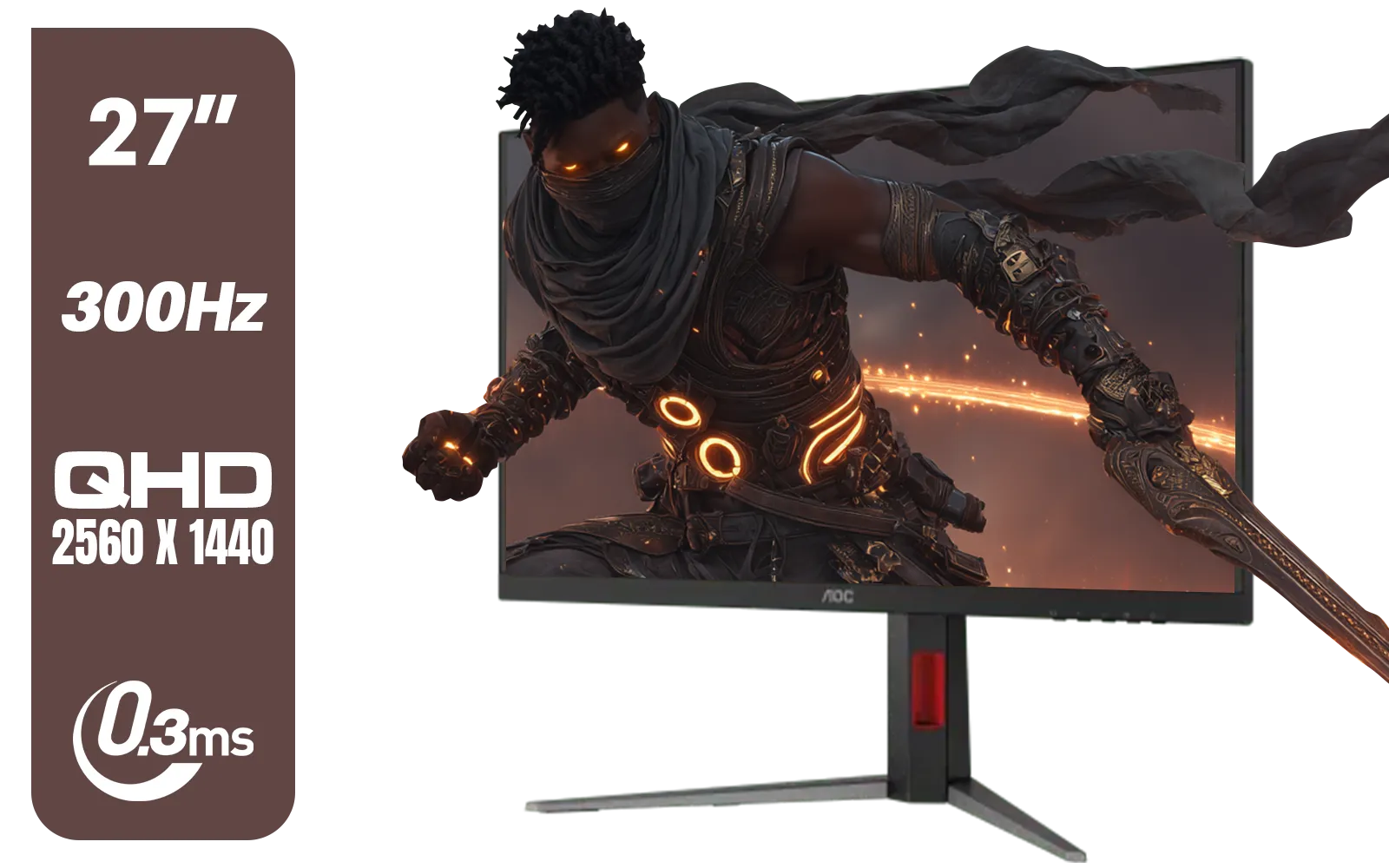
AOC Q27G4S 27" Gaming Monitor - Black / QHD (2560 × 1440) / 300Hz Refresh Rate / 0.3ms Response Time / IPS-Level Display / Certified HDR400 / Support Adaptive Sync / Q27G4S
R6299.00In Stock

HP 524SW G5 FHD Gaming Monitor - White/Silver / 24" FHD (1920 x 1080) / IPS Panel / 1x HDMI 1.4, 1x VGA / Eye Ease with Eyesafe Certification / 94C21AS
R4299.00In Stock
TIP FOR YOU
Driver Check Pro Tip 🔧
Always make sure you have the latest GeForce Game Ready Driver installed. NVIDIA frequently updates its drivers to improve performance and compatibility with monitors like the LG 27GS75Q. A quick check before a gaming session can save you a lot of headaches.
For Team Red: AMD Radeon Graphics Cards
Rocking an AMD Radeon card (like an RX 6700 XT or RX 7800 XT)? You'll be using FreeSync Premium, which this monitor supports natively.
- Connect via DisplayPort or HDMI: FreeSync is a bit more flexible and generally works over modern HDMI connections as well as DisplayPort, but we still recommend DisplayPort for the highest refresh rates.
- Enable in Monitor OSD: Just like with G-Sync, ensure Adaptive-Sync is turned ON in the monitor's own settings menu.
- Activate in AMD Software: Open the AMD Software: Adrenalin Edition app. Go to the "Gaming" tab, then "Display." From here, you can toggle AMD FreeSync Premium to "On."
You're all set for tear-free gaming on your AMD-powered machine.
So, What's the Real-World Difference?
Honestly, for the end-user, the experience between a properly configured LG 27GS75Q running in G-Sync Compatible mode vs FreeSync Premium mode is virtually identical. ✨ Both eliminate tearing and reduce stutter, making fast-paced games like Apex Legends, Warzone, or Valorant feel incredibly responsive and smooth. The key is simply choosing the mode that matches your hardware.
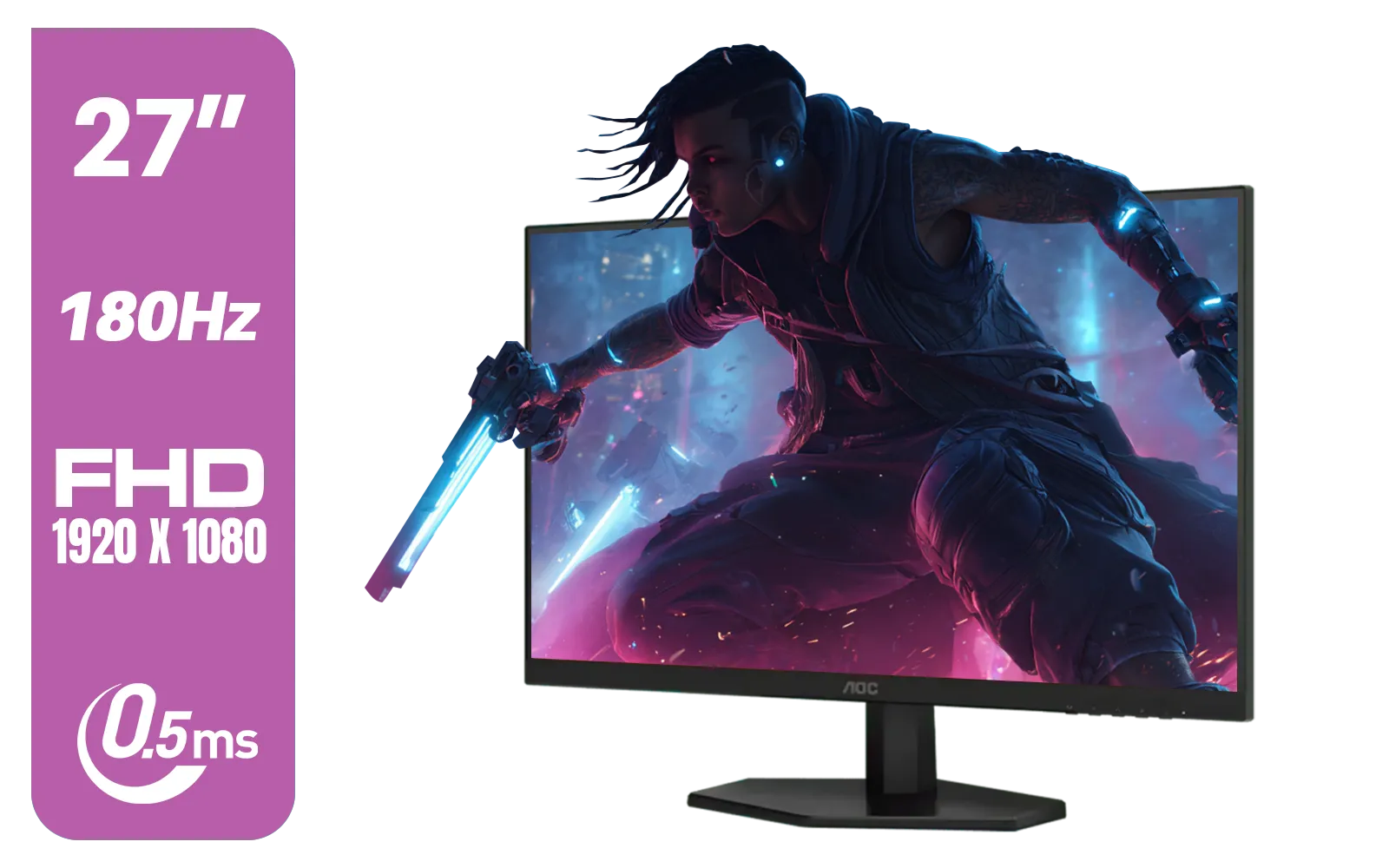
AOC 27G42E 27" 180Hz Ultra-Fast Gaming Monitor, 1920 × 1080 (FHD), 0.5ms, Fast IPS, Adaptive Sync, 3-Sided Frameless Design, Black / 27G42E
R3199.00In Stock

Dell 22 Monitor SE2225HM, Full HD (1920x1080), 100Hz, VA, 5ms, VESA (100x100mm), HDMI, VGA, Black / SE2225HM
R1799.00In Stock
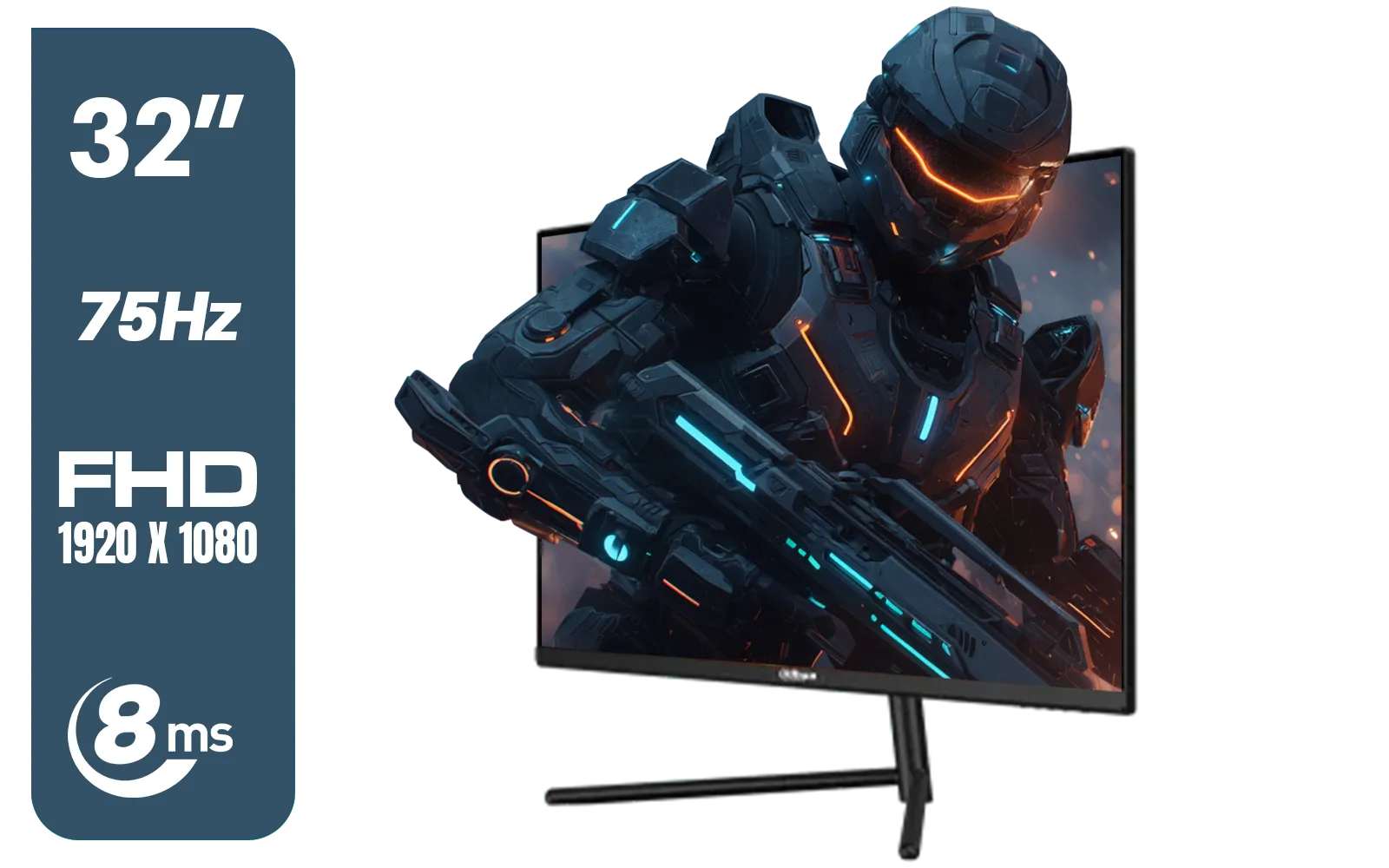
DAHUA DHI-LM32-A200X 32" LED MONITOR / Bezel-less Design / IPS Level-Display / 8ms Response Time / FHD 1920x1080 / 75Hz Refresh Rate / Low Blue Light / DHI-LM32-A200X
R3399.00In Stock

Targus 24-inch USB-C Docking Computer Monitor w/ 100W PD, Adjustable Height Mac PC Monitor 360 Degree Rotating 24 inch Monitor Gaming Monitor w/Dock, Dual Monitor Compatible / DM4240PUSZ
R1699.00In Stock
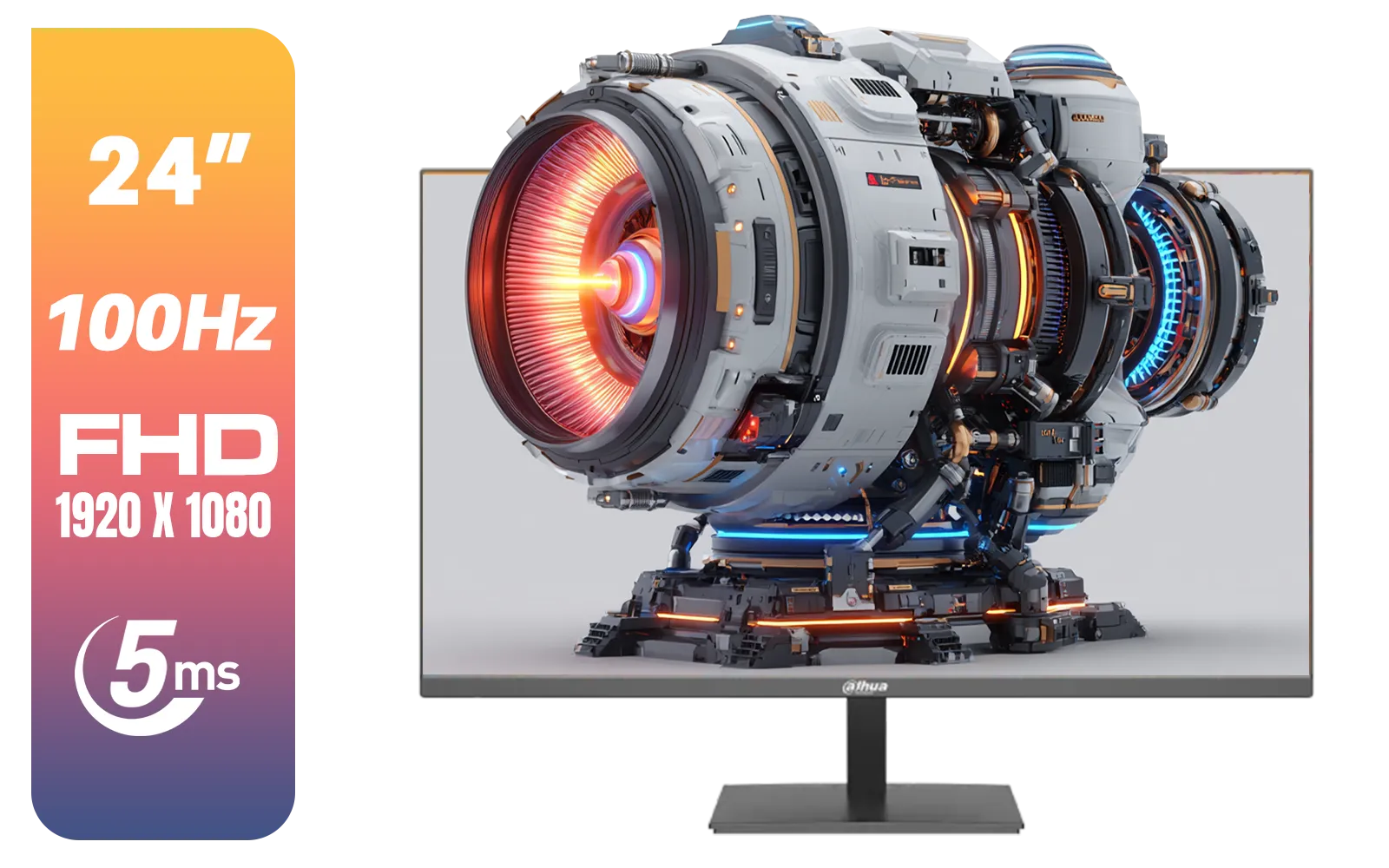
Dahua LM24-A201X 24" 100Hz LED Monitor / IP-Level Display / Ultra Narrow Bezel Design / 5ms Response Time / FHD 1920x1080 / 100Hz Refresh Rate / DHI-LM24-A201X
R1699.00In Stock
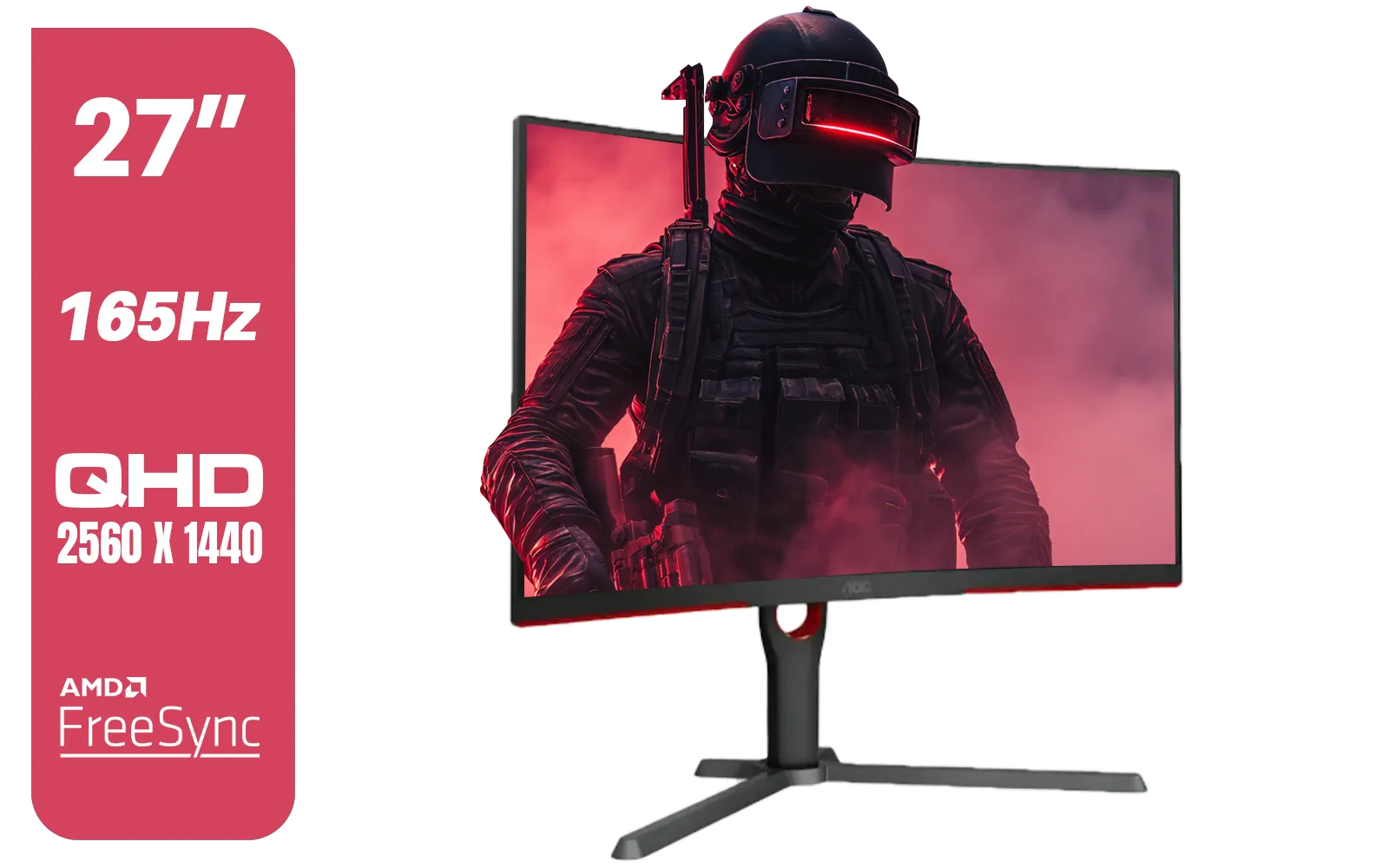
AOC CQ27G3S 27" QHD (2560x1440) 165Hz 1ms VA Curved FreeSync HDR Gaming Monitor / Superior High Quality Viewing / Ultra-smooth Tear-free Gaming / Enjoy top-tier Gaming Performance / Instant Response Times / Illuminate Your Visuals / Reducing Shortwave Blue Light / CQ27G3S
R6399.00In Stock
While this LG monitor offers fantastic flexibility, the world of PC monitors is vast. Some gamers might prefer displays with native G-Sync (NVIDIA) hardware for the ultimate assurance, while others stick to the wide variety of FreeSync (AMD) screens. You can even find general Adaptive Sync models or, for esports purists on a budget, high-refresh-rate panels with None of these features to maximise raw speed.
Ready to See the Difference? Choosing the right monitor transforms your entire gaming experience. The LG 27GS75Q is a brilliant, flexible choice, but your perfect display is out there. Explore our incredible range of LG gaming monitors and find the perfect upgrade for your setup today.
Related Products
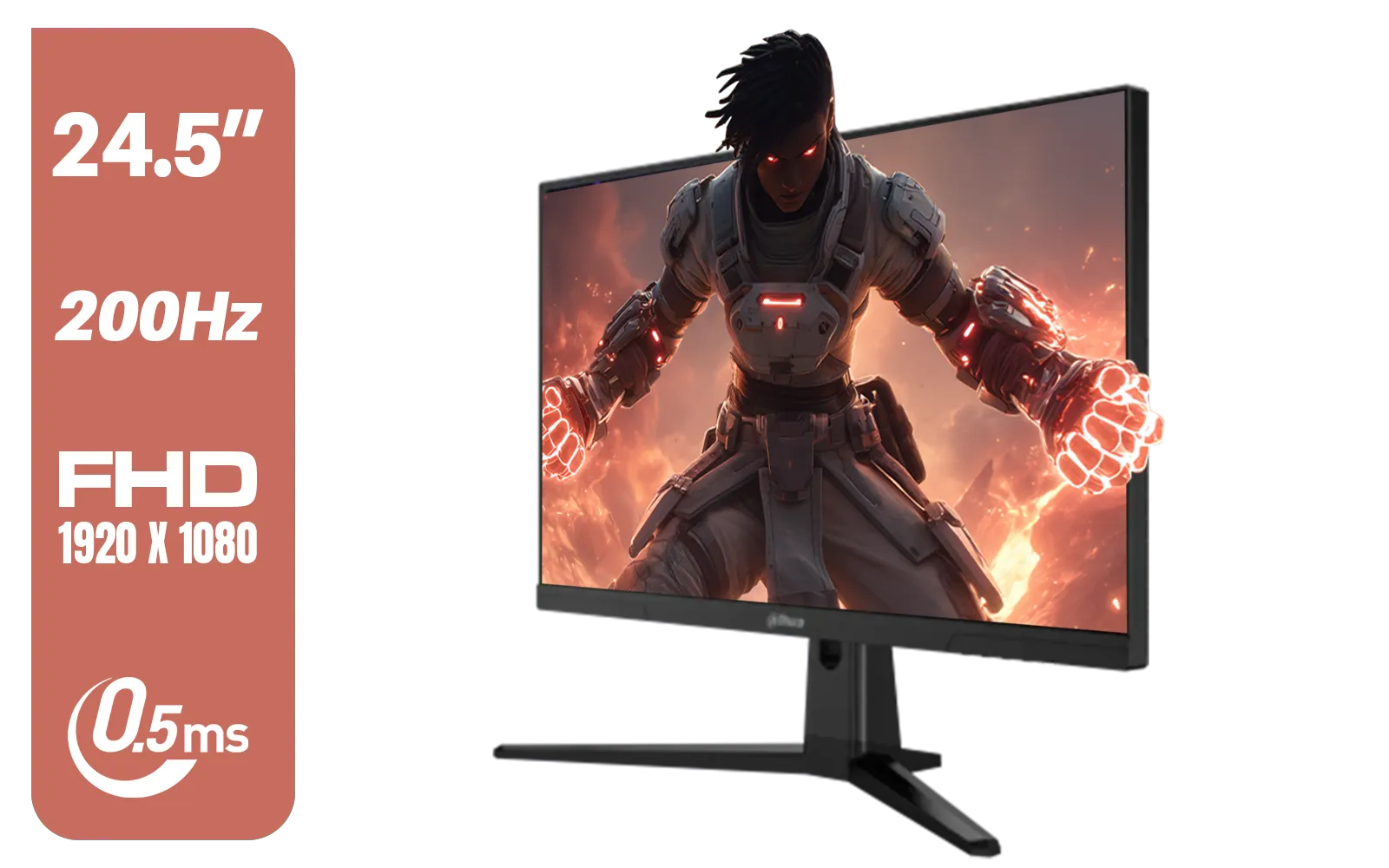
Dahua LM25-E231BN 24.5" Monitor / FHD 1920 x 1080 / 200Hz Refresh Rate / 0.5ms Response Time / DHI-LM25-E231BN
R2199.00In Stock
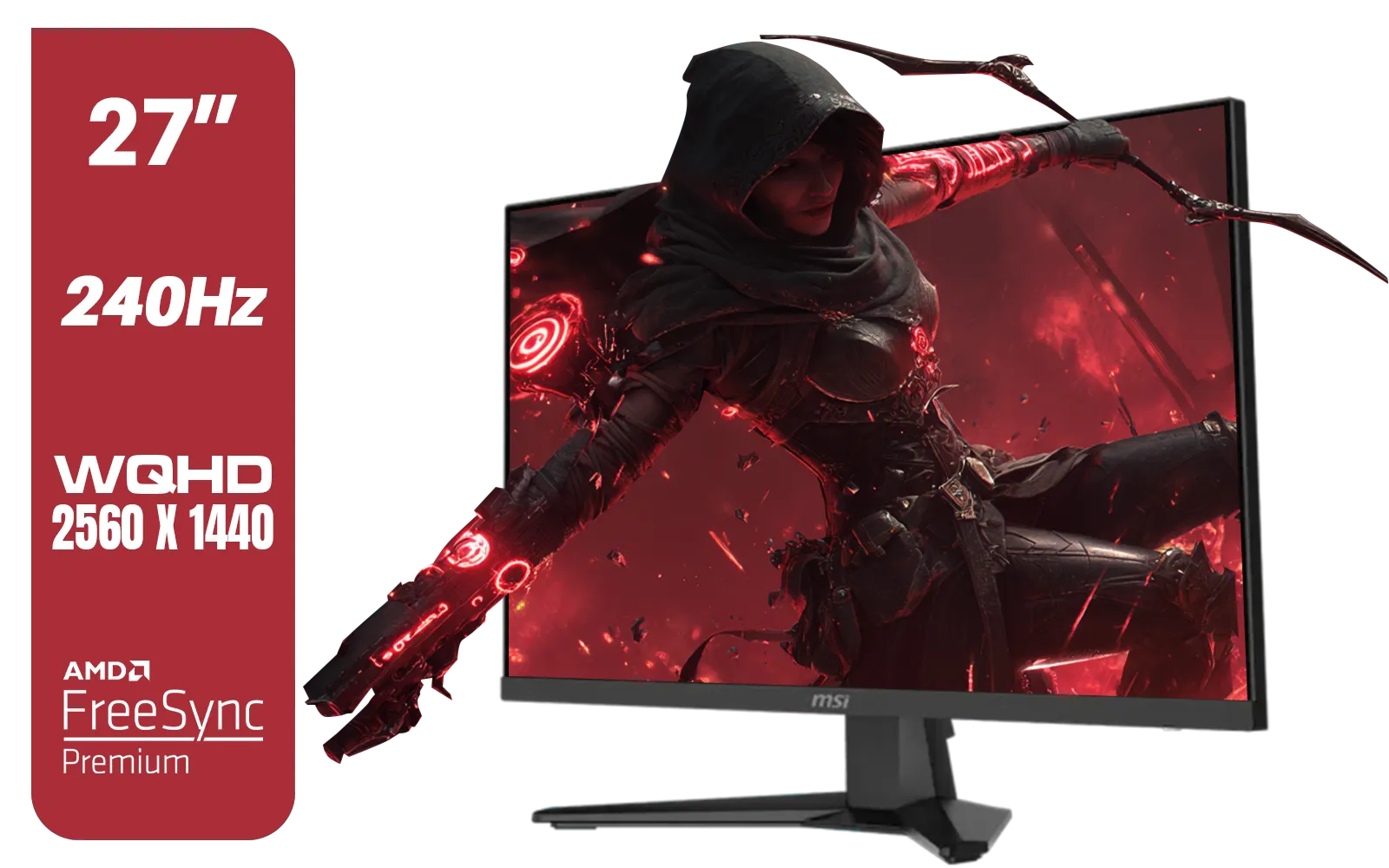
MSI MAG 274QF X24 27" 2560 x 1440 (WQHD) Gaming Monitor / 240Hz Refresh Rate / 0.5ms Response Time / Rapid IPS Panel / AMD FreeSync™ Premium / HDR Ready / 9S6-3CE41H-063
R5999.00In Stock
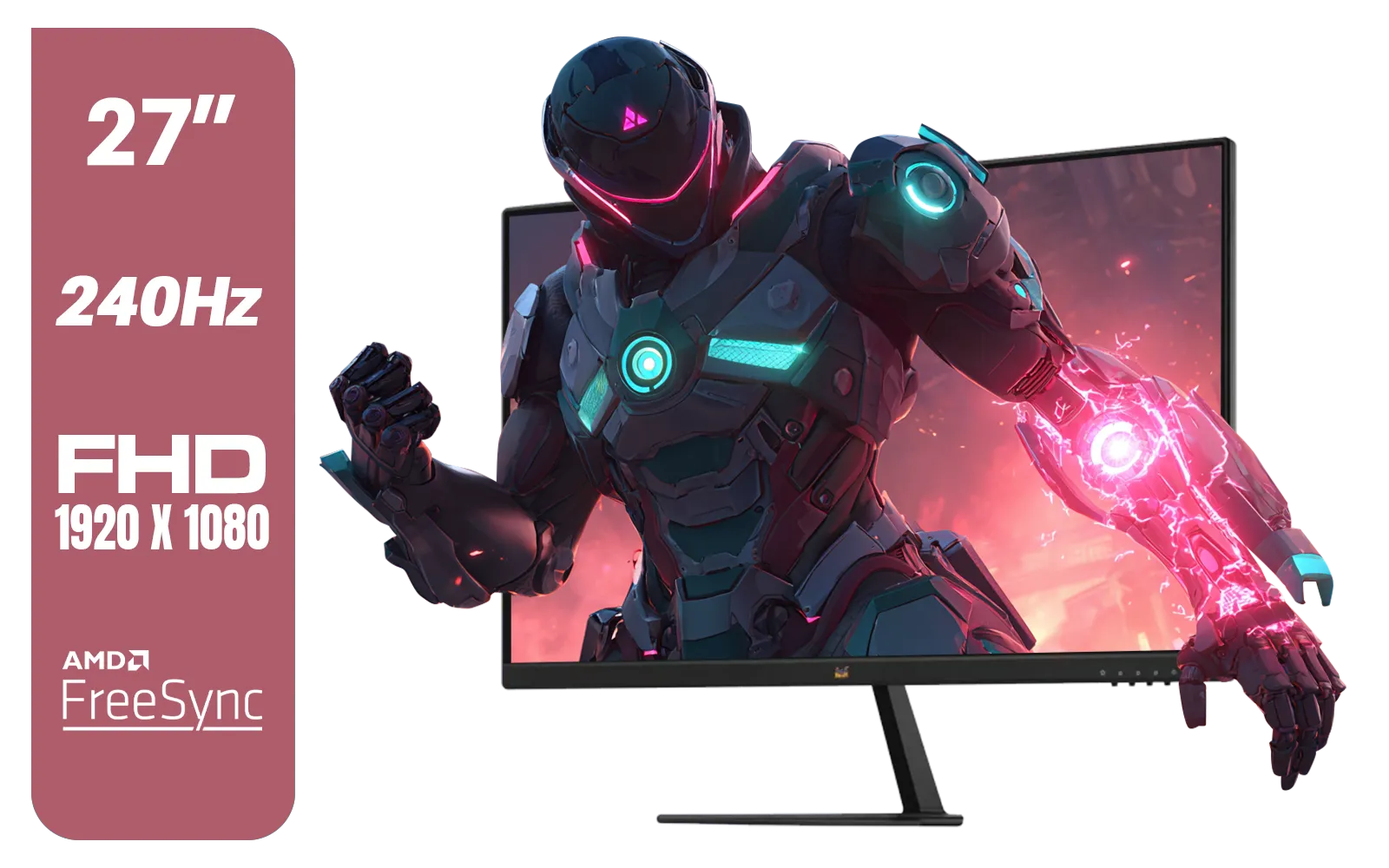
ViewSonic VX2779A-HD-PRO 27" Gaming Monitor / IPS-Level Display / 240Hz Refresh Rate / 1ms MPRT / AMD FreeSync / HDR10 / VX2779A-HD-PRO
R4099.00In Stock

Dahua 27" QHD Gaming Monitor - E331 / 1000:1 Contrast ratio / 16.7M Colors / 2560x1440 / 180Hz Refresh Rate / 1ms Response Time / DHI-LM27-E331
R3199.00In Stock
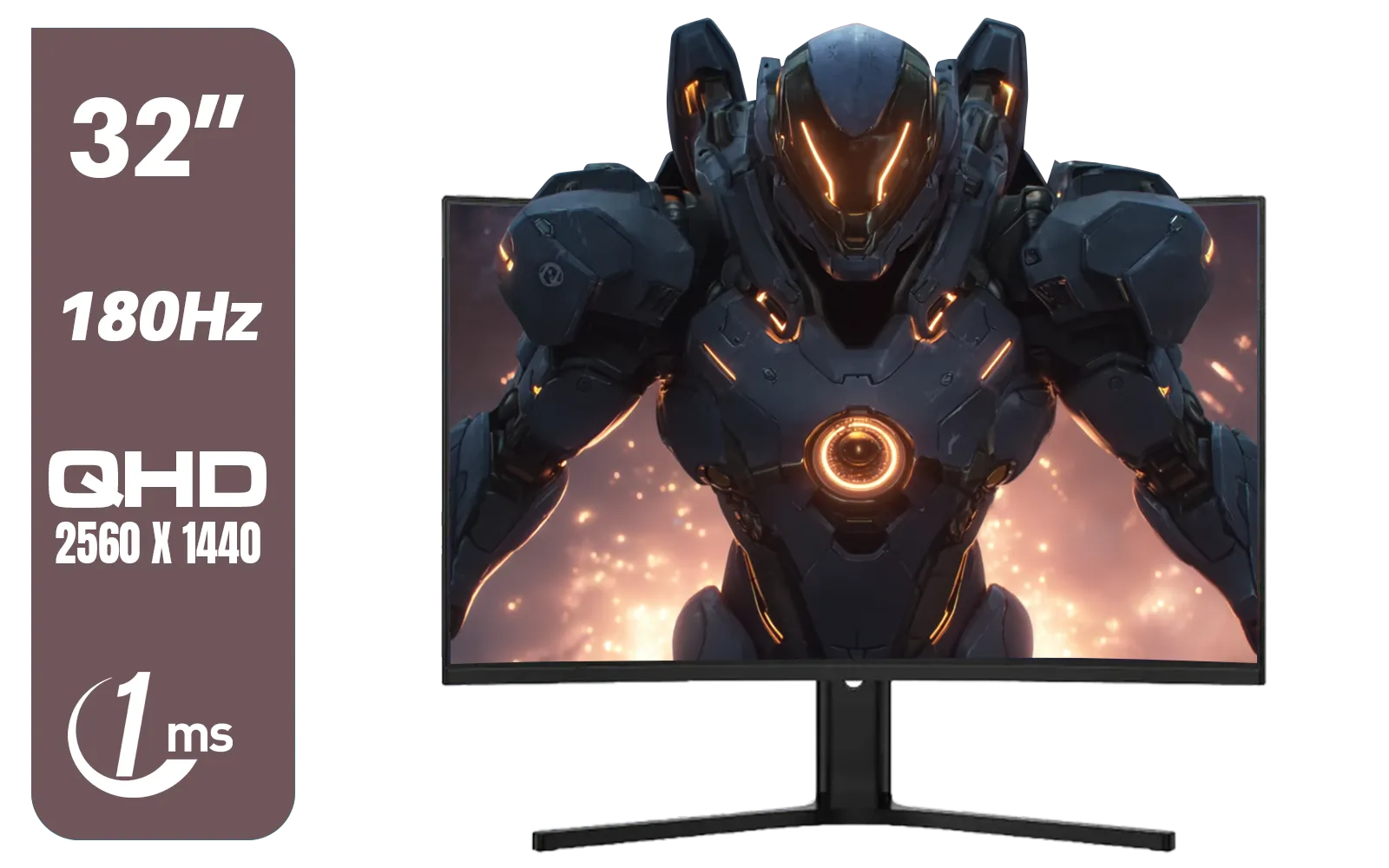
Dahua LM32-E330CA 32" 180Hz LED Monitor / Adaptive-Sync Technology / 1ms Response Time / QHD 2560x1440 / 180Hz Refresh Rate / DHI-LM32-E330CA
R3999.00In Stock
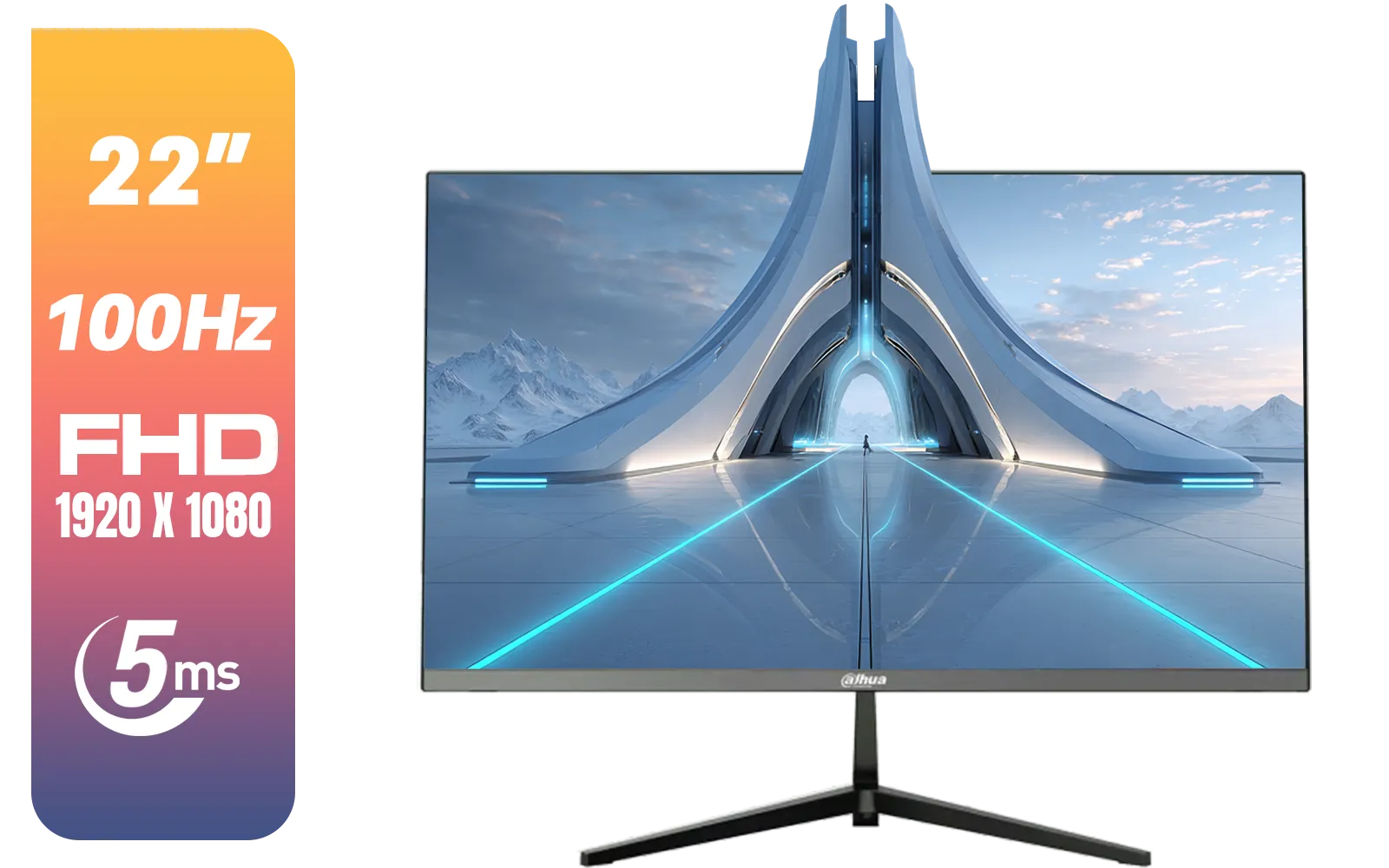
Dahua LM22-A200X 22" 100Hz LED Monitor / Ultra Narrow Bezel Design / 5ms Response Time / FHD 1920x1080 / 100Hz Refresh Rate / Anti Blue Light / DHI-LM22-A200X
R1399.00In Stock
Yes. The LG 27GS75Q supports G-Sync Compatible mode with compatible NVIDIA GPUs — check 'lg 27gs75q gsync compatibility' for GPU lists and driver versions.
Yes. The monitor natively supports AMD FreeSync for tear-free variable refresh rate at up to 165Hz when paired with FreeSync-capable GPUs.
Both can deliver low input lag when configured correctly; G-Sync Compatible often feels marginally smoother with NVIDIA GPUs at variable refresh rates.
Use DisplayPort for full VRR range and 165Hz. Some HDMI ports support VRR, but DisplayPort ensures best 'variable refresh rate' performance.
Enable the GPU-native sync (G-Sync on NVIDIA, FreeSync on AMD) and cap FPS near 165 for consistent frame pacing and minimal stutter.
Enable Adaptive Sync in monitor OSD, turn on G-Sync or FreeSync in your GPU control panel, set refresh to 165Hz and use a DisplayPort cable.
HDR can affect VRR behavior on some GPUs. Test HDR with 'lg 27gs75q freesync compatibility' and update drivers if VRR toggles unexpectedly.