So, you’ve mastered gaming on the go with your handheld console. It’s your trusty companion during load shedding and long commutes. But what happens when you get home? Staring at that glorious big-screen TV, you can’t help but wonder… can you get this small-screen magic on a massive display? Absolutely. ✨
Learning how to dock your handheld console to a TV transforms your gaming experience, blending portable convenience with home-console immersion.
Why Dock Your Handheld Console to a TV?
The answer is simple: scale. Playing a visually rich game like The Witcher 3 or a fast-paced shooter on a 65-inch screen is a completely different world. Details you missed on a 7-inch display pop with vibrant colour, and the sheer size makes every moment more epic.
Docking your handheld console to a TV is also perfect for a classic couch co-op session with mates. Instead of everyone crowding around a tiny screen, you can share the experience properly. It turns a personal device into a social entertainment hub.
Your Step-by-Step Guide to Connecting a Handheld to a TV
Getting your handheld gaming setup running on the big screen is easier than you think. While specific steps might vary slightly between a Nintendo Switch and a Steam Deck, the core process is the same. Here’s how to do it.
### Step 1: Get Your Gear Ready 🔧
You’ll need four key things:
- Your handheld console (fully charged is a good idea).
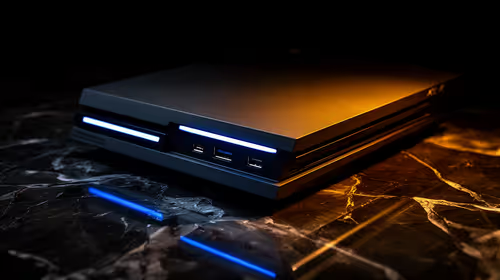
- A compatible docking station or USB-C hub with HDMI output.
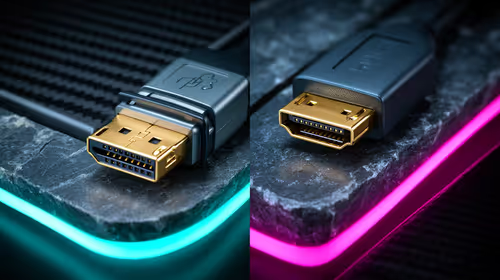
- An HDMI cable.
- Your television.
### Step 2: Connect the Dock
First, plug the dock’s power adapter into the wall. Then, connect one end of the HDMI cable to the HDMI port on the dock and the other end to a spare HDMI port on your TV.
### Step 3: Seat the Console and Connect Controllers
Carefully place your handheld console onto the dock’s connector. You should feel a solid click as it seats. The console's screen will likely turn off as it switches its video output to the dock. This is also a great time to connect any external controllers you plan to use.
Pro Display Tip ⚡
Once you see the image on your TV, dive into your handheld's display settings. You can often manually set the output resolution (like 1080p or 4K) and refresh rate to match your TV's capabilities. This small tweak ensures you’re getting the smoothest and sharpest picture possible.
### Step 4: Switch Your TV's Input
Use your TV remote to switch to the correct HDMI input (e.g., HDMI 1, HDMI 2). Your handheld's display should now be mirrored on the big screen, ready for action! You've successfully managed to dock your handheld console to your TV.
Handheld PCs: The Ultimate Portable Powerhouses
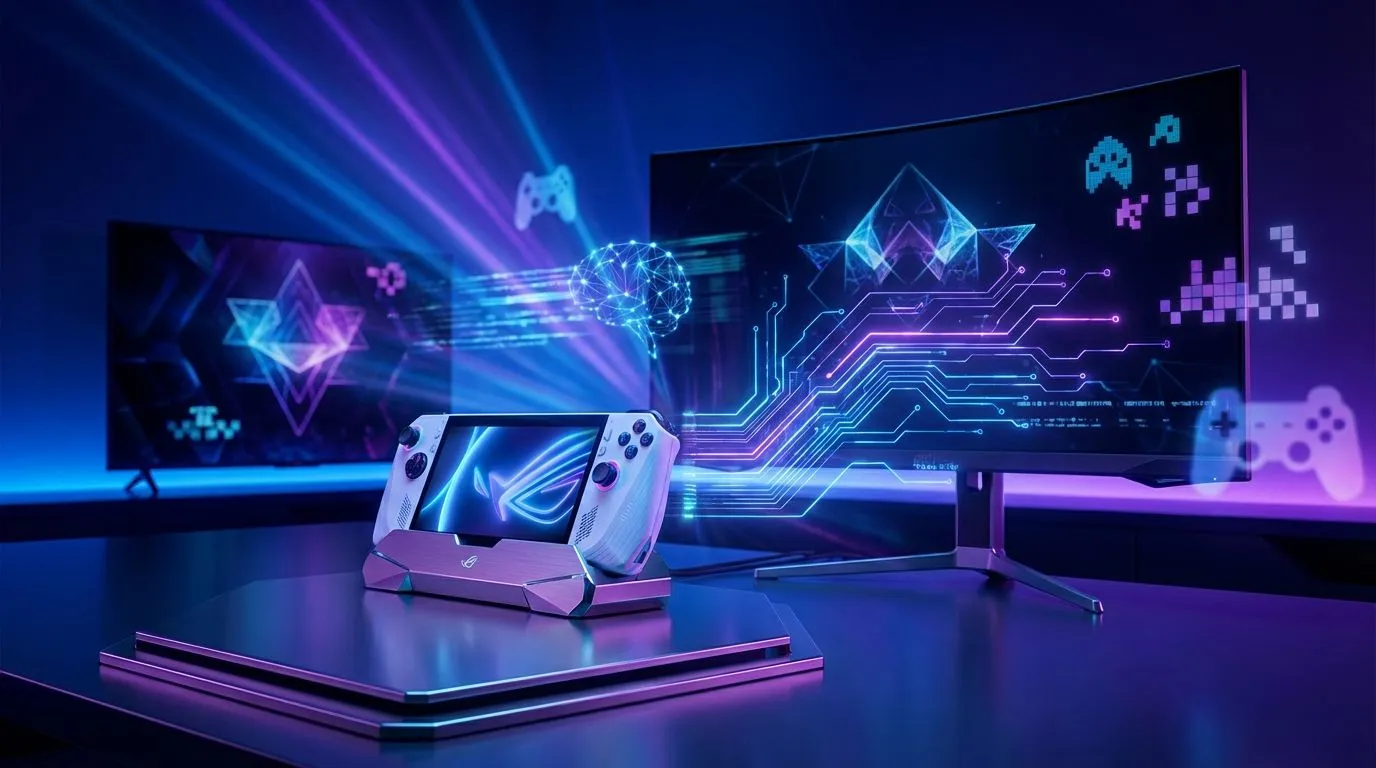
Modern handhelds like the Steam Deck, ROG Ally, and Legion Go are more than just consoles; they're compact PCs. Docking one of these turns your TV into a monitor for a full-blown gaming rig. This setup blurs the line between portable play and a desktop experience, giving you incredible flexibility.
This "dock and play" philosophy is something you also get with the latest powerful gaming laptop deals, which offer even more performance for demanding titles. Whether you prefer high-performance Intel laptops for their raw speed or the efficiency of versatile AMD laptops, the core benefit is the same: one machine for gaming anywhere, from a coffee shop to your lounge.
For many South African gamers, a capable laptop provides the best of both worlds—portability for when the power goes out and the muscle to drive a big-screen TV when it’s back on. If you're looking for that all-in-one solution, be sure to check out our current laptop specials. 🚀
Ready for the Ultimate Setup? Taking your handheld games to the big screen is awesome, but a powerful gaming laptop offers that same flexibility with even more performance. Explore our massive range of laptop specials and build the perfect setup to dominate any screen.