Quick Answer
Govee gaming light bars connect to your PC via USB and use the Govee Home app or Govee DreamView software to sync RGB lighting with your screen content in real time. Setup takes about 15-20 minutes and works with any monitor regardless of brand. South African users on outage schedules should keep the light bars on a UPS to avoid app re-sync after power cuts.
What You Need Before Setting Up Govee Light Bars
Govee gaming light bars come in several models, with the T1 and T2 being the most popular for screen sync. Before starting, confirm you have:
- The Govee light bars and their included power adapters
- A USB port available on your PC (most bar cameras connect via USB-A)
- Your phone with the Govee Home app installed (Android or iOS)
- A stable 2.4GHz Wi-Fi network (Govee devices require 2.4GHz, not 5GHz)
- A PC running Windows 10 or 11 with the Govee DreamView desktop software installed
The Govee DreamView software is what enables screen-sync mode on Windows. Without it, the bars still work as static or music-reactive lights via the Govee Home app, but screen sync requires the desktop client.
Step-by-Step Setup for Screen-Synced RGB
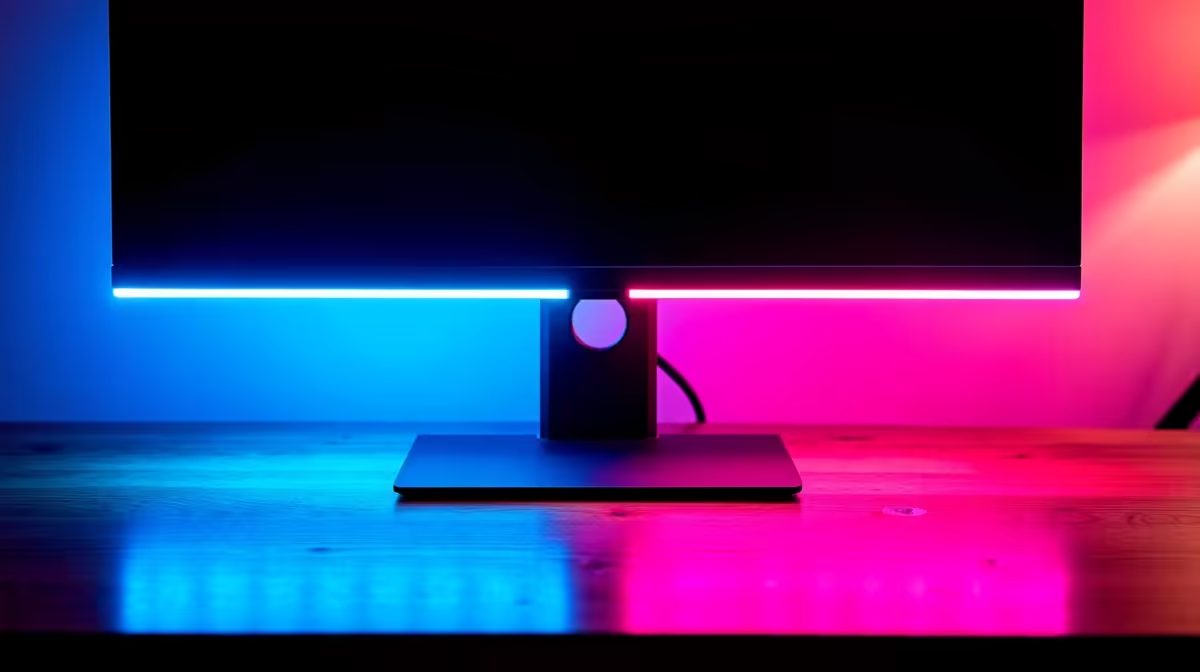
Step 1: Physical placement. Position the light bars on either side of your monitor or behind it. Most Govee bar setups use two vertical bars flanking the monitor for a bias lighting effect. The adhesive strips on the bar stands grip most desk surfaces. Ensure the camera unit (on models like the T1) has a clear view of your screen.
Step 2: Power and USB connection. Plug the light bars into power using the included adapters. Connect the USB camera or control box to a free USB port on your PC. The camera is how the DreamView software captures on-screen colour information in real time.
Step 3: Govee Home app pairing. Open the Govee Home app on your phone. Tap the plus icon and select Add Device. Follow the app's Bluetooth pairing sequence to connect the light bar control unit to your home Wi-Fi (2.4GHz only). Once paired, the bars appear in your Govee Home device list.
Step 4: Install Govee DreamView on PC. Download the Govee DreamView desktop software from Govee's official site. Install and launch it. The software detects your connected Govee bars automatically. Select your monitor in the software to define which screen the bars should sync to on multi-monitor setups.
Step 5: Enable screen sync mode. In Govee DreamView, select the Screen Mirror or Sync mode. The software captures your screen at intervals and sends colour data to the bars via USB. You can adjust the sync speed, brightness, and saturation within the software to taste. Faster sync settings look more reactive but may introduce flicker on rapid scene changes.
Optimising for South African Conditions
When power cuts hit, the Govee bars lose their Wi-Fi pairing state and require the app to reconnect. This takes 1-3 minutes after power is restored. Putting your router, Wi-Fi access point, and the Govee control box on a small UPS avoids this disruption entirely, as the bars maintain their Wi-Fi connection and sync mode without needing to re-pair.
South African homes often have narrower Wi-Fi coverage due to brick and concrete construction. If the Govee bars drop their connection frequently, a Wi-Fi extender or mesh node closer to the gaming setup will improve reliability. The 2.4GHz requirement actually helps here, as 2.4GHz penetrates walls better than 5GHz.
For students in university residences at institutions like Wits, UCT, or UP, shared Wi-Fi networks with network isolation (common on campus networks) may prevent the Govee app from communicating with devices on the same network. In these environments, a travel router creating your own isolated network, or using the Govee bars in Bluetooth-only mode via the app, is the workaround.
Colour Calibration and Screen Sync Tips
The default screen sync settings work well for gaming, but bias lighting (where the bars reflect the average colour of your screen edges) benefits from tuning. In Govee DreamView, reduce brightness to 60-70% of maximum to avoid the bars overpowering a dark room. Increase saturation slightly for more vivid game colour representation.
For movies and content playback, slower sync speed settings reduce the strobing effect that can occur during quick cuts. For gaming, faster sync gives a more immersive experience with titles that have varied environments like open-world games.
If you have an ASUS Aura, MSI Mystic Light, or Corsair iCUE-capable motherboard, Govee's integration options are limited as it uses its own ecosystem. The bars will not natively sync with those RGB controllers, but running both systems simultaneously (Govee for screen bias, iCUE for component lighting) works fine independently.
Frequently Asked Questions
Do Govee light bars work with any monitor brand in South Africa? Yes. Govee screen sync works at the software level by capturing your screen output, not by integrating with monitor hardware. It works with any monitor from any brand, including models sold in South Africa, as long as your PC can run the DreamView software.
Why are my Govee bars not connecting to Wi-Fi? The most common reason is that your router is broadcasting on 5GHz only, or the 2.4GHz and 5GHz bands share the same SSID. During setup, connect your phone to the 2.4GHz band specifically, then pair the Govee device. After initial setup, the bars will maintain their connection without needing your phone to be on the same band.
Can I use Govee light bars without the PC software? Yes, but you lose screen sync functionality. Without DreamView, you can control the bars via the Govee Home app for static colours, presets, and music reactive modes. Screen sync specifically requires the PC software running in the background.
Which everyday reliability factors matter most? Govee bars typically draw 10-25W total depending on the model and brightness. This is negligible on a UPS and will not significantly drain battery capacity. Including your router (5-20W) and a gaming PC's networking needs on UPS is practical and recommended for SA prolonged outage periods.
Ready to Find Your Perfect Match? Complete your setup with a monitor upgrade. Browse monitors at Evetech for the perfect screen to pair with your Govee light bars.