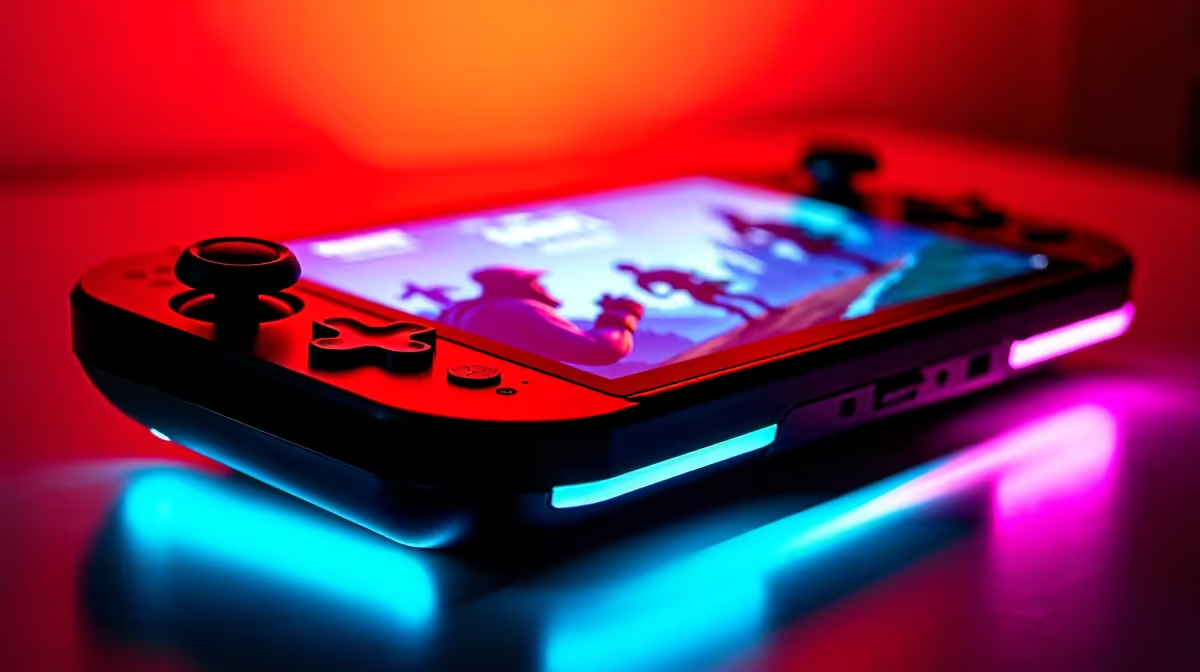
Load-shedding hits, but the squad needs you online. Grabbing a handheld console is the ultimate flex for South African gamers right now. However, getting the world's biggest battle royale running natively on Valve's portable powerhouse takes a bit of technical work. If you want to master Fortnite on Steam Deck, understanding the performance and best settings is crucial. Let us dive into getting you that Victory Royale on the go.
The Operating System Hurdle
Epic Games uses Easy Anti-Cheat... which currently blocks SteamOS from joining online lobbies. To play natively, you need to install Windows 11 on your handheld. While some players prefer streaming via Xbox Cloud Gaming, local hardware always delivers lower latency. If you are not keen on tinkering with operating systems and want to stretch your ZAR, you might prefer browsing traditional notebooks for sale in South Africa for an easier portable setup out of the box.
Performance Expectations 🚀
Once Windows is running smoothly, the custom AMD APU handles the island surprisingly well. The 16GB of unified memory shares resources efficiently between the CPU and GPU. Do not expect the raw frame rates of high-end dedicated desktop graphics cards, but you can easily achieve a stable 60 FPS. Thermals stay relatively cool if you manage your expectations. The battery will drain fairly quickly... expect around 90 minutes to two hours on a full charge during intense ranked matches.
Dialling in the Best Settings 🔧
To get the absolute best Fortnite on Steam Deck settings dialled in, you must optimise your graphics menu carefully. You do not need a massive rig from our pre-built PC deals to enjoy smooth gameplay if you tweak things correctly.
Start by setting your rendering mode to Performance Mode. If you prefer slightly better colours and visual fidelity, DirectX 12 works brilliantly too. Drop shadows, anti-aliasing, and post-processing effects to Low. Keep your View Distance at Medium so you can spot enemies gliding in from afar. Set your 3D Resolution around 75 to 80 percent. This ensures the game still looks crisp on the 7-inch 800p screen without tanking your frames during heavy firefights.
Battery Saver Pro Tip ⚡
Lock your Steam Deck refresh rate to 60Hz and cap the in-game frame rate to 60 FPS. This prevents the APU from overworking and extends your battery life during those intense final circles.
Is It Worth the Effort? ✨
Playing the battle royale on your handheld is incredibly rewarding once fully configured. Having full desktop-class gaming in your hands is brilliant for load-shedding schedules or long road trips. However... if you crave competitive 240Hz gameplay, a handheld simply will not cut it. Local South African servers demand lightning-fast reflexes and zero hardware lag. For serious esports dominance, you are better off exploring the best gaming PC deals for maximum power. You can also grab a high-refresh monitor or new peripherals from our latest specials to complete your ultimate battle station.
Ready to Find Your Perfect Match? The handheld vs desktop debate is complex, but for maximum power, choice, and value in South Africa, a proper rig is hard to beat. Explore our massive range of gaming specials and find the perfect machine to conquer your world.