


Dedicated Media Keys for Streamers: Improve Workflow Fast
Dedicated media keys give streamers one-touch control to mute, switch scenes, clip highlights, and adjust audio — cutting task time and boosting consistency 🎛️⚡
Read moreGaming mouse software setup helps beginners create DPI profiles, map buttons, assign macros, and switch presets. Follow clear steps and testing tips to improve aim and comfort 🎮⚙️
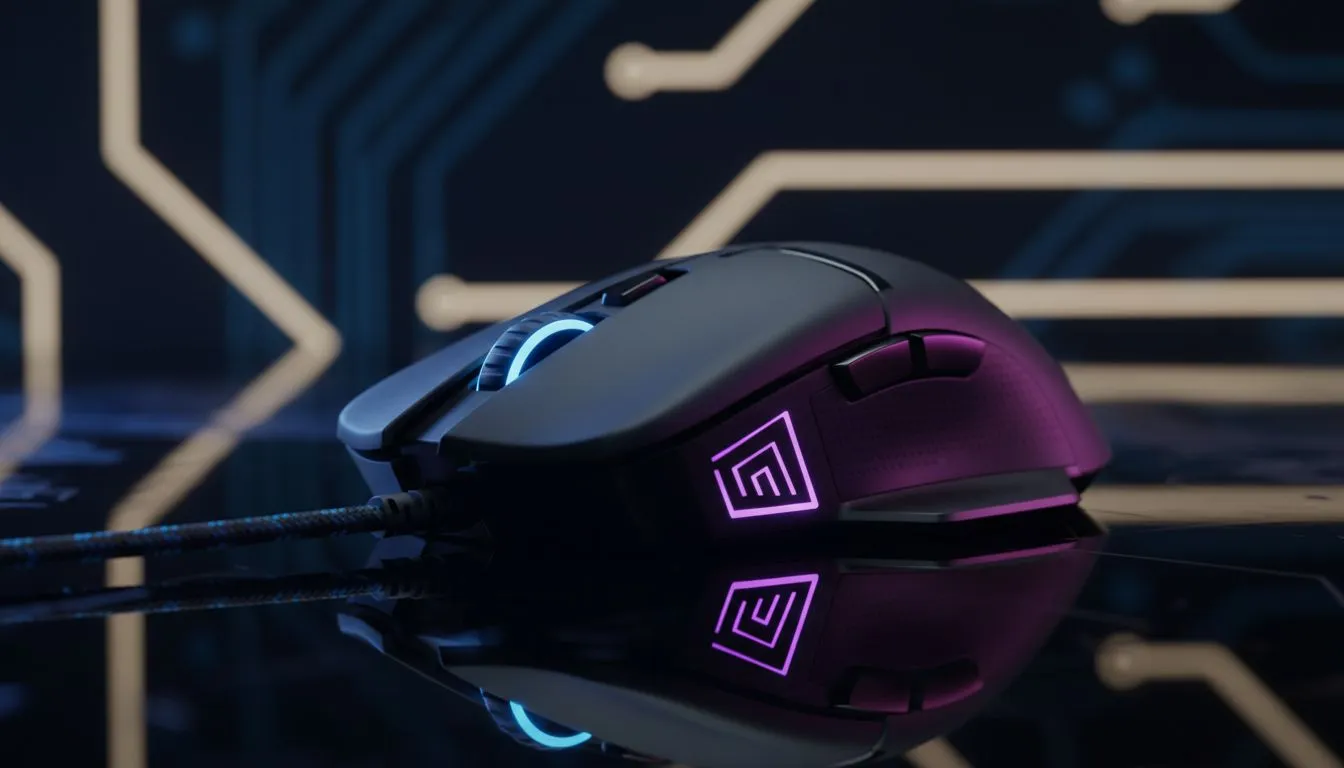
You’ve just unboxed a sleek new peripheral, but plugging it in is only half the battle. To truly dominate in Apex Legends or finish that spreadsheet in record time, you need to master your settings. This Gaming Mouse Software Setup: Beginner's Guide to Profiles will help you unlock the hidden power of your sensor and buttons. Don't let default factory settings hold back your potential. 🔧
Modern sensors are incredibly precise. Most major brands use dedicated software to manage these high-end specs. Whether you prefer the classic reliability of a wired mouse for zero latency or the total freedom of a wireless mouse, the setup process remains largely the same... it is all about customisation.
Once you install the software, you will usually see options for DPI (Dots Per Inch), polling rate, and button assignments. DPI determines how fast your cursor moves. Polling rate dictates how often the mouse reports its position to your PC. For most South African gamers, a polling rate of 1000Hz is the standard for smooth, jitter-free movement.
A profile is a saved group of settings tailored for a specific task. You might want high sensitivity for a fast-paced shooter but lower DPI for precision sniping. When browsing for a new gaming mouse, look for "on-board memory" features. This allows you to save your profiles directly onto the hardware. This is a massive advantage for local LAN events where you might not want to install software on every tournament PC. 🚀
Assign a "DPI Shift" or "Sniper" button to one of your side buttons. While held down, it temporarily lowers your DPI to a very slow speed. This makes landing long-range headshots much easier before returning to your normal speed once the button is released.
Not every game requires the same setup. For RPGs, you might map inventory shortcuts or health potions to your side buttons. For daily office work, those same buttons could be mapped to "Copy" and "Paste" to speed up your workflow.
If you are looking to upgrade your desk setup without breaking the bank, check out the latest gaming mouse deals starting from under R500. To keep your aim consistent, remember to look into mouse accessories like premium mousepads or replacement skates. These small additions ensure your hardware glides perfectly across your desk during intense matches. ✨
Ready to Level Up Your Aim? Mastering your software is the first step toward competitive greatness. Whether you need a lightweight wired beast or a top-tier wireless flagship, we have the gear to suit your grip. Explore our massive range of gaming mouse deals and find the perfect partner for your playstyle.
Open your mouse software, create a new profile, set DPI and polling rate, assign buttons or macros, then save to onboard or software memory. See how to configure mouse DPI profiles.
Save to onboard memory to use profiles on any PC. Use software profiles for deep customizations like lighting and app-based switching.
Many players use 400–1600 DPI with low in-game sensitivity. Test values and create a DPI profile tuned for consistency and aim.
Yes. Most suites let you record or script macros, bind them to buttons, and store them in profiles for quick access. Try assign macros to gaming mouse for complex actions.
Assign a dedicated profile switch button or enable automatic profile switching tied to game executables in the software for instant swaps.
Yes — lighting, zones, and effects are frequently saved per profile. Use lighting profiles to visually confirm active presets.
Workflows are similar: create profile, set DPI, map buttons, save. Brands like Logitech G Hub and Razer Synapse differ in UI but follow the same setup steps.
Dedicated media keys give streamers one-touch control to mute, switch scenes, clip highlights, and adjust audio — cutting task time and boosting consistency 🎛️⚡
Read more
PBT vs ABS keycaps: Clear, local guide for South African gamers—compare feel, sound, durability and where to buy. Find the best material for your budget and playstyle 🎮🇿🇦
Read more
- Multi-Function Digital Dial: define benefits - Show gamer setups and macros - Offer buying and setup tips Multi-Function Digital Dial puts programmable control at your fingertips for faster actions and smoother streaming. 🎮⚙️
Read more
- Explain benefits; - Show the science; - Compare options; - Recommend picks. Magnetic wrist rest for gaming cuts wrist strain and boosts comfort during long sessions 🕹️✨
Read more
best gaming keyboard South Africa: Learn how to pick a low-latency mechanical keyboard, choose switches, layout and budget for competitive play 🎮⚡
Read more
Best wireless keyboard and mouse combo for small desks — curated, space-saving picks that boost comfort and productivity in tight setups. Find low-profile layouts, compact mice, and reliable range to fit your compact workstation. 🖱️⌨️
Read more
Discover webcams that automatically adjust light and color for crystal-clear video calls 🎥✨. Boost your streaming quality today!
Read more
Discover webcams that blend into your workflow 🎯 Capture moments while you work, stream, or create. Upgrade your setup with smart, multitasking tech!
Read more Dedicated media keys give streamers one-touch control to mute, switch scenes, clip highlights, and adjust audio — cutting task time and boosting consistency 🎛️⚡
Read more PBT vs ABS keycaps: Clear, local guide for South African gamers—compare feel, sound, durability and where to buy. Find the best material for your budget and playstyle 🎮🇿🇦
Read more - Multi-Function Digital Dial: define benefits - Show gamer setups and macros - Offer buying and setup tips Multi-Function Digital Dial puts programmable control at your fingertips for faster actions and smoother streaming. 🎮⚙️
Read more - Explain benefits; - Show the science; - Compare options; - Recommend picks. Magnetic wrist rest for gaming cuts wrist strain and boosts comfort during long sessions 🕹️✨
Read more