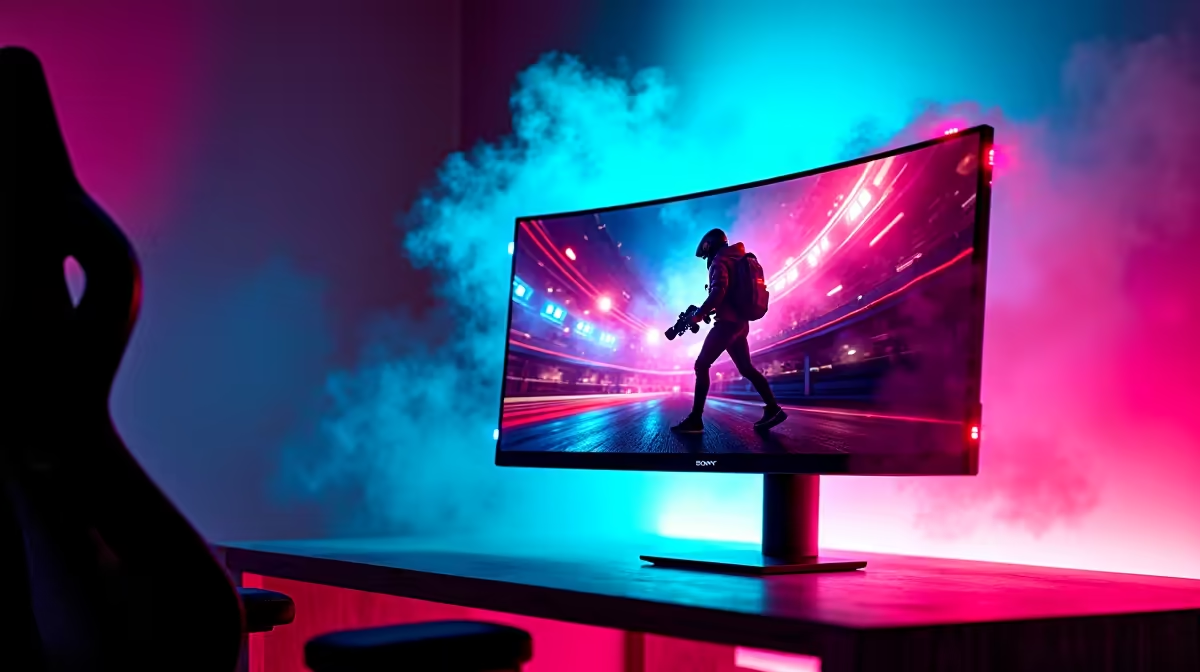
So, you’ve finally done it. You’ve hooked up your shiny new PlayStation 5 or Xbox Series X to a brand-new 120Hz monitor, ready for that buttery-smooth gameplay everyone raves about. But after loading up Warzone, something feels… the same. Don’t stress, you haven’t wasted your money. You just need to dive into the settings. This guide explains exactly how to configure your 120Hz monitor settings for console gaming and unlock that competitive edge. 🚀
Why 120Hz on Console is a Big Deal
For years, 60 frames per second (fps) at 60Hz was the gold standard for console gaming. It was good, but not great. A 120Hz refresh rate means your screen can display up to 120fps. This makes motion on screen look incredibly fluid, reduces input lag, and helps you track fast-moving targets much more easily. It’s a tangible advantage in competitive shooters and racing games.
Getting these higher frame rates requires a compatible display. While many gamers look for the best PC monitor deals thinking they're just for PC, a high-refresh-rate monitor is one of the best upgrades you can make for your new-gen console.
Your Guide to 120Hz Monitor Settings for Console Gaming
Unlocking that silky-smooth performance isn't automatic. You need to tell both your console and your game that you’re ready for 120Hz. The process is slightly different for PlayStation and Xbox.
For PlayStation 5 ⚙️
Sony makes it fairly straightforward. Follow these steps to get your PS5 120Hz settings dialled in:
- Go to Settings (the gear icon on the top right of the home screen).
- Select Screen and Video.
- Navigate to Video Output.
- Scroll down to Enable 120Hz Output and set it to Automatic.
- Head back to Settings > Saved Data and Game/App Settings > Game Presets.
- Set Performance Mode or Resolution Mode to Performance Mode. This tells compatible games to prioritise frame rate over visual fidelity.
For Xbox Series X|S ⚙️
Microsoft gives you a bit more direct control over your display output. Here’s how to set it up:
- Press the Xbox button to open the guide.
- Go to Profile & system > Settings.
- Under the General tab, select TV & display options.
- Under Display, select Refresh rate from the dropdown menu and choose 120Hz.
- Your screen will go blank for a moment. When it returns, confirm you want to keep the setting.
Cable Check! ⚡
getting the 120Hz option? Your HDMI cable might be the culprit. You need an Ultra High Speed HDMI 2.1 cable to reliably carry a 4K 120Hz signal. The cable that came with your PS5 or Xbox Series X is perfect, but if you're using an older one, it's time for an upgrade. It's one of the most important [monitor accessories](https: www.evetech.co.za PC-Components buy-monitor-accessories-368.aspx) you can own.
Optimising Your Monitor's Own Settings
Your console is only half the equation. Your monitor has its own brain—the On-Screen Display (OSD)—with settings that can make or break your experience. Grab your monitor’s remote or find the little joystick button and look for these options:
- Game Mode: Most gaming monitors have presets that optimise response time and colour for specific genres (FPS, RTS, etc.). Try them out.
- Response Time / Overdrive: This setting pushes pixels to change colour faster. A 'Medium' or 'Fast' setting is usually the sweet spot. Setting it too high ('Fastest') can cause "ghosting," a blurry trail behind moving objects.
- VRR (Variable Refresh Rate): If your monitor supports AMD FreeSync or is G-Sync Compatible, make sure it’s enabled here and on your console. VRR syncs the monitor's refresh rate to the console's frame rate, eliminating screen tearing for an even smoother picture. It’s a key feature to look for across all modern PC monitors.
- Input: Double-check that you are using an HDMI 2.1 port if your monitor has multiple inputs. Not all ports are created equal!
What If a Game Still Runs at 60fps?
Enabling the 120Hz monitor settings for console gaming on your system doesn't force every game to run at that speed. The game itself must have a dedicated 120fps performance mode.
Titles like Call of Duty: Warzone, Fortnite, Apex Legends, and Halo Infinite are famous for their 120fps modes. You’ll usually find the option to enable it in the game's own graphics or video settings menu. If you're looking for ultimate immersion, pairing these settings with one of the latest curved monitors can be an incredible experience.
Whether you're gaming on a massive desk setup with stunning 4K monitors or a more compact rig using one of the surprisingly capable portable monitors available today, getting your settings right is crucial. Now go enjoy that competitive advantage! ✨
Ready to Unleash True 120Hz Power? Getting your settings right is half the battle... having the right hardware is the other half. For the best performance, choice, and value in South Africa, a dedicated gaming monitor is essential. Explore our incredible range of gaming monitors and find the perfect screen to dominate the lobby.