Understanding the Vanguard TPM Requirement
Nothing kills the hype like launching Valorant only to see a "VAN9001" error code. If you need to fix TPM 2.0 error Windows 11 for Vanguard, you are definitely not alone. This issue usually pops up because Riot’s anti-cheat requires specific security features to be active. It is frustrating when your hardware is capable but the software says no. Let's get you back into the server without the headache. 🔧
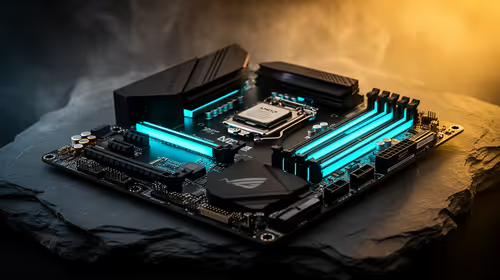
The Trusted Platform Module (TPM) 2.0 is a security layer that Windows 11 uses to protect your data. Valorant's Vanguard system uses it to ensure a fair playing field for everyone. Most modern budget gaming PCs already have this hardware built in. However, it is often disabled by default in the BIOS settings.
How to Enable TPM 2.0 in BIOS
To fix the error, you must restart your PC and enter the BIOS menu. This is usually done by tapping the 'Delete' or 'F2' key during boot. Look for a setting named "Security", "Advanced", or "Computing". On AMD systems, it is often called "fTPM"... on Intel systems, look for "PTT".
Check Your Status 🔧
Press 'Windows Key + R' and type 'tpm.msc' to see if your module is active. If it says 'Compatible TPM cannot be found', you need to head into your BIOS. This is the first step to fix TPM 2.0 error Windows 11 for Vanguard issues.
If you find your current system is simply too old to support these features, it might be time for an upgrade. Many of our best gaming PC deals feature the latest chipsets where TPM 2.0 is standard.
Secure Boot and Windows 11 Compatibility
Alongside TPM, Vanguard often requires Secure Boot to be enabled. This ensures that no malicious software loads before your operating system starts. If you are browsing pre-built PC deals in South Africa, ensure the motherboard supports UEFI mode. Legacy BIOS modes will not allow Secure Boot to function correctly. ⚡
Setting your BIOS to UEFI mode and enabling Secure Boot is vital. If your current rig feels sluggish or outdated, upgrading to modern hardware simplifies this process. We offer a wide range of PCs under R20k that are fully Windows 11 compliant. For those who want to play at the highest competitive levels, our PCs above R20k offer the reliability you need to stay in the game. 🚀
Final Steps to Get Back in the Game
Once you have enabled TPM 2.0 and Secure Boot, save your settings and restart. Windows 11 should now recognise the security modules. Vanguard will stop blocking your access, and you can get back to climbing the ranks. Always keep your BIOS updated to the latest version to avoid future compatibility hiccups. ✨
Ready to Find Your Perfect Match? Solving technical errors is a mission, but your hardware should never be the bottleneck. Explore our massive range of laptop specials and find the perfect machine to conquer your world.