

144Hz monitor vs 27-inch monitor: Which Should SA Gamers Buy in 2026?
Head-to-head comparison of 144Hz monitor vs 27-inch monitor: Which Should for SA gamers. Performance benchmarks, Rand pricing & which delivers better value.
Read moreGain control for live streaming — Checklist: 1) Set proper mic/line levels; 2) Monitor meters in real time; 3) Use compressors/limiters; 4) Test end-to-end. Keep audio clear, prevent clipping, and balance volume for pro broadcasts 🎛️🔊
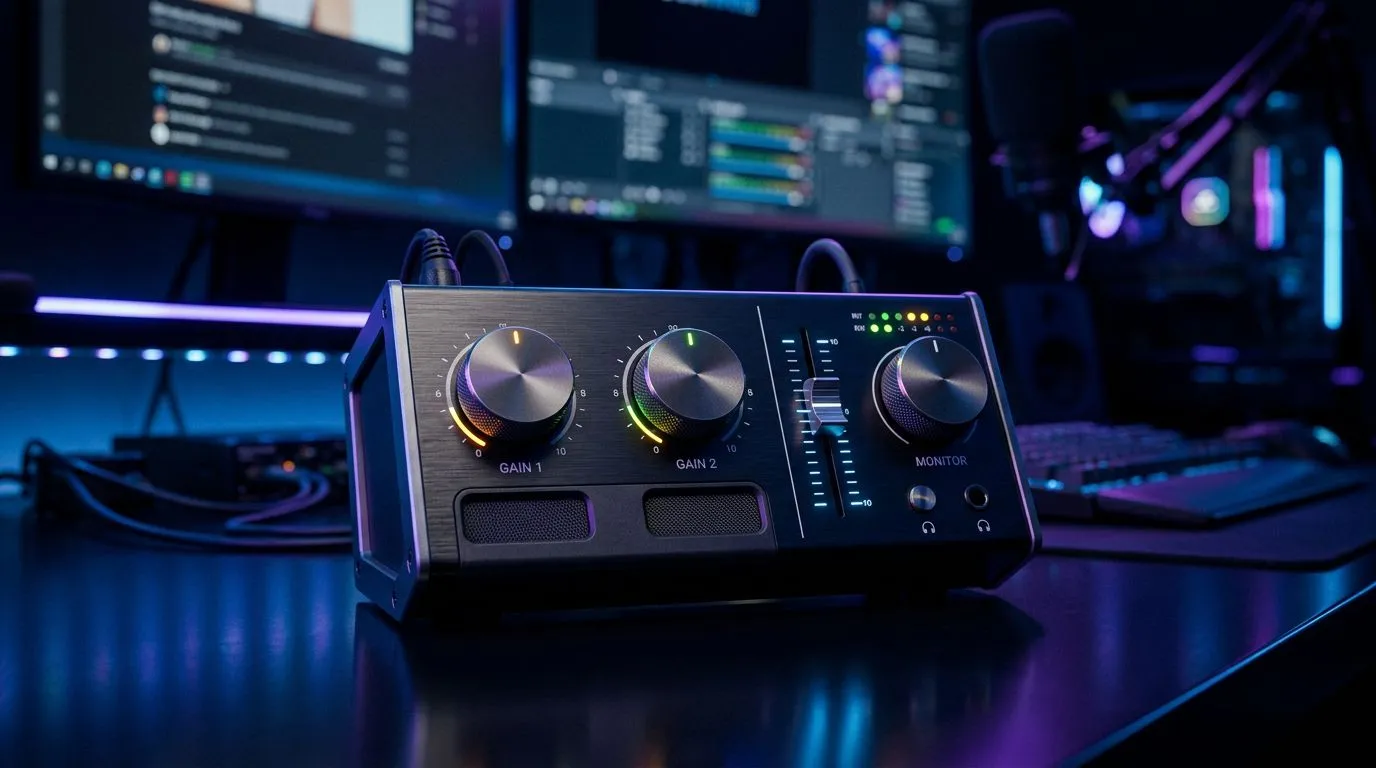
If your chat can hear your game but not you, or your viewers keep shouting "too quiet!" — let's fix that fast. Gain control for live streaming is less about fancy gear and more about simple signal flow, smart defaults and a tidy mix. In the next few minutes you'll get clear, actionable steps to tame mic hiss, balance game and voice, and set up reliable gain staging for consistent streams. Ready? Let’s dive in.
Start with the chain: mic → preamp/interface → software. USB mics are plug‑and‑play; XLR plus an audio interface gives you headroom and cleaner gain control. Check Evetech's streaming essentials for recommended mics and audio interfaces (https://www.evetech.co.za/PC-Components/buy-streaming-essentials-369.aspx). For brand-specific picks, Corsair have compact mixers and mics that pair well with RGB setups (https://www.evetech.co.za/PC-Components/buy-streaming-essentials-369.aspx?brands\=CORSAIR). Want ambience lighting that helps your brand on camera? Cololight kits are in stock and easy to control with streaming scenes (https://www.evetech.co.za/PC-Components/buy-streaming-essentials-369.aspx?brands\=Cololight).
Gain staging is the discipline that prevents clipping and preserves dynamics. Set your mic preamp so average speech sits around -12 dB to -6 dB in your streaming software; peaks should not hit 0 dB. Use your DAW or OBS audio mixer meters as your guide. Route game audio on a separate channel so you can duck music or adjust on the fly. If you stream on a PC, use OBS or Streamlabs with noise gates and compressors to keep things readable for listeners.
For webcams and framing, pick a camera that handles low light well and keeps your voice and visuals consistent (browse webcams here: https://www.evetech.co.za/PC-Components/buy-webcams-145.aspx). A stable camera and proper levels cut viewer fatigue.
OBS, set a noise gate threshold that removes background hum but keeps consonants. Add a compressor after the gate with a mild ratio (2:1) and a -10 dB threshold to smooth peaks. This gives a consistent vocal level without sounding squashed.
If your signal clips: reduce gain on your interface; lower software input volume; and avoid stacking gain in both hardware and software. If your voice sounds tinny, try a high-pass filter at 80 Hz to remove rumble. South African internet variability means recording a local backup audio track helps rescue a stream later. Use scene hotkeys to toggle chat or alerts without hunting menus.
Need an easy kit? Evetech's streaming essentials pages list bundles that make setup painless (https://www.evetech.co.za/PC-Components/buy-streaming-essentials-369.aspx) and specific webcams to pair with those kits (https://www.evetech.co.za/PC-Components/buy-webcams-145.aspx).
Ready to Find Your Perfect Match? The Mac vs Windows debate is complex, but for maximum power, choice, and value in South Africa, Windows is hard to beat. Explore our massive range of laptop specials and find the perfect machine to conquer your world.
Gain control sets the input level from mic or line sources so audio is loud enough without clipping. It’s key to live stream volume management.
Start with low gain, speak at streaming volume, then raise until peaks sit around -12 to -6 dBFS. Use monitoring and test recordings before going live.
Clipping happens when input levels exceed digital headroom. Lower microphone gain, add a limiter, or normalize sources to prevent audio clipping.
Yes. Use a compressor for level consistency and a limiter to stop peaks. Combined, they help real-time volume control for streams without losing dynamics.
Yes. OBS has gain filters and VST support so you can apply gain control and compressors. Check OBS gain control settings and monitor meters while streaming.
Aim for average LUFS around -16 to -14 for streaming and peak meters under -6 to -3 dBFS. These levels reduce clipping and platform normalization issues.
Use hardware monitors, software meters, or a dedicated audio interface with real-time metering. Combine visual meters with headphones to fine tune levels.
Head-to-head comparison of 144Hz monitor vs 27-inch monitor: Which Should for SA gamers. Performance benchmarks, Rand pricing & which delivers better value.
Read more
Head-to-head comparison of ultrawide monitor vs gaming monitor: Which Should for SA gamers. Performance benchmarks, Rand pricing & which delivers better value.
Read more
Head-to-head comparison of Rand vs Dollar: How Exchange Rate Affects Monitor for SA gamers. Performance benchmarks, Rand pricing & which delivers better value.
Read more
Is the 27-inch monitor Worth Buying in South Africa Detailed answer with SA data, expert analysis & practical recommendations for local buyers.
Read more
Head-to-head comparison of 1000R vs 1500R vs 1800R Curve Explained: Which for SA gamers. Performance benchmarks, Rand pricing & which delivers better value.
Read more
Head-to-head comparison of Curved Monitor vs Flat Monitor: Which Should for SA gamers. Performance benchmarks, Rand pricing & which delivers better value.
Read more
Every spec on PCIe 5.0 explained in plain English. What matters for gaming and creator work in 2026, what's marketing fluff, and how each number translates to real-world performance.

A head-to-head look at WiFi 7: real-world performance, ZAR pricing and which option delivers better value for SA builders. The clear answer — no fluff.

Everything you need to set up and tune PCIe 5.0 properly: the prep work, the settings that actually matter, and the mistakes to skip. Written for SA builders in 2026.

Everything you need to set up and tune X870E Motherboard properly: the prep work, the settings that actually matter, and the mistakes to skip. Written for SA builders in 2026.

Wondering what a 512GB SSD capacity really holds? This guide breaks down how many games, photos, and documents fit on 512GB, with real-world ranges 📦💾

Every spec on vrm explained in plain English. What matters for gaming and creator work in 2026, what's marketing fluff, and how each number translates to real-world performance.

Every spec on motherboard explained in plain English. What matters for gaming and creator work in 2026, what's marketing fluff, and how each number translates to real-world performance.

Premium vs Midrange Motherboards in South Africa: real-world performance, SA pricing, power draw and which one delivers better value for your build for SA buyers. The clear answer — without the fluff.
Wondering what a 512GB SSD capacity really holds? This guide breaks down how many games, photos, and documents fit on 512GB, with real-world ranges 📦💾
Every spec on PCIe 5.0 explained in plain English. What matters for gaming and creator work in 2026, what's marketing fluff, and how each number translates to real-world performance.
A head-to-head look at WiFi 7: real-world performance, ZAR pricing and which option delivers better value for SA builders. The clear answer — no fluff.

Every spec on USB4 explained in plain English. What matters for gaming and creator work in 2026, what's marketing fluff, and how each number translates to real-world performance.