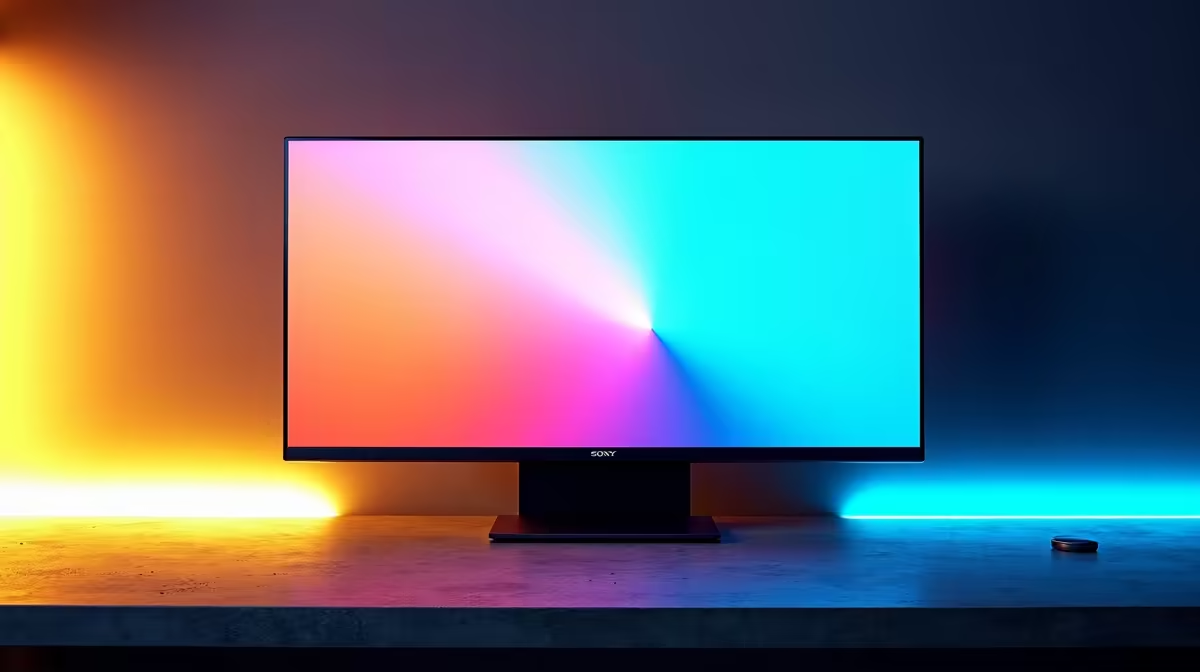
So, you've snagged a great deal on an HDR monitor, plugged it in, and fired up your favourite game… only to find the visuals look a bit… meh. Washed out colours? Overly bright skies? You’re not alone. The secret to unlocking incredible picture quality lies in mastering the HDR tone mapping on your budget monitor. Don't worry, it's not as complex as it sounds. With a few pro tips, we'll get you those amazing visuals you were promised. ✨
Understanding HDR Tone Mapping on Your Budget Monitor
First, what even is HDR tone mapping? Think of it as a smart translator for light and colour. High Dynamic Range (HDR) content, like in modern games and movies, contains a massive range of brightness and colour information. Your monitor, especially a budget-friendly one, has its own physical limits on how bright it can get and which colours it can display.
Tone mapping is the process your monitor uses to intelligently "map" that vast HDR signal to fit within its own capabilities. When done well, you get deep blacks and brilliant highlights. When an HDR tone mapping budget monitor struggles, you get those disappointing, washed-out results. The goal is to help your monitor make the best possible translation. Getting this right is crucial across all kinds of PC monitors, from basic office screens to high-end displays.
Why Your Budget HDR Might Look… Off
The most common complaint with budget HDR is a lack of "pop." This usually happens for two reasons:
- Lower Peak Brightness: Premium HDR monitors can hit 1000 nits of brightness or more, making highlights truly sparkle. Budget models often top out around 300-400 nits. The tone mapping has to compress that bright HDR data significantly, which can flatten the image.
- Limited Colour Gamut: A monitor's colour gamut is the range of colours it can reproduce. While many budget screens have good standard colour, they may not cover the wider DCI-P3 colour space used for most HDR content, leading to less vibrant hues.
This doesn't mean you can't get a great picture; it just means you need to give your monitor a helping hand. Many modern gaming monitors include settings specifically to help compensate for these hardware limitations.
Pro Tips to Optimise Your HDR Visuals 🔧
Ready to fix your visuals? These steps work wonders for almost any HDR tone mapping budget monitor.
1. Calibrate with the Windows HDR App
Before you touch any in-game settings, start with Windows. Microsoft has a free "Windows HDR Calibration" app on the Microsoft Store. This tool walks you through setting the darkest and brightest levels your monitor can handle, creating a custom colour profile. This gives your games a much more accurate baseline to work from.
2. Dive into In-Game Settings
Once Windows is set, launch your game. Almost every modern title has its own HDR settings, usually "Peak Brightness" and "Paper White" or a similar slider.
- Peak Brightness: Adjust this until the test pattern (often a sun or logo) is bright but still has clear detail.
- Paper White/UI Brightness: This controls the brightness of the user interface and mid-tones. Set it to a comfortable level.
Quick Check Pro Tip ⚡
Use the Windows Game Bar (Win+G) to quickly toggle HDR on and off while in-game. This lets you instantly compare your calibrated image to the default, helping you see if your tweaks are a genuine improvement. It's the best way to fine-tune your settings for amazing visuals.
3. Check Your Monitor's On-Screen Display (OSD)
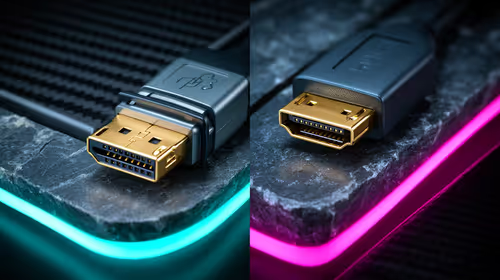
Don't forget the buttons on your monitor itself! Use the OSD to see if there are different HDR modes like "HDR Game," "HDR Cinema," or "DisplayHDR." The "Game" mode often has the lowest input lag and is optimised for punchy visuals. Also, ensure settings like "Dynamic Contrast" are turned off, as they can interfere with the game's own tone mapping. While you're at it, ensure you're using a high-quality DisplayPort 1.4 or HDMI 2.1 cable from our range of quality monitor accessories to guarantee you have enough bandwidth.
When to Consider a Monitor Upgrade 🚀
Following these tips will dramatically improve your experience. However, there is a hardware ceiling. If you've optimised everything and still crave that jaw-dropping visual fidelity you see in tech demos, it might be time to look at an upgrade.
Screens with a VESA DisplayHDR 600 certification or higher offer a transformative leap in performance. These premium 4K monitors deliver the peak brightness and wide colour gamut needed for a true HDR showcase. You could also explore different form factors, like immersive curved monitors that fill your peripheral vision or even handy portable monitors for gaming on the go. Often, you can find fantastic monitor deals that make the jump more affordable than you think.
Ready for a True Visual Upgrade? While these tips can massively improve your current setup, nothing beats a monitor built for spectacular HDR from the ground up. Explore our massive range of monitor deals and find the perfect screen to bring your games to life.