

144Hz monitor vs 27-inch monitor: Which Should SA Gamers Buy in 2026?
Head-to-head comparison of 144Hz monitor vs 27-inch monitor: Which Should for SA gamers. Performance benchmarks, Rand pricing & which delivers better value.
Read moreLearn how to monitor SSD health to prevent slowdowns and ensure peak gaming performance. We'll show you the best tools and simple steps to check your drive's status, so you can catch issues early and keep your load times lightning-fast. 🚀 Stay ahead of the game! 💻
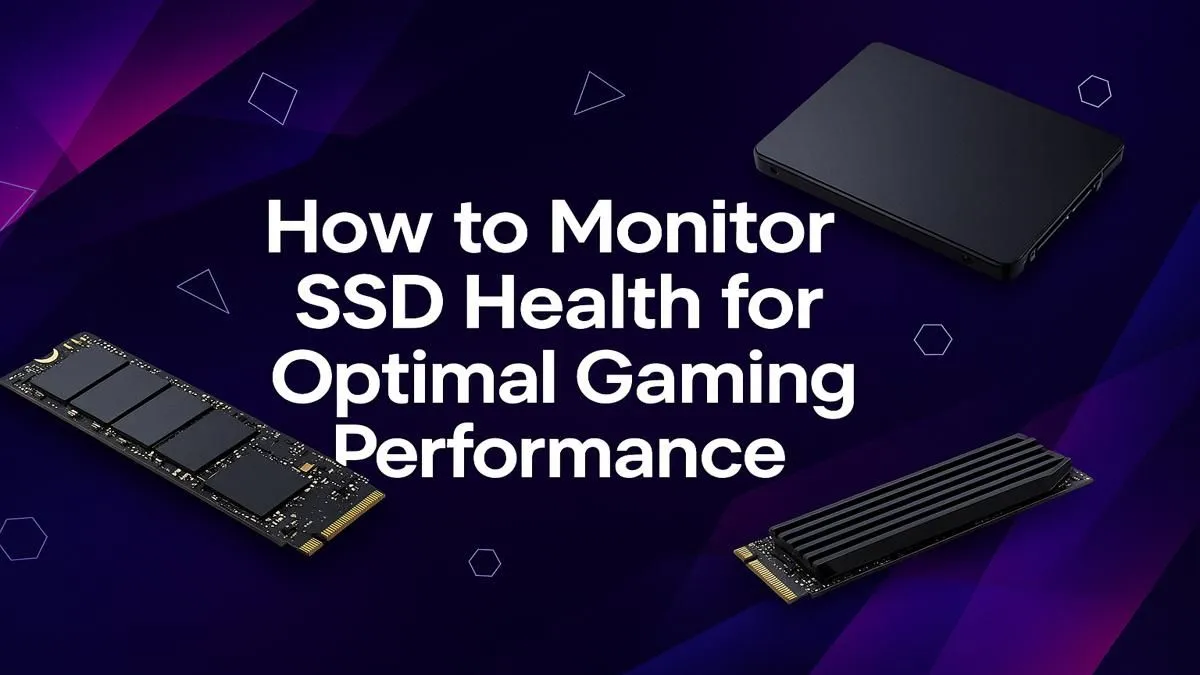
That sinking feeling... your once-blazing fast gaming PC now takes an eternity to load into a match. Before you blame your internet, the culprit might be closer to home: your SSD. For South African gamers, learning to monitor SSD health isn't just tech admin; it's the key to keeping your rig snappy, responsive, and ready for action. Let's dive into how you can check your drive's vitals and prevent performance drops. 🚀
Unlike old-school hard drives with moving parts, Solid-State Drives (SSDs) use flash memory. While incredibly fast, these memory cells have a finite number of write cycles. Every time you save a game, install a patch, or even just browse the web, you're using up a tiny fraction of your SSD's lifespan.
While modern drives are built to last for years, performance can degrade over time. Proactively checking your SSD health helps you spot potential issues before they lead to catastrophic data loss or a system that feels like it's wading through mud. This is the core principle behind all modern solid-state drives, from basic SATA models to the fastest PCIe variants.
Your PC will often give you warning signs before a drive completely gives up. Keep an eye out for these red flags:
If you see these signs, don't panic. The first step is to back up your critical data immediately to one of these reliable external SSDs and then check the drive's status.
You don't need to be a tech wizard to monitor SSD health. There are simple, free tools that do the heavy lifting for you.
Most SSD manufacturers, like Samsung, Crucial, and Western Digital, offer their own free software (e.g., Samsung Magician). These tools provide a straightforward health status, show the total data written (TBW), and allow you to update the firmware to optimise performance.
For a universal solution, a fantastic free utility is CrystalDiskInfo. It reads your drive's S.M.A.R.T. (Self-Monitoring, Analysis, and Reporting Technology) data and presents it in an easy-to-understand format.
In tools like CrystalDiskInfo, you'll see a "Health Status" percentage. Anything above 90% is great. If it drops below 80% or shows a "Caution" warning, it's a clear signal that the drive is aging and you should consider a replacement soon.
Once you've confirmed your drive is on its way out, it's wise to start browsing for new SSDs before disaster strikes. Waiting until it fails completely can be a costly mistake, both in time and lost data.
Keeping your PC running at peak performance is a marathon, not a sprint. A quick monthly check-up on your drive's vitals is all it takes to ensure your gaming experience remains lightning-fast and frustration-free. ✨
*Ready for a Speed Boost? A healthy SSD is the heart of a responsive gaming rig. If your drive is showing its age, upgrade today and feel the difference in every click and load screen. Check out our latest SSD deals at Evetech for performance that leaves lag in the dust.
You can check your SSD health for free using built-in Windows tools like WMIC or by downloading popular third-party software such as CrystalDiskInfo or Hard Disk Sentinel.
Yes, significantly. A degrading SSD can lead to longer game load times, in-game stuttering, texture pop-in, and even system crashes, ruining your gaming experience.
Common signs of SSD failure include frequent freezes or crashes, slow boot times, files becoming corrupt or disappearing, and your PC suddenly running much slower than usual.
For most gamers, checking your SSD health once a month is a good practice. If you notice any performance issues, check it immediately to rule out drive failure.
Most SSD health check tools display a health percentage. Anything above 90% is excellent. If it drops below 80%, you should back up your data and consider a replacement.
Yes. Ensure TRIM is enabled in your OS, keep the SSD's firmware updated, and avoid filling the drive to capacity. Leaving 15-20% free space helps maintain optimal speeds.
Head-to-head comparison of 144Hz monitor vs 27-inch monitor: Which Should for SA gamers. Performance benchmarks, Rand pricing & which delivers better value.
Read more
Head-to-head comparison of ultrawide monitor vs gaming monitor: Which Should for SA gamers. Performance benchmarks, Rand pricing & which delivers better value.
Read more
Head-to-head comparison of Rand vs Dollar: How Exchange Rate Affects Monitor for SA gamers. Performance benchmarks, Rand pricing & which delivers better value.
Read more
Is the 27-inch monitor Worth Buying in South Africa Detailed answer with SA data, expert analysis & practical recommendations for local buyers.
Read more
Head-to-head comparison of 1000R vs 1500R vs 1800R Curve Explained: Which for SA gamers. Performance benchmarks, Rand pricing & which delivers better value.
Read more
Head-to-head comparison of Curved Monitor vs Flat Monitor: Which Should for SA gamers. Performance benchmarks, Rand pricing & which delivers better value.
Read more
Every spec on PCIe 5.0 explained in plain English. What matters for gaming and creator work in 2026, what's marketing fluff, and how each number translates to real-world performance.

A head-to-head look at WiFi 7: real-world performance, ZAR pricing and which option delivers better value for SA builders. The clear answer — no fluff.

Everything you need to set up and tune PCIe 5.0 properly: the prep work, the settings that actually matter, and the mistakes to skip. Written for SA builders in 2026.

Everything you need to set up and tune X870E Motherboard properly: the prep work, the settings that actually matter, and the mistakes to skip. Written for SA builders in 2026.

Wondering what a 512GB SSD capacity really holds? This guide breaks down how many games, photos, and documents fit on 512GB, with real-world ranges 📦💾

Every spec on vrm explained in plain English. What matters for gaming and creator work in 2026, what's marketing fluff, and how each number translates to real-world performance.

Every spec on motherboard explained in plain English. What matters for gaming and creator work in 2026, what's marketing fluff, and how each number translates to real-world performance.

Premium vs Midrange Motherboards in South Africa: real-world performance, SA pricing, power draw and which one delivers better value for your build for SA buyers. The clear answer — without the fluff.
Wondering what a 512GB SSD capacity really holds? This guide breaks down how many games, photos, and documents fit on 512GB, with real-world ranges 📦💾
Every spec on PCIe 5.0 explained in plain English. What matters for gaming and creator work in 2026, what's marketing fluff, and how each number translates to real-world performance.
A head-to-head look at WiFi 7: real-world performance, ZAR pricing and which option delivers better value for SA builders. The clear answer — no fluff.

Every spec on USB4 explained in plain English. What matters for gaming and creator work in 2026, what's marketing fluff, and how each number translates to real-world performance.