Understanding NVIDIA Reflex in Apex Legends
In the frantic final circles of Kings Canyon, a single frame can be the difference between a win and a trip back to the lobby. For South African players fighting through high pings, every millisecond of local system latency matters. You probably noticed the NVIDIA Reflex Apex Legends: On or Boost for Lowest Latency? setting. Let’s figure out which one actually keeps you alive. ⚡
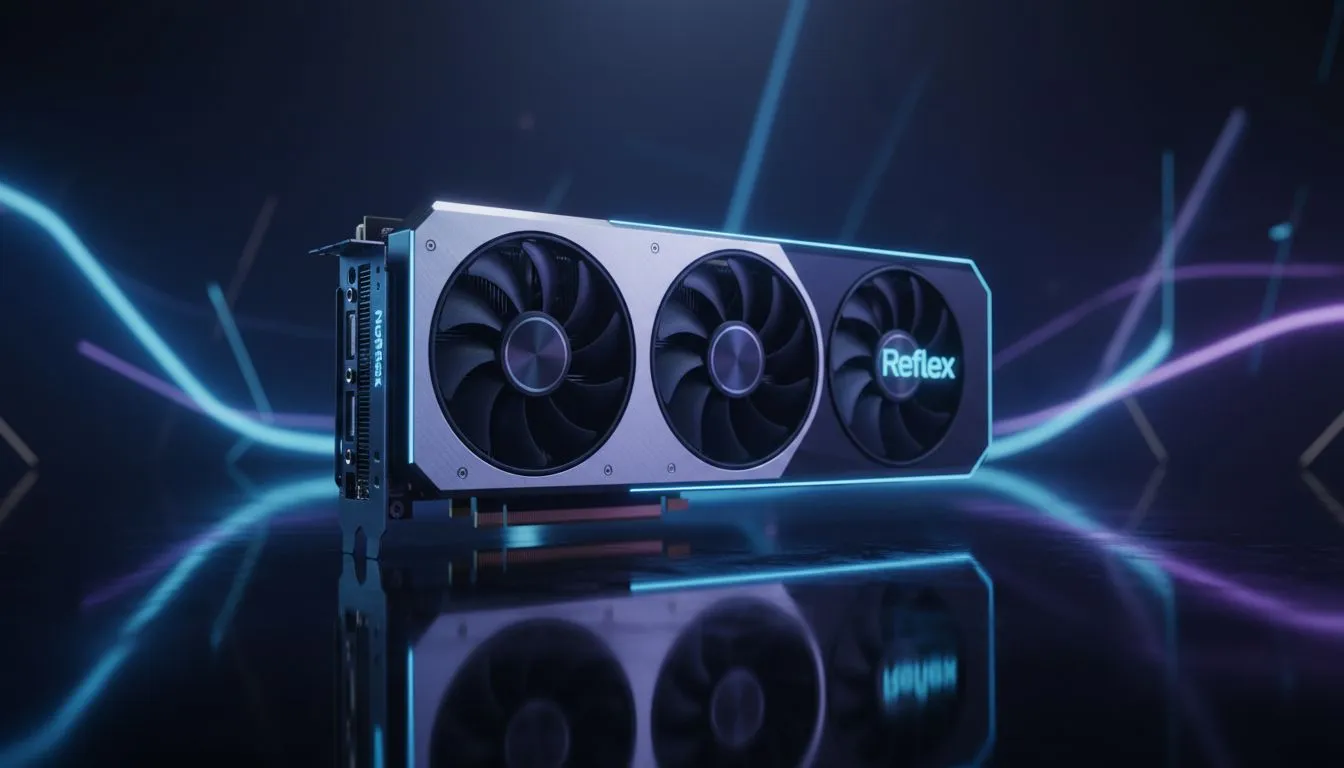
System latency is the delay between your mouse click and the action appearing on your monitor. When you use the latest NVIDIA graphics cards, you gain access to Reflex technology. This feature synchronises the CPU and GPU. It eliminates the render queue entirely. This results in much snappier movement and more reliable hit registration.
Reflex On vs. Boost: What is the Difference?
When you toggle the setting to "On," the game engine works with the driver to reduce latency. This is the sweet spot for most gamers. However, the "On + Boost" option is slightly more aggressive. It prevents the GPU from entering power-saving states. It keeps the clock speeds high even when your CPU is the bottleneck.
Many of our premium MSI GeForce GPUs are designed to handle this mode effortlessly. The robust cooling on these cards manages the extra heat generated by keeping those clocks pushed to the limit. If you want the absolute lowest latency possible, "Boost" is often the preferred choice for competitive play.
Latency Pro Tip ⚡
If you are playing on a high-refresh-rate monitor, always use "On + Boost". This setting ensures your GPU is ready to push frames instantly after a CPU-bound moment. It reduces the "stutter" feel when turning quickly in dense urban areas like Fragment.
Choosing the Right Hardware for Low Latency
Not all hardware is created equal when it comes to competitive shooters. While Intel Arc graphics cards are making strides in the market, NVIDIA still holds the crown for latency reduction in Apex. Reflex is a proprietary technology that requires specific hardware integration to function at its peak. 🚀
Some users might wonder if professional workstation graphics cards offer similar benefits. While they are powerful for rendering, they lack the specific gaming optimisations found in the GeForce line. For the best experience in the Apex Games, stick to consumer-grade gaming hardware.
If you are currently comparing different brands, you might also look at AMD Radeon graphics cards. They offer a feature called Anti-Lag. While effective, it does not provide the same level of deep engine integration as NVIDIA Reflex. For the serious South African competitor, the choice usually comes down to how much you want to optimise your local response time. ✨
Ready to Dominate the Arena?
Achieving the lowest latency is the first step to climbing the ranks in Apex Legends. For maximum power, choice, and value in South Africa, our range of GPUs is hard to beat. Explore our massive range of graphics card specials and find the perfect hardware to conquer the competition.